Shopify Sidekick Can Now Help Configure Checkout: What Merchants Should Know in 2026
On October 13, 2026, Shopify added Sidekick to the checkout and accounts editor and the Checkout Blocks app. Here's what it can help with, what you still configure yourself, and the plan limits to know.
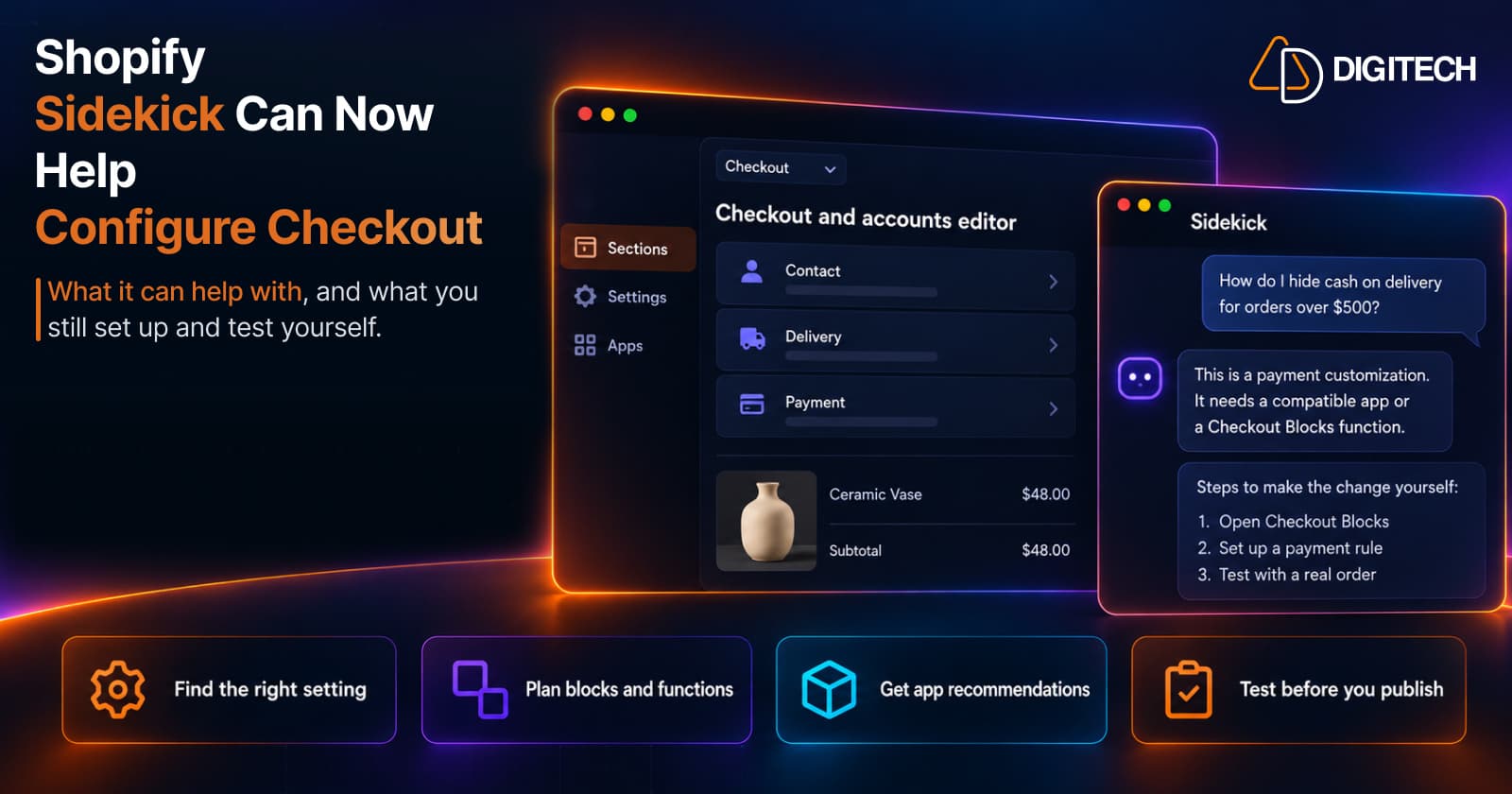
Shopify merchants who want to change their checkout usually face the same question first: is this a setting, an app, a Checkout Blocks rule, or custom development? On October 13, 2026, Shopify put Sidekick where that question comes up, inside the checkout and accounts editor and the Checkout Blocks app.
It's a useful change, but a specific one. Sidekick can now explain checkout settings, recommend apps, search Shopify's documentation and help you plan Checkout Blocks configurations. Shopify's announcement doesn't say it configures your checkout for you. This guide covers what changed, how to use it in practice, and what you still need to set up, test and verify yourself.
What Shopify Changed on October 13, 2026
Shopify's changelog post, "Customize checkout and accounts configurations with Sidekick", adds Sidekick in two places and describes it as "answers and guidance right where you work, without searching the docs or contacting support."
In the checkout and accounts editor, Sidekick is now available in the desktop editor. You can ask it to:
- Learn how to configure checkout and customer account settings
- Get app recommendations based on your needs
- Search the Shopify Help Center
In the Checkout Blocks app, Sidekick "can help you understand and plan blocks and functions." Shopify's examples:
- Learning how to configure blocks for checkout, thank you and order status pages
- Understanding how payment, delivery and validation functions work
- Reviewing what is already configured and why
- Finding the relevant settings or steps to make a change yourself
Notice the wording: learn, understand, plan, review, find. The last example says "to make a change yourself." Elsewhere in the admin, Shopify's Sidekick documentation says it can handle tasks such as editing products and "presents changes for your review before applying them." The checkout announcement doesn't describe that kind of action, so treat Sidekick in checkout as an assistant that explains and plans, not one that edits your live checkout.
Where to Find Sidekick in the Checkout and Accounts Editor
The checkout and accounts editor opens from Settings > Checkout in your Shopify admin. Sidekick is available there on desktop. The editor covers:
- Checkout pages: one-page checkout, or Information, Shipping and Payment for three-page checkouts, plus Review where confirmation is required and the Thank you page.
- Customer account pages: Sign-in, Order status, Orders and Profile.
- Sections, Settings and Apps sidebars for functionality, appearance and app blocks.
For Checkout Blocks guidance, open the Checkout Blocks app, Shopify's own no-code app for checkout customization.
Practical Ways to Use Sidekick for Checkout
The examples below are hypothetical questions a merchant might ask. They show the kind of guidance the announcement describes, not tested results.
Finding the Right Checkout Setting
The fastest win is locating things. Checkout settings, customer account settings and app blocks live in different sidebars, and some features need an app.
Hypothetical: "Where do I change whether customers need an account to check out?" or "How do I add a field for gift messages?" Sidekick can point you to the setting, or explain that a gift-message field needs an app or a Checkout Blocks custom field.
Understanding Payment and Delivery Configuration
Payment and delivery customizations confuse many merchants because they aren't native toggles. Shopify's payment and delivery customization guide says you need a compatible app to sort, reorder, hide or rename payment methods, and a supporting app for delivery customizations. Setting payment terms is available only on Shopify Plus.
Hypothetical: "Can I hide cash on delivery for orders over $500?" Sidekick can explain that this is a payment customization, which apps or Checkout Blocks functions handle it, and what your plan allows.
Planning Checkout Blocks and Conditional Content
Checkout Blocks uses blocks with display rules. Its block types include address blocker, custom field, dynamic content, line item edit, line item content, shipping and payment icons, and static content. Some work only at checkout, and others also on the Thank you and Order status pages.
Hypothetical: "I want a delivery notice to show only for orders shipping to remote postcodes. What do I need?" Sidekick can help you work out the block type, the display rule and where it can be placed, before you build anything.
Reviewing an Existing Configuration
Stores that have had several people or agencies working on checkout often lose track of why a rule exists. Shopify lists "reviewing what is already configured and why" as a Checkout Blocks example. Ask Sidekick to explain an existing block or function before you change or remove it.
Finding Apps and Documentation
Sidekick can recommend apps and search the Help Center. You can also filter the Shopify App Store by Refine > Customizes checkout, as Shopify's checkout apps page describes. Check any recommended app's listing, plan compatibility and reviews yourself before installing it.
What Sidekick Helps With vs What You Still Do
| Sidekick can help with | You still need to |
|---|---|
| Explaining checkout and customer account settings | Make and save the changes in the editor or app |
| Recommending apps based on your needs | Evaluate, install and configure the app |
| Searching the Help Center | Confirm the answer against your plan and setup |
| Planning blocks, display rules and functions | Build the block or function in Checkout Blocks |
| Explaining what's already configured | Decide what to keep, change or remove |
| Finding the steps to make a change | Test the change on a real checkout before customers see it |
Sidekick's answers are guidance, not a guarantee that a configuration works, converts better or is free of errors. Your plan, installed apps, markets and payment setup all affect what happens at checkout.
When you may still need a developer or an app: when no app or Checkout Blocks feature covers the requirement, when you need a custom Shopify Functions app or a checkout UI extension built for your store, or when a change involves external systems such as an ERP or a custom pricing service. Our guide to Shopify Checkout Components explains how extensions fit in.
Plan and App Limitations to Know
Sidekick's guidance doesn't change what your plan allows. The announcement doesn't list a plan requirement for Sidekick itself, but the features it explains do have limits:
- Checkout Blocks on Basic and higher: dynamic content and static content blocks, placed only on the Thank you and Order status pages.
- Checkout Blocks on Shopify Plus: "All other features of Checkout Blocks are available only to Shopify Plus," including placing content blocks on checkout pages, custom fields, functions and address rules.
- Checkout apps: apps that customize the information, shipping and payment pages are available only to Shopify Plus, as are custom Shopify Functions apps. Thank you and order status UI extension apps, customer accounts apps and public Shopify Functions apps work on Basic and higher.
- Market-specific checkout customization: available only on the Advanced or Plus plan.
- Editor limits: up to 3 apps in each highlighted area, some blocks can be added only once, and Checkout Blocks supports up to 30 active blocks per block type.
If Sidekick suggests something your plan can't use, the Shopify Plus vs Shopify guide covers when the upgrade is worth it.
A Checklist for Testing Checkout Changes
The editor is "a simulated checkout environment," and "you can't place orders in this editor," so preview alone isn't enough.
- Work in a draft checkout configuration where possible, not the active one.
- Save deliberately: after you save, you can no longer undo or redo.
- Preview each affected page, including Thank you and Order status, on desktop and mobile.
- Test every condition a display rule depends on, such as cart value, country and products.
- Test each payment and delivery method a customization touches.
- Place real test orders on the live checkout, then cancel and refund them.
- Check that apps and blocks don't conflict in the same area.
- Note what you changed and why, so the next person (or Sidekick) can explain it.
Before BFCM, our 2026 checkout pre-peak review covers the wider checkout audit.
Common Mistakes and Limitations
- Treating a plan as done. Sidekick can plan a block or function; it still has to be built, saved and published.
- Assuming every suggestion fits your plan. Check Plus-only features before you invest time.
- Installing the first recommended app. Compare listings, permissions and support.
- Testing only in the editor preview. Real orders behave differently from a simulation.
- Forgetting post-purchase pages. Thank you and Order status are separate pages with their own blocks; see Thank You Page vs Order Status Page.
- Expecting Sidekick on mobile in the editor. The announcement names the desktop editor.
Conclusion
Sidekick in the checkout and accounts editor shortens the distance between "I want to change this" and knowing how. It explains settings, recommends apps, searches Shopify's documentation and helps plan Checkout Blocks configurations. It doesn't remove the merchant's part: choosing, configuring, testing and verifying every change. Like Canvas for theme design, it's Shopify moving AI assistance into the tools merchants already use.
If your checkout requirements go beyond what settings and apps cover, our Shopify development team can help you evaluate requirements, compatible app options and what a custom build would involve.
Frequently asked questions
What did Shopify change for Sidekick and checkout on October 13, 2026?
Sidekick is now available in the desktop checkout and accounts editor, where it can explain checkout and customer account settings, recommend apps and search the Shopify Help Center. In the Checkout Blocks app, it can help you understand and plan blocks and functions.
Can Sidekick change my checkout settings for me?
Shopify's announcement describes guidance: learning how to configure settings, reviewing what's already set up and why, and finding the settings or steps to make a change yourself. It doesn't say Sidekick applies checkout changes on your behalf, so plan to make, save and test the changes yourself.
Do I need Shopify Plus to use Sidekick in the checkout editor?
The announcement doesn't list a plan requirement for Sidekick in the editor. What you can configure still depends on your plan: most Checkout Blocks features and apps that customize the information, shipping and payment pages are available only to Shopify Plus.
Can Sidekick install apps or write custom checkout code?
The announcement says Sidekick can recommend apps based on your needs. It doesn't say it installs apps, builds them or writes checkout extensions, so installing and configuring an app, or commissioning custom work, remains your step.
How should I test a checkout change Sidekick helped me plan?
Make the change in a draft checkout configuration where possible, preview it in the editor on desktop and mobile, then place real test orders on the live checkout, since the editor is a simulated environment where you can't place orders.
Building something on Shopify?
We design, build, and maintain Shopify apps, stores, and AI products — to the standard this article describes.
Related reading

Shopify Checkout Now Supports Browser AI Agents: What Merchants Need to Know
Shopify checkout now supports browser AI agents through WebMCP. Here's what the September 2026 update means for merchants and store readiness.
Read article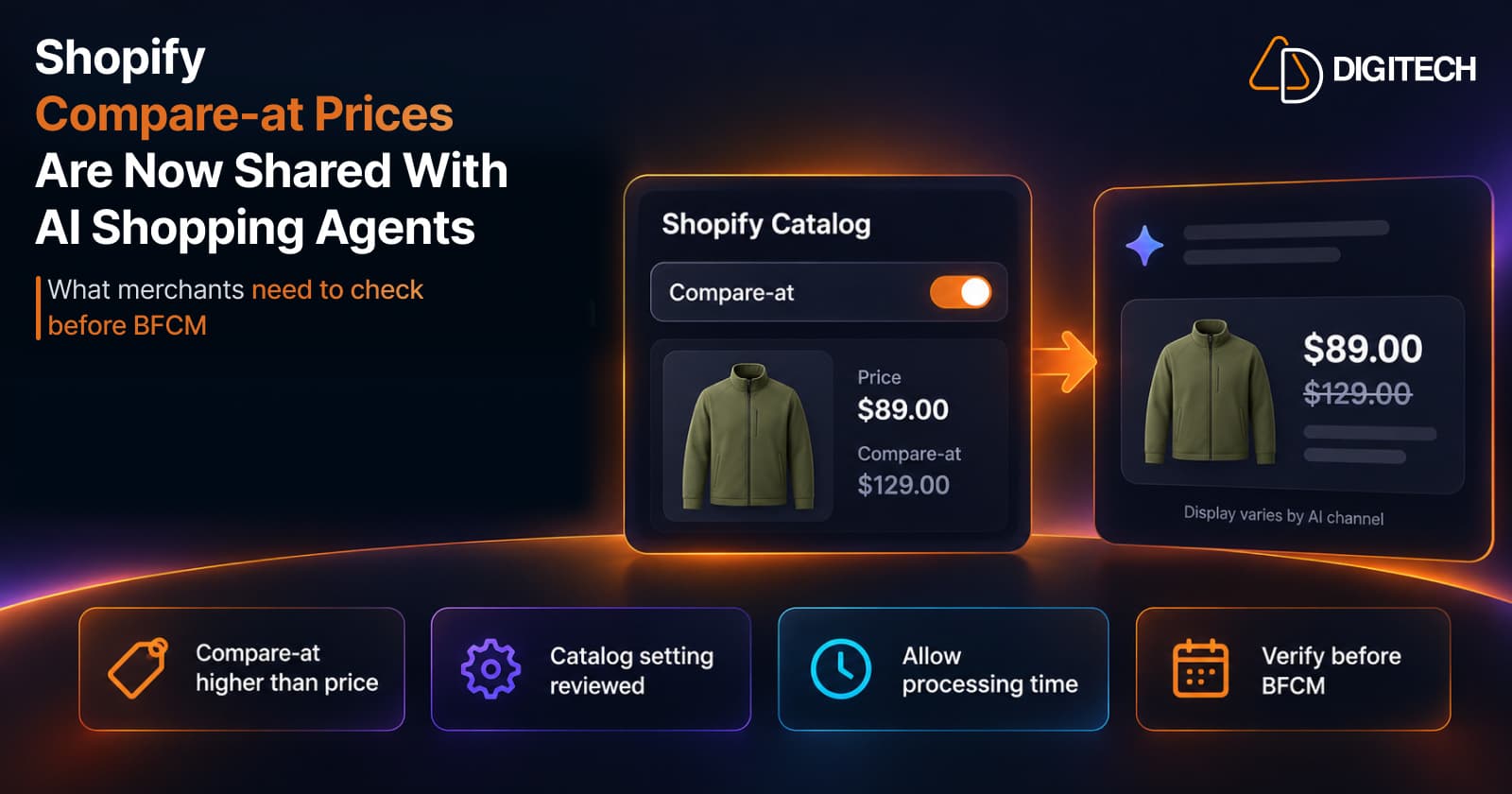
Shopify Compare-at Prices Are Now Shared With AI Shopping Agents: What Merchants Need to Check Before BFCM
Shopify Catalog can now send compare-at prices to AI shopping agents. Here's where the setting lives, how it works, and what to check before BFCM.
Read article
What Is llms.txt and Should Your Shopify Store Have One?
llms.txt is a proposed file that tells AI models which of your pages matter. But here's the honest truth: no major AI platform has confirmed it reads them, and Google said no on the record. So should your Shopify store have one? A qualified yes — as cheap insurance, not a strategy. Here's what it is, what the evidence actually shows, and where AI visibility really comes from.
Read article
How AI Shopping Agents Compare Products on Shopify Stores
When a shopper asks an AI for the best product, the agent doesn't browse like a human — it reads structured product data across many stores and compares them head-to-head on attributes, value, price, and reviews, then picks winners. Here's how that comparison generally works, the signals it weighs, and how to give your Shopify products a fair shot at the shortlist.
Read article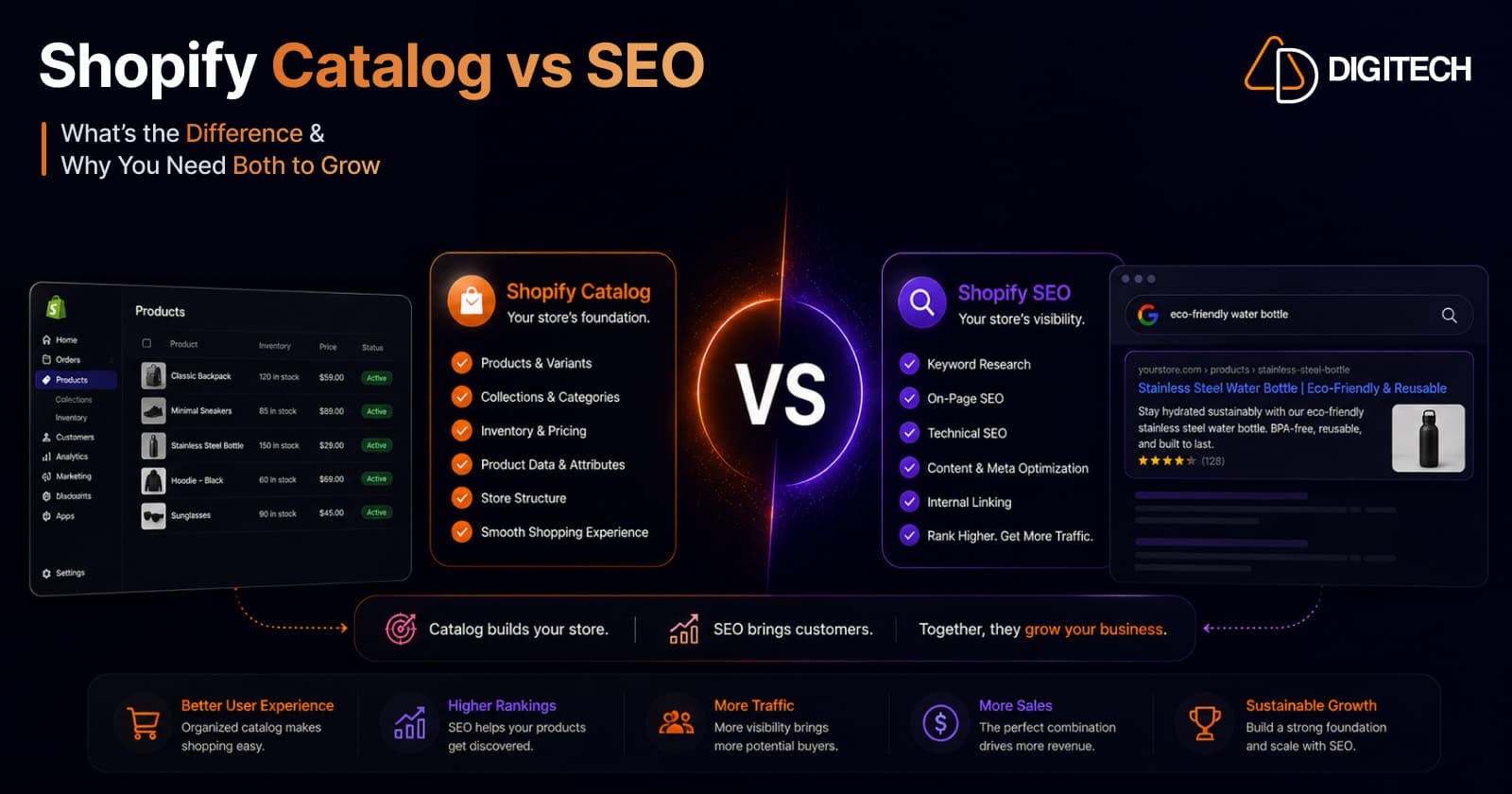
Why Your Shopify Product Catalog Matters More Than SEO in 2026
Discovery is moving from ranked web pages to AI agents that read structured product data. In 2026, the quality of your Shopify Catalog — not your meta tags and backlinks — increasingly decides whether AI recommends and sells your products. Here's why the catalog is the new front page, and what to do about it.
Read article
Shopify Knowledge Base: How to Control the Store Facts You Share With AI Agents
Learn how to review, edit and publish Shopify Knowledge Base facts for AI agents, what's published automatically, and what app users must do by Jan 15, 2027.
Read article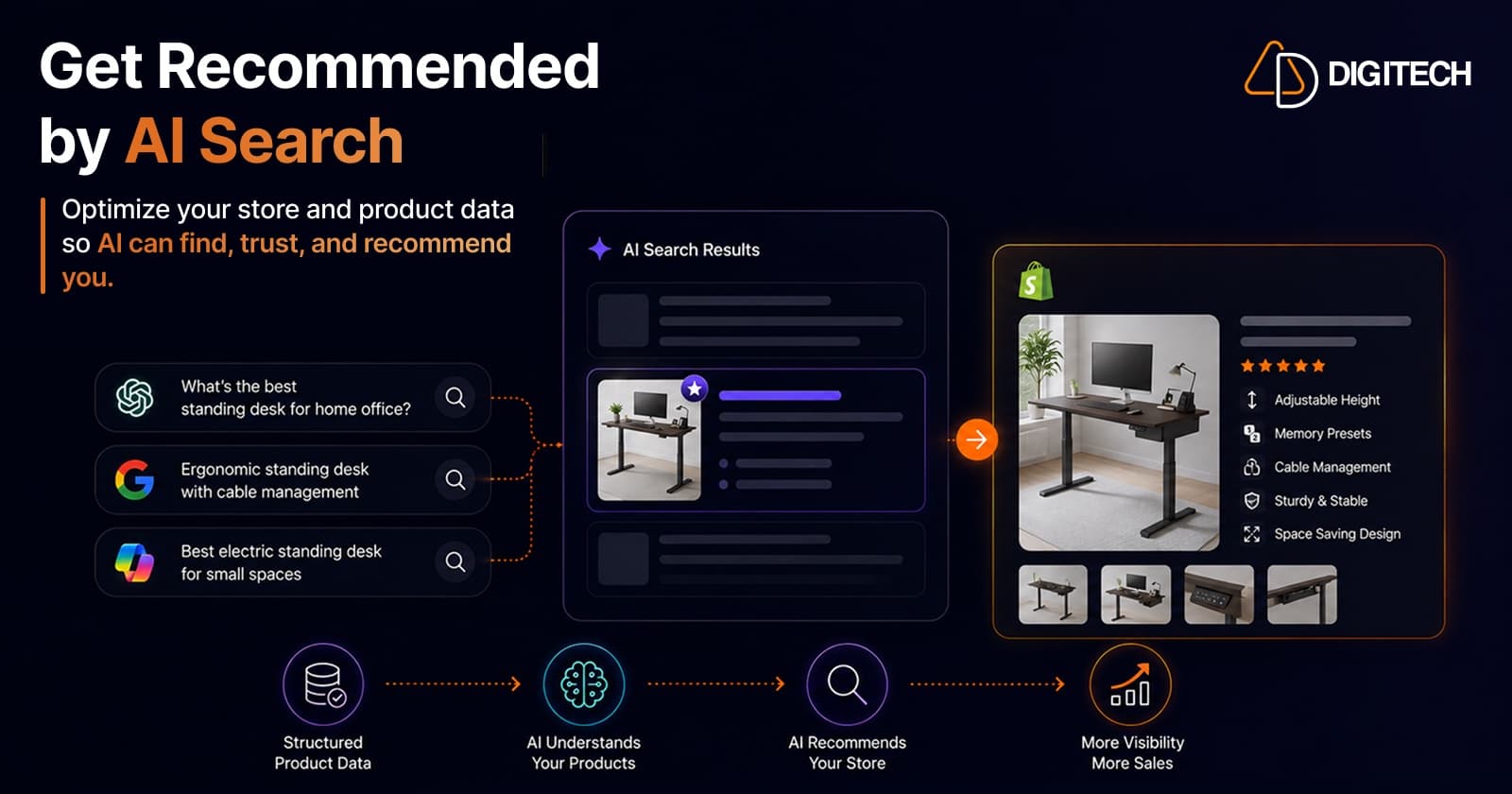
How Shopify Brands Can Get Recommended by ChatGPT, Claude & AI Search Engines
ChatGPT, Claude, and Perplexity now recommend products directly to shoppers. Here's how Shopify brands earn those recommendations — a practical 2026 guide to Generative Engine Optimization (GEO): the signals AI models trust, what to fix on-site and off-site, and how to measure your AI visibility.
Read article
Agentic Commerce on Shopify: How to Get Your Store Ready for AI Shopping Agents (2026)
Shopify's Spring '26 Edition makes your products buyable inside ChatGPT, Microsoft Copilot, and Google AI Mode. Here's what agentic commerce actually means for merchants — and a practical, no-hype checklist to get your Shopify store ready for AI shopping agents in 2026.
Read article
Shopify Product Variants Now Support Multiple Barcodes: What Merchants Need to Know
Shopify product variants now support up to 20 barcodes each. What changed, how it works, who benefits, and what to review in your product, inventory, POS, and integrations.
Read article