Shopify Compare-at Prices Are Now Shared With AI Shopping Agents: What Merchants Need to Check Before BFCM
Shopify Catalog can now send compare-at prices to AI shopping agents. Here's where the setting lives, how it works, and what to check before BFCM.
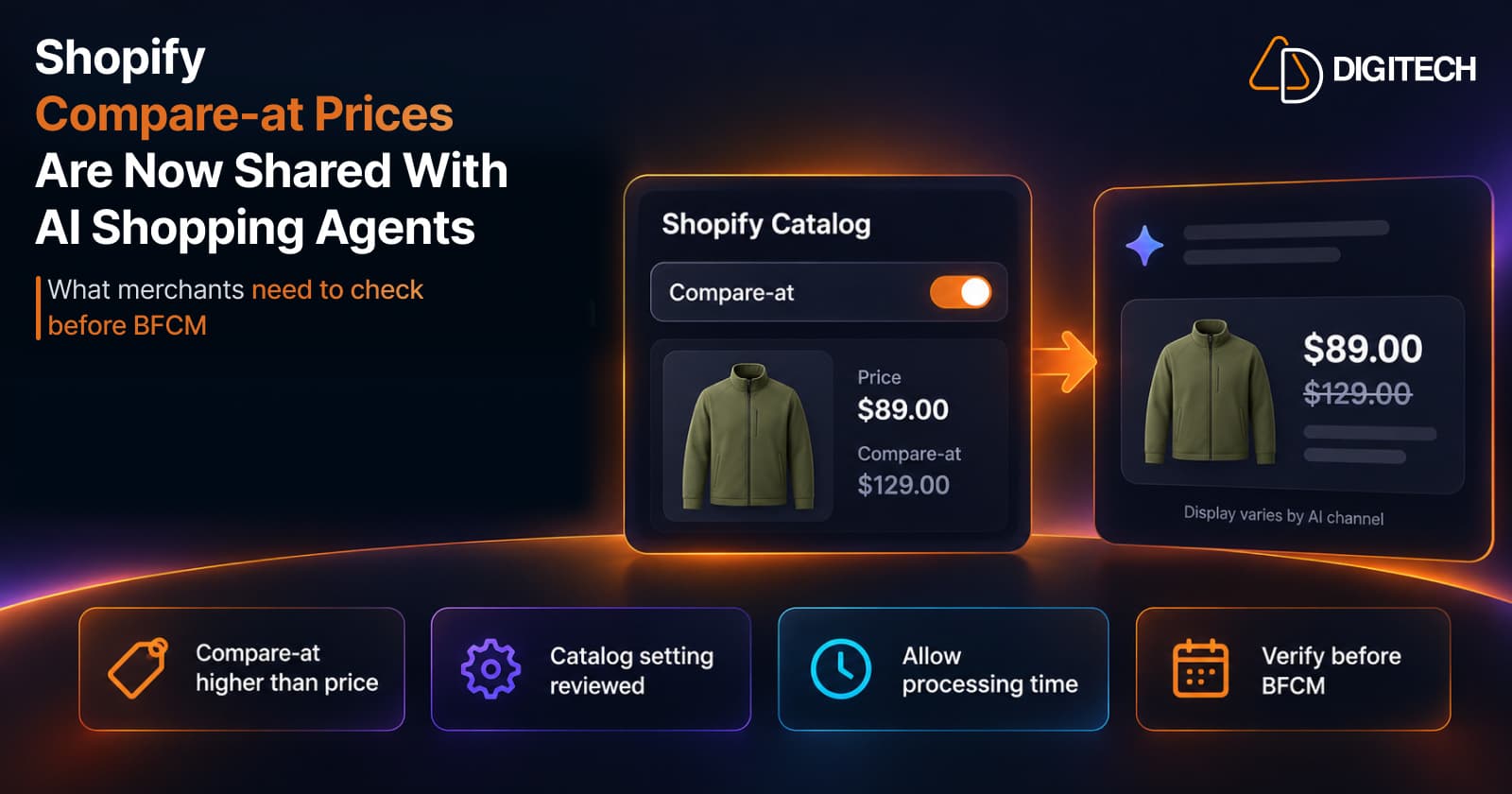
A Black Friday markdown used to stop at your storefront. A shopper on your product page saw $89 next to a crossed-out $129. An AI shopping agent reading the same product through Shopify Catalog saw only $89, with nothing to say the product was on sale.
On October 9, 2026, Shopify changed that. Shopify Catalog can now share compare-at prices with AI shopping agents. That makes your compare-at data part of what shoppers may see in AI channels this holiday season, which is a good reason to check it before BFCM pricing goes live.
This guide covers what changed, where the setting lives, and what to verify before your sale prices go out.
What Shopify Changed on October 9, 2026
Shopify's changelog put it simply: Shopify now shares your compare-at price with AI shopping agents through Shopify Catalog, "so AI agents can see when a product is marked down." Before the update, agents reading Catalog saw only the current price, and markdowns shown on the storefront weren't included.
The timing matters. Shopify's newsroom called 2026 the first holiday season of the agentic era. Its 2026 Global Holiday Retail Report found that 65% of shoppers say they'll use AI for at least one shopping task this season. Shopify Catalog is the primary method for agentic storefronts to receive product data, and Shopify's Help Center names ChatGPT and Microsoft Copilot among the channels it serves. Google AI Mode and Gemini, and Meta surfaces, can also receive products through the Google & YouTube and Facebook & Instagram sales channels. If shoppers compare deals through those tools, the markdown information they see can come from your product data.
The update is a setting, not an automatic change for every store. Merchants control it, and it's worth knowing which way yours is set.
How Compare-at Prices Reach AI Shopping Agents
Four things are easy to blur together, so it helps to keep them apart:
| Concept | What it is | Who controls it |
|---|---|---|
| Current price | The price the customer is charged | You, in the product or variant |
| Compare-at price | A higher reference price that shows a markdown | You, in the product or variant |
| Shopify Catalog | The structured product data Shopify shares with AI channels | Shopify, using your data and mapping settings |
| AI channel presentation | How a channel shows the product to a shopper | Each AI channel |
Shopify Catalog is, in Shopify's words, "the primary method for agentic storefronts to receive your product data." Products are listed with their title, description, options, images and price.
With the Compare-at setting on, Shopify Catalog can share a compare-at price, but only when it's higher than the current price. Technically, it travels in the list_price field of the Universal Commerce Protocol (UCP) Variant specification, which UCP describes as the list price before discounts, for strikethrough display. Because list_price is a variant-level field, it's worth checking compare-at prices variant by variant.
With the setting off, Shopify Catalog sends only the product's current price for this pricing field. Other channels or discovery methods, such as other sales-channel integrations or web crawling, may obtain product information through separate sources.
What an agent does with list_price is up to the agent. Shopify's wording is careful: AI agents "might use" it to advertise strikethrough pricing.
In other words, Shopify makes eligible compare-at pricing available to agentic channels. That doesn't mean every AI shopping agent will show a strikethrough price, a discount badge or a savings message; the final presentation varies by channel and agent. Nor is it a ranking, visibility, conversion or recommendation guarantee.
Where to Control Compare-at Pricing in Shopify Catalog
The path is Sales channels > Agentic > Shopify Catalog > Review product data mapping > Compare-at. Step by step, per Shopify's Help Center:
- From your Shopify admin, go to Sales channels > Agentic.
- In the Sources section, click the arrow next to Shopify Catalog, then Review product data mapping.
- In the Compare-at section, turn the switch on or off.
- Optionally, check the Preview tab with a product whose compare-at price is higher than its current price. It verifies your data, not the final AI display.
- Click Save.
Three details are easy to miss:
- Your store starts with a default selection. Shopify doesn't say which way that default points for every store, so verify your mapping rather than assuming it's on.
- Changing your prices doesn't change the setting. Shopify notes that changes to how your store uses compare-at prices don't automatically change the selection.
- Changes are processed with a delay. A saved change might not immediately affect what Catalog sends, so don't make this switch the night before a sale.
What Merchants Should Check Before BFCM
These illustrative scenarios cover common situations.
A product discounted for Black Friday. A jacket's price drops to $89 and its compare-at price is set to $129. With the setting on, Catalog can send $129 as the list price. With it off, Shopify Catalog sends only $89, even though your product page shows the markdown.
A compare-at price that isn't higher than the price. Old data often leaves compare-at equal to the price, or even lower. Catalog won't send it in either case, so no markdown signal reaches agents. That's correct behavior, but if you meant to show a sale, fix the data.
Prices that change shortly before BFCM. If you update prices on November 25, Shopify says Catalog updates your product data continuously, but it doesn't state how quickly each channel reflects a change, and the mapping setting itself is processed with a delay. Set the mapping well ahead of the sale, and spot-check key products after your price changes.
Many variants at different prices. A product with eight sizes may have a compare-at price on some variants and not others. Review variants individually, not just the product summary, so every variant that should show a markdown has a compare-at price above its own price.
A storefront markdown nobody checked in Catalog. Your theme shows strikethrough prices, so the team assumes AI channels do too. If the Compare-at setting is off, Shopify Catalog doesn't send that information. The storefront and the Catalog are configured separately.
A merchant who prefers current prices only. Some stores don't want reference prices in AI answers, for example when compare-at prices are used inconsistently, or when the pricing strategy relies on everyday low prices. Turning the setting off is a legitimate choice; Shopify Catalog then sends only the price the customer pays.
Accurate data matters more than presentation here. A shopper comparing two products through an AI tool may see your price next to a competitor's. If your markdown is real but missing, or your compare-at price is outdated, the comparison is working from incomplete information. Our guide to how AI shopping agents compare products covers what else agents weigh.
Common Pricing and Catalog Mistakes to Avoid
- Assuming the storefront and Catalog match. They're configured separately.
- Leaving stale compare-at prices from earlier sales on products that are now at full price.
- Setting compare-at equal to price and expecting a markdown to show.
- Treating discount codes as compare-at prices. Codes and automatic discounts are separate mechanisms. Our post on running multiple Shopify discounts without hurting margins explains how they work.
- Changing the setting at the last minute, when processing delays leave no time to verify.
- Treating Preview as the final word on how every channel will look.
Practical BFCM Pricing Checklist
- Review price and compare-at price for every product in the sale.
- Confirm compare-at is higher than price wherever a markdown is intended.
- Clear old compare-at prices from products that are no longer on sale.
- Check variants individually on products with several prices.
- Open Sales channels > Agentic and confirm the Compare-at setting matches your strategy.
- Preview a few representative products and check that promotional pricing is represented accurately.
- Allow time for changes to process before the sale starts.
- Check how products appear in AI channels where you can, without expecting every agent to show the discount the same way.
- Verify product information again before each major BFCM campaign, and after any major price change.
For the storefront side of the same work, see our BFCM product page checklist. If you schedule store changes for the sale, our guide to Shopify Rollouts for BFCM covers what rollouts can and can't schedule.
Limitations Merchants Should Understand
- Agents decide the presentation. Shopify says it can't control other ways your products might be listed by AI channels. A strikethrough or discount badge isn't guaranteed.
- Preview checks data, not the final display. The Shopify Catalog preview helps you verify the mapped product data, but it isn't a guarantee of exactly how an AI shopping agent will display the price.
- Timing isn't guaranteed. Mapping changes are processed with a delay, and Shopify doesn't state how quickly a price change reaches each AI channel.
- B2B pricing isn't included. Shopify notes that B2B pricing doesn't display on agentic storefronts, and wholesale-only products are excluded from AI channels.
- No promised outcome. Sharing compare-at prices gives agents more accurate information. Shopify doesn't say it improves rankings, AI-referred traffic, recommendations or conversion, and AI agents don't all behave the same way.
Conclusion
The October 9 update is small in the admin and meaningful in practice: your markdowns can now travel with your product data into AI channels. Whether they do depends on one switch and on the quality of the prices behind it.
Before BFCM, confirm the setting, clean up compare-at data, and give changes time to process. If you'd like a second pair of eyes, our Shopify development team reviews product data, Catalog configuration and storefront pricing before major campaigns.
Frequently asked questions
Does Shopify share compare-at prices with AI shopping agents?
Yes, since October 9, 2026, when the Compare-at setting is on. Shopify Catalog then sends a compare-at price only if it's higher than the current price. When the setting is off, Shopify Catalog sends only the product's current price for this pricing field. Other channels or discovery methods may obtain product information through separate sources.
How do I enable compare-at prices in Shopify Catalog?
Go to Sales channels > Agentic, open the Shopify Catalog source in the Sources section, click Review product data mapping, turn on the switch in the Compare-at section, and save.
What is the difference between price and compare-at price?
The price is what the customer pays. The compare-at price is a higher reference price that shows the product is marked down. Shopify only sends the compare-at price to AI agents when it's higher than the price.
Does enabling compare-at pricing guarantee that AI agents display a discount?
No. Shopify says AI agents might use the compare-at price to show strikethrough pricing. Each AI channel decides how it presents products, and Shopify says it can't control other ways products are listed.
Does Shopify Catalog Preview exactly match every AI channel?
No. Shopify's documentation says the preview isn't an exact indicator of how AI channels might view or display your product data. Use it to check your data, not to predict a channel's layout.
Are automatic discounts and discount codes covered by this setting?
No. The setting covers the compare-at price stored on your products. Discount codes, automatic discounts and Rollouts are separate mechanisms, and the October 9 update doesn't say they're shared this way.
Building something on Shopify?
We design, build, and maintain Shopify apps, stores, and AI products — to the standard this article describes.
Related reading
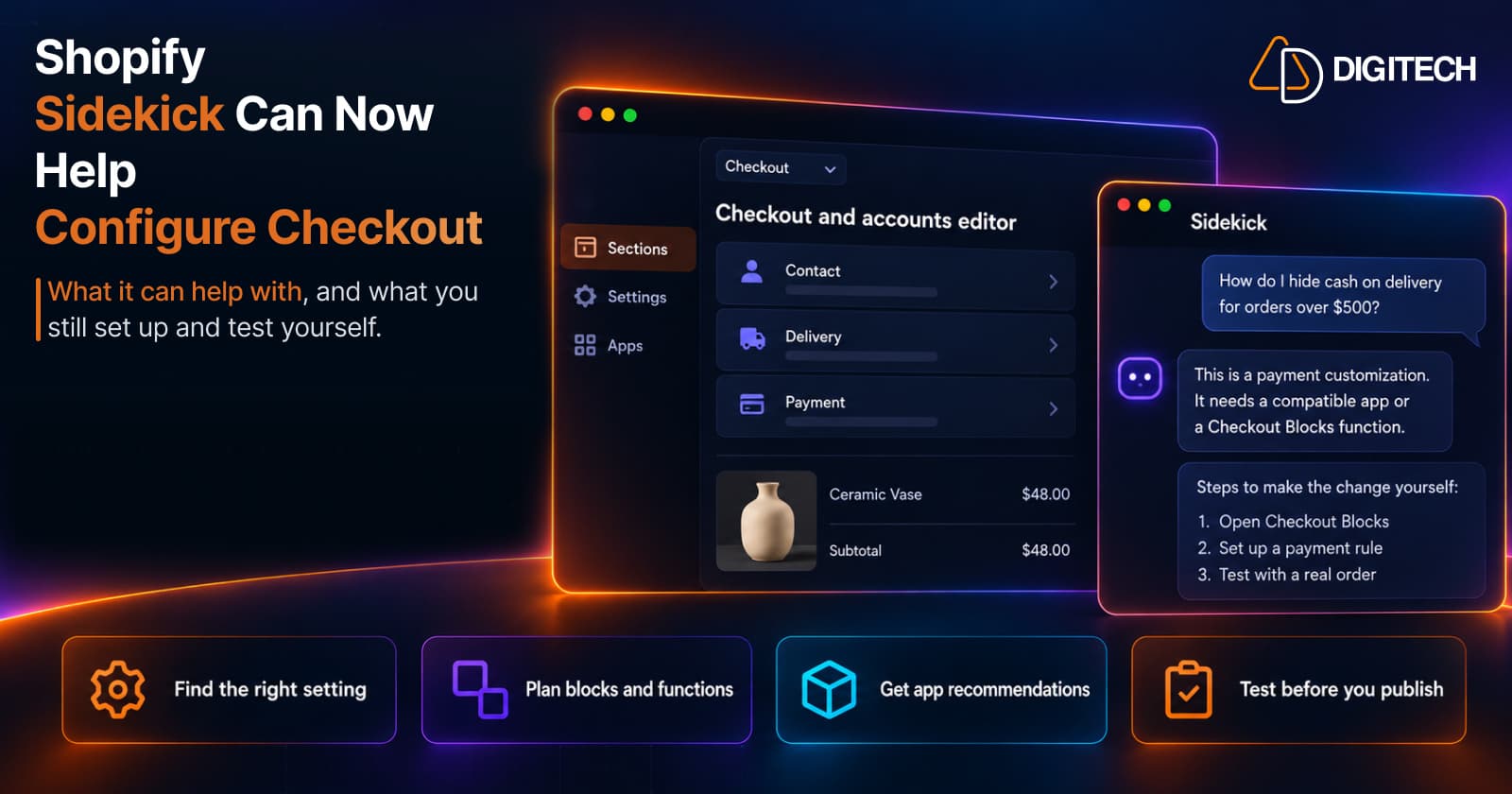
Shopify Sidekick Can Now Help Configure Checkout: What Merchants Should Know in 2026
On October 13, 2026, Shopify added Sidekick to the checkout and accounts editor and the Checkout Blocks app. Here's what it can help with, what you still configure yourself, and the plan limits to know.
Read article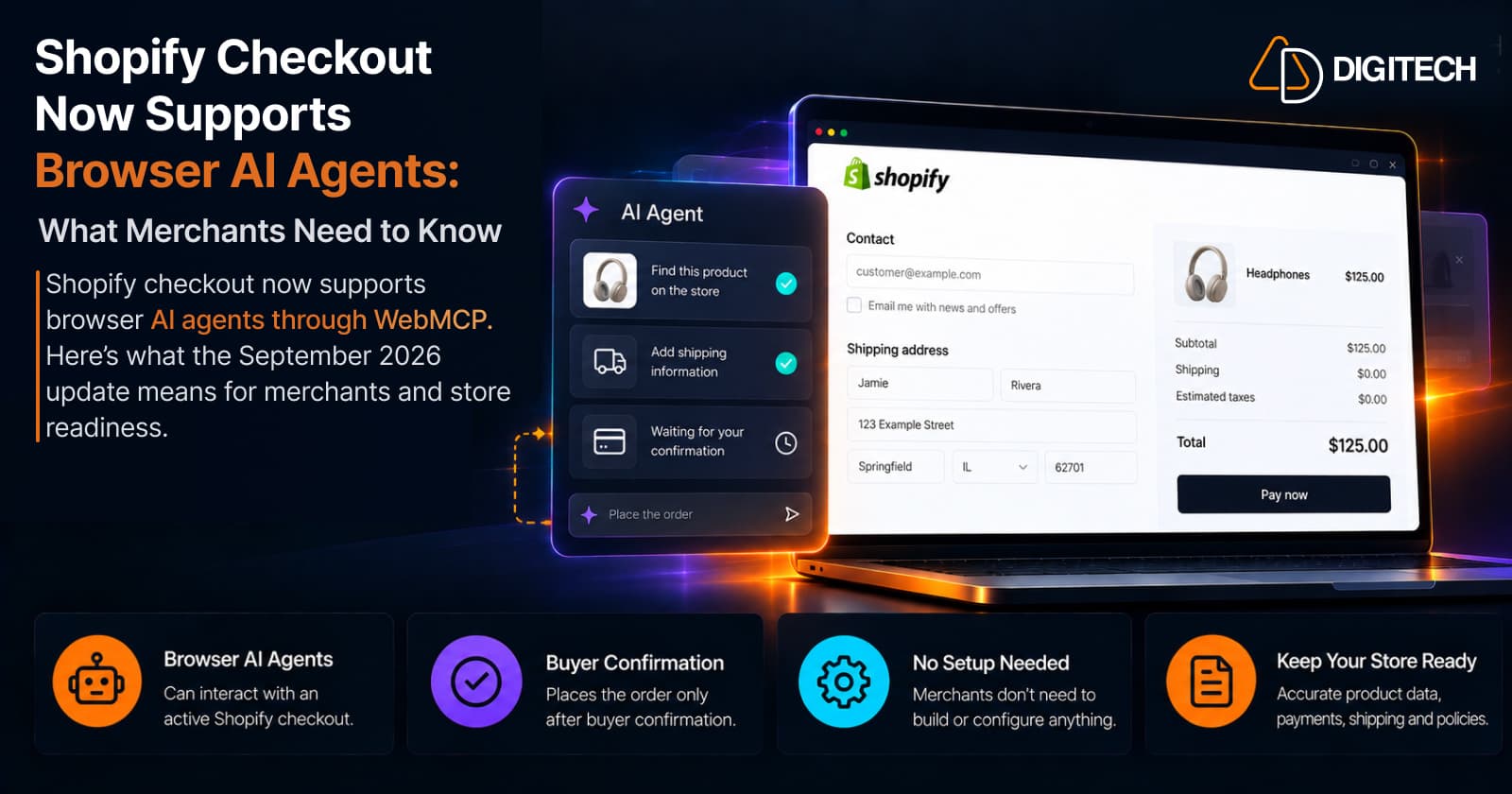
Shopify Checkout Now Supports Browser AI Agents: What Merchants Need to Know
Shopify checkout now supports browser AI agents through WebMCP. Here's what the September 2026 update means for merchants and store readiness.
Read article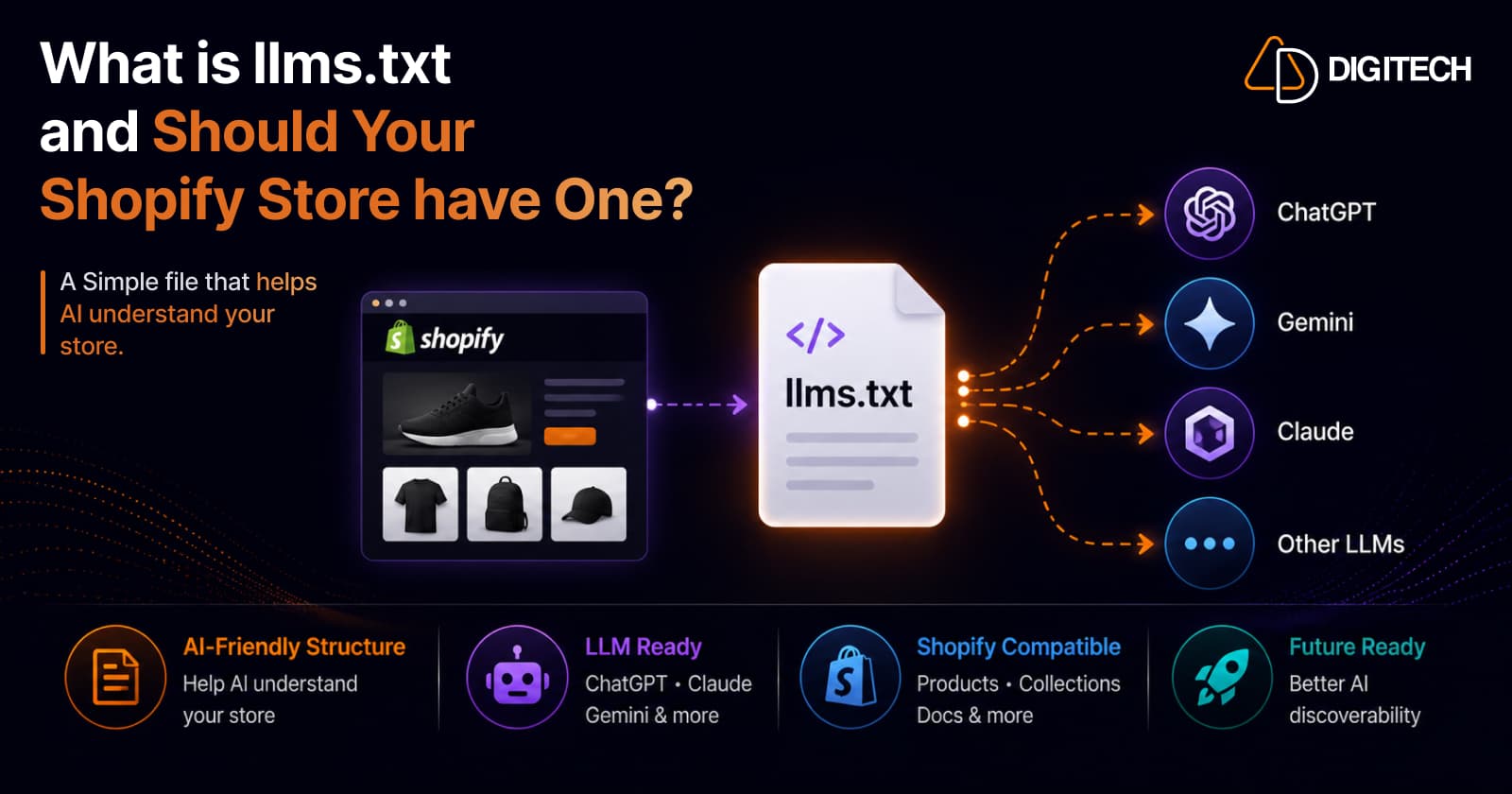
What Is llms.txt and Should Your Shopify Store Have One?
llms.txt is a proposed file that tells AI models which of your pages matter. But here's the honest truth: no major AI platform has confirmed it reads them, and Google said no on the record. So should your Shopify store have one? A qualified yes — as cheap insurance, not a strategy. Here's what it is, what the evidence actually shows, and where AI visibility really comes from.
Read article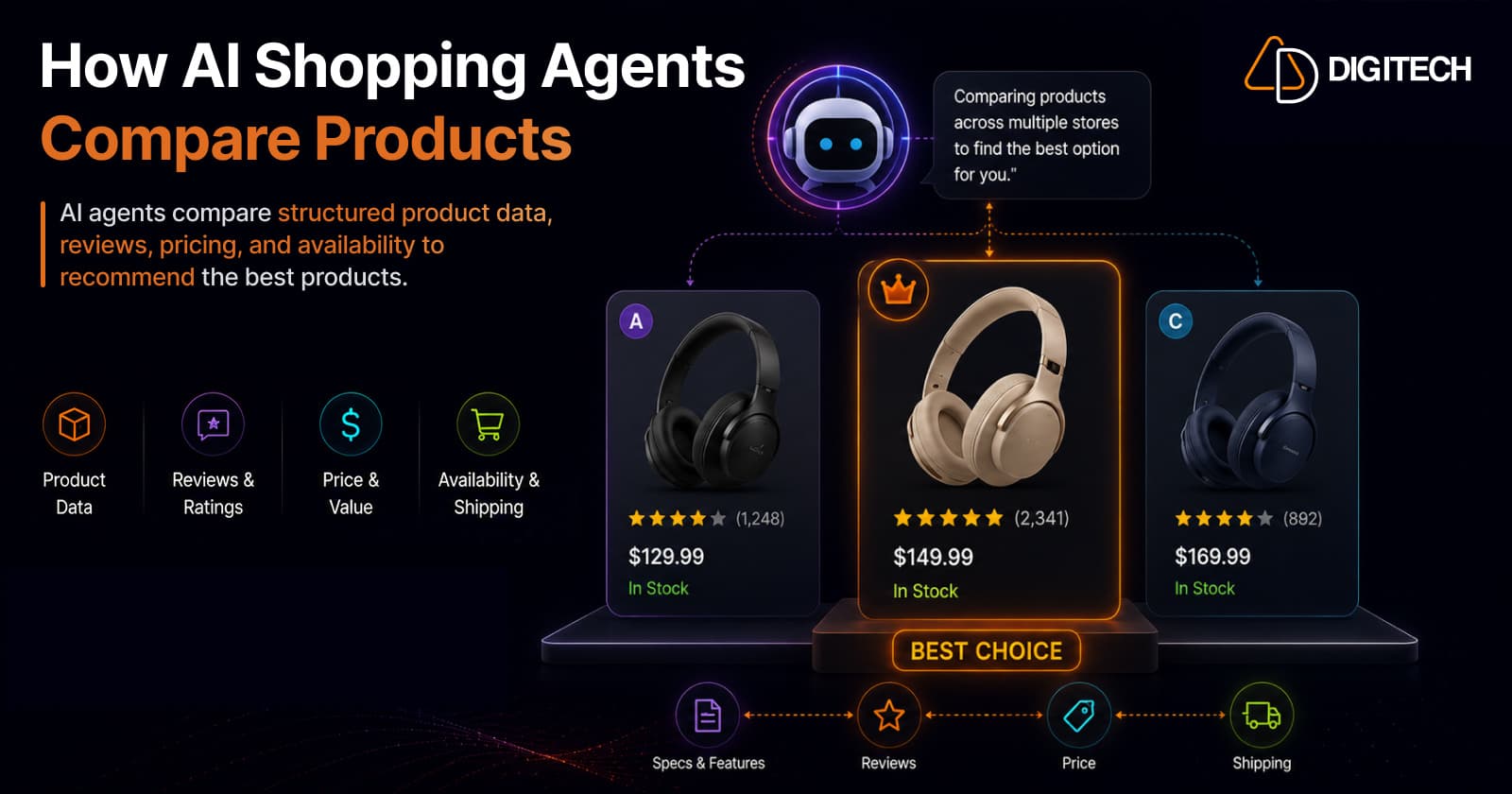
How AI Shopping Agents Compare Products on Shopify Stores
When a shopper asks an AI for the best product, the agent doesn't browse like a human — it reads structured product data across dozens of stores and compares them head-to-head on attributes, value, price, and reviews, then picks winners. Here's exactly how that comparison works, the signals it weighs, and how to make your Shopify products win the shortlist.
Read article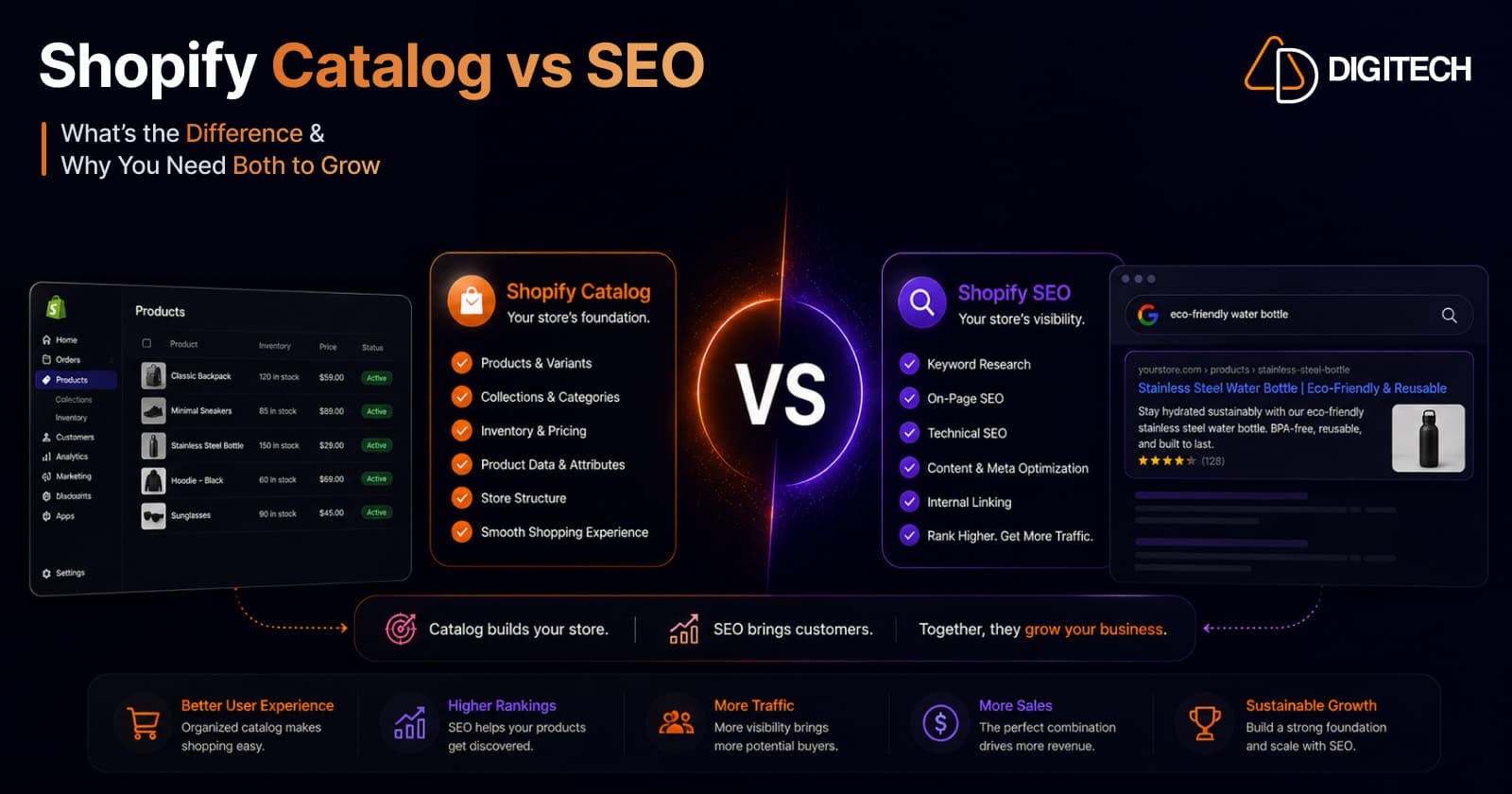
Why Your Shopify Product Catalog Matters More Than SEO in 2026
Discovery is moving from ranked web pages to AI agents that read structured product data. In 2026, the quality of your Shopify Catalog — not your meta tags and backlinks — increasingly decides whether AI recommends and sells your products. Here's why the catalog is the new front page, and what to do about it.
Read article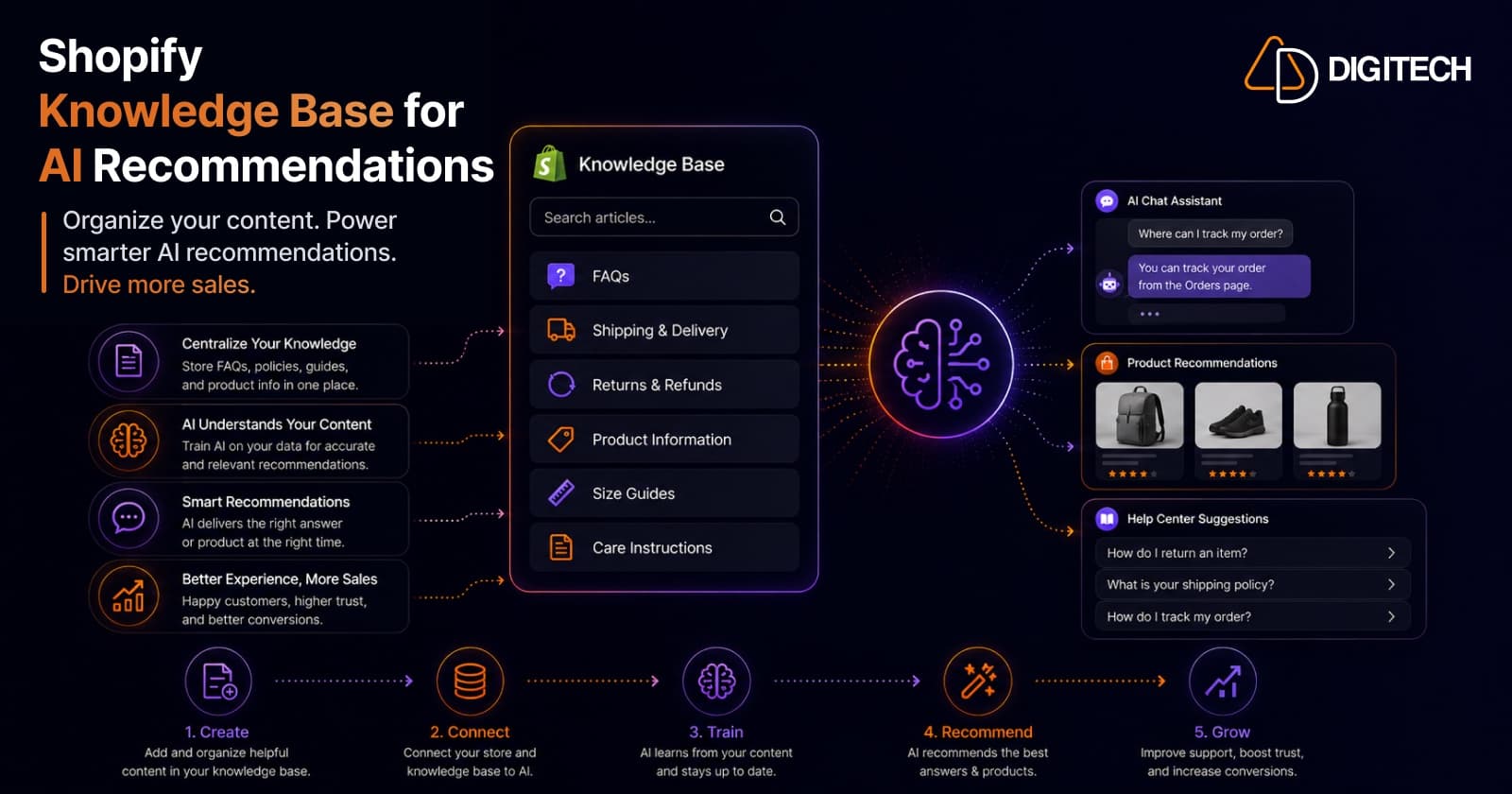
Shopify Knowledge Base: How to Control the Store Facts You Share With AI Agents
Learn how to review, edit and publish Shopify Knowledge Base facts for AI agents, what's published automatically, and what app users must do by Jan 15, 2027.
Read article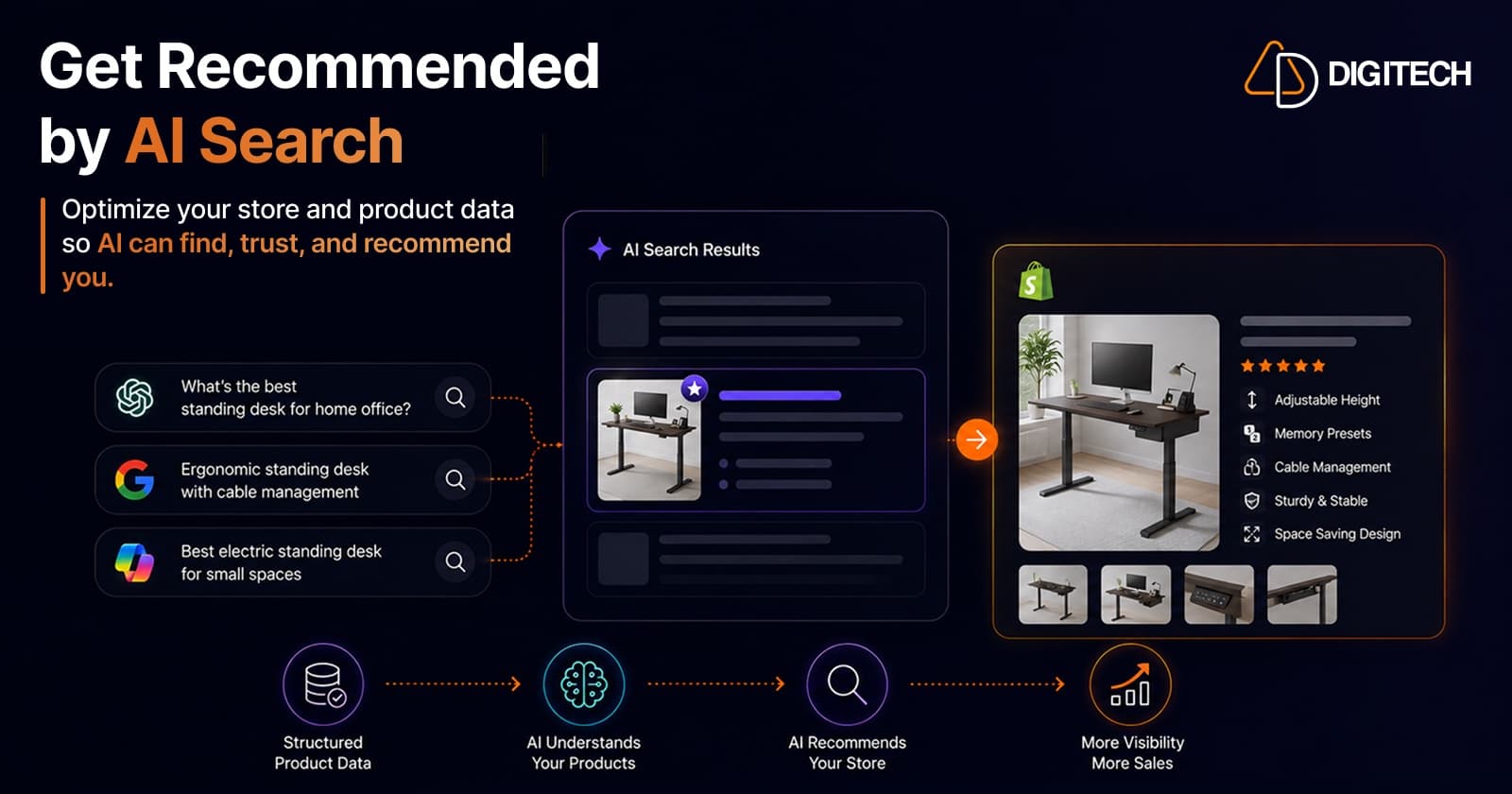
How Shopify Brands Can Get Recommended by ChatGPT, Claude & AI Search Engines
ChatGPT, Claude, and Perplexity now recommend products directly to shoppers. Here's how Shopify brands earn those recommendations — a practical 2026 guide to Generative Engine Optimization (GEO): the signals AI models trust, what to fix on-site and off-site, and how to measure your AI visibility.
Read article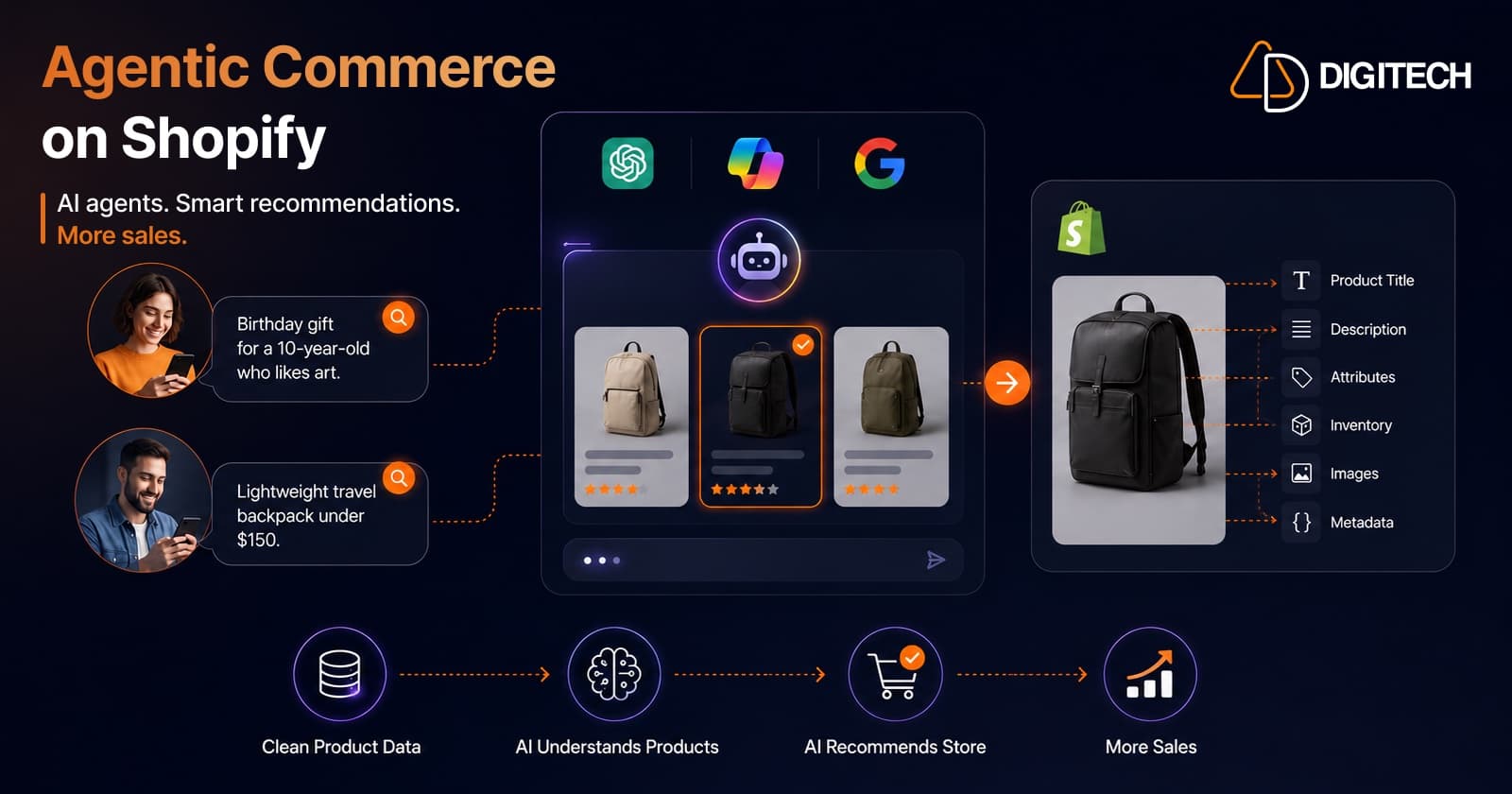
Agentic Commerce on Shopify: How to Get Your Store Ready for AI Shopping Agents (2026)
Shopify's Spring '26 Edition makes your products buyable inside ChatGPT, Microsoft Copilot, and Google AI Mode. Here's what agentic commerce actually means for merchants — and a practical, no-hype checklist to get your Shopify store ready for AI shopping agents in 2026.
Read article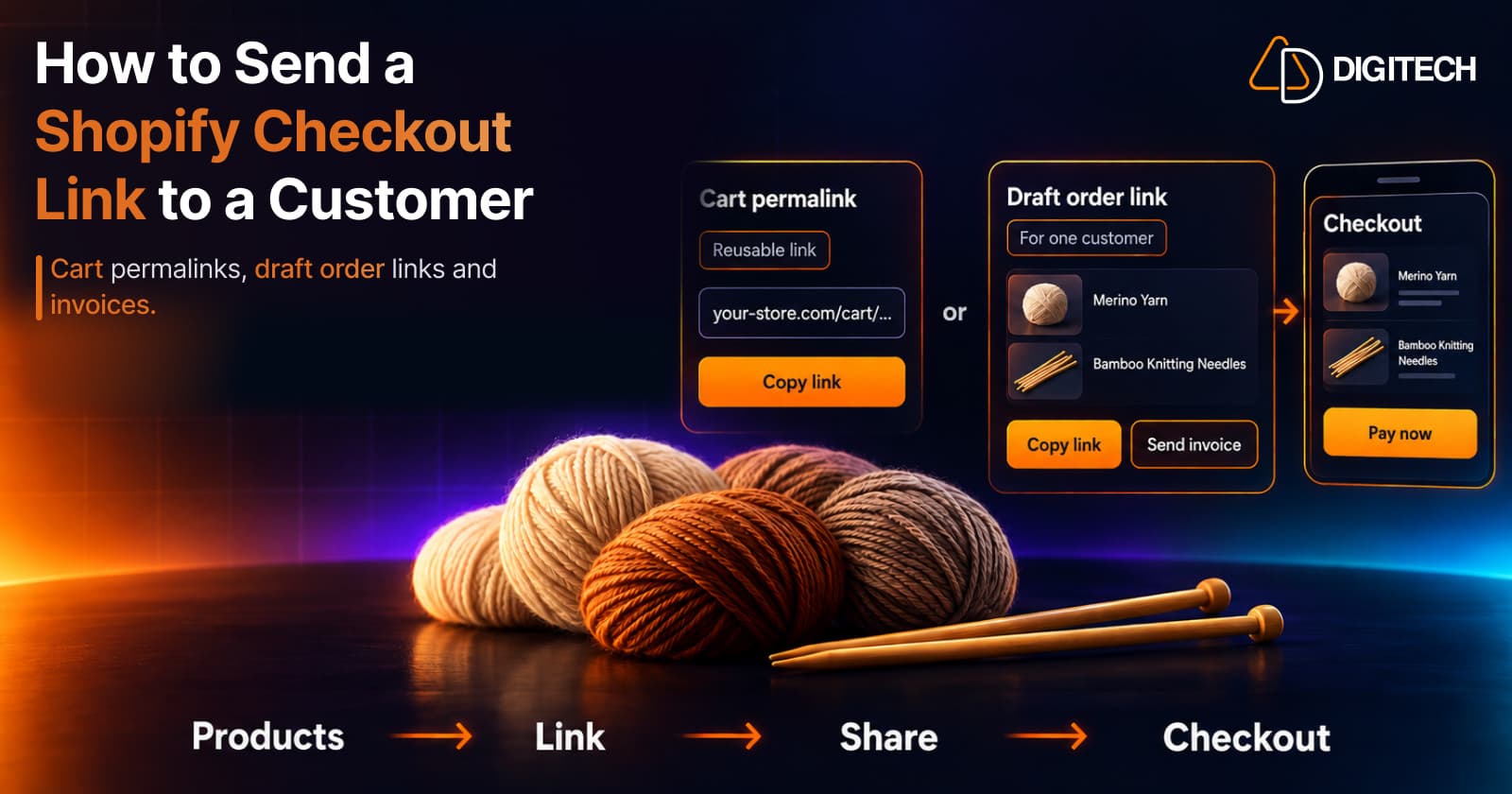
How to Send a Shopify Checkout Link to a Customer
Learn how to create and share Shopify checkout links using cart permalinks, draft orders, and personalized offers. Compare methods and avoid common mistakes.
Read article