Shopify Channel Mapping: How to Fix the Product Data You Send to Google, Meta and Other Channels Before BFCM
Shopify's new channel mapping page lets you choose which store data each sales channel receives, preview it product by product, and find missing values before they cost you listings. Here's how it works, what it can't do, and what to check before BFCM.
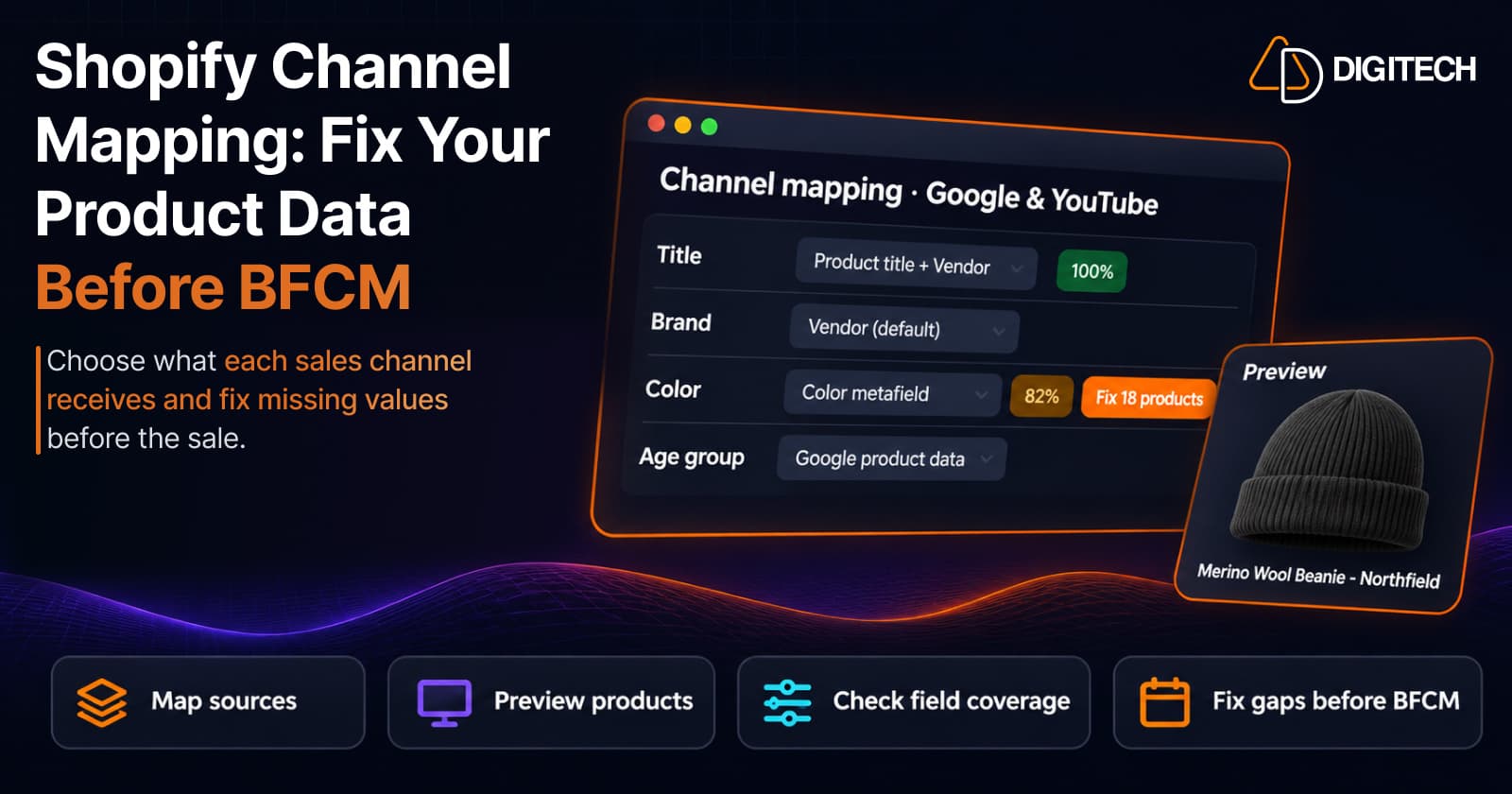
BFCM shoppers don't only find you on your own store. They see your products in Google results, on Instagram and, increasingly, in AI shopping answers. What those surfaces show depends on the product data your store sends them, and until recently you had limited control over it from the Shopify admin.
On October 28, 2026, Shopify announced a new channel mapping page that lets you manage the product data sent to each sales channel. It's part of the Fall '26 Edition, listed there as "Product data mapping by channel". This guide explains how it works, what it can and can't fix, and what to check before November 27.
What Channel Mapping Does
Every eligible sales channel has fields: a title, a brand, a color, an age group and so on. Each field has a default source in your store. Shopify's example is a brand field that uses your product vendor by default.
Channel mapping lets you change that source for one channel without touching anything else. In Shopify's words, "Your product details in your online store don't change when you use channel mapping." You could send a shorter title stored in a metafield to one channel and keep your full title on your store.
According to the Shopify Changelog and the Help Center, you can:
- Preview the data a channel receives for any product and variant.
- Change a field's source to another product field, variant field or metafield.
- Combine sources in text fields, such as the product title and vendor.
- Edit a text field as Liquid code, with a limited set of filters.
- Check field coverage, the share of products that have a value for each field.
- Fill missing values in a bulk editor opened from the coverage details.
If your product data is already complete, Shopify notes you might not need to change anything. The page is still worth opening, because coverage shows you whether that's true.
Which Channels It Covers
Shopify says channel mapping works for sales channels that use contextual product data. "Most sales channels are eligible, but some aren't, such as Shop and Shopify Collective." The Help Center names Google & YouTube and Facebook & Instagram as examples.
You can also use it to set the product data used in Shopify Catalog, which Shopify shares with AI channels. That's the same place where the compare-at price setting lives, covered in our guide to compare-at prices in AI channels.
The Help Center doesn't list a plan requirement for channel mapping. If you don't see the section yet, check each channel's settings again later rather than assuming your plan excludes it.
How a Channel Field Gets Its Value
This order matters when you're debugging a listing. Shopify uses the first of these that applies:
- Override: a value entered for that product or variant in the bulk editor. Only combined fields and Liquid fields can have one.
- Mapping: the source you chose on the channel mapping page.
- Default: the channel's own default source.
There's a useful fallback: if your chosen source has no value for a product, the channel's default is used for that product. Map a title field to a metafield, and products without that metafield still send their normal product title.
Where to Find It
Shopify gives three routes into the same page:
- Settings > Sales channels, choose the channel, then Edit mappings in the Channel mapping section.
- Markets, choose a market that includes the channel, then the channel's mapping link, such as Google & YouTube mapping.
- Products, open a product, click the channel publishing icon, then hover over the channel in the Manage publishing dialog and click its icon.
To change mappings, staff need the View and Create and edit permissions for products. Staff with only View can see the page and the preview but can't make changes.
Four Practical Uses Before BFCM
The examples below are illustrative, not Shopify templates.
1. Put the brand in channel titles
If your product titles don't include the brand, a combined title field can add it for one channel only. For example: product title, a hyphen, then the product vendor. Your store keeps its shorter titles.
2. Send a different title to one channel
Some channels work better with a shorter or more descriptive title than your store uses. Store that title in a product metafield and map the channel's title field to it. Products without the metafield fall back to the default title, so you can roll it out gradually.
3. Fill attributes from metafields you already have
Many stores already keep color, material or size in metafields for filtering. Mapping the channel's color field to your color metafield sends that value without retyping it. Shopify's own Sidekick example on this page is "Use my product color metafield for the Google color field."
If you added Google product data, such as age group or gender, in the Google & YouTube channel, Shopify says it's stored in metafields with the mm-google-shopping namespace, and the Google & YouTube mappings already use them. You don't need to remap them.
4. Clean up text with Liquid
For text fields, you can switch to Liquid code. Shopify allows these filters: append, capitalize, date, default, downcase, escape, first, join, last, prepend, replace, size, strip, truncate and upcase. Tags such as if, for and assign aren't allowed, and a value can use up to 10 sources. Shopify's example is:
{{ product.title | upcase }} - {{ product.vendor }}
Liquid also lets you reference a field of a metaobject that a metafield points to, which the visual editor can't select. If the code is invalid, the page shows an error and won't save.
Use Field Coverage to Find the Gaps
Field coverage is the most useful part for BFCM preparation. For each field, it shows the percentage of products, or of variants for variant fields, that have a value. For a sales channel, the count includes the active products published to it. For Shopify Catalog, it includes all products.
Click the percentage to see:
- Whether the channel marks the field Required, Recommended or Optional.
- How many products get the value from the default, from your mapping or from an override.
- How many have no value.
From there, Fix [number] products opens the bulk editor with only the products missing that field. Start with Required fields on the channels that drive your sales, then Recommended ones for your best sellers.
Be Careful With the Bulk Editor
What a value in the bulk editor changes depends on how the field is mapped, and this is where mistakes spread:
| Field mapped to | What your value does |
|---|---|
| Combined value or Liquid code | An override for that product on that channel only |
| A metafield | Saved in the metafield, so your theme, other channels and Shopify Catalog that use it also change |
| A product field or the channel default | Can't be saved here; change the source value instead |
The same applies outside the bulk editor. "If you change the value in a source, such as a metafield, then the new value is sent to every channel that uses that source." Before you edit a shared metafield, check where else it's used.
What Channel Mapping Can't Do
Shopify is clear about the limits, and they matter when you plan the work:
- No approval guarantee. The preview "doesn't tell you whether the channel approves or displays your listing."
- Not instant. After you save, the channel's feed is updated, but "Your changes can take some time to display on the channel."
- No prices. Money fields, such as price, can't be used as sources.
- One mapping per channel. A mapping applies to every product you publish to that channel. You can't set a different mapping for a product category.
- Limited combining. Only single-line and multi-line text fields can combine values. An unstructured metafield can be a field's only source, but not part of a combined value.
Because changes take time to reach channels, make structural mapping changes well before November 27 rather than during the sale.
A Pre-BFCM Channel Mapping Checklist
These are our recommendations, not Shopify requirements:
- Open the Channel mapping page for each channel that drives traffic, plus Shopify Catalog.
- Filter to Required fields and note any field below full coverage.
- Preview your top 20 BFCM products, including a variant of each, and check the source of every value.
- Decide which fields need a mapping change, and test it on a few products in the preview first.
- Fix missing values in the bulk editor, starting with Required fields.
- Before editing a metafield, check which channels and theme sections use it.
- Freeze mapping changes a few days before the sale so feeds have time to update.
- After the sale starts, check a handful of listings on each channel directly.
Clean product data also helps beyond channels. See our guides to Shopify product data management, product taxonomy, multiple barcodes per variant and Shopify Catalog vs SEO. For the store side of the sale, see our BFCM product page guide.
The Bottom Line
Channel mapping doesn't create good product data. It lets you decide which of your existing data each channel receives, and shows where data is missing. For stores with clean metafields, that's a quick win before BFCM. For stores where key attributes live in descriptions or spreadsheets, the coverage numbers will show how much work is left.
If you'd like help structuring metafields, filling gaps or checking your channel listings before the sale, our Shopify development team can help.
Frequently asked questions
What is channel mapping in Shopify?
It's a page in the Shopify admin where you choose which store data each sales channel receives for each of its fields, such as the title, brand or color. Each eligible channel has a default source for every field, and you can change it. Your online store's product details don't change.
Which sales channels support channel mapping?
Shopify says most sales channels are eligible, such as Google & YouTube and Facebook & Instagram, but some aren't, including Shop and Shopify Collective. You can also use it for the product data used in Shopify Catalog. Open Settings > Sales channels and look for the Channel mapping section on each channel.
Will channel mapping get my products approved on Google or Meta?
No. Shopify says the product preview shows the values a channel receives from your store, not whether the channel approves or displays your listing. Approval and visibility are still decided by each channel.
Can I use channel mapping to change prices for a channel?
No. Money fields, such as price, can't be used as sources for channel mapping. Prices still come from your product, catalog and market settings.
Does a change in the bulk editor affect my online store?
It depends on how the field is mapped. A value entered for a combined or Liquid field is an override for that channel only. A value entered for a field mapped to a metafield is saved in the metafield, so your theme, other channels and Shopify Catalog also receive it if they use that metafield.
Need Your Product Data Ready for Every Channel Before BFCM?
Get help auditing your product data, metafields and sales channel listings, so Google, Meta and AI channels receive complete, accurate information before peak-sale traffic arrives.
Related reading
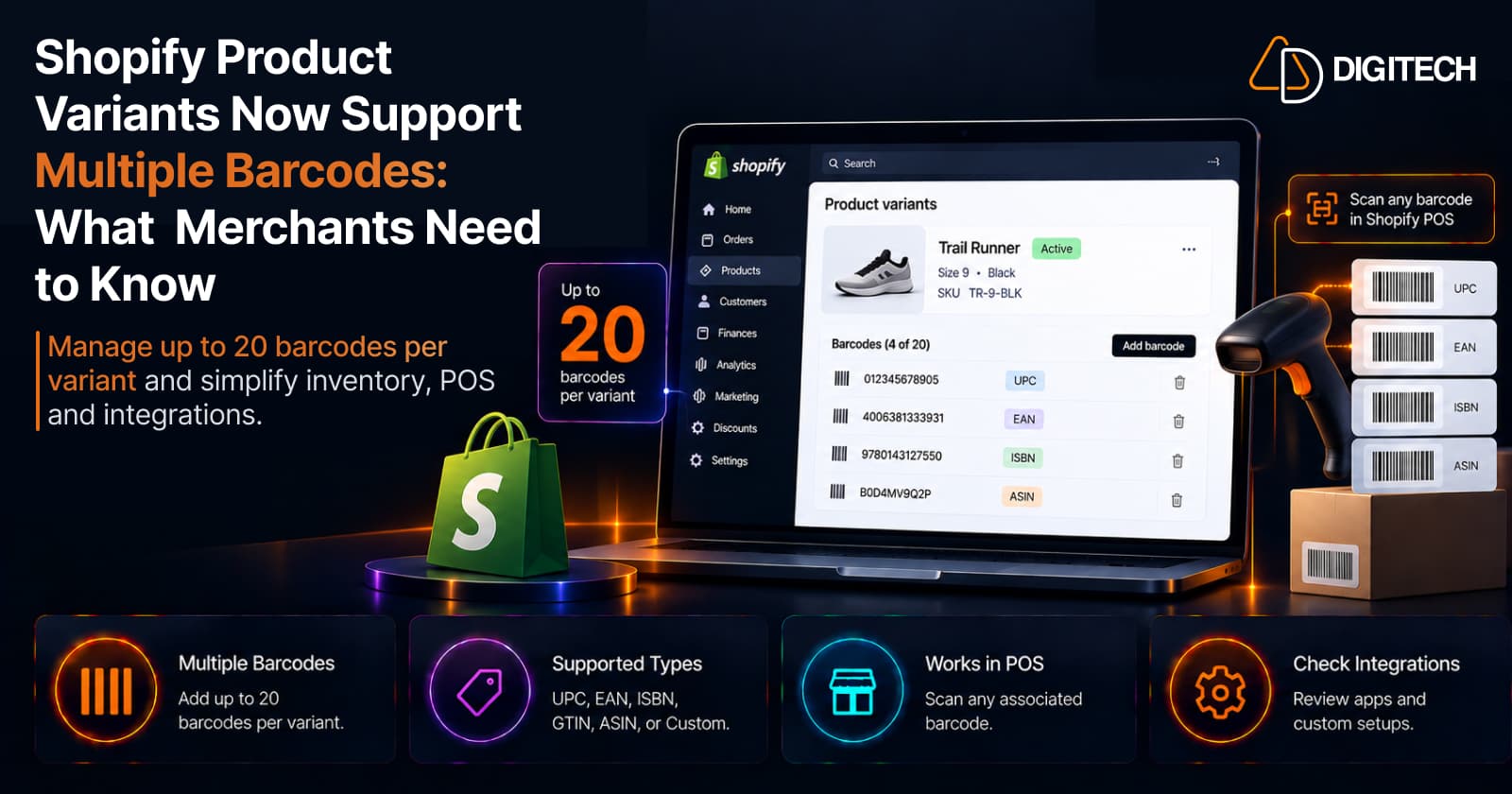
Shopify Product Variants Now Support Multiple Barcodes: What Merchants Need to Know
Shopify product variants now support up to 20 barcodes each. What changed, how it works, who benefits, and what to review in your product, inventory, POS, and integrations.
Read article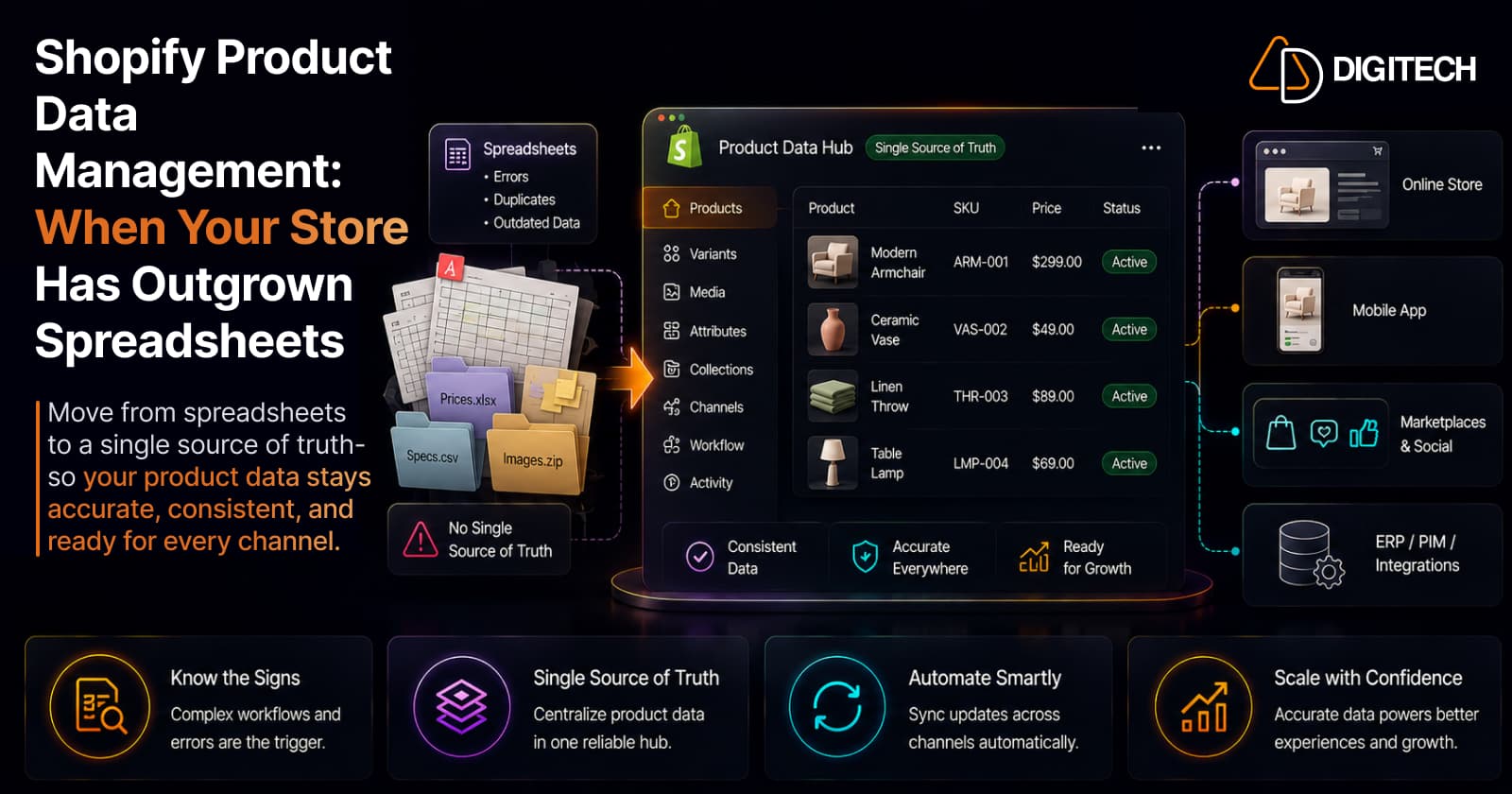
Shopify Product Data Management: When Your Store Has Outgrown Spreadsheets
How to manage Shopify product data as your catalog scales: signs you've outgrown spreadsheets, the single-source-of-truth problem, and when you actually need a PIM, ERP integration, or custom development.
Read article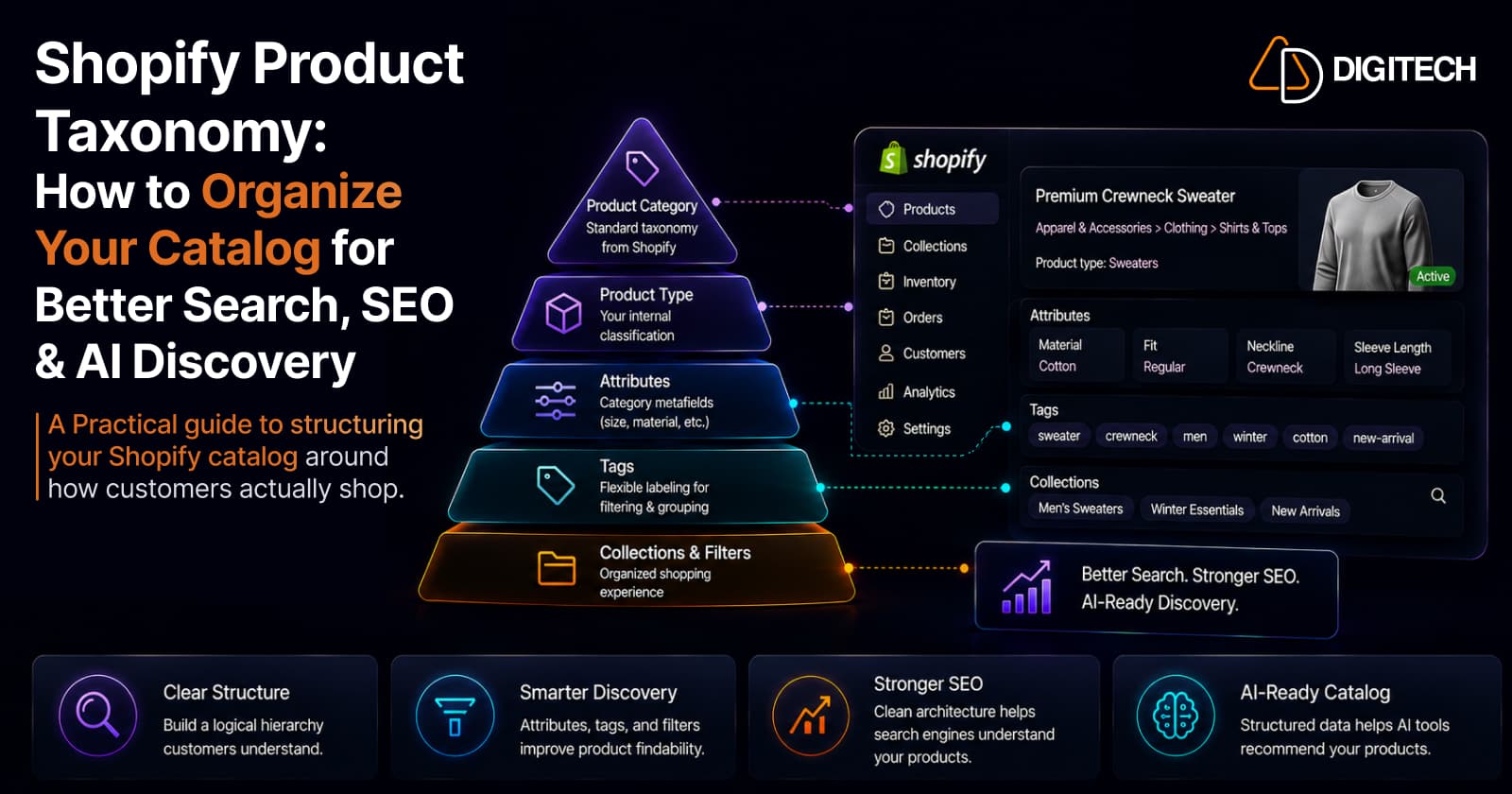
Shopify Product Taxonomy: How to Organize Your Catalog for Better Search, SEO & AI Discovery
A practical guide to structuring your Shopify catalog: product category vs type, collections, tags, metafields, and attributes — organized around how customers actually shop.
Read article
Shopify Store Search: How to Turn Customer Searches Into Better Product Discovery
Your customers' searches are demand signals. How to read Shopify search data — top queries, zero-result searches, terminology — to improve your catalog, taxonomy, and merchandising.
Read article
How to Improve Shopify Search & Filters for Better Conversions
Shoppers can't buy what they can't find. A merchant-first guide to improving Shopify search, filters, and product discovery so buying intent turns into sales.
Read article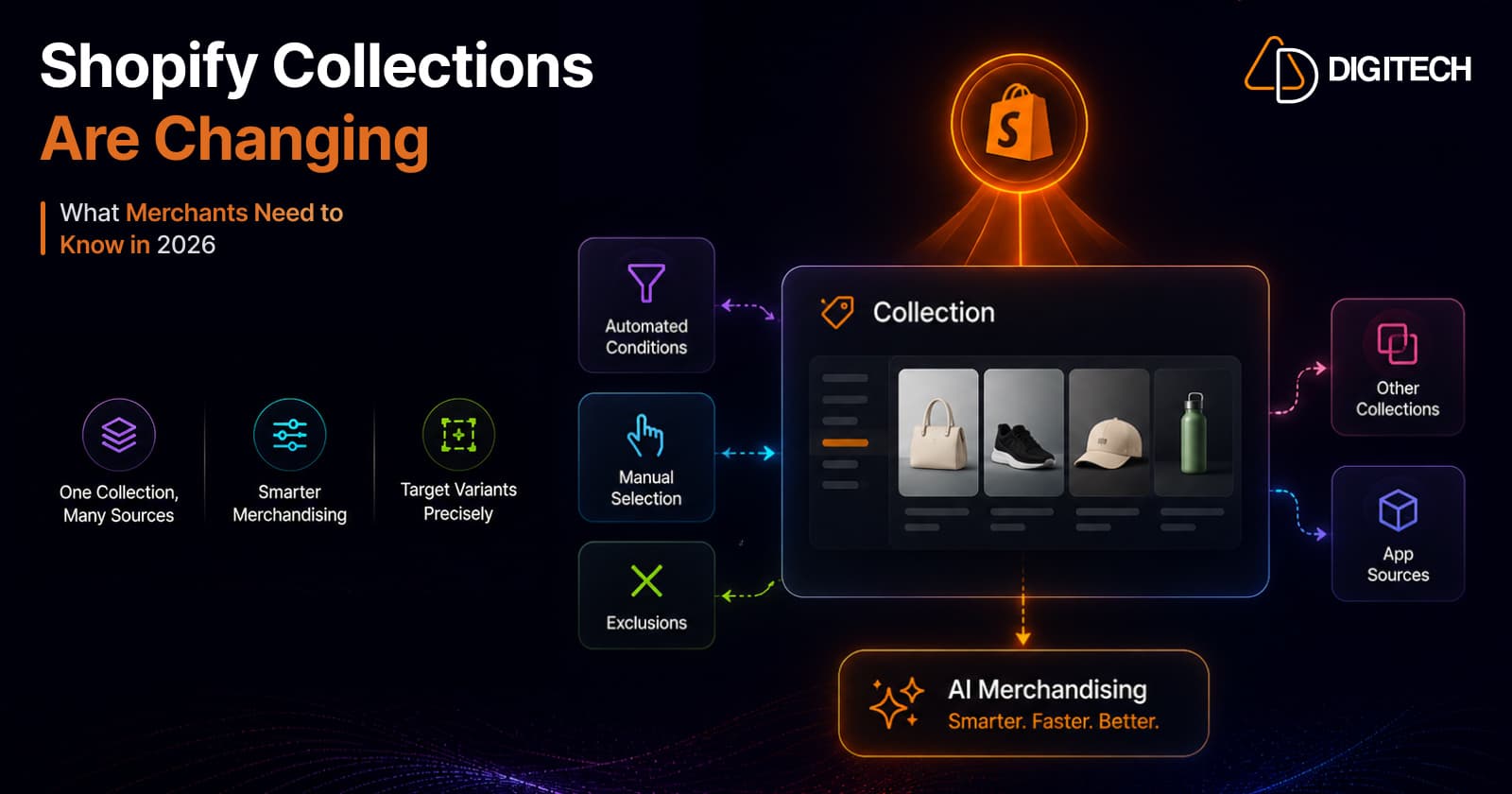
Shopify Collections Are Changing: What Merchants Need to Know in 2026
Shopify is overhauling collections in 2026 — the rigid 'smart vs custom' split is gone, replaced by a flexible Collection Sources model where one collection can combine automated conditions, manual picks, exclusions, other collections, and app sources. Add variant-level targeting and native AI merchandising, and here's what merchants (and their developers) need to know.
Read article
Shopify Rollouts: How Merchants Can Safely Test Store Changes Before BFCM
Learn how Shopify Rollouts let merchants schedule, test, and launch store changes safely before BFCM, including themes, discounts, catalogs, and checkout.
Read article
Shopify BFCM Product Page Optimization: What to Fix Before Black Friday
Shopify BFCM product page optimization: which pages to fix first, what to fix now vs later, a 9-week timeline to Black Friday 2026, and a final checklist.
Read article
How to Run Multiple Shopify Discounts Without Hurting Your Margins
Shopify's discount combination rules are protective by default — the risk is what happens when you loosen them. Because a discount comes entirely out of profit, not revenue, stacking promotions can quietly ship orders below your profit floor. Here's how Shopify combinations actually work, the break-even math, and the guardrails that let you run several discounts at once without eroding margin.
Read article