Shopify Rollouts: How Merchants Can Safely Test Store Changes Before BFCM
Learn how Shopify Rollouts let merchants schedule, test, and launch store changes safely before BFCM, including themes, discounts, catalogs, and checkout.
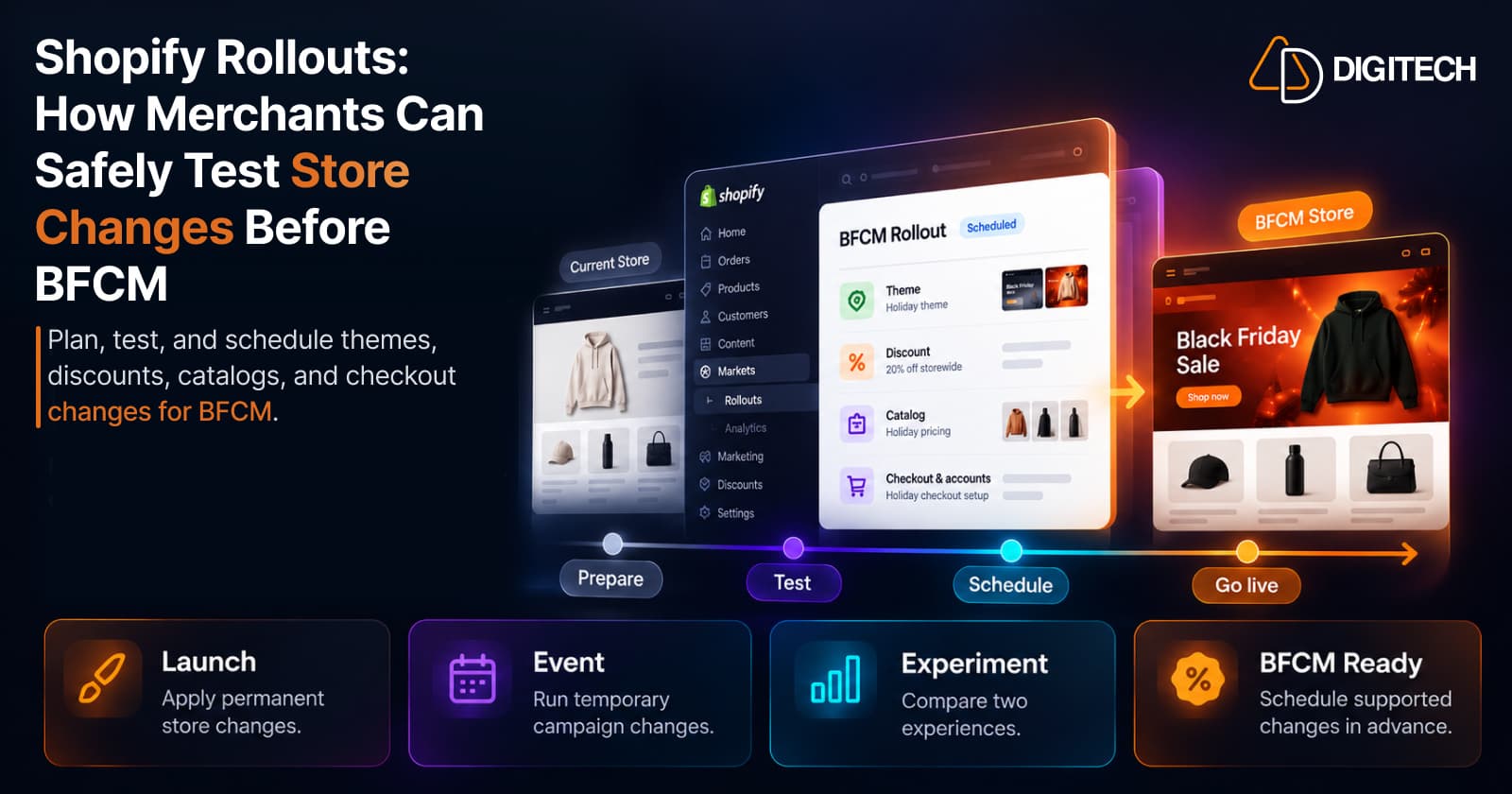
Black Friday falls on November 27, 2026. In the weeks before it, most Shopify stores change more than at any other time of year: a seasonal theme, new discounts, different prices or availability, sometimes a new checkout configuration.
The risk is rarely the changes themselves. It's how they go live: several people publishing several things by hand, late at night, in the right order. A sale banner goes up before the discount behind it is active, or a discount is still running on Tuesday.
Shopify Rollouts are built for that problem. A rollout lets you prepare certain store changes in advance, schedule when they start and end, and in some cases test them on part of your traffic first. On October 2, 2026, Shopify extended Rollouts to include discounts.
This guide explains what Rollouts can and can't do, and how to use them to prepare for BFCM without publishing everything manually at the last minute.
What Are Shopify Rollouts?
Shopify defines a rollout as "a scheduled set of changes to your online store's main theme, checkout and accounts pages, discounts, product catalogs, or a combination of these changes."
In merchant terms:
- Changes are grouped. A theme change and a discount can go live together in one rollout.
- Changes are scheduled. You choose a start date and time, in your store's time zone.
- Some changes are temporary. A rollout can run for a set period and then roll back.
- Some changes can be tested. A rollout can show a change to part of your visitors and compare it with the existing experience.
Rollouts sit in the Shopify admin under Markets > Rollouts. They're a separate feature from Markets itself, and everything in this guide is done in the admin, without code.
What Can Merchants Change With Shopify Rollouts?
| Change | What a rollout does | BFCM example |
|---|---|---|
| Main theme | Edits the main theme, or replaces it with another theme | A BFCM homepage and sale banners that appear when the sale starts |
| Checkout and accounts | Switches to a different checkout and accounts configuration | A checkout configuration with a holiday shipping cut-off notice |
| Catalogs | Sets a catalog to Active or Draft, which publishes or withdraws its prices and product availability | Sale pricing held in a catalog that becomes active for the weekend |
| Discounts | Activates or deactivates existing discounts for the customers in the rollout | A sitewide BFCM discount that starts with the theme change |
| A combination | Several of these in one rollout | Theme, discount and catalog go live at the same minute |
Three details matter when you plan:
- One theme change and one checkout and accounts change per rollout. A rollout can include several catalogs and up to 250 discounts.
- Theme limits. Rollouts can't be applied to vintage themes, and Liquid template changes can't be part of a rollout.
- Catalogs change status only. Shopify notes that price and product edits inside a catalog save immediately, so the rollout controls when the catalog is active, not when you edit it.
The 3 Types of Shopify Rollouts
| Launch | Event | Experiment | |
|---|---|---|---|
| What it does | Merges your changes into the store permanently | Publishes changes for a set period, then rolls them back | Compares a treatment against a control |
| End date | Only when it reaches less than 100% of visitors | Required | Defaults to 90 days after the start, and can be changed |
| Best for | A final, lasting update | A campaign with a start and an end | Measuring a change before a full Launch |
| BFCM example | Permanently switching to a new seasonal theme | The BFCM weekend sale | A new offer or theme shown to half of visitors |
| Plan | Basic or higher | Basic or higher | Grow or higher |
A few points the table can't hold:
- An Experiment splits traffic 50% control and 50% treatment by default. You can change the split before you save.
- Experiments apply to the online store only.
- An Event's changes can be kept. If the campaign should stay, you can apply the rollout permanently instead of letting it roll back.
- Applied changes are final. After a rollout is applied, Shopify says you can't revert the changes.
How Shopify Rollouts Can Help With BFCM
Shopify's own BFCM guidance, published on October 6, 2026, describes building campaigns in October and scheduling them for the weekend. A realistic workflow looks like this.
In October
- Build the BFCM theme changes.
- Create the discounts you plan to use.
- Prepare catalog changes, if your sale prices live in a catalog.
- Review any checkout and accounts changes.
- Test each piece.
Before BFCM
- Create the rollout and set its start and end.
- Confirm dates and times against your store's time zone.
- Review any conflict messages.
- Confirm the audience reach.
During BFCM
- The changes go live on schedule. Check the storefront once they do.
After BFCM
- An Event ends and its changes roll back.
- Review the results.
- Decide which changes, if any, should become permanent.
Rollouts publish these four kinds of change. They don't manage inventory, shipping settings, email campaigns or ad schedules, so those stay on your own plan. For the rest of your preparation, see our pre-peak Shopify checkout review and our guide to BFCM product page optimization.
How to Schedule a Shopify BFCM Campaign
- Decide what needs to change, and what should go back afterward.
- Prepare the pieces. A discount must already exist before you can add it to a rollout.
- Open Markets > Rollouts in your Shopify admin and click Create rollout.
- Name it and choose the type: Launch, Event or Experiment.
- Add the changes: theme, checkout and accounts, catalogs or discounts.
- Set the audience. Traffic allocation controls the percentage of eligible visitors that the rollout applies to. An Experiment also has a traffic split between the control and the treatment.
- Set the start date and time, and the end date where one is required.
- Review conflicts. Shopify checks the rollout against your others. A "Resolve rollout conflicts" message has to be fixed before you can save. A "Review rollout conflicts" message lets you save, but read it first.
- Save the rollout, then test the customer journey once it's active.
- Monitor results after launch, and annotate your Shopify analytics with the start time.
The options you see depend on the rollout type, the changes you add and your Shopify plan.
How to Test a Shopify Discount Before Launching It
Since October 2, 2026, discounts can be included in Rollouts. Shopify describes three uses:
- Schedule discount changes. Launch a new offer to a portion of online store traffic, then expand when you're ready.
- Compare offers. Test discount changes against your existing offers and review conversion results.
- Launch changes together. Schedule a discount to go live alongside your theme and checkout changes in a single rollout.
In an Experiment, the control keeps your store's standard discount behavior and the treatment applies the change. Two practical examples:
- Existing offer vs BFCM offer. The control keeps today's offer. The treatment activates the BFCM discount.
- 10% vs 15%. If 10% is your current offer, the treatment deactivates it and activates a 15% discount.
Before you rely on a test, know how discounts behave inside a rollout:
- Eligibility still applies. A discount keeps its existing customer eligibility rules.
- Its own dates still apply. A discount is active when its own start and end dates say so, or when an active rollout activates it. Check those dates before you test a discount on part of your traffic.
- Combination settings still apply, so visitors in the control and the treatment can be eligible for different sets of discounts.
- One rollout at a time. A discount can be part of only one unended rollout.
- No discount-specific metrics. Rollout analytics don't report revenue or orders attributed to a discount. You compare the metrics available for that rollout, such as conversion rate.
A test tells you how an offer performed with the visitors who saw it. It doesn't guarantee the same result during BFCM. For the margin side of discounting, see our guide to running multiple Shopify discounts without hurting your margins.
How to Schedule and Test Catalog Prices With Rollouts
Catalogs were already a rollout change. On October 23, 2026, Shopify announced catalog changes in Rollouts in more detail, so you can schedule product availability and pricing per market. Shopify describes three uses:
- Schedule catalog changes. Activate, deactivate or switch between existing catalogs at a set date and time.
- Test different offers. Run experiments between catalogs on your online store.
- Launch changes together. Schedule catalog changes alongside your theme and checkout updates in a single rollout.
A catalog change sets a catalog to Active, which publishes its prices and product availability, or to Draft, which withdraws them. That makes a catalog the way to test a price on Shopify without an app, with some limits.
An illustrative example. A store selling in Canada keeps its current prices for that market and prepares a second catalog for Canada with a few products priced differently. In an Experiment on the Grow plan or higher, the treatment sets the current Canada catalog to Draft and the new one to Active, while the control keeps the current state. Both groups shop the online store, and you compare the metrics the rollout reports.
What to know before you run a catalog price test:
- Prepare the catalog first. Edits to a catalog's prices, price adjustments and products save right away and apply whenever the catalog is active. The rollout controls when the catalog becomes active, not when you edit it.
- The catalog must be assigned to a market. A rollout's catalog change isn't shown to anyone until the catalog is assigned to at least one market.
- Some catalogs can't be added. A catalog assigned directly to a B2B company location can't be part of a rollout, and neither can an archived catalog. On B2B markets, your plan limits how many catalogs can be active.
- One rollout at a time. A catalog can be part of only one unended rollout.
- Other channels can show a different price. During an Experiment, or a rollout shown to less than 100% of visitors, your online store can display different prices than Google, ads, feeds and third-party apps.
- There are no price-level metrics. Shopify doesn't document results for individual products or prices in a catalog test, so you compare the rollout's metrics, such as conversion rate.
A catalog test compares whole catalogs for a market. It isn't a tool for testing one product's price point with detailed price reporting; apps still cover that. Shopify's separate Smart Pricing app gives price tips, and its App Store listing says select US merchants can also A/B test prices. It's a different product from Rollouts.
Shopify Rollout Requirements and Plan Availability
- Rollouts are available on the Basic plan or higher.
- Experiments require the Grow plan or higher.
- Staff permissions. Store owners and administrators can manage rollouts. Other staff need the Rollouts permission under Markets, plus the permission for each kind of change they add, such as Discounts or Themes.
- Themes. Rollouts can't be applied to vintage themes.
- Storefront. Theme changes and checkout and accounts changes apply to the online store only. Headless and custom storefronts aren't supported for those changes.
Open Markets > Rollouts in your own admin to confirm which options your store has.
Important Shopify Rollout Limitations Merchants Should Know
- Experiments need the Grow plan or higher, and they run on the online store only.
- Overlapping rollouts share traffic. A visitor is assigned to one rollout at a time for a given resource, so overlapping rollouts can each reach fewer visitors than their settings suggest. Shopify shows conflict messages while you configure a rollout.
- There's a practical ceiling. Shopify's BFCM guide says you can schedule or run up to five rollouts at once.
- A permanent change can't be undone through the rollout. For anything temporary, use an Event.
- One unended rollout per discount, and the same applies to a catalog.
- Partial rollouts reach the online store only. Experiments, and rollouts below 100% of visitors, don't extend to ads, listings and feeds. Your store can then show a different price or offer than another channel. Shopify suggests setting traffic allocation to 100% or pausing ads for the affected products.
- Other systems update on their own schedule. Connected channels, apps and external systems may not change at the same moment.
- Analytics are fixed. Rollout analytics depend on the rollout type and the changes included. Shopify provides metrics for supported rollout configurations, while Experiment results are designed for comparing control and treatment. You can't customize the metrics, and results cover visitors on your online store, cart and checkout, not Shopify POS or headless storefronts.
- Archiving deletes theme work. Archiving a rollout permanently deletes its theme changes.
- Not everything is a rollout change. A rollout covers the four change types above. Assume shipping rates, inventory, payment settings and app settings still need handling separately.
- You still need end-to-end testing. A schedule publishes what you built, including any mistakes in it.
Shopify Rollout Checklist for BFCM
- Identify every planned BFCM store change
- Decide whether each is a Launch, an Event or an Experiment
- Prepare theme changes
- Prepare the discount strategy
- Review catalog changes
- Review checkout and accounts changes
- Confirm dates and times
- Review rollout conflicts
- Check audience reach
- Test on mobile and desktop
- Test discounts
- Test cart and checkout
- Test payment methods
- Confirm inventory
- Confirm shipping
- Monitor after launch
- Review results after BFCM
Final Takeaway
Shopify Rollouts are not simply a developer feature. For merchants, they're a structured way to prepare, schedule, test and launch important store changes from the admin.
The biggest BFCM value is planning. Changes are built and checked in October, then go live on a schedule, instead of being published by hand at the last minute.
Rollouts don't remove the need for QA, checkout testing, discount validation or operational planning. If you'd like a second pair of eyes on your theme, checkout and discount setup before the sale, AD Digitech's Shopify team reviews stores ahead of peak season.
Frequently asked questions
What are Shopify Rollouts?
A rollout is a scheduled set of changes to your online store's main theme, checkout and accounts pages, discounts, product catalogs, or a combination of these. You create and manage rollouts in the Shopify admin under Markets > Rollouts.
What can merchants change with Shopify Rollouts?
Four kinds of change: the main theme, the checkout and accounts configuration, catalogs (set to Active or Draft) and discounts (activated or deactivated). Several can be combined in one rollout.
Can Shopify Rollouts schedule discounts?
Yes. Since October 2, 2026, discounts can be included in Rollouts, so a discount can go live alongside theme and checkout changes. A discount's own eligibility rules and its own start and end dates still apply.
What is the difference between Launch, Event, and Experiment?
A Launch merges changes into your store permanently. An Event publishes changes for a set period and then rolls them back. An Experiment compares a treatment against a control so you can measure a change before a full Launch.
Can Shopify Rollouts be used for BFCM?
Yes. Shopify positions Rollouts for BFCM planning: prepare the theme, discount and catalog changes in advance, schedule them for the sale, and let an Event roll them back when it ends. You still need to test the store yourself.
Which Shopify plans support Rollouts?
Rollouts are available on the Basic plan or higher. Experiments require the Grow plan or higher. Staff also need the right permissions for the kinds of change they add.
Can merchants compare a new discount with an existing offer using Rollouts?
Yes, on the Grow plan or higher. An Experiment can compare a discount change against your existing offers. Rollout analytics don't include discount-specific metrics, such as revenue attributed to a discount.
Can I test prices with Shopify Rollouts?
Yes, through catalogs, on the Grow plan or higher. An Experiment can activate a catalog with different prices for part of a market's online store visitors while the control keeps the current state. It compares whole catalogs, not single price points, and Shopify doesn't document price-level results. During the test, other channels such as Google and ads can show a different price.
Building something on Shopify?
We design, build, and maintain Shopify apps, stores, and AI products — to the standard this article describes.
Related reading
Shopify BFCM Integration Testing: How to Find App and System Risks Before Black Friday 2026
Prepare your Shopify store for BFCM 2026. Test checkout, shipping apps, payments, inventory sync, and custom integrations before Black Friday.
Read article
Shopify Store Maintenance: What to Handle In-House vs. Outsource
Shopify runs the platform; your theme, apps and integrations are yours to maintain. What to handle in-house, when to hire a developer and what support covers.
Read article
Shopify Adds Stock Counts in Admin: How Merchants Can Verify Inventory Before Peak Season
Shopify stock counts let staff record what's on the shelf and let a manager approve the differences before inventory changes. Here's how the workflow works in admin and POS.
Read article
Shopify Adds Arabic, Urdu, and Hebrew Support: What Merchants Must Check Before Launch
Shopify improved RTL support for Arabic, Urdu and Hebrew in the admin, storefronts and checkout. Here's what's covered, what isn't, and what to test before launch.
Read article
Shopify Translate & Adapt Auto-Sync: How to Keep Translations Current Before BFCM
Translate & Adapt can now update translations weekly with Auto-sync. Here's who can use it, how it differs from Translate now, and how to plan translations before BFCM.
Read article
Shopify Flow Shipping Label Automation: Setup, Rules, and What Merchants Should Test Before BFCM
Shopify Flow can now buy shipping labels automatically for orders that match your rules. Here's how the action works, example workflows, and what to test before BFCM.
Read article
Shopify Automated Policies: 7 Things Merchants Should Check Before Enabling Them
Shopify can now generate and update your return, shipping, terms of service and contact policies from your store settings. Here's what to check before you turn automation on.
Read article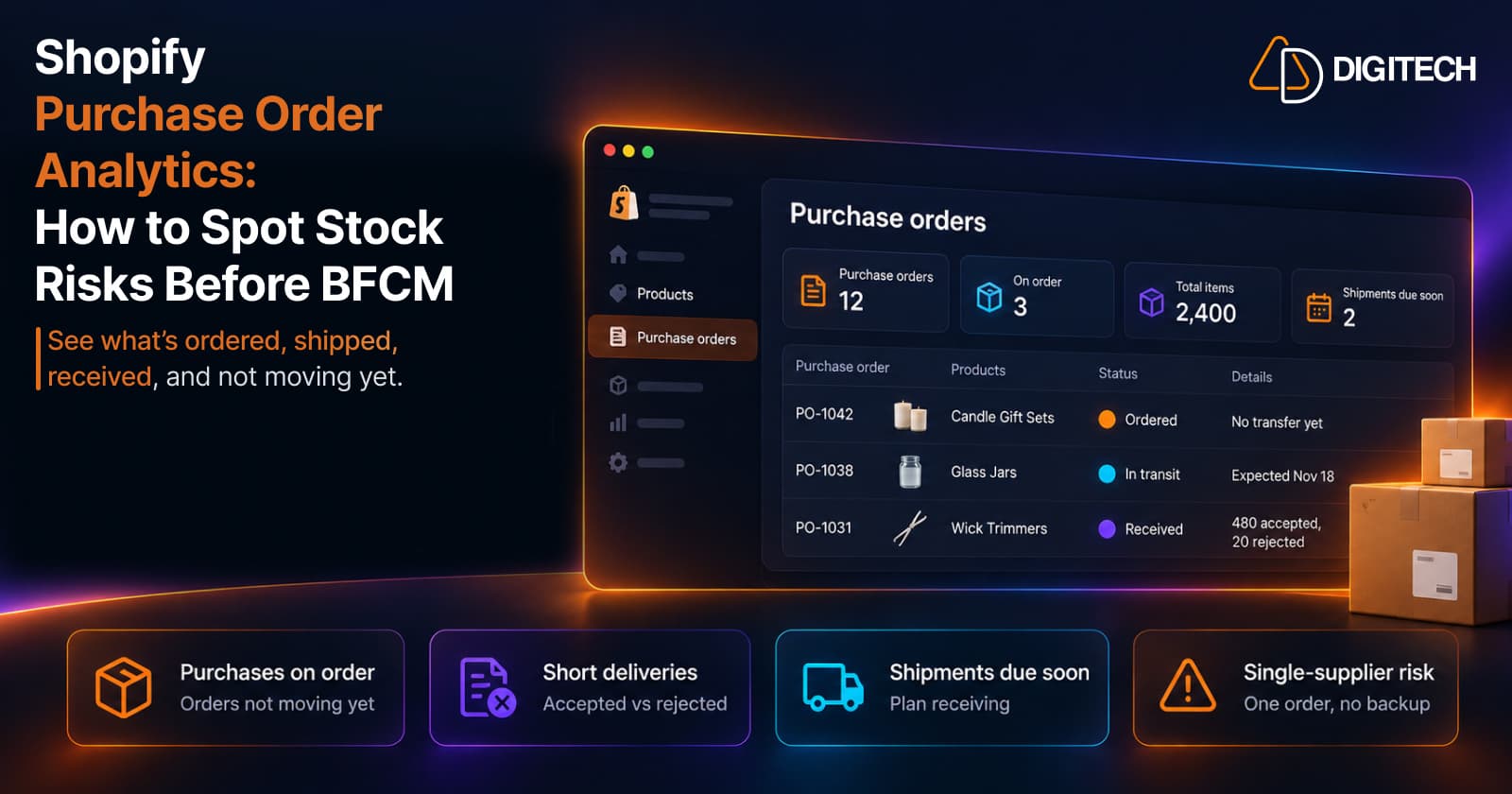
Shopify Purchase Order Analytics: How to Spot Stock Risks Before BFCM
Shopify Analytics now includes purchase order reports. Here's what each report shows, how to use them to spot stock risks before BFCM, and what they can't tell you.
Read article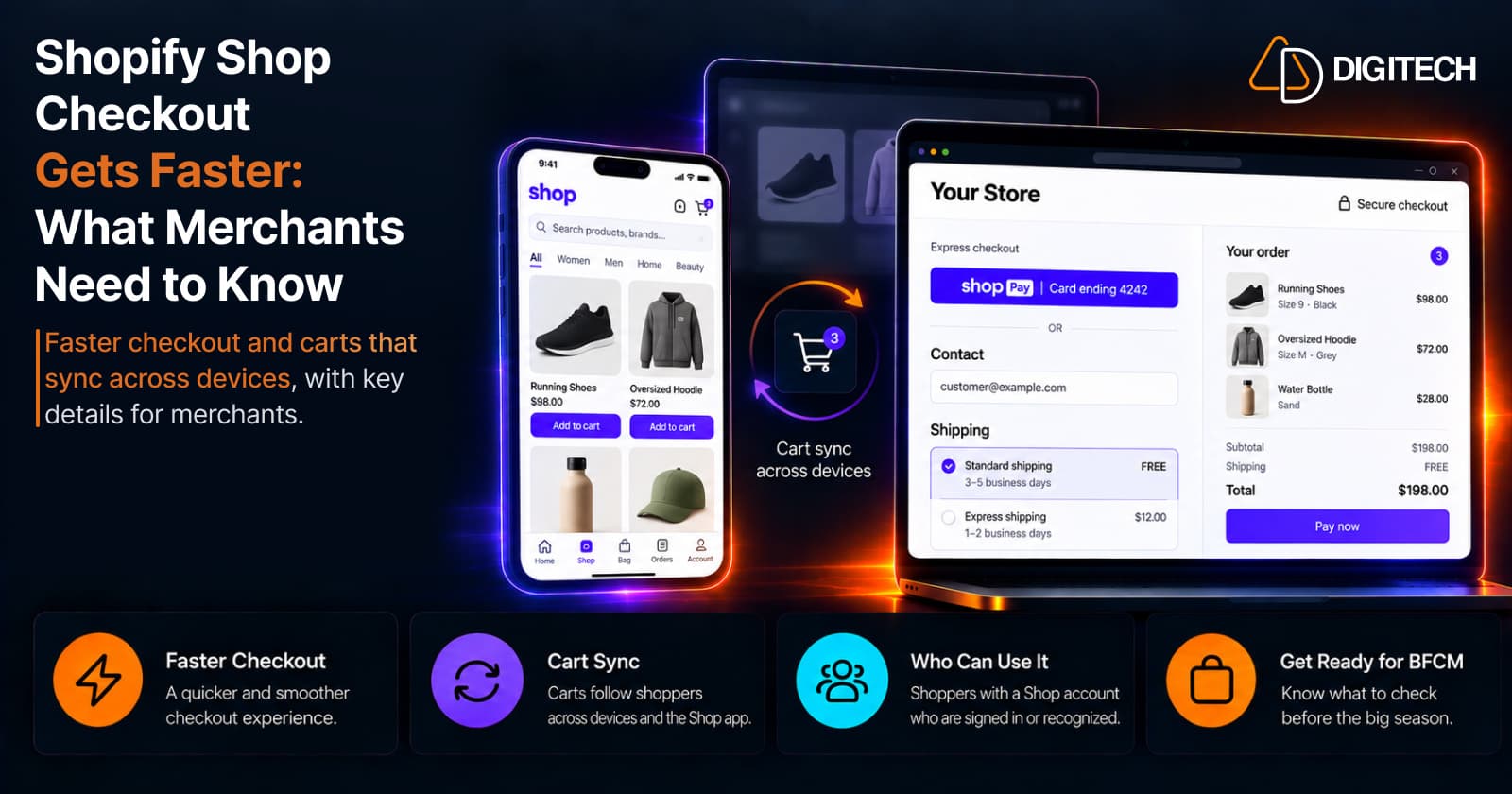
Shopify Shop Checkout Gets Faster: What Merchants Need to Know
Shopify's October 5, 2026 Shop update brings faster checkout and carts that sync across devices. See how it works, who qualifies and what to check before BFCM.
Read article