Shopify Analytics Annotations: How Merchants Can Add Context to Their Store Data
Shopify Analytics annotations let merchants add campaign, pricing and operational notes to reports. See how they work, the limits, and how to use them for BFCM.
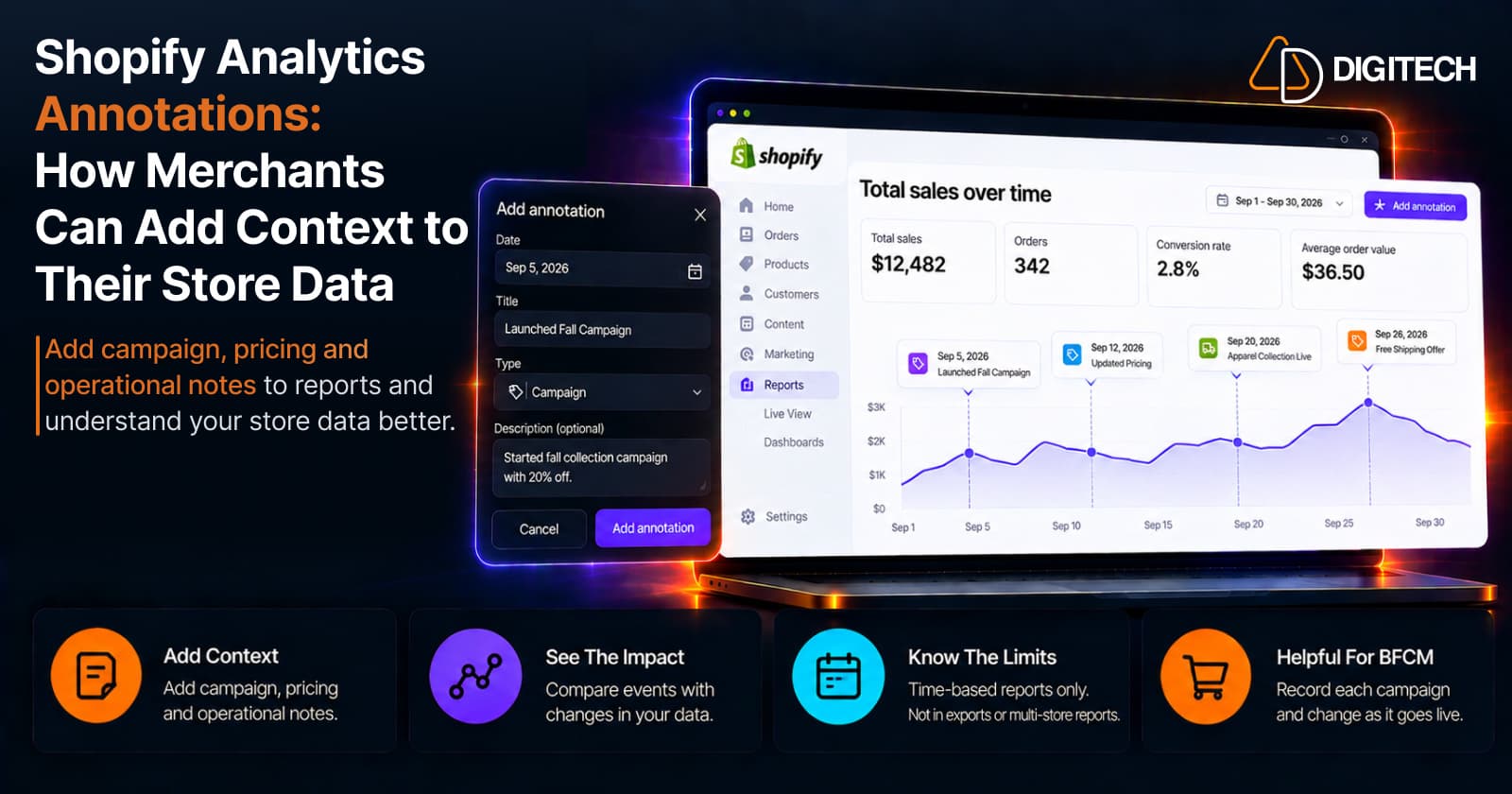
A report can show that sales dipped on a Tuesday, or that conversion rose in the second week of November. It can't show that you changed supplier that week, or that a creator mentioned your product.
Since October 1, 2026, Shopify Analytics lets merchants add that context themselves. You can place your own annotations on a report's timeline, next to the data they relate to. This guide covers what changed, what you can record, where the limits are, and how to use annotations for BFCM.
What Are Shopify Analytics Annotations?
Shopify describes annotations as "visual markers on your reports at the dates when events occurred". They appear as color-coded markers and dots on charts that have a time axis. Hover over a marker to see that day's activity, or click it to open the annotations panel.
Annotations come from three sources:
| Source | Examples | Can you edit or delete them? |
|---|---|---|
| Shopify, automatically | Product published or unpublished, theme published, app installed or uninstalled, metric definition change, data unavailability period | No |
| Installed apps | Events an app adds, such as a loyalty program offer | No |
| Your staff | Campaigns, pricing changes, supplier changes, anything you choose to record | Yes |
What Shopify Changed in October 2026
Annotations themselves aren't new. Shopify first introduced automatically generated annotations in May 2026, covering store activity and system events.
On October 1, 2026, Shopify expanded Analytics annotations so merchants and their staff can add their own business context directly to supported time-series reports. Its announcement puts it simply: "Your reports show what changed. You know why."
From the annotations panel you can now:
- Add a title, description, date or date range, and annotation type.
- Use a category Shopify suggests, or choose your own.
- Edit and delete annotations, and see who created each one.
- Search and filter context from your team, installed apps and Shopify.
Why Analytics Data Needs Business Context
Reports are good at "what". They're poor at "why".
Shopify's Help Center says it directly: "Metrics on their own represent what's happening with your business, but including annotations in a report can help you investigate why things are happening."
Before this, the "why" usually lived somewhere else. Shopify's own list is accurate: "memory, spreadsheets, or team threads". That works for a week. Six months later, when someone asks why March looked unusual, nobody remembers that a free shipping threshold changed.
Shopify's automatic annotations help here too. They mark metric definition changes, so a shift caused by Shopify's reporting, like the one covered in our guide to the September 2026 analytics changes, can be told apart from a shift caused by your business.
What Can You Add to an Annotation?
To create one, open a report under Analytics > Reports, click Annotations, and create a new annotation. It can also be done in the Shopify mobile app.
| Field | Details |
|---|---|
| Title | Up to 75 characters |
| Start date | The date of the event |
| End date | Optional, for events lasting more than one day |
| Time | Optional start and end time |
| Category | The activity type that best describes the event. Shopify may suggest one from your title and description |
| Description | Optional, up to 150 characters |
Categories are grouped into Product, Online store, Marketing, Discounts & pricing, Inventory & fulfillment, Operations, and Other.
One useful detail: an annotation isn't tied to the report you created it in. Shopify says staff annotations display on any report that includes annotations for the same dates and activity type.
Practical Examples for Shopify Merchants
| Business event | Shopify category and type | Example title |
|---|---|---|
| Black Friday campaign goes live | Discounts & pricing: Seasonal promotion | "BFCM sale live: 20% off sitewide" |
| Promotional email or ad campaign | Marketing: Campaign | "Autumn collection email, full list" |
| New product released | Product: Product launch | "Trail jacket launch" |
| Creator features your product | Marketing: Influencer collaboration | "Creator review video published" |
| Ad budget raised or cut | Marketing: Ad spend change | "Paid social budget doubled" |
| New supplier | Inventory & fulfillment: Supplier change | "Switched packaging supplier" |
| Storefront redesign | Online store: Store redesign | "New product page layout live" |
| Free shipping offer | Discounts & pricing: Free shipping discount | "Free shipping over $50 starts" |
| Returns policy change | Operations: Return program change | "Returns window extended to 60 days" |
A good title says what changed in plain words. "Promo" won't mean anything in six months. "Free shipping over $50 starts" will.
How to Use Annotations During BFCM
Peak season is when the most things change at once, which makes it the hardest period to read afterwards. Annotating as you go fixes that.
Events worth recording:
- Campaign launch, with a date range covering the whole sale.
- Discount launch, and any change to the offer partway through.
- Major email sends, using the optional time field.
- Influencer or creator campaigns.
- Product launches and bundle launches.
- Theme changes. Shopify can automatically record a theme publication, while your own annotation can explain what changed and why. If you're redesigning with Shopify Canvas, record when the new theme went live.
- Shipping changes, such as a new threshold or cut-off date. Stores affected by market-driven shipping should note when their shipping setup changed.
- Inventory changes, such as a best seller going out of stock.
After the event, open your sales, sessions or conversion reports with annotations shown. You can then see which changes lined up with which movements, day by day, instead of looking at one large spike. Next year's planning starts from a record, not from recollection. Our BFCM product page checklist covers the changes most worth tracking.
How Annotations Help Ecommerce Teams Work Together
Shopify says annotations are "shared with staff who have Reports permission" and appear alongside context from Shopify and installed apps, creating "one shared history of what changed".
In practice, that means:
- Marketing and operations see the same timeline. A marketing manager can see that a warehouse change happened during their campaign.
- Each annotation shows who created it.
- You can search by keyword, and filter by activity type or by creator: Shopify, staff or apps.
Two things to know before a team starts using them. Anyone with the Reports permission can edit or delete annotations created by other staff. And apps that have access to your store's annotations can read the ones your staff create, including titles, descriptions, dates and types, though not the name of the person who created them.
What Shopify Analytics Annotations Don't Tell You
Annotations are notes, not analysis.
- They don't prove cause. A marker next to a spike is a reason to investigate. Two events on the same day can't be separated by a note.
- They aren't automatic analysis. Shopify suggests a category, but the content is whatever your team writes.
- They're short. With 75 characters for a title and 150 for a description, they point to an event. They don't replace a campaign report.
Shopify also documents these limits:
- Annotations need time to be the first dimension in the report.
- Donut charts, tables and cohort grids don't display them.
- They aren't included in report exports.
- They aren't available for multi-store reports.
- Shopify's automatic annotations appear only for stores that average 10 or more orders a week for at least 12 non-consecutive weeks in the past 6 months, with at least 1 order in the past 2 weeks.
A Simple Workflow for Using Annotations
- A business event happens, or is scheduled.
- Add the annotation the same day, with a clear title and category.
- Let the data come in.
- Review the metric with annotations shown.
- Compare the event with performance, and check what else was annotated that day.
- Record what you learned.
- Use it for the next campaign.
The second step is the one that fails. An annotation added weeks later relies on the same memory it was meant to replace.
Who Should Use Shopify Analytics Annotations?
- Small stores. A handful of notes a month replaces the owner's memory.
- Growing ecommerce teams. Marketing, merchandising and operations share one timeline.
- Shopify Plus teams. More people and more changes make the record more valuable. Note that multi-store reports don't support annotations.
- Agencies and store managers. A history that survives handovers and staff changes.
- Marketing teams. Campaigns, ad spend changes and collaborations.
- Operations teams. Supplier, warehouse, fulfillment and returns changes.
Shopify's documentation doesn't state a plan requirement for annotations. Access depends on the Reports permission.
What Shopify Merchants Should Do Now
These are our recommendations, not Shopify requirements:
- Turn on annotations in the reports you check most.
- Check who has the Reports permission, since that controls who can add, edit and delete.
- Agree a naming convention, so titles are consistent across the team.
- Give one person responsibility for adding annotations during campaigns.
- Annotate your planned BFCM events as each one goes live.
Conclusion
Shopify Analytics annotations don't change your numbers. They change how easily you can read them later. By recording campaigns, pricing changes and operational changes beside the data, a team keeps a shared history of what it did and when.
If your Shopify store needs deeper analytics, custom storefront improvements or integrations around Shopify's evolving platform, AD Digitech can help evaluate the right approach.
Frequently asked questions
What are Shopify Analytics annotations?
They're markers on a report's timeline that show when an event happened, such as a campaign launch or a theme change. Shopify creates some automatically, installed apps can add others, and since October 1, 2026 your staff can add their own.
What can you add to a Shopify Analytics annotation?
A title of up to 75 characters, a start date with an optional end date and time, a category that describes the type of event, and an optional description of up to 150 characters.
Can Shopify Analytics annotations explain why sales changed?
Not by themselves. An annotation records that something happened on a date. It puts that context next to the data so you can investigate, but it doesn't prove the event caused the change.
Can teams share Shopify Analytics annotations?
Yes. Annotations created by staff are shared with staff who have the Reports permission, and each one shows who created it. Anyone with that permission can also edit or delete annotations created by other staff.
Which Shopify reports support annotations?
Reports where time is the first dimension, shown in a visualization with a time axis. Donut charts, tables and cohort grids don't display annotations, and they aren't available for multi-store reports or included in report exports.
How can merchants use annotations during BFCM?
Add an annotation when each campaign, discount, email send, product launch, theme change or shipping change goes live. After the event, open your reports with annotations shown and compare each change with what the metrics did.
Are annotations available on every Shopify plan?
Shopify's current documentation doesn't list a specific plan requirement for annotations. However, manually creating, editing, or deleting annotations requires the Reports permission. Shopify-generated annotations also have separate eligibility conditions based on store activity and order volume.
Building something on Shopify?
We design, build, and maintain Shopify apps, stores, and AI products — to the standard this article describes.
Related reading
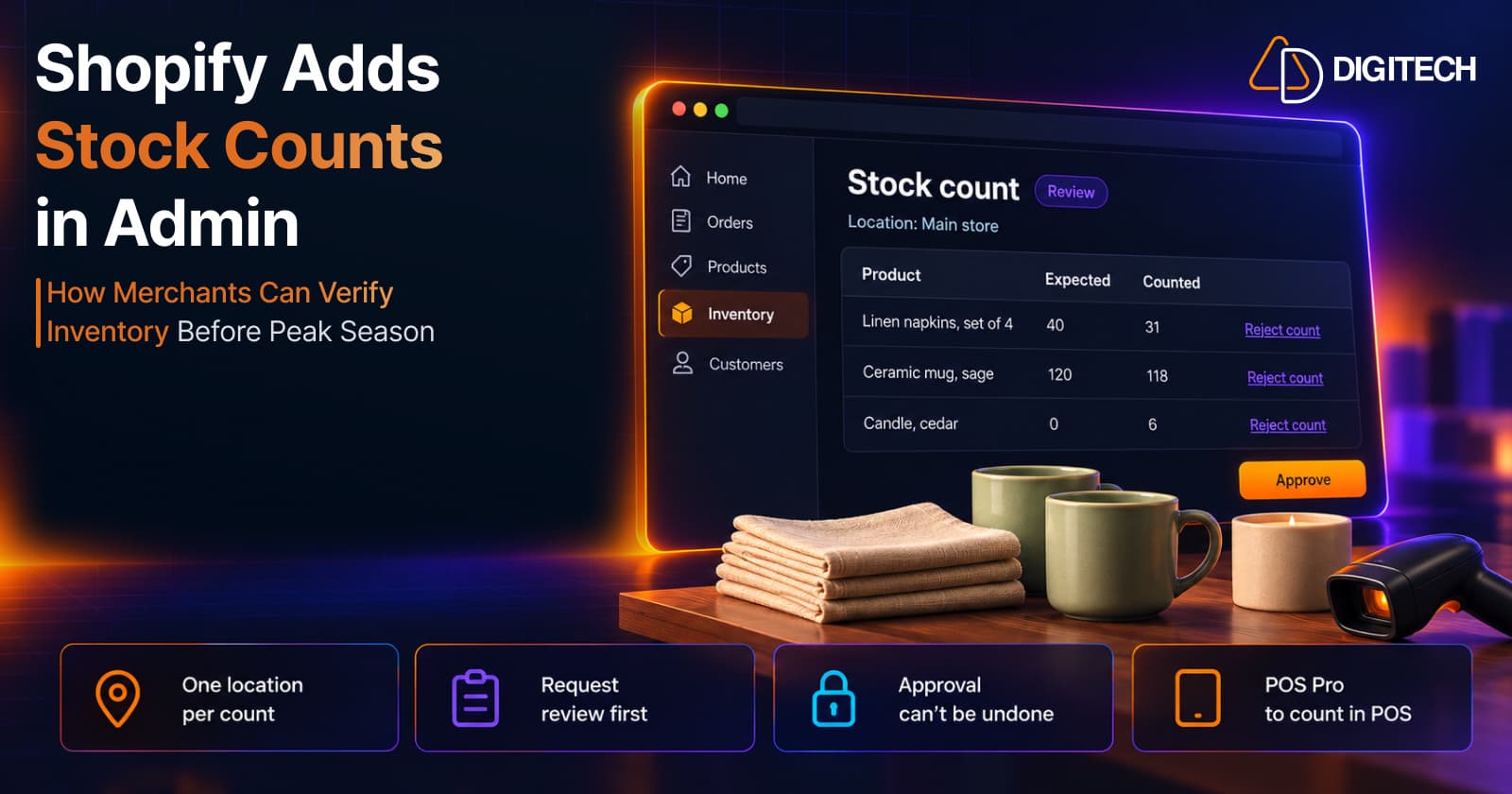
Shopify Adds Stock Counts in Admin: How Merchants Can Verify Inventory Before Peak Season
Shopify stock counts let staff record what's on the shelf and let a manager approve the differences before inventory changes. Here's how the workflow works in admin and POS.
Read article
Shopify Adds Arabic, Urdu, and Hebrew Support: What Merchants Must Check Before Launch
Shopify improved RTL support for Arabic, Urdu and Hebrew in the admin, storefronts and checkout. Here's what's covered, what isn't, and what to test before launch.
Read article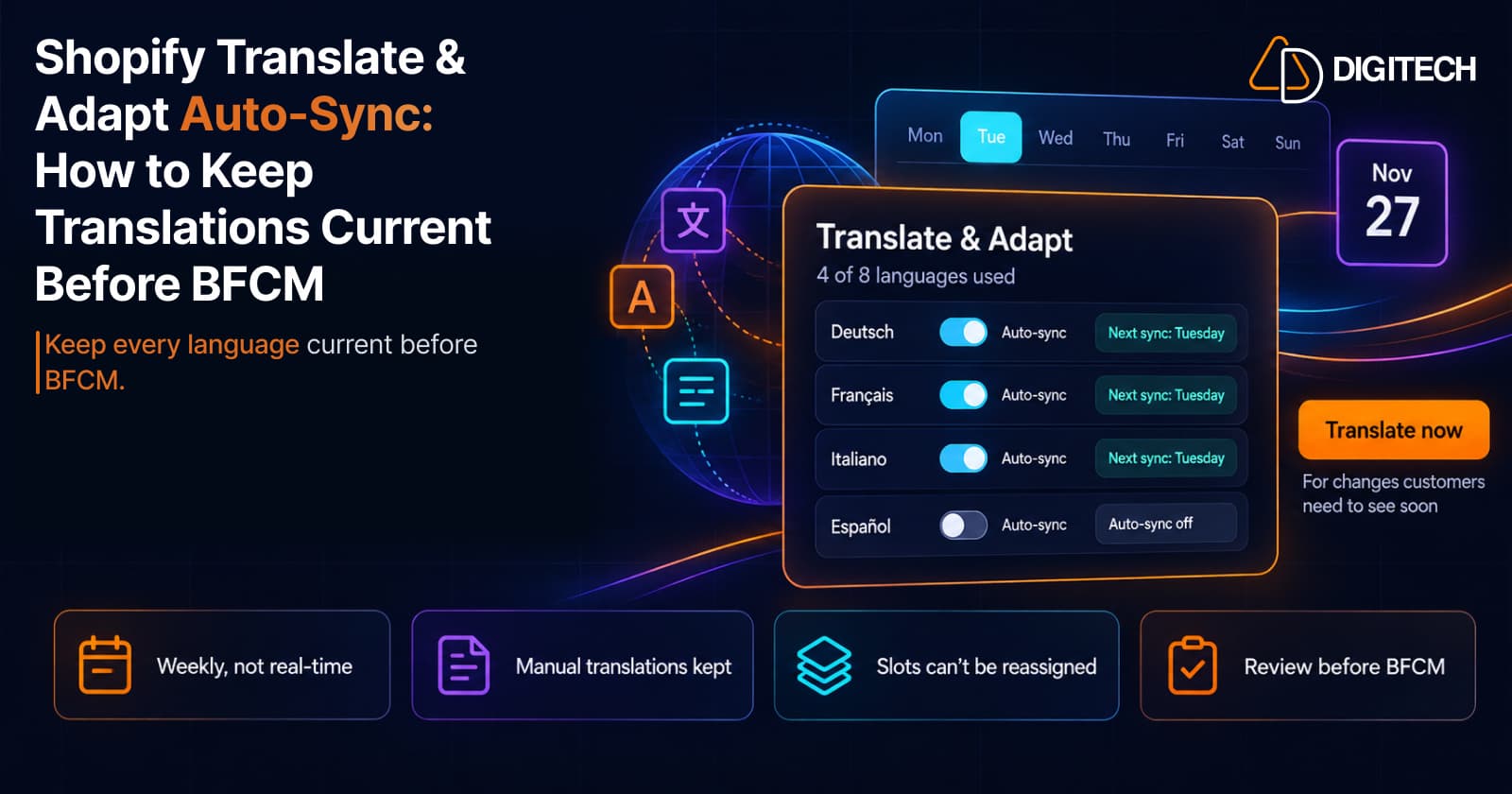
Shopify Translate & Adapt Auto-Sync: How to Keep Translations Current Before BFCM
Translate & Adapt can now update translations weekly with Auto-sync. Here's who can use it, how it differs from Translate now, and how to plan translations before BFCM.
Read article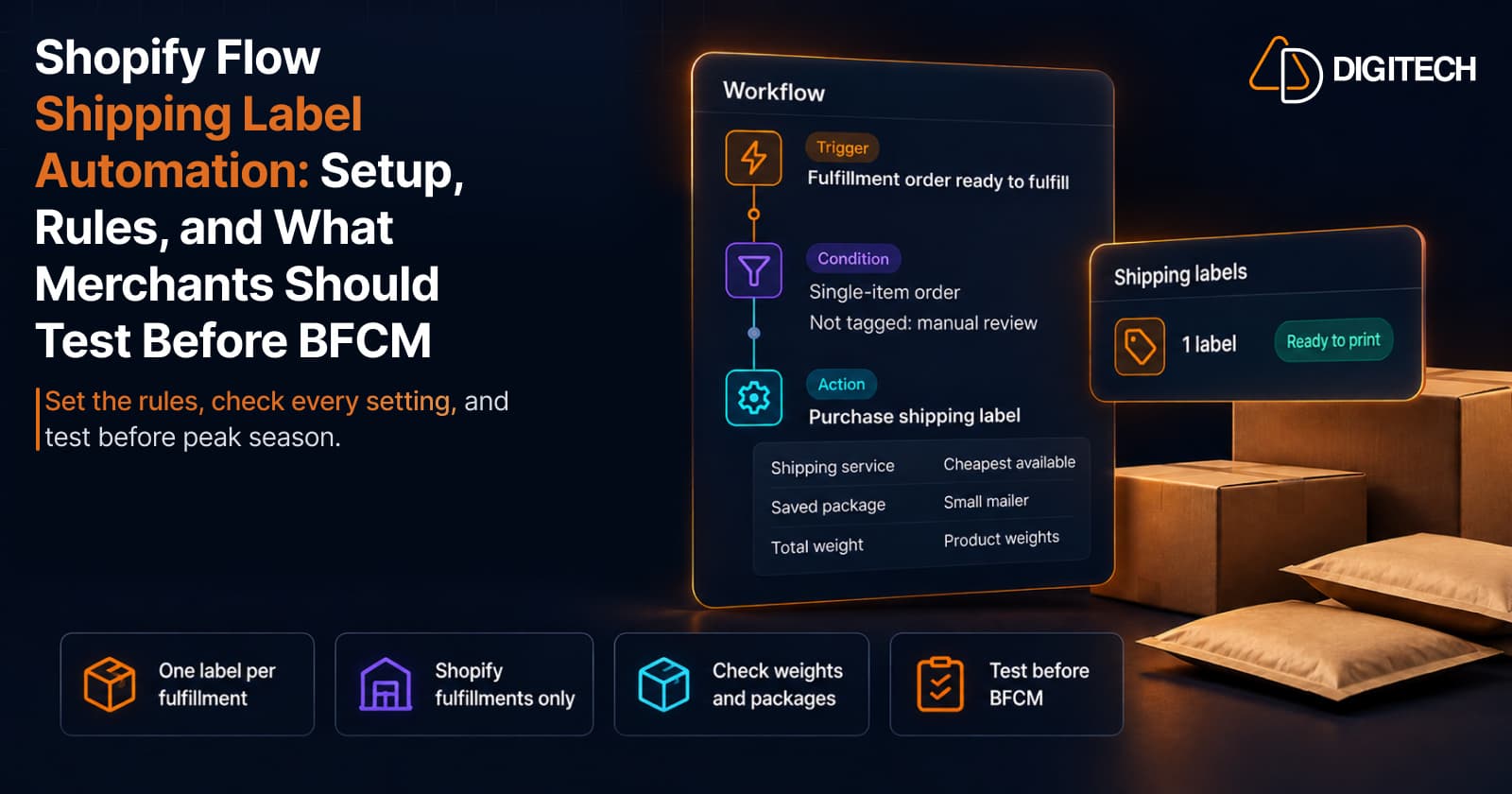
Shopify Flow Shipping Label Automation: Setup, Rules, and What Merchants Should Test Before BFCM
Shopify Flow can now buy shipping labels automatically for orders that match your rules. Here's how the action works, example workflows, and what to test before BFCM.
Read article
Shopify Automated Policies: 7 Things Merchants Should Check Before Enabling Them
Shopify can now generate and update your return, shipping, terms of service and contact policies from your store settings. Here's what to check before you turn automation on.
Read article
Shopify Purchase Order Analytics: How to Spot Stock Risks Before BFCM
Shopify Analytics now includes purchase order reports. Here's what each report shows, how to use them to spot stock risks before BFCM, and what they can't tell you.
Read article
Shopify Rollouts: How Merchants Can Safely Test Store Changes Before BFCM
Learn how Shopify Rollouts let merchants schedule, test, and launch store changes safely before BFCM, including themes, discounts, catalogs, and checkout.
Read article
Shopify Shop Checkout Gets Faster: What Merchants Need to Know
Shopify's October 5, 2026 Shop update brings faster checkout and carts that sync across devices. See how it works, who qualifies and what to check before BFCM.
Read article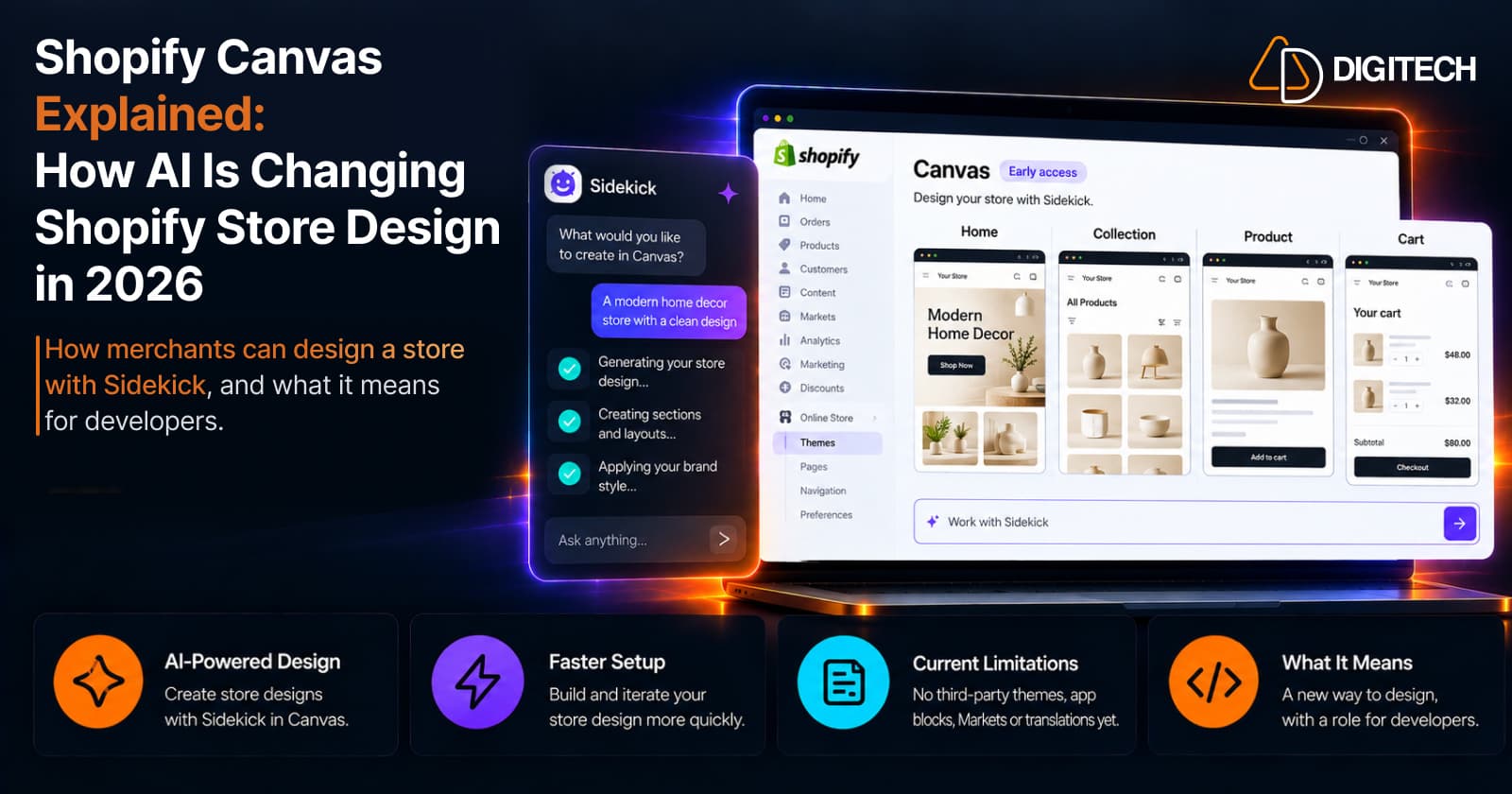
Shopify Canvas Explained: How AI Is Changing Shopify Store Design in 2026
Shopify Canvas, announced October 1, 2026, lets merchants design a store with Sidekick. See how it works, its current limits, and what it means for developers.
Read article