Shopify's New Store Activity Log: Track Theme, Product, Discount and App Changes Before BFCM
Shopify rebuilt its store activity log with filters, change details and 18-month retention. Who gets it, what it records, its limits and a BFCM checklist.
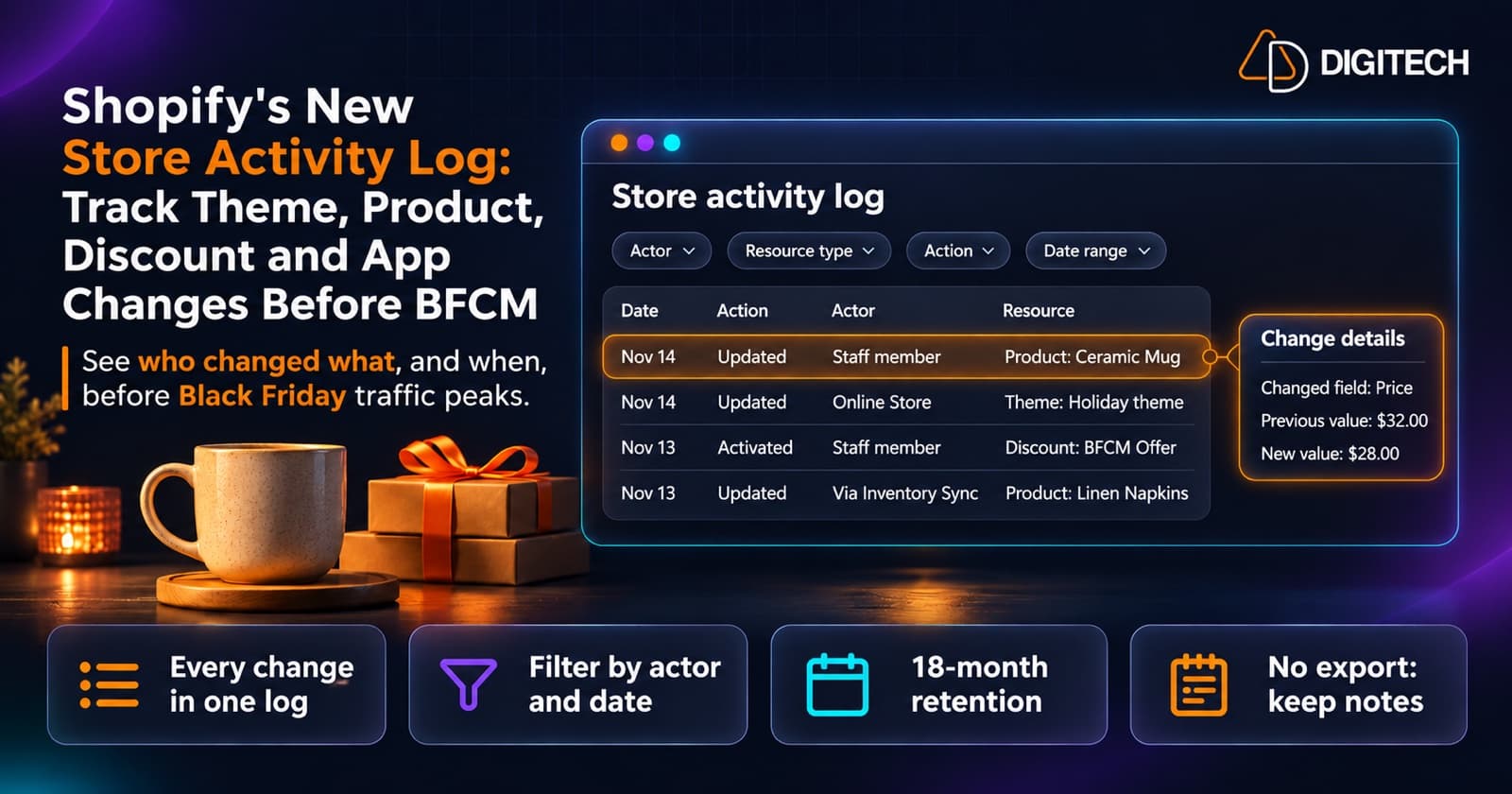
Something on the store changed and nobody remembers doing it. A product disappeared from the Online Store, a discount stopped working, or the theme looks slightly different from yesterday. Until now, the store activity log could only show a short, unclickable list of recent events, which often ran out before it reached the change you were looking for.
On November 13, 2026, Shopify announced a rebuilt Store activity log designed to answer "who changed what, and when?" in one place. It arrives two weeks before Black Friday (November 27), when many stores are changing themes, discounts, products and apps more often than usual.
This guide covers what the new log records, who can see it, how to use its filters, what it still can't do, and how to build it into a BFCM change routine. Every Shopify claim below comes from the changelog post or Shopify's Help Center page on activity logs in the Shopify admin.
What Changed in the Store Activity Log
The old log and the new one sit side by side during the rollout, so it helps to know the difference.
| Current store activity log | New store activity log | |
|---|---|---|
| Layout | A list you can't click or filter | A table with filters; click an entry for details |
| How far back | Up to 250 results, however long that covers | Entries kept for up to 18 months, starting from when recording began |
| Change details | Not available | Fields that changed, with previous and new values where available |
| "Shopify" as actor | Can mean background jobs, syncs and other system activity | Means Shopify staff made the change, for example through Support |
| Export or keyword search | No | No |
The changelog lists the areas the new log covers: products, orders, discounts, themes, apps, staff, payments and store settings. Each change is attributed to the staff member, collaborator or app that made it, or to Shopify when Shopify staff made it. Not every entry names an individual, though. Some changes made through apps don't record who made them; those show the app name or Actor unavailable instead, as explained below.
The 250-result limit matters more than it sounds. Shopify notes that in the current log, stores with frequent changes get a shorter historical view than quieter stores. A busy store doing bulk edits before a sale could fill 250 entries quickly.
Who Can See the New Log
Shopify says the new log "is rolling out in stages, so you might not have it yet", and that which version you see depends on your role. Two users on the same store can see different logs.
According to the Help Center:
- The new log goes to the store owner, the organization owner, and staff with the Administrator or Organization administrator role once it's available to them. Some other staff who can manage users and who also have the Store settings > Manage settings permission get it too. The changelog describes this group as staff with both the Manage settings and Edit permissions staff permissions.
- The current log is for other users with the Home and Store settings > Manage settings permissions. The changelog says they "keep using it for now".
- Saved links to the current log open the new one for users who have it.
You can tell which one you have by looking at it. The current log is a plain list. The new one is a table with filters such as Actor and Date range.
For BFCM, this is worth checking now. If the person who normally investigates problems doesn't have an Administrator role, they may still be looking at the old 250-result list. Don't hand out Administrator access just for this; decide who actually needs to investigate changes and confirm what they see. If you're reviewing staff access anyway, our guide to what to handle in-house and what to outsource covers staff accounts and permissions as part of routine maintenance.
How to Open and Filter the Log
To open it:
- From your Shopify admin, go to Settings > General.
- In the Resources section, click Store activity log.
Each entry in the new log shows the date of the change, the action, the actor and the resource that changed. Click an entry to see its details, including the fields that changed when that information is available.
The six filters
Shopify lists these filters:
- Actor: who made the change, such as a user, an app or Shopify. Select Actor unavailable to find changes with no recorded actor.
- Resource type: the kind of thing that changed, such as a product.
- Resource: the specific item that changed.
- Action: the type of change, such as creating, updating or deleting.
- Changed field: the field that changed on the resource.
- Date range: when the change was made.
Filters combine into useful questions. Shopify's own example is reviewing "the changes that a specific user made to your products last week". Others that matter before a sale:
- Every discount updated in the last 48 hours.
- Every change made by one app since you installed it.
- Every change to one product, using Resource.
- Everything with Actor unavailable since your last bulk import.
View activity on admin pages
You don't always have to start from Settings. The changelog says pages across the admin, "including products, orders, discounts, gift cards, collections, and domains", include a View activity action that opens the log already filtered to that item. The Help Center adds that not every page has it yet.
Reading Entries: Shopify, Apps and "Actor Unavailable"
Who an entry is attributed to is the part most likely to be misread.
Shopify as the actor. In the new log, this means Shopify staff made the change, for example through Shopify Support. In the current log it can mean several things, including background jobs that process your own bulk edits. Shopify says this "doesn't necessarily indicate unauthorized access".
No recorded actor. In the new log, some changes have no recorded actor, often bulk updates from apps:
- Changes made through an app show Via followed by the app name in the Actor column, and Actor unavailable in the details. Shopify is explicit that "the app name indicates how the change was made, not necessarily who made it".
- Other changes show a dash in the Actor column.
One catch: filtering for a specific app shows only changes where that app is the recorded actor. Changes that went via the app without a recorded actor need the Actor unavailable filter. If you're auditing one app, check both.
Theme changes. Shopify's Help Center says that when theme actions show Online Store as the actor, a user made the change through the theme editor or the Online Store channel, but the log shows the channel name instead of the individual. So a theme entry may not tell you which staff member made the change. Compare it with your team's change notes, or check who was working in the theme editor at that time.
What the New Log Still Can't Do
These limits come straight from Shopify's documentation. Plan around them rather than discovering them during an incident.
- 18 months is a retention limit, not history you already have. Entries are kept for up to 18 months. But each type of change is recorded only from the date the new log started recording it, which the changelog says was "shortly before this release". Right now the log only covers the period since then; changes from before won't appear, so you can't use it to investigate older problems. The full 18 months builds up over time.
- Not everything is logged. "Not every action in the Shopify admin is recorded yet." Some changes are recorded elsewhere, such as an order's Timeline or the user management activity log.
- No keyword search. You can filter, but you can't search entries by keyword.
- No export. Entries can't be exported or downloaded. For compliance or auditing records, Shopify suggests taking screenshots or documenting entries manually.
- Sidekick can open it, not read it. You can ask Sidekick to open the store activity log, but Sidekick can't answer questions about the entries.
Other activity lives in other places. Orders, draft orders, customers and inventory transfers each have their own Timeline. Staff changes, including who deleted a staff member, are in the user management activity log under Settings > Users > Security. High-risk register actions on Shopify POS, such as voids, refunds and manual discounts, have a separate POS activity log.
Troubleshooting Examples From Shopify's Help Center
Shopify's Help Center walks through several common "I didn't do this" entries. They're useful because each one points to a setting rather than a person.
Products published or unpublished from a channel. Adding a new sales channel automatically makes existing products available to it. Shopify suggests checking whether you recently installed a sales channel or app, activated the Storefront API for a custom app, or whether another user changed product availability.
Products removed from the Online Store. Check whether you recently deactivated or deleted a market, changed shipping settings, or changed availability in a product's Sales channels and apps section. Market changes can update product availability automatically.
Orders fulfilled by Shopify unexpectedly. Go to Settings > Checkout and review After an order has been paid. If it's set to automatically fulfill the order's line items, orders are marked fulfilled without anyone doing it.
Shopify Payments shown as deactivated. Shopify says this can be a routine backend review or migration by its banking partners that doesn't affect your ability to accept payments. If you're concerned, contact Shopify Support.
A change nobody remembers. Shopify lists the usual explanations: bulk actions processed by background jobs, apps acting on their permissions, other staff or collaborators, and scheduled automations such as Shopify Flow.
When an entry is missing
Shopify's steps, in order:
- Confirm the change is recent enough. The new log keeps 18 months; the current log shows 250 results.
- In the new log, clear your filters and look again.
- Check whether the action is recorded somewhere else, such as an order's Timeline or the user management activity log.
- Review installed apps. App install and uninstall dates are in Settings > Apps and sales channels.
When something looks suspicious
Shopify separates normal activity (changes matching your own bulk edits, app and channel syncs, routine system updates, market or shipping changes you made) from activity worth investigating: changes at unusual times, unfamiliar users or apps, repeated unauthorized changes to sensitive settings, and unexpected staff deletions or permission changes.
If you need Shopify Support to investigate, have the exact date, time and time zone of the entry, a screenshot of it, what you expected versus what was logged, any related actions your team took, and the apps with relevant permissions. Shopify also notes that for legal, tax or compliance questions about audit trails, you should consult a qualified professional.
A BFCM Change-Management Checklist
The log tells you what happened. It doesn't stop a risky change from going live on Black Friday morning. These are our recommendations for using it as part of a peak-season routine, not Shopify requirements.
Before the change freeze
- Confirm which version of the log each person who investigates issues can see, and fix roles deliberately rather than by default.
- Agree a change freeze window and who can approve exceptions.
- Review installed apps and remove ones you no longer use, so fewer apps can change products and settings. Our guide to third-party app performance covers how to audit them.
- Test the integrations that write to your store, such as inventory sync and ERP connections. Our BFCM integration testing guide has a test matrix.
- On the Basic plan or higher, use Shopify Rollouts to schedule supported changes instead of editing live on the day. Shopify lists four kinds: one change to your main theme (editing or replacing it; not vintage themes, and Liquid template changes can't be included), one checkout and accounts change, activating or deactivating existing discounts (up to 250), and setting catalogs to Active or Draft. Catalog price and product edits save right away, so they aren't scheduled. An Event rolls its changes back at its end date; a Launch is permanent.
During each change window
- Keep a simple change note: what changed, who changed it and when. The log has no export, so this note is your record.
- After each window, filter the log by Date range and compare it with the note.
- Filter Actor unavailable after any bulk import or app sync.
- Screenshot the entries you may need later.
When something breaks during the sale
- Start from the affected item's View activity action where the page has one.
- Check the setting-based explanations above before assuming a person did it.
- If an entry looks suspicious, review user permissions and installed apps, then contact Shopify Support with the details listed above.
After BFCM
- Add Analytics annotations for major changes, so sales reports carry the context the activity log can't.
- Keep your change notes and screenshots. The log only keeps entries for up to 18 months.
How We Help
The new log makes investigating changes faster, but someone still has to read it, connect an entry to a cause, and fix what broke. For many stores that's a developer who knows the theme, the apps and the integrations.
Our Shopify development team handles that kind of ongoing store work: reviewing theme and app changes before peak, planning a change freeze, and fixing problems when they appear. If you'd like a review before Black Friday, get in touch.
Frequently asked questions
Where is the store activity log in Shopify?
In your Shopify admin, go to Settings > General and click Store activity log in the Resources section. The current and the new version open from the same place. Some admin pages, such as a product's details page, also have a View activity action that opens the new log filtered to that item.
Why don't I see the new store activity log?
Shopify is rolling it out in stages, and which version you see depends on your role. The new log goes to the store owner, the organization owner, staff with the Administrator or Organization administrator role, and some other staff who can manage users and also have the Manage settings permission. Other staff with the required permissions keep the current log for now.
How far back does the new store activity log go?
Entries are kept for up to 18 months, compared with a maximum of 250 results in the current log. That is a retention limit, not 18 months of history available today: each type of change is only recorded from the date the new log started recording it, shortly before the November 2026 release, so older changes won't appear.
Can I export or search the store activity log?
No. You can filter entries by actor, resource type, resource, action, changed field and date range, but you can't search by keyword, and entries can't be exported or downloaded. Shopify suggests screenshots or manual notes if you need a record.
Does every change in the Shopify admin appear in the activity log?
No. Shopify says not every admin action is recorded yet. Some changes are recorded elsewhere, such as an order's Timeline or the user management activity log, and some changes made through apps show no recorded actor.
Need a Second Pair of Eyes on Store Changes Before BFCM?
We help Shopify teams review theme, app and integration changes, plan a change freeze and fix what breaks, so the store is stable when traffic peaks.
Related reading
Shopify Automated Policies: 7 Things Merchants Should Check Before Enabling Them
Shopify can now generate and update your return, shipping, terms of service and contact policies from your store settings. Here's what to check before you turn automation on.
Read article
Shopify Protect: What It Covers, How Fraud Rules Work, and What Merchants Should Check Before BFCM
Shopify now uses the name Shopify Protect for its fraud and dispute tools on Shopify Payments, not only for Shop Pay chargeback coverage. Here's what works automatically, which chargebacks are covered, how the new Rule Builder app works, and what to check before BFCM.
Read article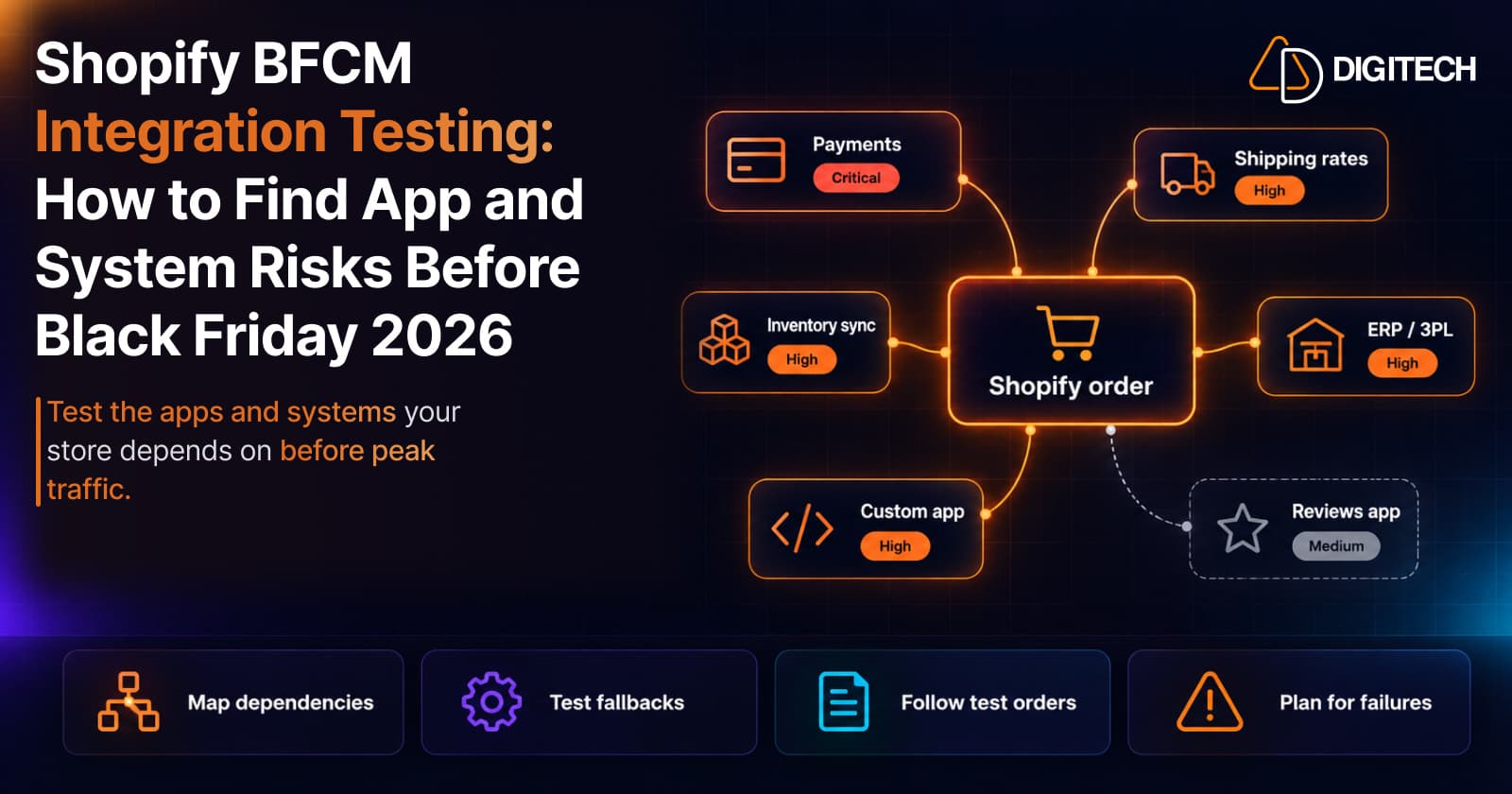
Shopify BFCM Integration Testing: How to Find App and System Risks Before Black Friday 2026
Prepare your Shopify store for BFCM 2026. Test checkout, shipping apps, payments, inventory sync, and custom integrations before Black Friday.
Read article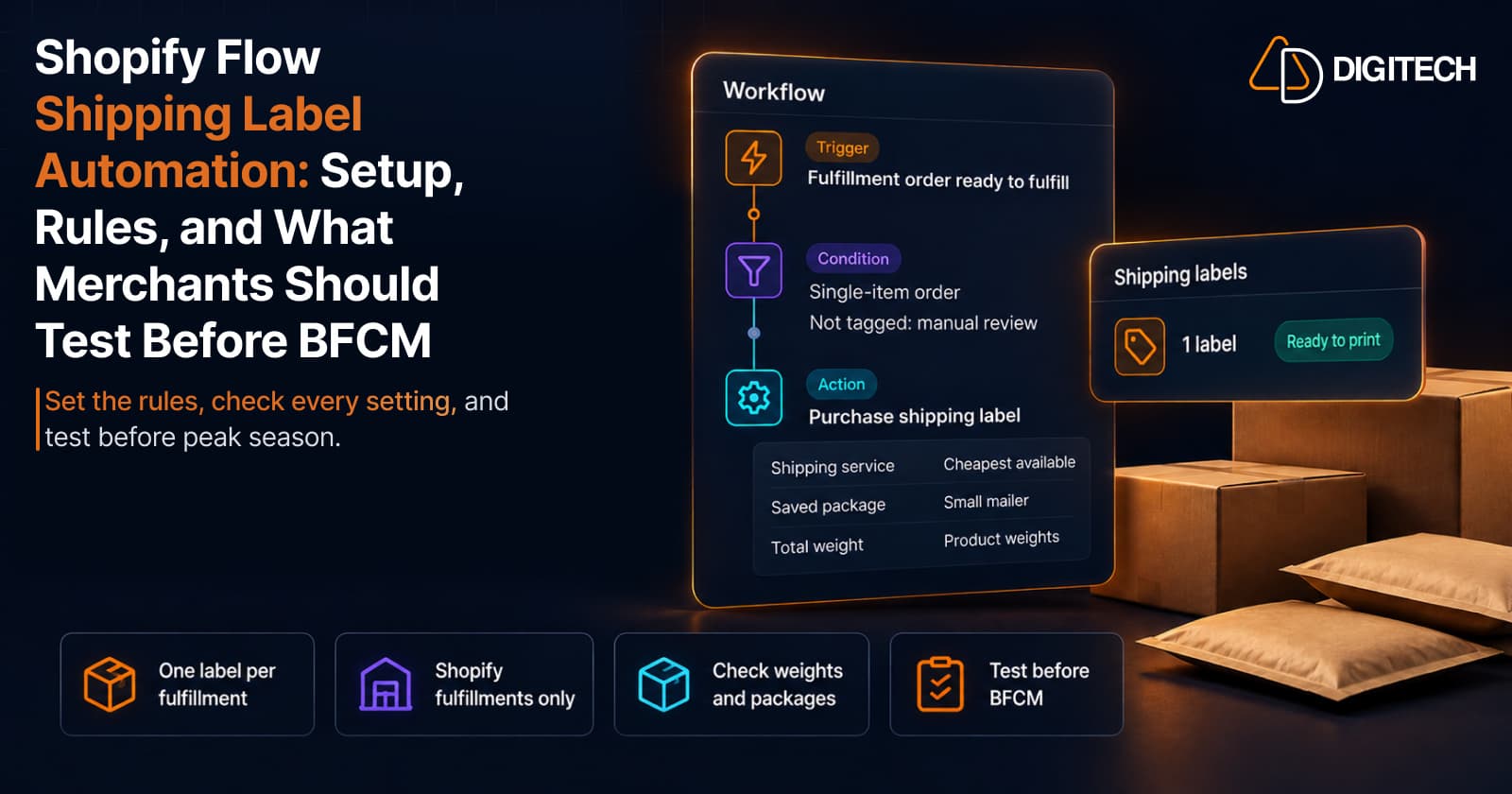
Shopify Flow Shipping Label Automation: Setup, Rules, and What Merchants Should Test Before BFCM
Shopify Flow can now buy shipping labels automatically for orders that match your rules. Here's how the action works, example workflows, and what to test before BFCM.
Read article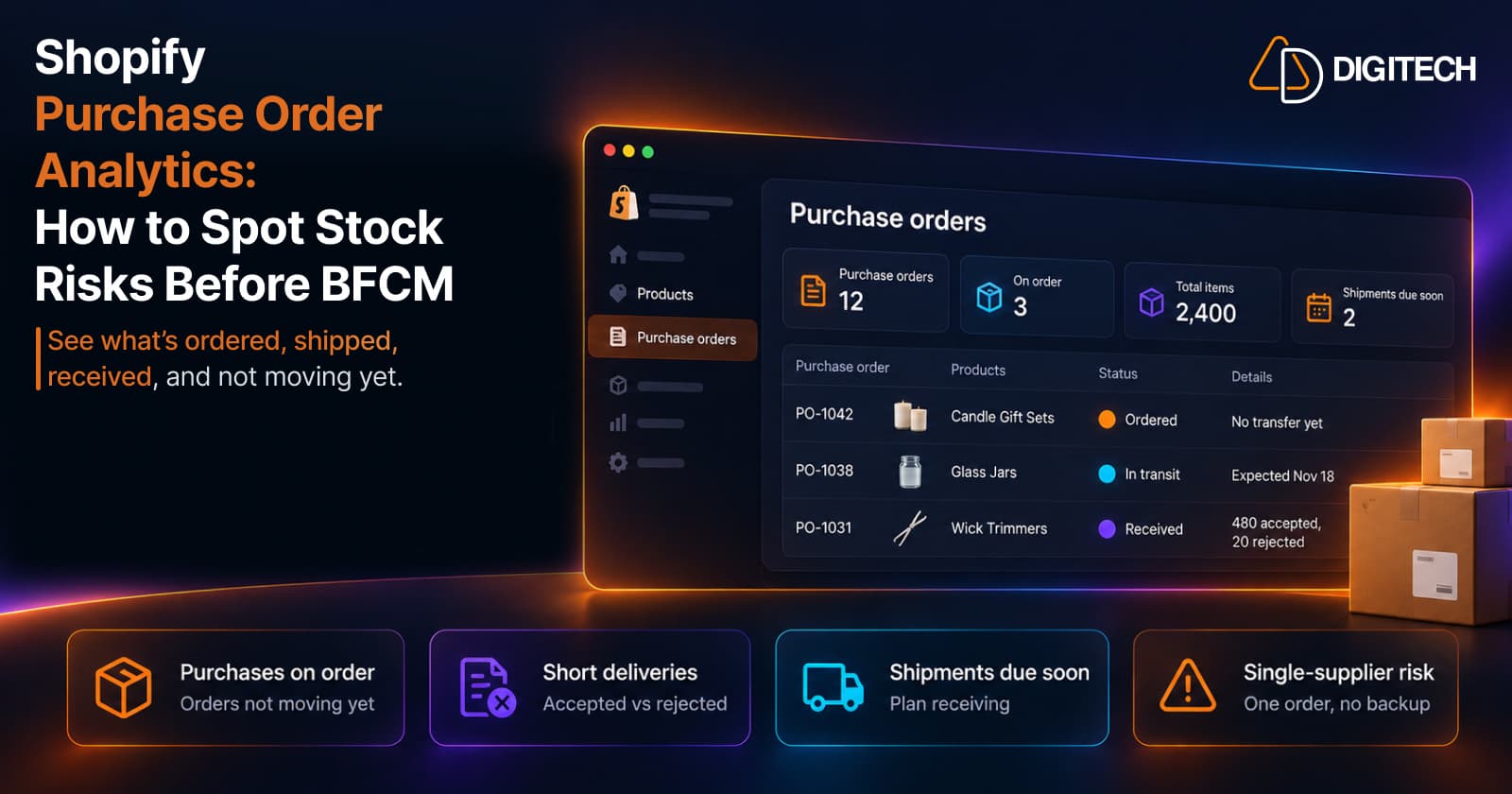
Shopify Purchase Order Analytics: How to Spot Stock Risks Before BFCM
Shopify Analytics now includes purchase order reports. Here's what each report shows, how to use them to spot stock risks before BFCM, and what they can't tell you.
Read article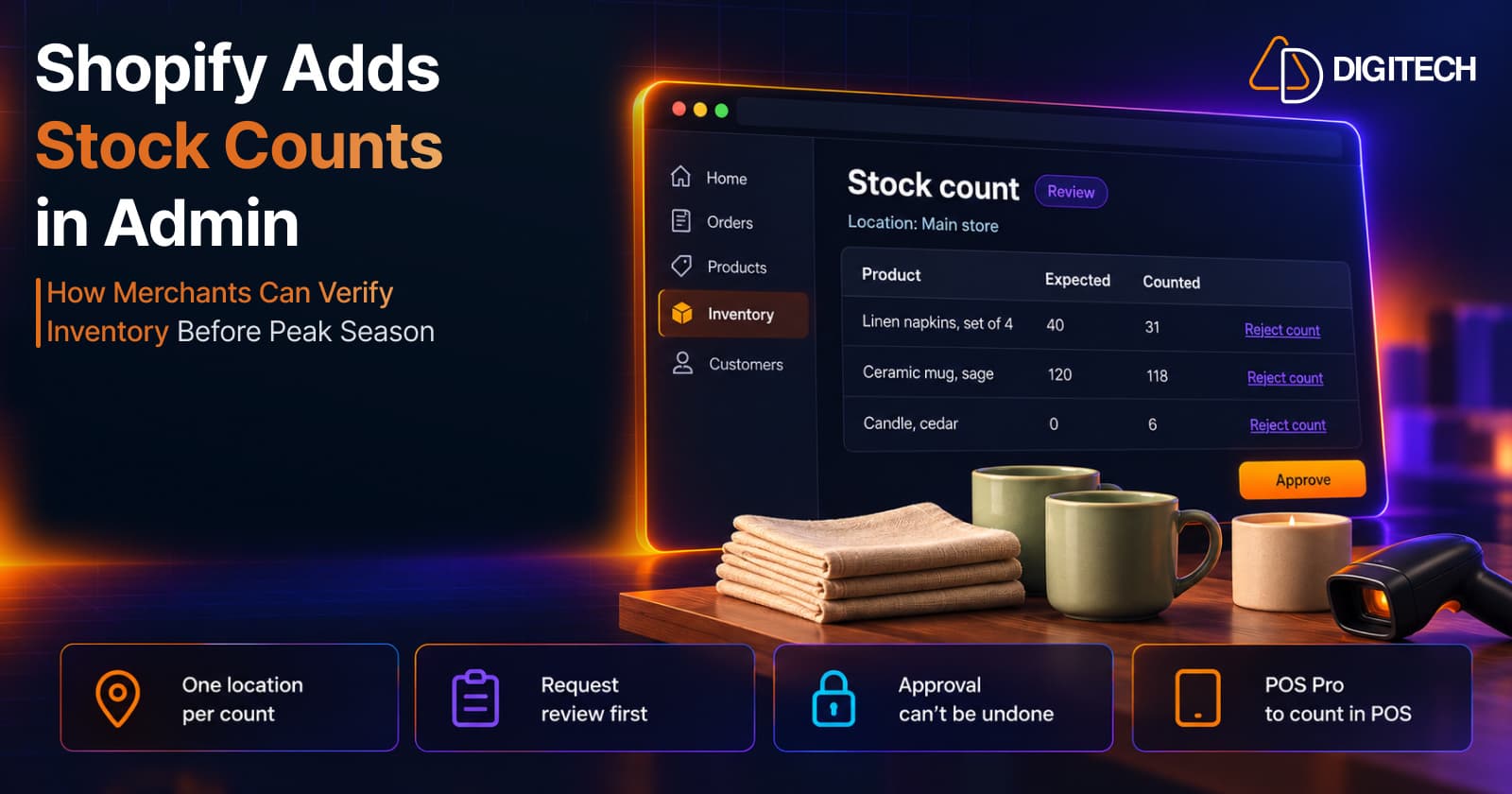
Shopify Adds Stock Counts in Admin: How Merchants Can Verify Inventory Before Peak Season
Shopify stock counts let staff record what's on the shelf and let a manager approve the differences before inventory changes. Here's how the workflow works in admin and POS.
Read article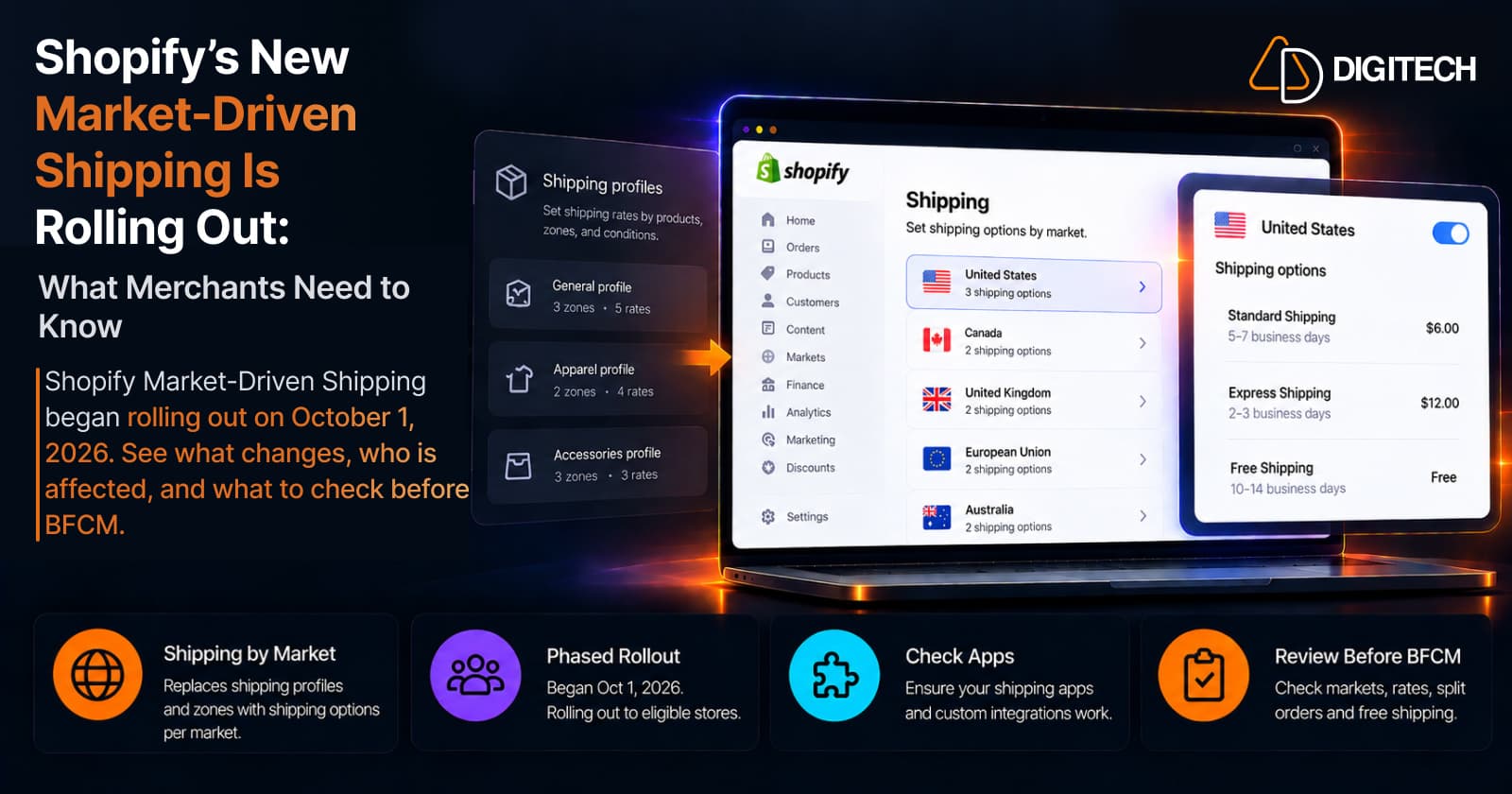
Shopify's New Market-Driven Shipping Is Rolling Out: What Merchants Need to Know
Shopify Market-Driven Shipping began rolling out on October 1, 2026. See what changes, who is affected, and what to check before BFCM.
Read article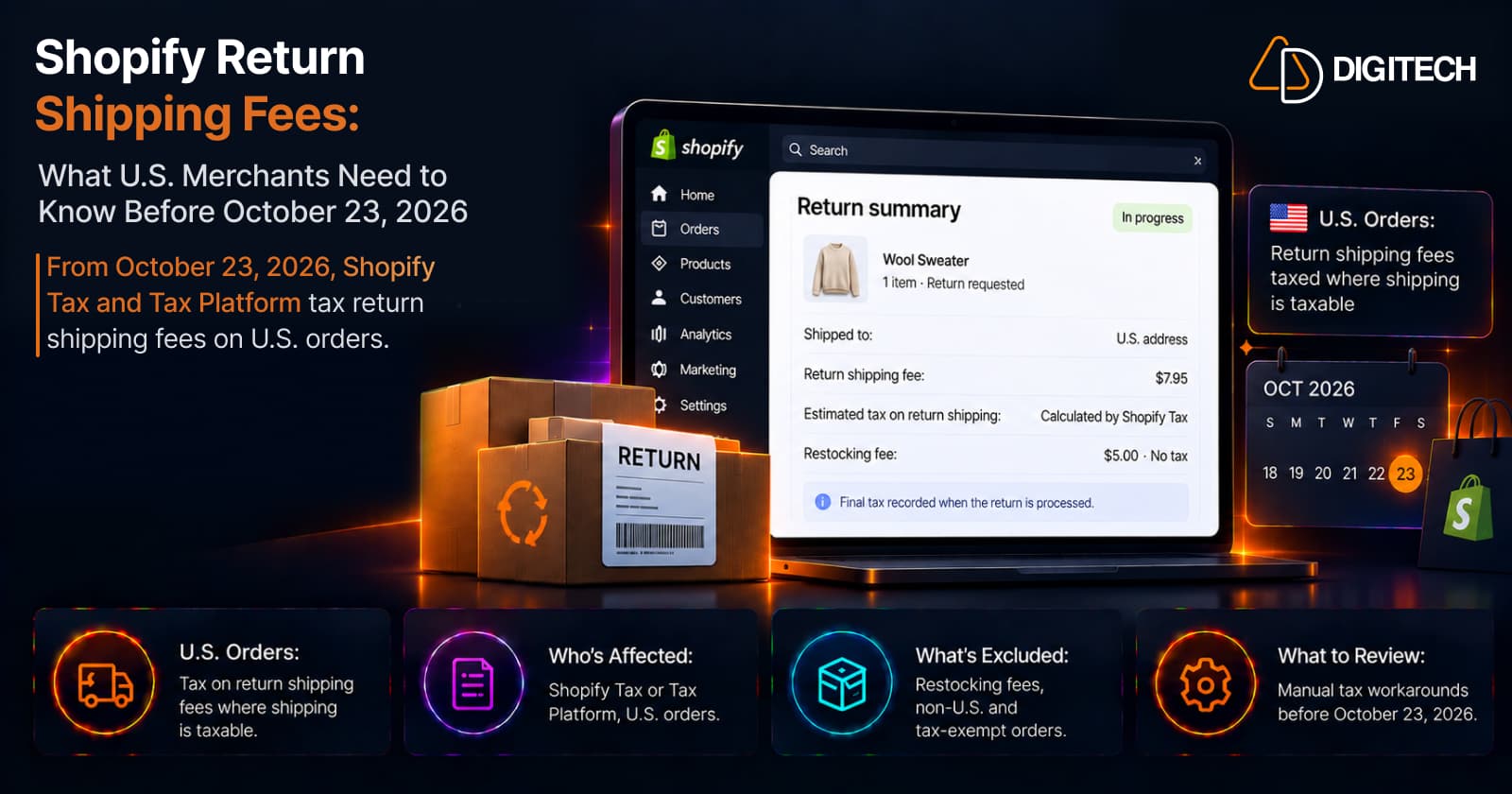
Shopify Return Shipping Fee Tax: What U.S. Merchants Need to Know
Since October 23, 2026, Shopify Tax and Tax Platform calculate tax on return shipping fees for U.S. orders. Who's affected, what's excluded, and what to review.
Read article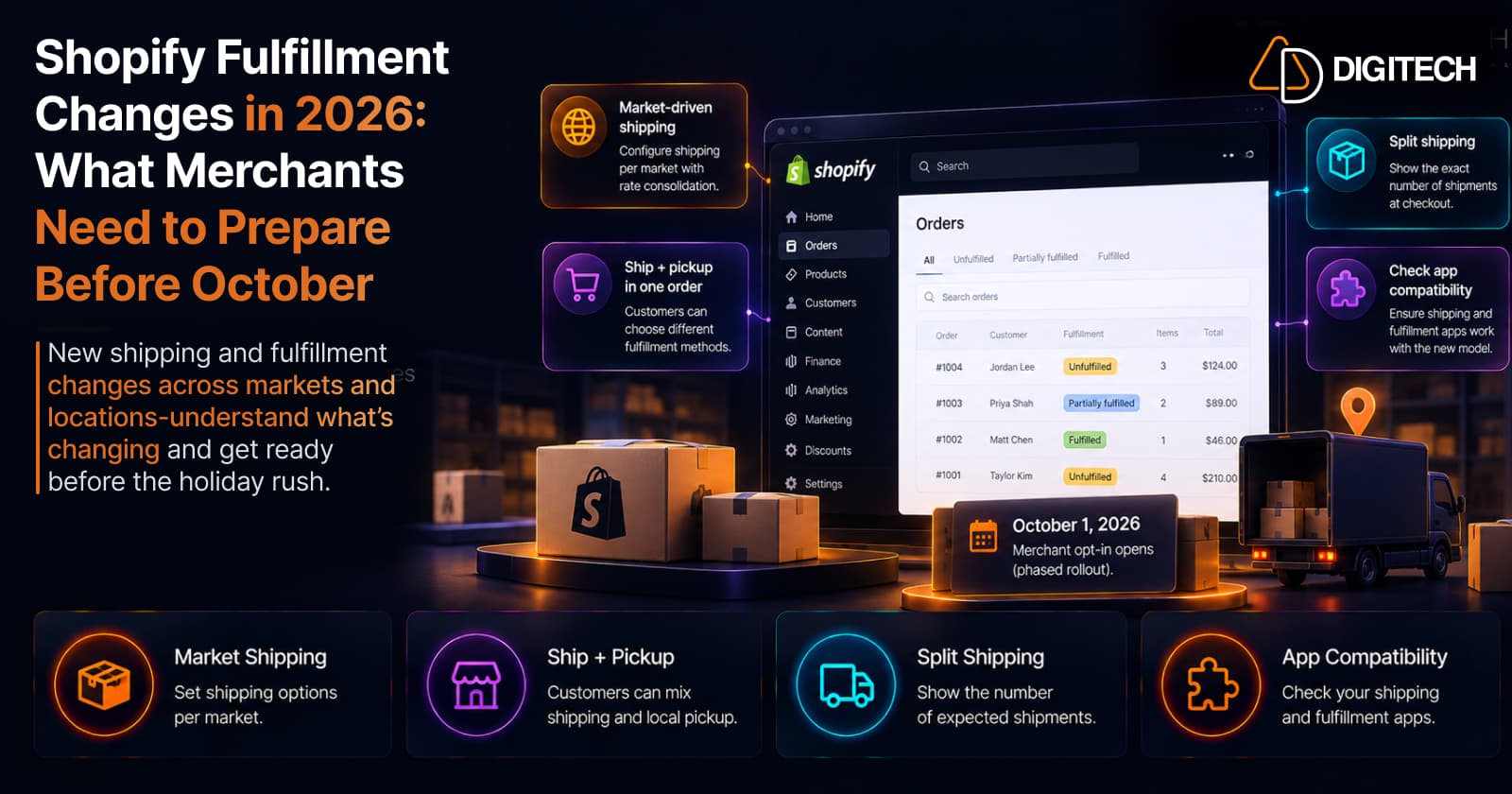
Shopify Fulfillment Changes in 2026: What Merchants Need to Know
Shopify is changing shipping and fulfillment across markets and locations. What October 1, 2026 actually means, who's affected, and what to check before holiday volume — no forced migration.
Read article