Shopify Adds Stock Counts in Admin: How Merchants Can Verify Inventory Before Peak Season
Shopify stock counts let staff record what's on the shelf and let a manager approve the differences before inventory changes. Here's how the workflow works in admin and POS.
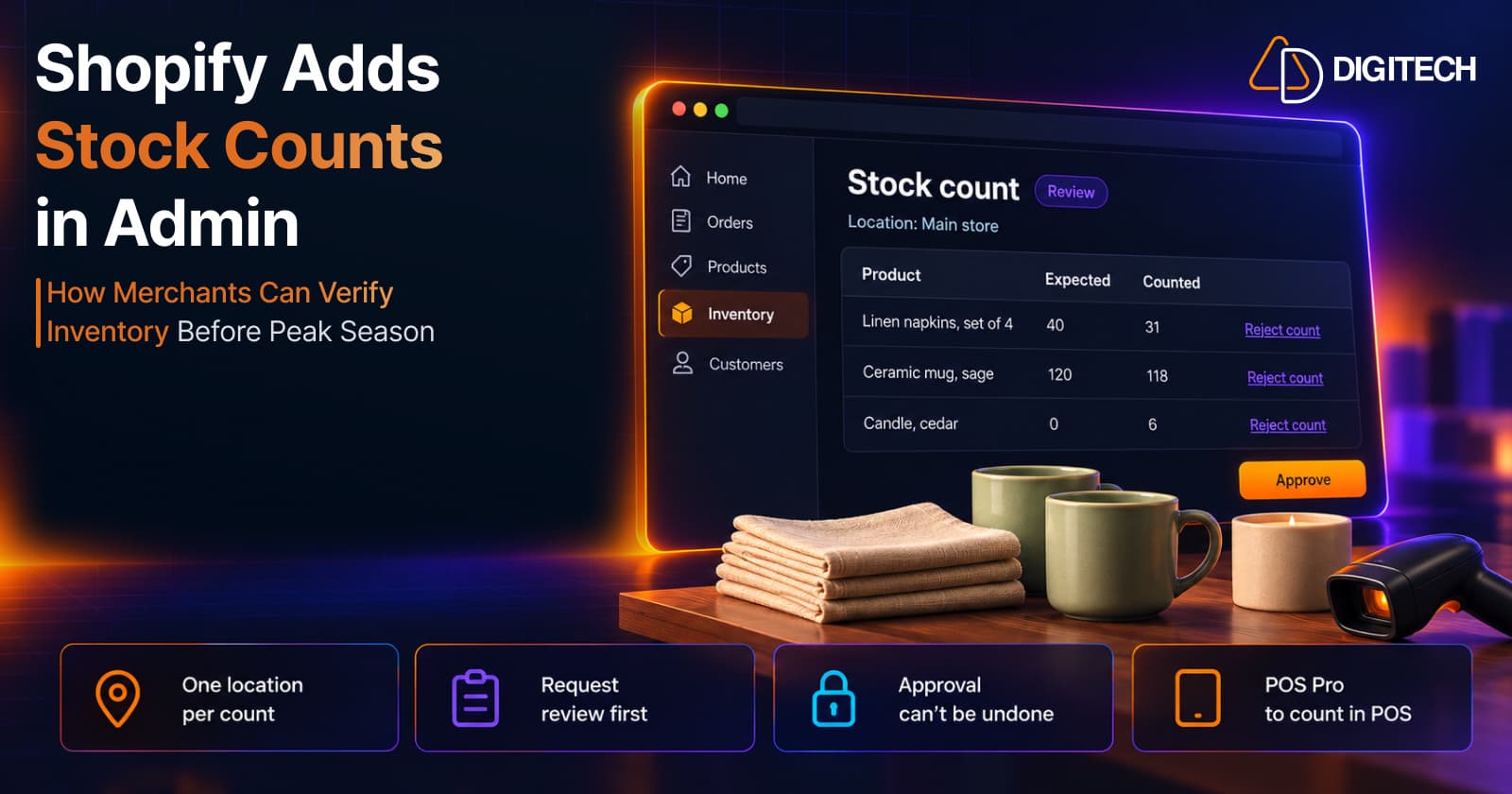
A miscount doesn't stay on the shelf. If Shopify thinks you have 40 units and the stockroom holds 31, the difference shows up later as an order you can't ship, or as stock you didn't know you had. Many merchants fix that with spreadsheets and manual adjustments, which works until two people count the same shelf or nobody remembers which numbers were already entered.
On October 20, 2026, Shopify added stock counts to the admin. Staff record what's physically there, a manager compares it with what Shopify expected, and only then do inventory levels change. This guide explains how the workflow runs in the admin and in Shopify POS, which actions change inventory for good, and how to plan a count your team can trust.
What Shopify Introduced
Shopify's changelog post, "Create, manage and review stock counts in Shopify admin", calls it "a structured way to verify inventory in Shopify admin." The Help Center guide defines a stock count as "a record of the stock that you physically count at one of your store locations, checked against the on-hand quantity that's recorded in Shopify for each product."
The workflow has three parts:
- Create a count in the admin for one location and the products to include.
- Count: staff record quantities with a barcode scanner or by typing them in, in the admin or, at POS Pro locations, in Shopify POS.
- Review: a manager compares counted and expected quantities and approves the result. Only then does Shopify change inventory, and each change is written to your adjustment history.
That last point is the real change. A count is a record you can check before it touches your stock levels, not a bulk edit you make and hope is right.
Admin and POS: Who Does What
The two apps have different jobs, and different requirements.
In the Shopify admin (desktop browser). Shopify says "You create and manage stock counts in the Shopify admin on a desktop browser," and "You can't create a stock count in the Shopify app or in Shopify POS." Creating, reviewing and approving all happen here. Staff can also count in the admin: "Any staff member with permission to manage inventory can count the products in it." The documentation doesn't mention a POS subscription for any of this.
In Shopify POS (counting only). Shopify's POS changelog post of September 28, 2026, "Run stock counts in POS", says this "requires POS Pro and Shopify POS v11.16 or later." The POS Help Center page adds that "Stock counts are available only to locations with a Shopify POS Pro subscription," and that staff need the Perform inventory counts permission. In POS, staff open the count from Stock counts under the Product icon, count the listed products, and tap Request review. Per the changelog, "Submitting a stock count from POS doesn't immediately update inventory quantities."
Permissions. Shopify says creating and reviewing counts are separate permissions managed in the admin, but the pages we reviewed don't name them. Check Settings > Users in your own admin before deciding who can approve counts.
Before You Count
A few documented rules shape how you plan:
- One location per count. "A stock count covers one location." To count stock at more than one location, create a separate count for each.
- No bundles. "You can't create a stock count for bundles. A stock count works only for individual inventory items." Count the products a bundle is made of.
- Fix duplicate barcodes first. "If the same barcode is assigned to more than one product, then scanning that barcode returns an error." Shopify advises: "Resolve any duplicate barcodes before you count." Our guide to multiple barcodes per variant covers how barcodes now work on variants.
- Counts compare against on hand. In Shopify's terms, on-hand inventory is all the units at a location, the sum of available, committed and unavailable stock. Committed units, set aside for orders that haven't been fulfilled yet, are part of on hand, so if they're still physically at the location, count them.
The Help Center doesn't say how sales, returns or transfers that happen during a count are handled. Until Shopify documents it, the safest plan is to count when the shelf isn't moving: before opening, after closing, or while nobody is picking orders for the products being counted.
Creating a Count
Shopify's steps for creating a count start at Products > Inventory > Stock counts:
- Click Create count.
- Click Select location to count and choose the location.
- Optionally add a Name and a Planned date.
- Add products in the Search products to add field, by name or by scanning a barcode.
- Click Save.
The count starts in Draft, where you can still add or remove products. Its name, planned date, tags and note can be updated at any time.
Scope is your main decision. Shopify documents adding products by search or scan, so a count is something you build deliberately. A practical approach is to count by area or risk instead of everything at once: one count for your fastest sellers, another for a single aisle or bin range. Smaller counts are quicker to review, and a problem in one doesn't hold up the rest.
Recording Quantities
Staff open the count and enter quantities in each product's Count field, or scan. Per Shopify's guide to performing and reviewing counts, "Each scan adds one to that product's counted quantity," and "Scanning a product that isn't in the count adds it to the count."
Two details help with a team:
- Several people can count at once. "Several staff members can work on the same count at the same time," and each quantity is attributed to its recorder in the Counted by column.
- Shifts don't lose work. "Counted quantities are already recorded, so nothing is lost when staff count in shifts."
You can't assign a count to a named person: Shopify says "You can't assign specific staff members to a count." So decide who covers which shelf before you start. The documentation also doesn't explain what happens when two people type a quantity for the same product, and splitting the work by area avoids the question.
Reviewing Differences Before Inventory Changes
When counting is finished, open the menu next to the location name. Two options sit there, and they behave very differently:
- Request review sends the count for approval. Shopify describes it as requesting "a review so that a manager approves the results before inventory is updated." Inventory doesn't change yet.
- Complete count skips the review. It "updates your inventory levels right away, without a review, and can't be undone."
Unless it's a small count you're sure of, choose Request review. The count moves to Review status, which Shopify says it must be in before it can be approved. A manager then:
- Compares the Expected and Counted columns for each product.
- Clicks Reject count for any product that needs a recount, then Save.
- Clicks Approve.
Shopify's overview says "Approving a count applies the difference between the counted and expected quantities," and its review guide adds that "Rejected items aren't updated when you approve a count." To recount rejected items, create a new count for them. Every resulting change is recorded in your adjustment history.
Approving is final. Shopify says "When you approve a count, your inventory levels are updated and can't be undone." Check each difference before you click Approve; a wrong count is fixed by a new count or a manual adjustment, not by reversing the approval.
Here's an example of how a review could look for a fictional homeware store. The products, quantities and next steps are illustrative, not Shopify data or recommendations Shopify generates. Shopify shows the Expected and Counted columns; the Difference column is our own calculation (Counted minus Expected), the change approval would apply. A negative difference lowers your inventory and a positive one raises it. Whatever the size of a difference, verify the physical count and investigate it before you approve:
| Product | Expected | Counted | Difference | Illustrative Next Step |
|---|---|---|---|---|
| Linen napkins, set of 4 | 40 | 31 | −9 | Reject for recount: verify the physical quantity and check for misplaced, damaged, or unrecorded stock. |
| Ceramic mug, sage | 120 | 118 | −2 | Illustrative decision: approve only after verifying the count and confirming the discrepancy is valid. |
| Candle, cedar | 0 | 6 | +6 | Reject for recount: verify the physical quantity and check recent receipts, transfers, and inventory adjustments. |
Shopify doesn't set thresholds for what to recount. Decide yours before review day, so the manager isn't judging each line from scratch.
Completing a Count Without Review
The review is optional, and Complete count is the shortcut. Because it changes inventory immediately and can't be undone, it suits only a small count done by the person who would approve it anyway. For a full location count, or anything done by several staff members, agree beforehand that counts go through Request review. Shopify says "The actions available on the count details page depend on the count's status, not on your role," so treat this as a team rule.
If you need to stop a count without changing anything, canceling "closes it without changing your inventory levels or making any inventory adjustments." A canceled count can't be reopened, though: "You can't reopen a canceled count or change the products and results in it." Create a new count instead.
Stock Counts vs. Quick Counts in POS
Shopify POS also has quick count, and the two are easy to confuse:
- Quick count changes inventory directly. Shopify says adjustments made with it "sync automatically to your Shopify admin." It needs the Manage inventory (excluding transfers) permission for the user logged in to POS.
- Stock count is created in the admin and "holds the results for review before any inventory quantities change." Staff count only the products listed in it.
Use quick count for a one-off correction you're sure of. Use a stock count when you want a record, a second pair of eyes, and a list of what was counted.
How the Announcements Relate to the Help Center
Shopify's changelog posts summarize the feature, and the Help Center pages give the detailed steps. Two phrases from the announcements read more precisely next to those steps:
- "Assign counts to staff." The admin changelog lists this, and the POS changelog says a new count "automatically appears under Products > Stock counts in POS at the selected location." The Help Center adds that "You can't assign specific staff members to a count." In practice, a count is open to the staff who have the right permissions, at the location it covers, not to a named person.
- "Create and schedule." Both changelog posts mention scheduling. The detailed steps document this as the count's Planned date field and don't describe any other scheduling option.
How Stock Counts Fit With the Rest of Your Inventory
A count tells you what's on the shelf today. It doesn't forecast demand or stop overselling by itself, and it doesn't replace receiving stock carefully. If inbound stock is the bigger worry, our guide to Shopify Purchase Order Analytics covers what's still on order and what was accepted or rejected when it arrived. For stores where staff also sell in person, our roundup of Shopify POS updates in 2026 covers the rest of the POS side.
One more limit: Shopify says "You can't duplicate a stock count, and you can't export your stock counts." You can still view, sort and search your counts on the Stock counts page. If you need a record outside Shopify, the adjustment history is where approved changes live.
A Practical First Count
These are our recommendations based on the documented workflow, not Shopify requirements:
- Start small. Count one shelf or product type at one location to learn the flow before a full count.
- Check POS readiness if you'll count there: POS Pro at the location, POS v11.16 or later, and the Perform inventory counts permission.
- Fix duplicate barcodes and leave bundles out of the count.
- Pick a quiet window so sales and transfers don't move stock mid-count.
- Split the floor between staff so nobody counts the same products.
- Agree on review. Use Request review, not Complete count, and set rough thresholds for what gets recounted.
- Read the adjustment history after approval to confirm the changes match the count.
Conclusion
Stock counts move a familiar job into Shopify: count what's there, compare it with what Shopify expected, and approve the difference with a record of who counted what. The value is in the review step, so keep it, remember that approval can't be undone, and plan around the parts Shopify hasn't documented yet, such as stock that moves during a count.
If you'd like help setting up inventory processes across locations, connecting them with POS, or reviewing your store before a busy season, our Shopify development team can help.
Frequently asked questions
What is a stock count in Shopify?
Shopify describes a stock count as a record of the stock you physically count at one of your store locations, checked against the on-hand quantity recorded in Shopify for each product.
Can I create a stock count in Shopify POS?
No. Stock counts are created and managed in the Shopify admin on a desktop browser. At locations with POS Pro, staff can then perform the count in Shopify POS and request a review.
When does Shopify change my inventory levels?
Within a stock count, only when the count is approved, or when someone uses Complete count, which skips the review. Both update inventory and can't be undone. Requesting a review doesn't change inventory.
Can I assign a count to a specific staff member?
No. Shopify's Help Center says you can't assign specific staff members to a count. Any staff member with permission to manage inventory can count the products in it, and Shopify records who entered each quantity.
What's the difference between a stock count and a quick count in POS?
A quick count changes inventory directly, and the adjustments sync to your admin. A stock count is created in the admin and holds the results for review before any quantities change.
Building something on Shopify?
We design, build, and maintain Shopify apps, stores, and AI products — to the standard this article describes.
Related reading

Shopify Adds Arabic, Urdu, and Hebrew Support: What Merchants Must Check Before Launch
Shopify improved RTL support for Arabic, Urdu and Hebrew in the admin, storefronts and checkout. Here's what's covered, what isn't, and what to test before launch.
Read article
Shopify Translate & Adapt Auto-Sync: How to Keep Translations Current Before BFCM
Translate & Adapt can now update translations weekly with Auto-sync. Here's who can use it, how it differs from Translate now, and how to plan translations before BFCM.
Read article
Shopify Flow Shipping Label Automation: Setup, Rules, and What Merchants Should Test Before BFCM
Shopify Flow can now buy shipping labels automatically for orders that match your rules. Here's how the action works, example workflows, and what to test before BFCM.
Read article
Shopify Automated Policies: 7 Things Merchants Should Check Before Enabling Them
Shopify can now generate and update your return, shipping, terms of service and contact policies from your store settings. Here's what to check before you turn automation on.
Read article
Shopify Purchase Order Analytics: How to Spot Stock Risks Before BFCM
Shopify Analytics now includes purchase order reports. Here's what each report shows, how to use them to spot stock risks before BFCM, and what they can't tell you.
Read article
Shopify Rollouts: How Merchants Can Safely Test Store Changes Before BFCM
Learn how Shopify Rollouts let merchants schedule, test, and launch store changes safely before BFCM, including themes, discounts, catalogs, and checkout.
Read article
Shopify Shop Checkout Gets Faster: What Merchants Need to Know
Shopify's October 5, 2026 Shop update brings faster checkout and carts that sync across devices. See how it works, who qualifies and what to check before BFCM.
Read article
Shopify Analytics Annotations: How Merchants Can Add Context to Their Store Data
Shopify Analytics annotations let merchants add campaign, pricing and operational notes to reports. See how they work, the limits, and how to use them for BFCM.
Read article
Shopify Canvas Explained: How AI Is Changing Shopify Store Design in 2026
Shopify Canvas, announced October 1, 2026, lets merchants design a store with Sidekick. See how it works, its current limits, and what it means for developers.
Read article