Shopify Flow Shipping Label Automation: Setup, Rules, and What Merchants Should Test Before BFCM
Shopify Flow can now buy shipping labels automatically for orders that match your rules. Here's how the action works, example workflows, and what to test before BFCM.
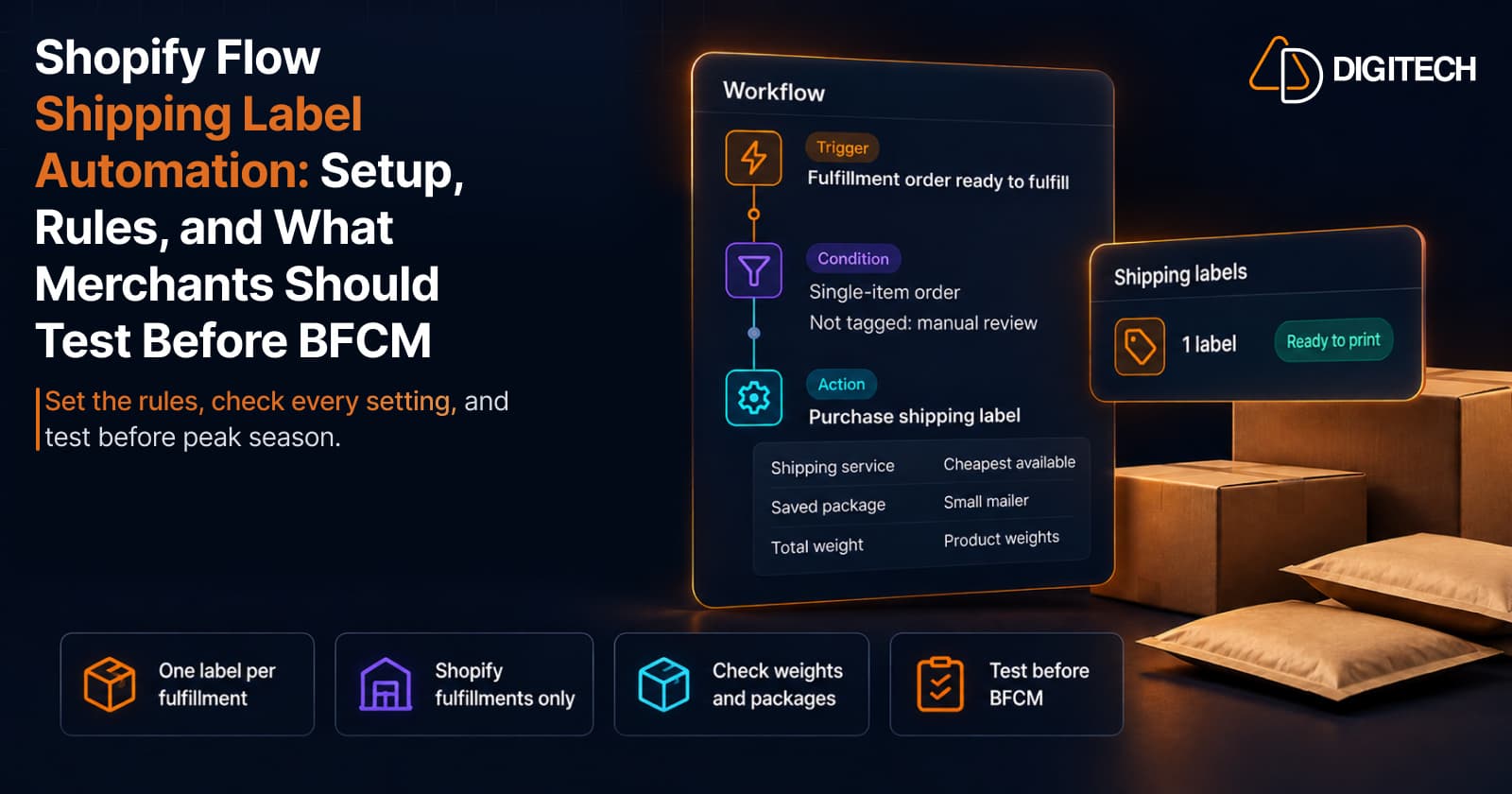
On October 15, 2026, Shopify announced that merchants can buy shipping labels automatically with Shopify Flow. You set which orders qualify, and Flow buys the label as each matching order comes in, ready to print from your Shipping labels page.
With Black Friday on November 27, 2026, that's worth a look for stores that buy the same label for many similar orders. But automation buys labels exactly as configured. Getting the rules, packages and weights right, and testing them, matters more than switching it on early. This guide covers how the action works, example workflows, and what to test before peak season.
What Shopify Added on October 15, 2026
Shopify Flow now has a Purchase shipping label action. According to Shopify's action documentation, it "automatically purchases a shipping label through your Shopify admin based on the carrier, service, weight, and package that you set on the action."
The changelog describes the intended use: "Set the conditions for which orders qualify, and Flow buys the labels as orders come in." Workflows can target orders with a specific tag, orders containing certain products, single-item orders, or any combination of order attributes. Shopify adds: "Orders that don't match are left alone."
Shopify provides a ready-made workflow template in Flow to start from, which you adjust for your store and turn on.
How the Purchase Shipping Label Action Works
One label per fulfillment
"This action purchases a single shipping label for a single order fulfillment." Each time the action runs, it buys one label for one fulfillment order; it doesn't buy labels for every order in your store. To buy labels for several fulfillments, Shopify says you "must use a For each action in your workflow to loop through a list of individual order fulfillments."
Triggers
The action needs a trigger that contains a fulfillment order. Shopify lists triggers such as Fulfillment order ready to fulfill, Fulfillment order hold released, Fulfillment order moved and Fulfillment order rescheduled, among others. The fulfillment order ID is set by the trigger and can't be changed.
The four settings
| Field | What it controls |
|---|---|
| Shipping service | The carrier and service, such as USPS Priority Mail. Use the cheapest available, or pick a specific one every time. |
| Saved package | Products use their assigned package. You can choose another saved package; if none is set, Shopify uses the recommended package. |
| Total weight | Use the line items' assigned weights, or a single custom weight every time. |
| Send shipping confirmation to buyer | When the shipping confirmation goes to the customer: same day by default, or later, such as 1 day after the action runs. |
Keep three timings apart. The label is purchased when the workflow runs. The shipping confirmation goes to the buyer when the field above says. The ship date is separate again: when you buy a label manually, Shopify asks for a shipping date, and the changelog says Flow lets you choose one, but the action's documentation lists only the four fields above. Check what your workflow editor shows before relying on it.
Available carriers and services "are determined by package weight, order destination, and your fulfillment locations," so not every carrier or service is available to every merchant or every order.
Eligibility and Limitations
- Shopify fulfillments only. The action "supports fulfillment orders fulfilled directly through Shopify. If an order is assigned to a third-party fulfillment service, then the action won't run even when a valid fulfillment order exists." If you use both, Shopify says to add a condition that filters by fulfillment service or location before the label purchase step.
- Shipping label requirements still apply. Buying labels in Shopify needs an eligible fulfillment location, accurate shipment details and a printer. Shopify notes that "Eligibility varies by carrier and country"; for example, US locations can use USPS, UPS, DHL eCommerce, DHL Express and FedEx, with some regional limits.
- Accurate weights and packages. Carriers price labels on origin, destination, package dimensions and weight. Shopify warns that if package details aren't accurate, "you can be charged for a price adjustment."
- Plans. Shopify Flow is a free app on the Basic, Grow, Advanced and Plus plans. Shopify doesn't list a separate plan requirement for this action.
- Each run is a purchase. Every label the workflow buys is a real label. Shopify lets you void unused labels for refunds, but don't treat voiding as a substitute for testing.
What Shopify doesn't document: whether the action checks for an existing label on a fulfillment, or how it reports a failed purchase. Don't assume protection against duplicate or incorrect labels; build your conditions and review process to cover it.
Example Workflows for BFCM
These are suggested workflow designs, not Shopify templates, built on the conditions Shopify describes. Adjust them to your catalog and test each one.
1. Single-item orders of a standard product
Many stores ship best-selling single items in the same mailer every time. A workflow for orders with one line item, using that product's saved package and assigned weight, can buy those labels automatically while multi-item orders stay manual.
2. Orders containing specific products
If certain products always ship the same way, such as a boxed gift set, set a condition on those products and select the matching saved package and service.
3. Orders with a specific tag
Tag orders that are ready for automatic labels, for example from another workflow or an app, and trigger the label purchase only on that tag. This keeps the decision visible and easy to switch off.
4. Excluding orders that need manual review
Add conditions so orders you'd normally check stay out of the workflow: orders with a manual-review tag, orders above a value you set, orders with notes, or orders going to destinations you handle differently. Those orders are left alone and follow your usual process.
5. A test workflow before going live
Start with a narrow workflow that only runs on orders carrying a dedicated test tag. Tag a small number of real orders you're ready to ship, confirm each label's service, package, weight and confirmation timing, and only then widen the conditions.
How to Set It Up
Based on Shopify's documentation:
- Install Shopify Flow from the Shopify App Store if you haven't already.
- Start from Shopify's shipping label template in Flow, or build a workflow with a fulfillment order trigger.
- Add your conditions: tags, products, number of items, fulfillment service or location, and any exclusions.
- Add the Purchase shipping label action, inside a For each loop if the workflow handles several fulfillments.
- Set the four fields: shipping service, saved package, total weight and shipping confirmation timing.
- Turn the workflow on only after testing it on a small set of orders.
Before you start, make sure your shipping label setup is complete: fulfillment location address, product weights, saved packages and printer.
Testing Checklist Before BFCM
Test the workflow on a small number of orders before you turn it on for high-volume BFCM orders. Check that:
- It runs only for eligible fulfillment orders fulfilled directly through Shopify, not third-party fulfillment services.
- Orders you exclude, such as manual-review orders, stay out of it.
- Orders that don't meet the conditions are left alone and follow your normal process.
- It buys one label for each fulfillment order when an order has more than one, if you use a For each loop.
- The intended shipping service and saved package are selected.
- The weight on the label matches the parcel.
- The ship date shown on the label is the one you expect.
- The buyer's shipping confirmation arrives at the intended time, not before the parcel leaves.
- Labels appear on your Shipping labels page and print correctly.
- Someone reviews automatically bought labels daily during peak, knows how to void an unused label, and can switch the workflow off quickly.
If your fulfillment setup is changing too, review Shopify's 2026 fulfillment changes and market-driven shipping before peak, and keep store changes scheduled carefully with Rollouts.
Common Mistakes to Avoid
- Going broad on day one. Start with one narrow rule and widen it after it works.
- Relying on default weights. Wrong weights lead to wrong labels and possible price adjustments.
- Forgetting mixed fulfillment. Orders routed to a third-party service won't get labels, so plan for them.
- Sending confirmations too early. A "shipped" email for a parcel still on the shelf creates support tickets.
- Assuming automation catches problems. It buys what you configure; it doesn't check stock, addresses or packing.
Conclusion
Shopify Flow's Purchase shipping label action can take a repetitive job off your team's plate for orders that ship the same way every time. It works within clear limits: one label per fulfillment, Shopify fulfillments only, and labels that are only as accurate as your weights, packages and rules. Test it with a narrow workflow now, well before November 27, rather than during the rush.
If your fulfillment setup involves custom workflows or apps that need to work together, our Shopify development team can help you review it.
Frequently asked questions
Can Shopify Flow buy shipping labels automatically?
Yes. Since October 15, 2026, Shopify Flow has a Purchase shipping label action. You set which orders qualify and the carrier, service, package and weight to use, and Flow buys the label when a matching order comes in.
Does the action buy one label or many?
One. Shopify says the action purchases a single shipping label for a single order fulfillment. To buy labels for several fulfillments, use a For each action to loop through them.
Does it work with third-party fulfillment services?
No. The action supports fulfillment orders fulfilled directly through Shopify. If an order is assigned to a third-party fulfillment service, the action won't run, so filter by fulfillment service or location first.
What happens to orders that don't match my conditions?
Shopify says orders that don't match are left alone. They go through your normal process, where you buy labels manually or through your existing setup.
Do I need Shopify Plus to use it?
Shopify Flow is a free app on the Basic, Grow, Advanced and Plus plans. Buying labels in Shopify also needs an eligible fulfillment location, and available carriers depend on that location's country.
Building something on Shopify?
We design, build, and maintain Shopify apps, stores, and AI products — to the standard this article describes.
Related reading
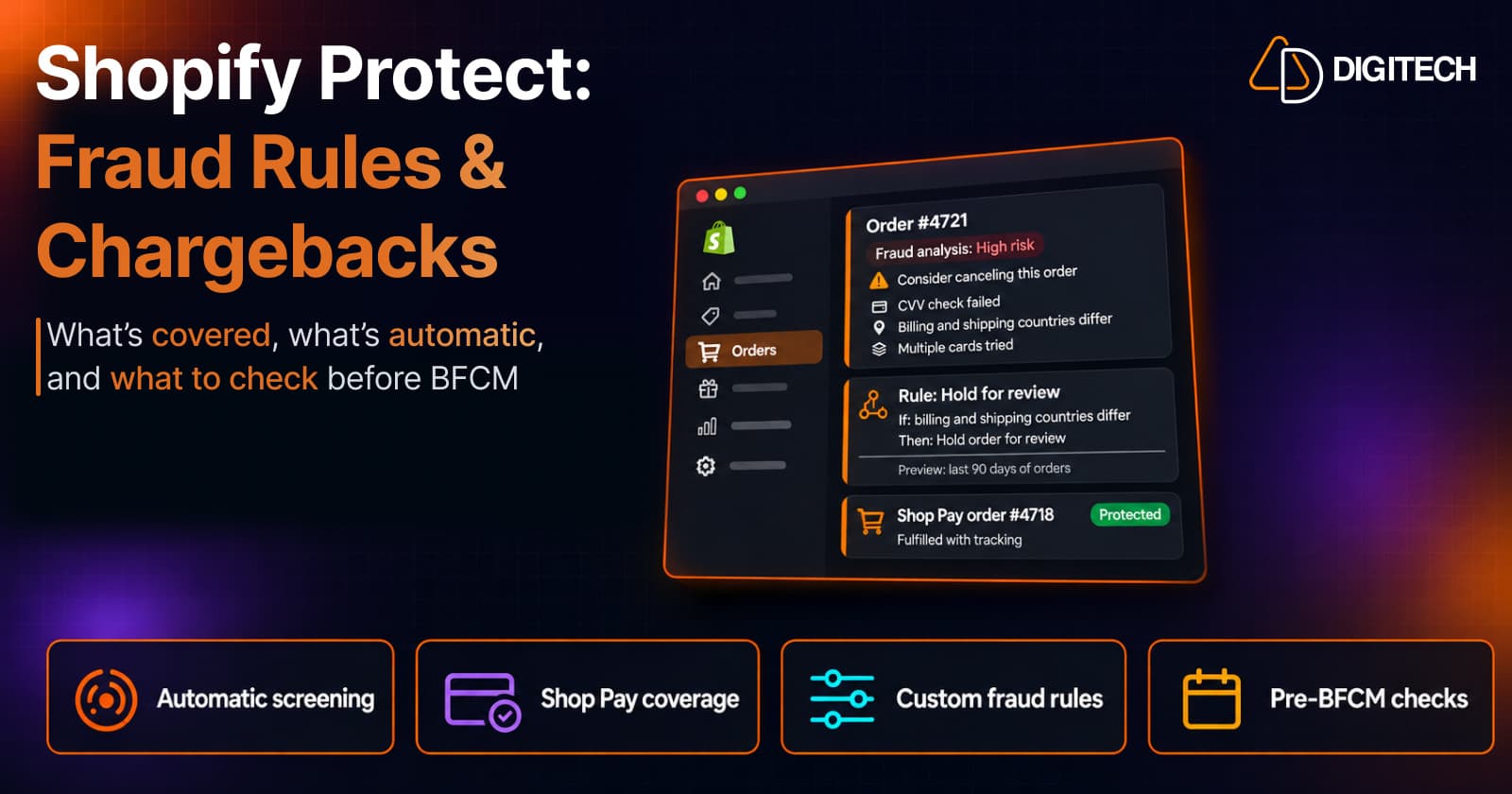
Shopify Protect: What It Covers, How Fraud Rules Work, and What Merchants Should Check Before BFCM
Shopify now uses the name Shopify Protect for its fraud and dispute tools on Shopify Payments, not only for Shop Pay chargeback coverage. Here's what works automatically, which chargebacks are covered, how the new Rule Builder app works, and what to check before BFCM.
Read article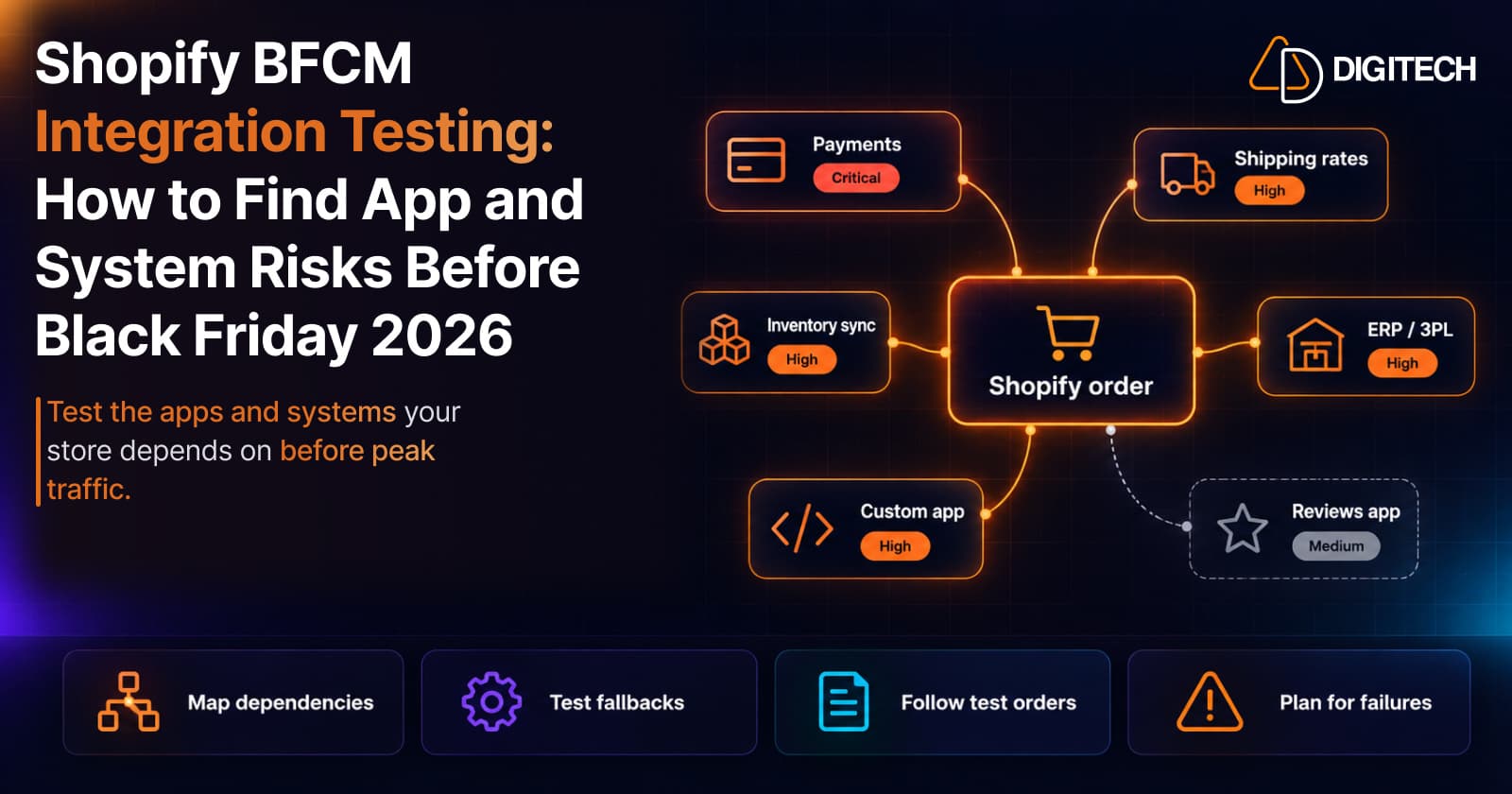
Shopify BFCM Integration Testing: How to Find App and System Risks Before Black Friday 2026
Prepare your Shopify store for BFCM 2026. Test checkout, shipping apps, payments, inventory sync, and custom integrations before Black Friday.
Read article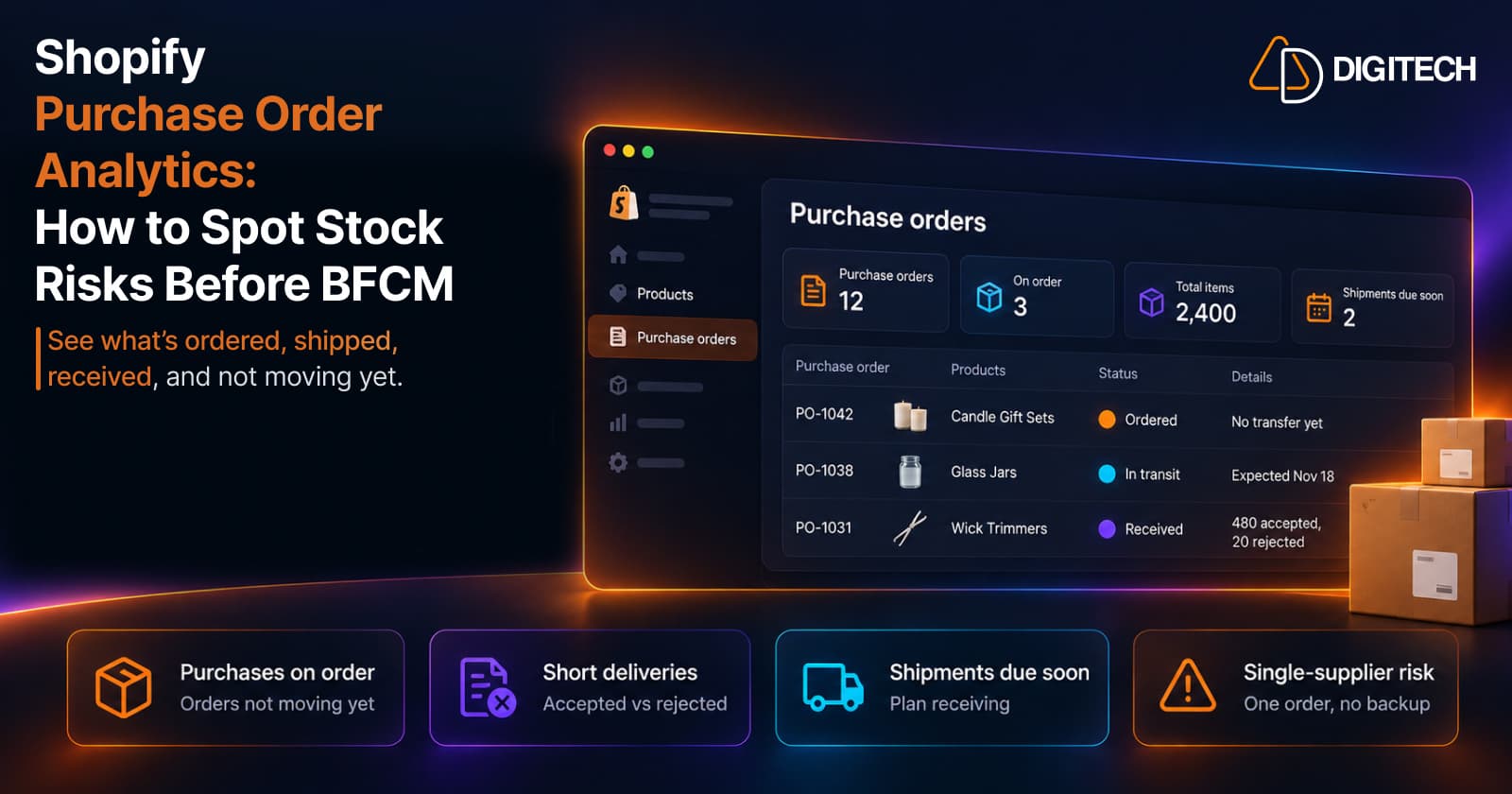
Shopify Purchase Order Analytics: How to Spot Stock Risks Before BFCM
Shopify Analytics now includes purchase order reports. Here's what each report shows, how to use them to spot stock risks before BFCM, and what they can't tell you.
Read article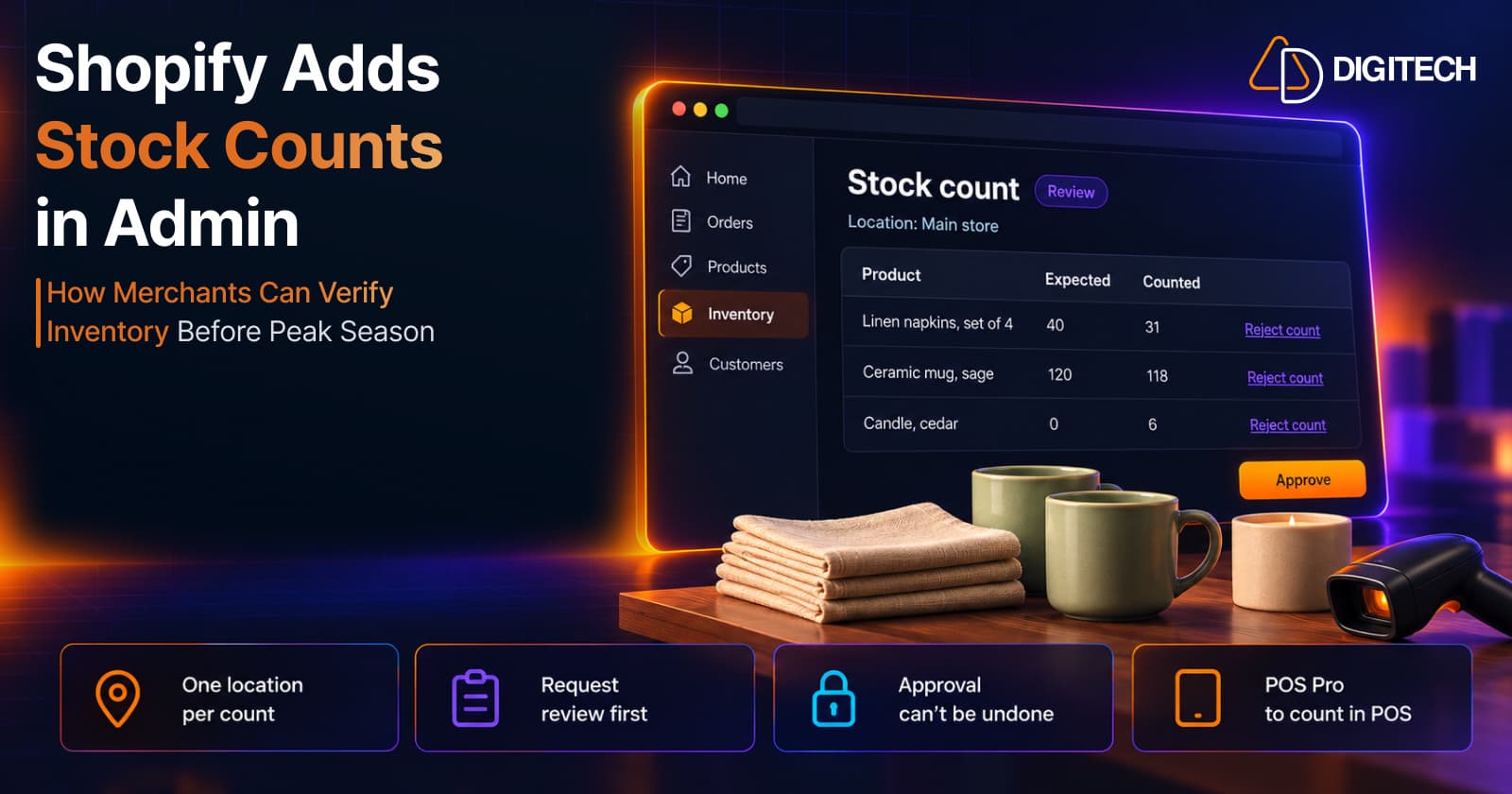
Shopify Adds Stock Counts in Admin: How Merchants Can Verify Inventory Before Peak Season
Shopify stock counts let staff record what's on the shelf and let a manager approve the differences before inventory changes. Here's how the workflow works in admin and POS.
Read article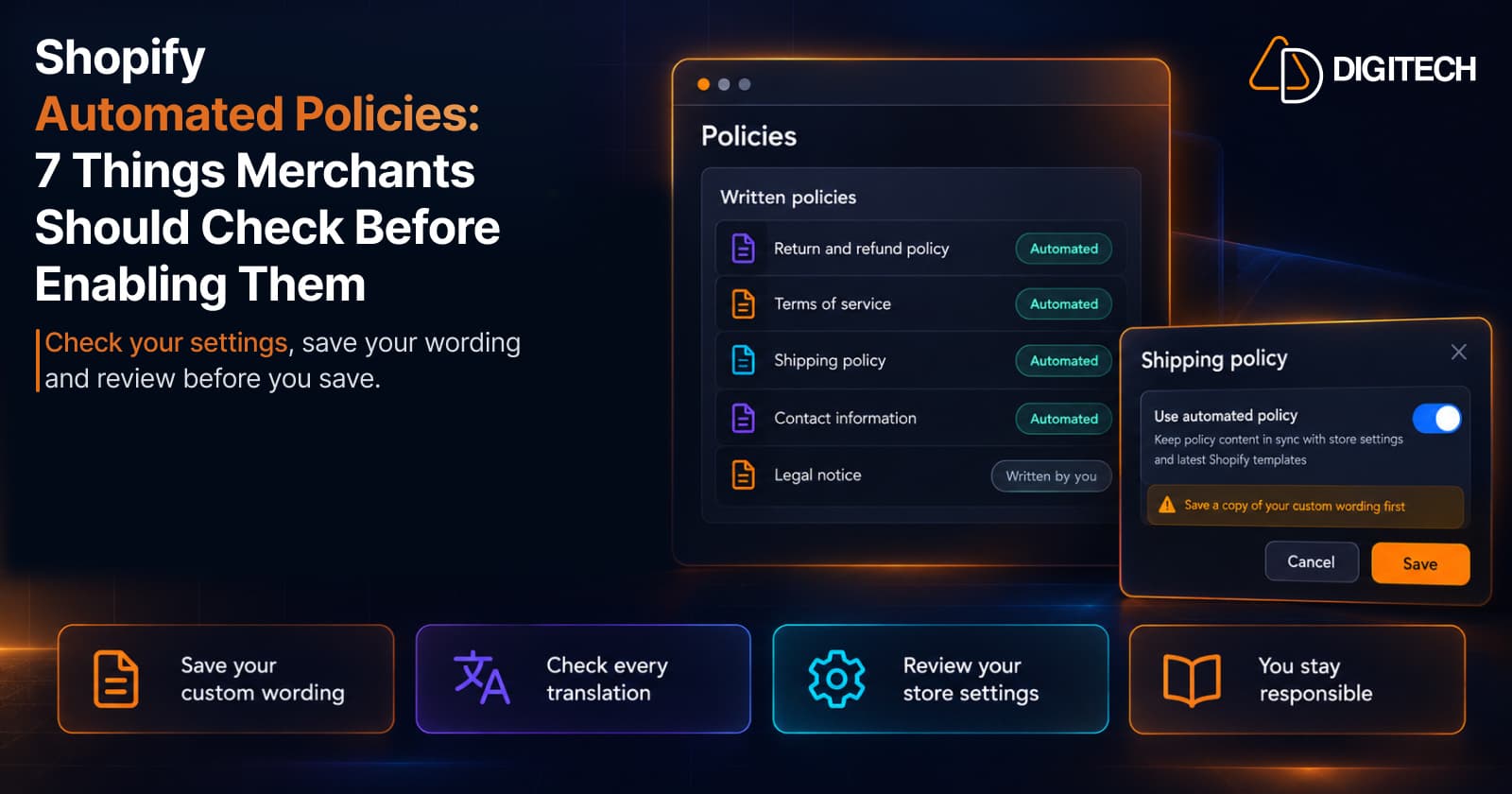
Shopify Automated Policies: 7 Things Merchants Should Check Before Enabling Them
Shopify can now generate and update your return, shipping, terms of service and contact policies from your store settings. Here's what to check before you turn automation on.
Read article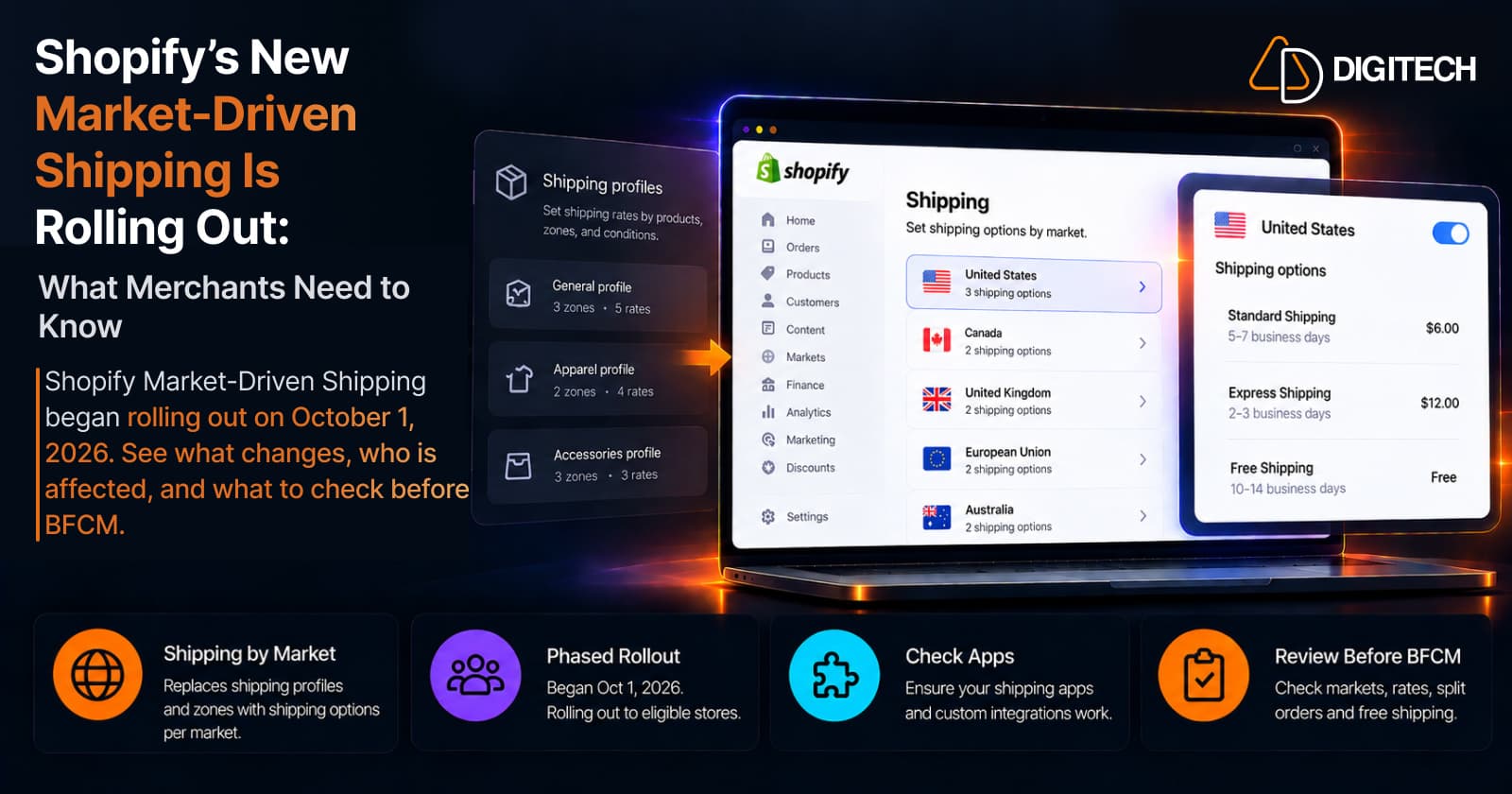
Shopify's New Market-Driven Shipping Is Rolling Out: What Merchants Need to Know
Shopify Market-Driven Shipping began rolling out on October 1, 2026. See what changes, who is affected, and what to check before BFCM.
Read article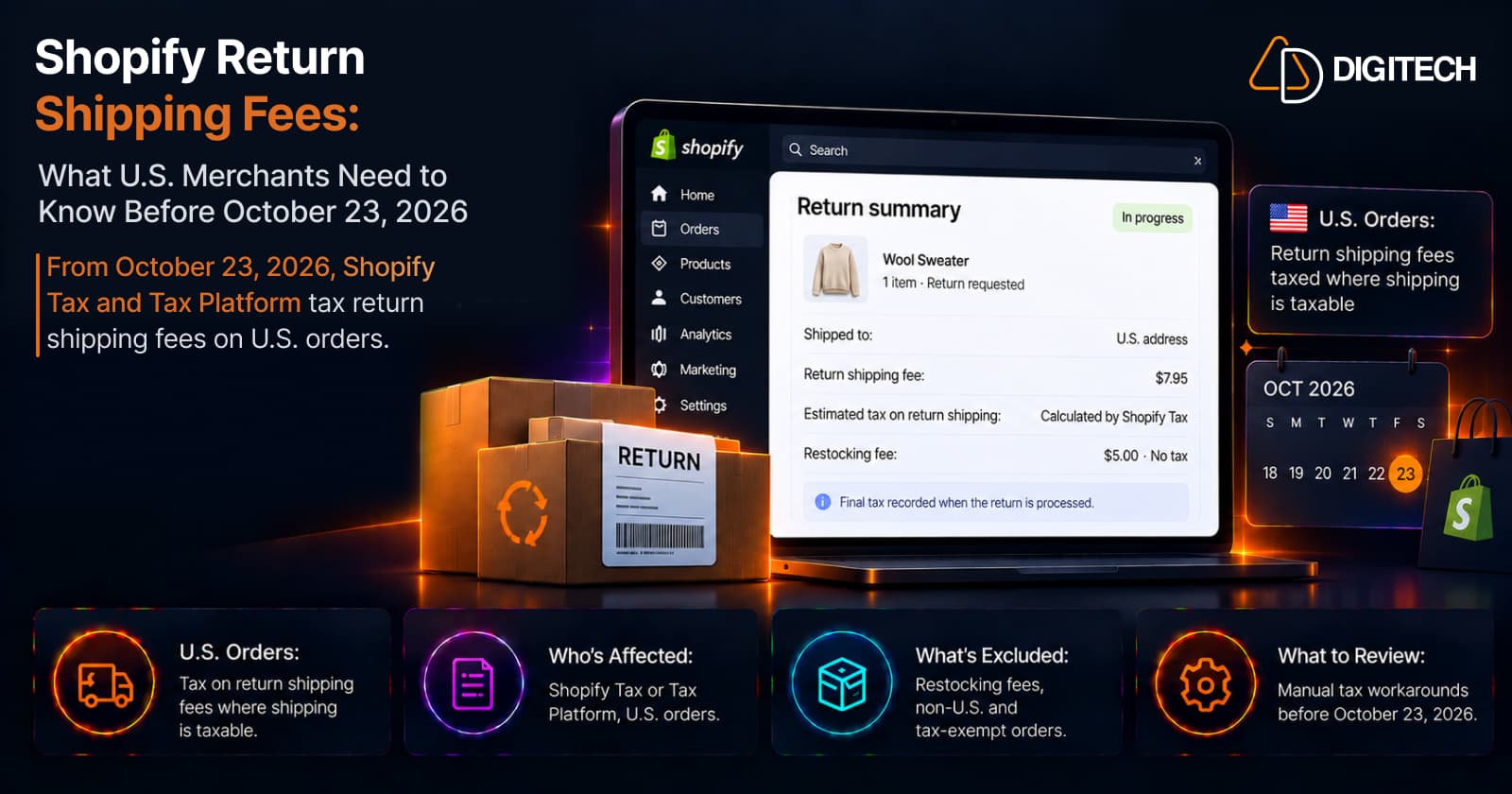
Shopify Return Shipping Fee Tax: What U.S. Merchants Need to Know
Since October 23, 2026, Shopify Tax and Tax Platform calculate tax on return shipping fees for U.S. orders. Who's affected, what's excluded, and what to review.
Read article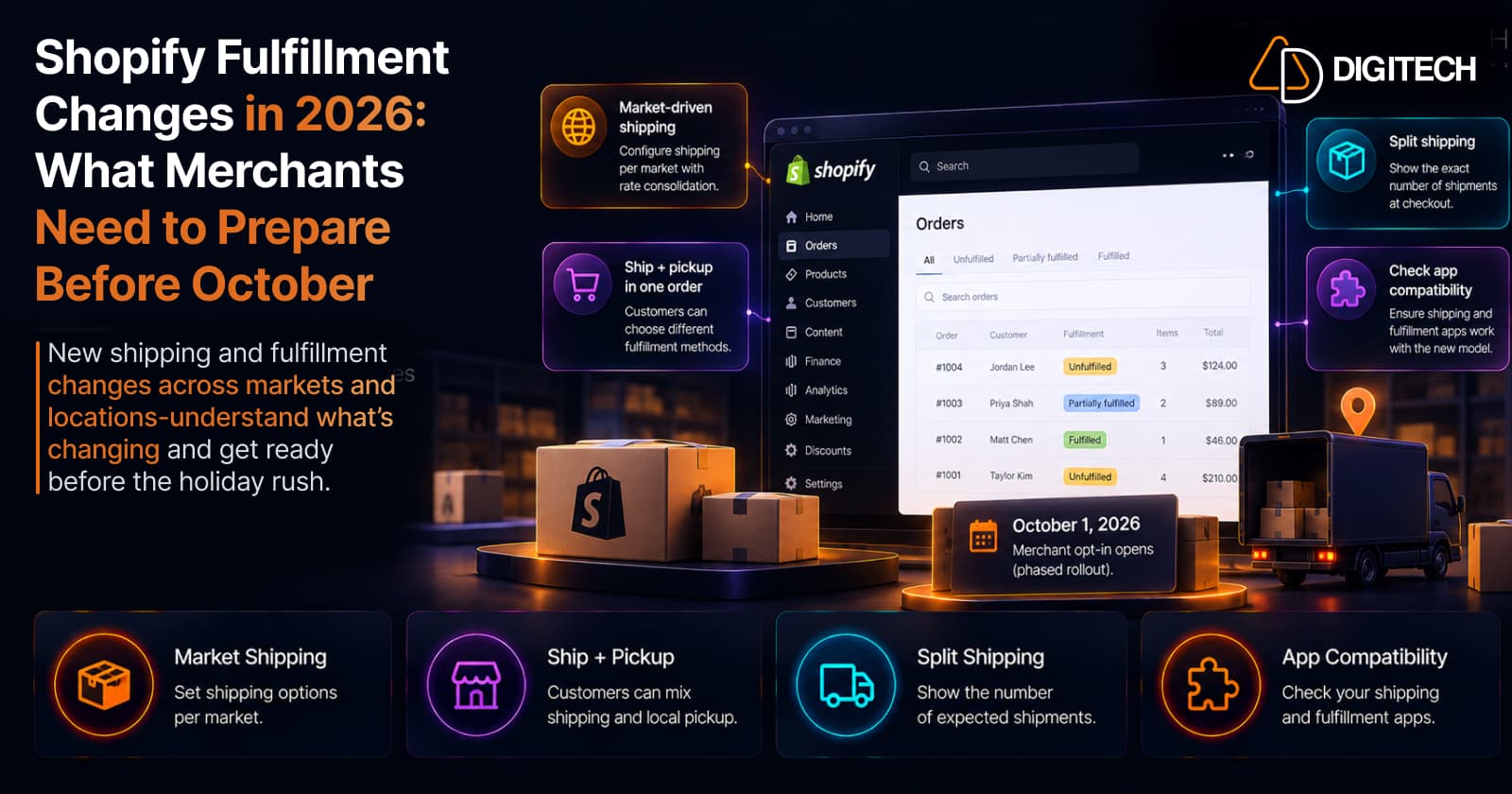
Shopify Fulfillment Changes in 2026: What Merchants Need to Know
Shopify is changing shipping and fulfillment across markets and locations. What October 1, 2026 actually means, who's affected, and what to check before holiday volume — no forced migration.
Read article
Shopify POS in 2026: 10 Updates Retail Merchants Should Know
The 10 most useful Shopify POS updates of 2026 — abandoned online carts in store, gift-card scanning, bulk staff setup, cart handoff, returns in cart, and more — and why each matters.
Read article