Shopify Order Status Page: How to Add Upsells, Recommendations & Offers
Learn how to customize the Shopify Order Status Page with product recommendations, upsells, bundles and offers to create better post-purchase experiences.
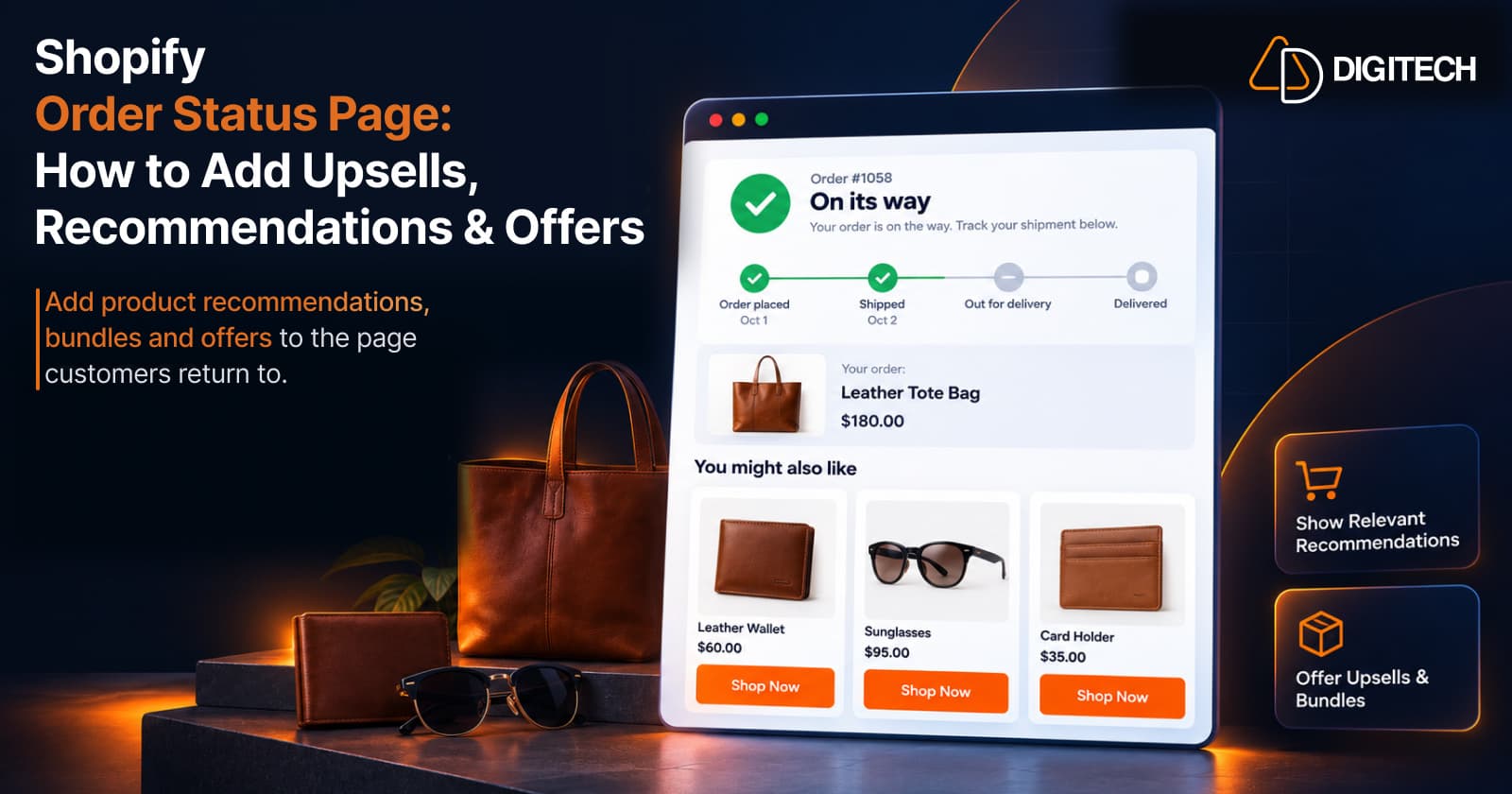
Most merchants think of the Shopify Order Status Page as the place customers go to track a parcel. That's its main job, and it should stay that way. But it's also a page customers can come back to after checkout, sometimes more than once while they wait for delivery.
Each of those visits is a chance to show something useful: a product that goes with what they bought, a bundle, or a relevant offer. This guide explains what the Order Status Page is, how it differs from the Thank You Page, what you can add to it, and how to do that with current Shopify tools.
What Is the Shopify Order Status Page?
The Order Status Page is part of Shopify's customer account experience. It's where a customer views, manages and tracks a specific order. Shopify describes it as the page where customers "can track their orders and view shipping updates". It shows the items, totals and order status, and for supported carriers it updates as the shipment moves.
Customers reach it in a few ways:
- From order notifications. Order confirmations sent by email, SMS or the Shop app can include a link to it.
- From their customer account, by opening an order from their order list.
- By returning after checkout. A customer who comes back to the confirmation page later sees the Order Status Page instead of the Thank You Page.
That last point is the main difference from the Thank You Page, which is shown once, straight after checkout. The Order Status Page is the one customers return to, which is why it can be useful for post-purchase engagement as well as tracking.
One practical detail: the confirmation email link opens the page for three weeks without logging in, on the same browser. App content doesn't appear on the fully public version of the page, which anyone with a direct link can open and where Shopify hides sensitive order details.
Shopify Thank You Page vs Order Status Page
| Thank You Page | Order Status Page | |
|---|---|---|
| When it appears | Once, immediately after checkout | Later, when the customer checks the order from a notification link or their account |
| Customer behavior | Confirming the purchase went through | Checking progress, tracking and delivery, possibly several times |
| Primary purpose | Order confirmation | Order tracking and updates |
| Typical content | Confirmation, order summary, next steps | Order status, tracking, shipping updates, a Buy again button |
| Product recommendations | Supported through app blocks | Supported through app blocks |
| Post-purchase engagement | A single moment right after purchase | Repeated visits while the order is in progress |
| Grovia support | Yes | Yes |
Both pages are customized with app blocks placed in Shopify's checkout and accounts editor, but they're built on different foundations. The Thank You Page is a checkout surface. The Order Status Page is part of the customer account experience and is extended with Customer Account UI Extensions. They're separate pages in the editor, so a block added to one doesn't automatically appear on the other. For a deeper comparison, see Thank You Page vs Order Status Page.
A third surface is often confused with these two: Shopify's native post-purchase extension. It appears after payment and before the Thank You Page, and it can add a product to the order that was just placed. It's a separate Shopify capability. Order Status Page offers work differently: they encourage a new purchase and don't change the completed checkout. Our guide to how Shopify Thank You Page upsells work covers the distinction in more detail.
Why Use the Shopify Order Status Page for Upsells?
The Order Status Page isn't a sales page, and not every visitor will buy again. Its value is that the visit is already happening, and the customer's recent order gives you context. That makes it a reasonable place to:
- Introduce complementary products that go with what they bought.
- Highlight products related to the order, such as items from the same collection.
- Present a bundle of products that are used together.
- Display a special offer, such as a coupon for another purchase.
- Encourage an additional purchase while your store is still in mind.
- Continue the shopping experience instead of ending it at a tracking number.
Timing works differently here too. On the Thank You Page the customer has just paid. On the Order Status Page they may be visiting days later, perhaps after the item has arrived, when accessories, refills or care products make more sense. For the Thank You Page side, see how to add upsells to the Shopify Thank You Page.
What Can You Show on the Shopify Order Status Page?
With an app like Grovia, each piece of content is a block you add to the page. The main types:
| Block | What it's for |
|---|---|
| Product recommendations | Suggest relevant products, chosen manually or by a rule |
| Complementary products | Show items that go with the purchase |
| Best sellers | Show popular products when there's no obvious pairing |
| Higher-priced alternatives | Introduce a premium option for a future purchase |
| New arrivals | Show returning customers what's new |
| Product bundles | Offer products together as one decision |
| Coupons | Give a discount code for another purchase |
| Countdown timers | Show when an offer ends |
| Images and banners | Add brand messages, announcements or seasonal campaigns |
| CTAs | Link to a collection, product or page |
| Trust badges | Reinforce guarantees, returns or secure payment |
| Surveys | Collect feedback after purchase |
You don't need all of them. Two or three well-chosen blocks usually serve the page better than a full stack. Surveys suit this page well, because a customer who returns after delivery can tell you about the product itself. See how to add a post-purchase survey.
Shopify Order Status Page Product Recommendations
Recommendations work best when the source matches your goal. Grovia offers six:
- Manual product selection. You pick the exact products.
- Same collection. Products from the collection the customer bought from.
- Best sellers. Your most popular products.
- Complementary products. Items you've linked to the purchased product.
- Higher-priced alternatives. A more premium product of the same type.
- New arrivals. Recently added products, useful for repeat visitors.
For example, if a customer purchased a yoga mat, relevant recommendations could include yoga blocks, resistance bands or a water bottle. A complementary or manual source makes that pairing deliberate.
These are rule-based sources that you choose and configure, not individually personalized predictions. The more closely the rule connects to the order, the more relevant the block will feel. Our guide to adding product recommendations to the Shopify Thank You Page explains each source in more depth.
Shopify Order Status Page Cross-Sells vs Upsells
| Concept | What it means | Example |
|---|---|---|
| Cross-sell | Recommending a complementary product related to the purchased item | Yoga mat → yoga blocks |
| Upsell | Presenting a higher-priced alternative or an upgrade opportunity | Standard mat → premium mat |
| Product recommendation | The broader category, which can include complementary products, best sellers, new arrivals and other relevant selections | A "You may also like" block |
On the Order Status Page the original order is already complete, so an upsell here isn't a swap. A higher-priced alternative is something to consider for a next purchase or as a gift. Cross-sells are usually the more natural fit, because they add to what the customer already has. See how to cross-sell complementary products.
Shopify Order Status Page Product Bundles
A bundle presents several products as one decision, often with a saving. Three types work on the Order Status Page:
- Fixed bundles. A set of specific products sold together. Useful when the products clearly belong together, like a mat, a strap and a cleaning spray.
- Mix-and-match bundles. The customer picks a number of items from a set you define. Useful when preferences vary, such as colours, flavours or scents.
- Volume discount (buy more, save more). Quantity-based pricing on one product. Useful for consumables that customers reorder.
A bundle on the Order Status Page is a new offer that leads to a new purchase. It isn't Shopify's native post-purchase extension, and it doesn't add items to the order being tracked. For choosing between them, see Shopify Thank You Page product bundles.
How to Add Upsells and Recommendations to the Shopify Order Status Page
The Order Status Page is extended with Customer Account UI Extensions. An app provides a block extension for the page, using the target customer-account.order-status.block.render, and the merchant places that block through Shopify's checkout and accounts editor. With an app, the extension is already built.
- Decide what customer action you want. A second purchase, a bundle, a coupon redemption or feedback. Keep to one goal per block.
- Choose the relevant products or bundle. Start from what customers typically buy, and what goes with it.
- Select the appropriate content block. A recommendation block, a bundle, a coupon with a timer, or a banner with a CTA.
- Configure the Order Status Page experience. Open the checkout and accounts editor from Settings > Checkout, switch to the Order status page, and place the block in a supported location. The editor's Apps tab shows which pages each block supports.
- Test the extension on the Order Status Page. Place a test order, open the Order Status Page from the confirmation email, and check it on mobile and desktop.
- Monitor clicks, conversions and revenue, where your app reports them, then adjust.
Grovia simplifies steps 3 and 4. Its drag-and-drop editor lets you build the page from blocks and configure products, messaging and offers in one place, with no coding and no theme changes.
Shopify Order Status Page Best Practices
- Keep recommendations relevant to the order.
- Match recommendations to the original purchase, not to whatever stock you want to clear.
- Avoid showing too many products. Three or four is enough.
- Use clear CTAs that say what happens next, such as "Shop Now" or "Add to Cart".
- Keep the page useful for order tracking. That's why the customer came.
- Don't let promotional content overpower order information. Offers sit below or beside it.
- Use bundles where products naturally belong together.
- Test the mobile experience.
- Use concise messaging.
- Review performance data regularly, and replace blocks that aren't being used.
Most of the Thank You Page best practices apply here as well.
How to Measure Order Status Page Performance
Four metrics tell you whether your blocks are doing anything:
- Clicks: whether a block gets attention.
- Conversions: how many customers acted on it.
- Conversion rate (CVR): conversions as a share of views or clicks.
- Revenue: the sales connected to the block.
Together they show whether your Order Status Page blocks are generating engagement and additional purchase activity. Compare blocks against each other over enough orders to be meaningful. A recommendation source that gets clicks but no conversions may be showing the wrong products.
These numbers describe activity on the page. They don't prove that every sale was caused by the block, so treat them as direction, not as a guarantee.
How Grovia Helps Customize the Shopify Order Status Page
Grovia is a Shopify app built by AD Digitech for the Thank You Page and Order Status Page. It's a practical no-code way to customize the post-purchase customer experience. On the Order Status Page you can add:
- Product recommendations from six sources: manual, same collection, best sellers, complementary products, higher-priced alternatives and new arrivals
- Product bundles: fixed, mix-and-match, and buy more, save more
- Offers: coupons and countdown timers
- Images, banners, CTAs, icons and trust badges
- Post-purchase surveys
- Analytics: clicks, conversions, CVR and revenue
Everything is built in a drag-and-drop editor, with no coding and no theme changes. Grovia's blocks encourage a new purchase. They don't modify the completed order, and Grovia isn't Shopify's native post-purchase extension.
Frequently asked questions
What is the Shopify Order Status Page?
It's the page where customers view and track a specific order. It shows the items, totals, order status and shipping updates, and customers can return to it from their order notifications or their customer account.
What is the difference between the Shopify Thank You Page and Order Status Page?
The Thank You Page is shown once, right after checkout, as the initial purchase confirmation. The Order Status Page is what customers see when they come back later to check or track the order. Both can be customized with app blocks.
Can I add product recommendations to the Shopify Order Status Page?
Yes. Product recommendation experiences can be added to the Order Status Page through supported Customer Account UI Extensions and placed in supported locations using the checkout and accounts editor.
Can I add upsells to the Shopify Order Status Page?
Yes. An Order Status Page extension can present relevant product recommendations or additional purchase opportunities based on the order. This does not mean the existing order is modified through the recommendation block.
Can I show complementary products on the Order Status Page?
Yes. A cross-sell block can show products that go with the purchased item, such as accessories, refills or care products.
Can I add product bundles to the Order Status Page?
Yes. With a compatible app you can show fixed bundles, mix-and-match bundles and volume discounts. A bundle on the Order Status Page is a new offer, separate from Shopify's native post-purchase extension.
Can I customize the Order Status Page without editing theme code?
Yes. Shopify supports Order Status Page customization through Customer Account UI Extensions. Merchants can place supported app blocks through the checkout and accounts editor, so theme code is not required for this type of customization.
Can Shopify apps customize the Order Status Page?
Yes. Shopify apps can extend the Order Status Page using Customer Account UI Extensions. Order Status Page block extensions can be placed in supported locations through the checkout and accounts editor.
Can Grovia customize the Shopify Order Status Page?
Yes. Grovia customizes both the Thank You Page and the Order Status Page with product recommendations, bundles, coupons, countdown timers, banners, CTAs, trust badges and surveys, using a drag-and-drop editor.
Can I measure clicks and conversions from Order Status Page blocks?
Yes. Grovia's analytics report clicks, conversions, conversion rate and revenue, so you can see which Order Status Page blocks are being used.
Turn Your Order Status Page Into a Better Post-Purchase Experience
Your Shopify Order Status Page can do more than show order details. With Grovia, you can add product recommendations, bundles, offers, surveys and conversion-focused content without coding.
Related reading
Shopify AI Sales Agent: How AI Can Help Customers Buy More Confidently
Learn how Shopify AI Sales Agents can help customers with product questions, recommendations, upsells and post-purchase conversations.
Read article
How to Use Your Shopify Thank You Page for BFCM Sales
Learn how to use the Shopify Thank You Page during BFCM with relevant upsells, product recommendations, bundles, offers and countdown timers.
Read article
What to Sell on the Shopify Thank You Page: 15 Post-Purchase Product Ideas
Discover 15 Shopify Thank You Page product ideas, from complementary accessories and bundles to upgrades, refills and relevant post-purchase offers.
Read article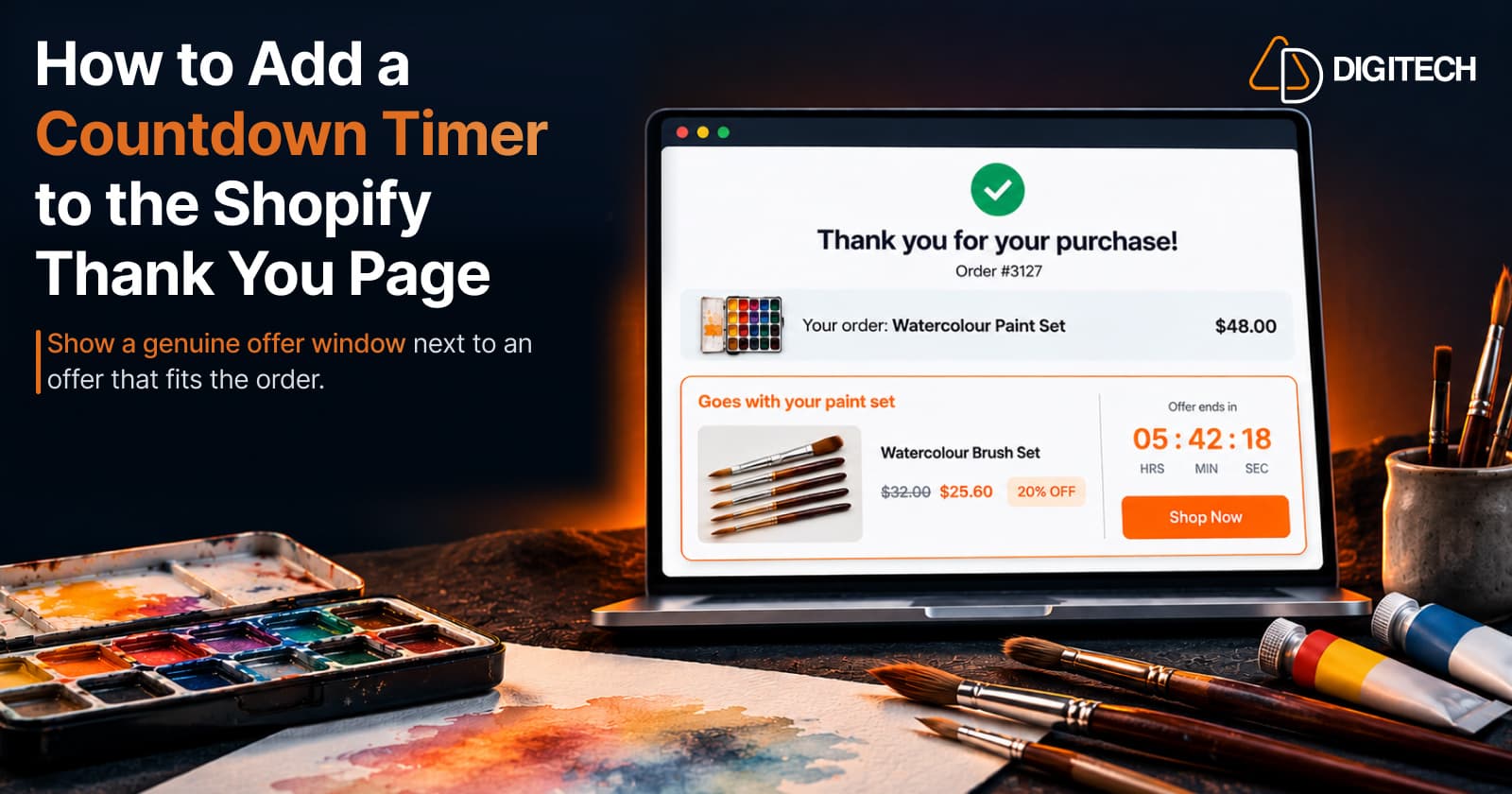
How to Add a Countdown Timer to the Shopify Thank You Page
Learn how to add a countdown timer to the Shopify Thank You Page and use time-sensitive offers, discounts and relevant products to drive post-purchase engagement.
Read article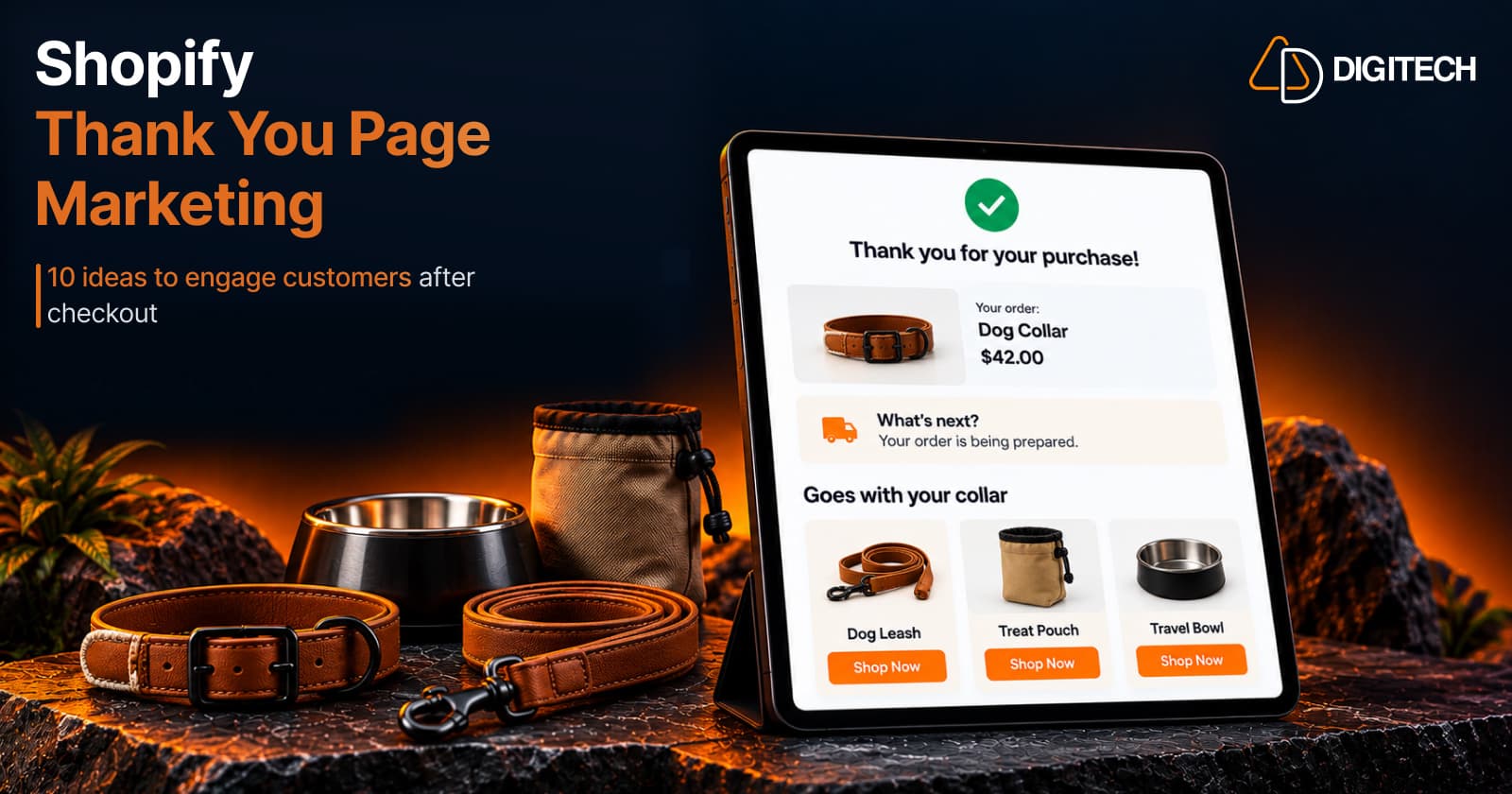
Shopify Thank You Page Marketing: 10 Ideas to Engage Customers After Checkout
Discover 10 Shopify Thank You Page marketing ideas to engage customers after checkout with recommendations, offers, bundles, feedback and useful content.
Read article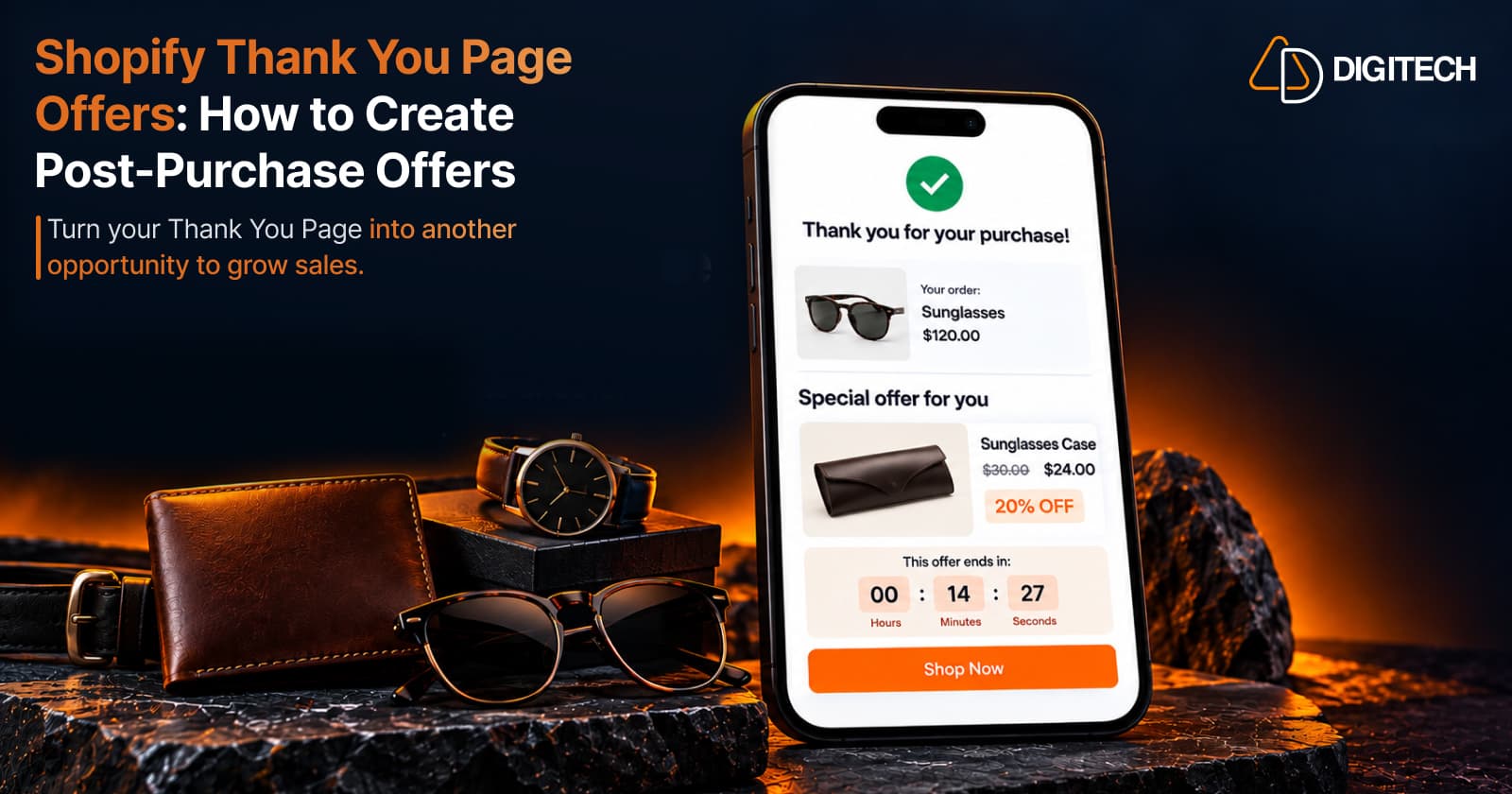
Shopify Thank You Page Offers: How to Create Post-Purchase Offers
Learn how to create Shopify Thank You Page offers with discounts, coupons, countdown timers and relevant promotions to drive additional purchases.
Read article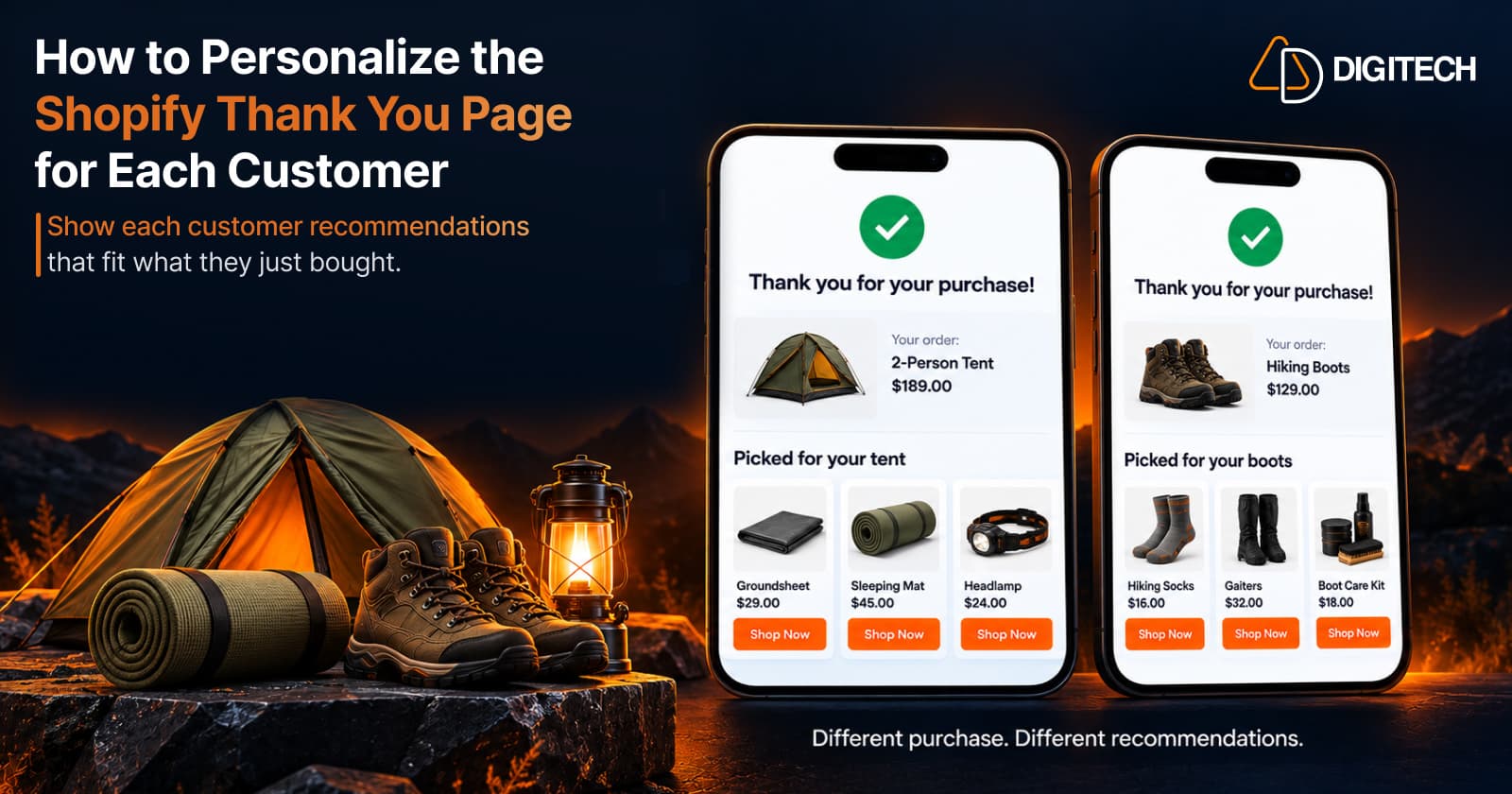
How to Personalize the Shopify Thank You Page for Each Customer
Learn how to personalize the Shopify Thank You Page with relevant recommendations, cross-sells, bundles, offers and post-purchase content.
Read article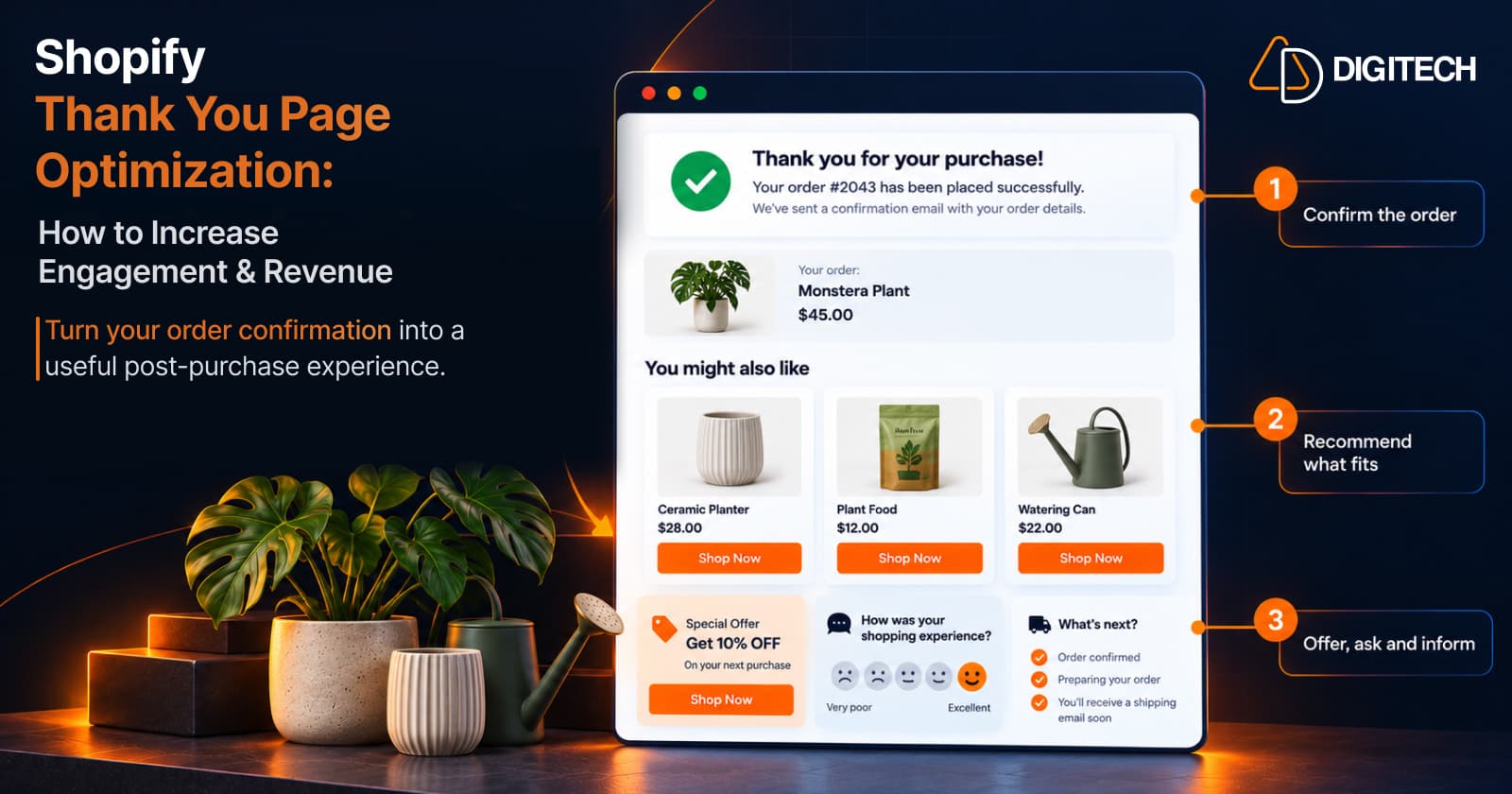
Shopify Thank You Page Optimization: How to Increase Engagement & Revenue
Learn how to optimize your Shopify Thank You Page with recommendations, upsells, bundles, offers and surveys to create a better post-purchase experience.
Read article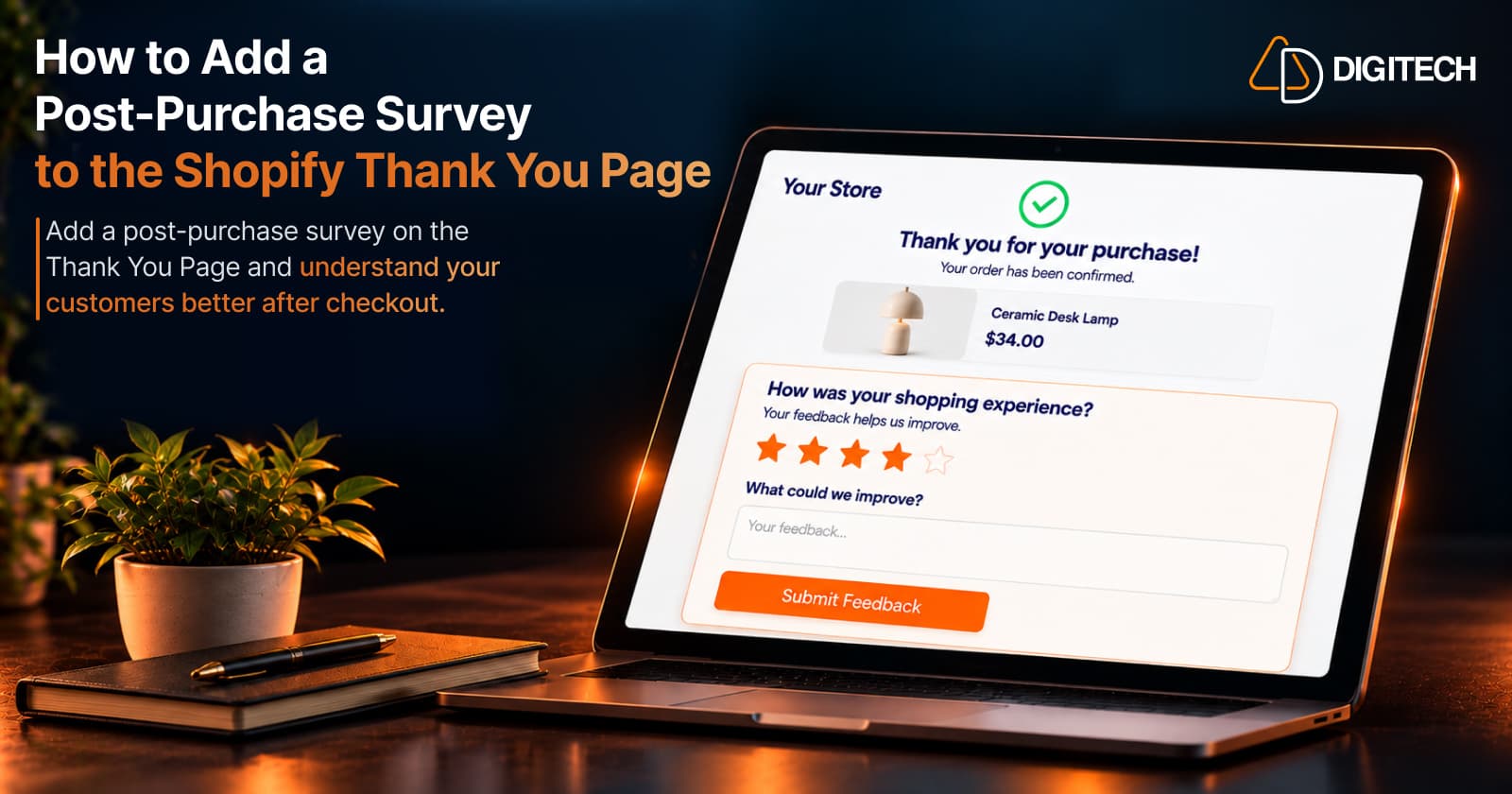
How to Add a Post-Purchase Survey to the Shopify Thank You Page
Learn how to add a Shopify Thank You Page survey, choose better post-purchase questions, collect customer feedback and use responses to improve your store.
Read article