Shopify Order Status Page: How to Answer "Where Is My Order?" Before Customers Ask
During BFCM, "Where is my order?" can become your most common support question. Here's what Shopify's Order Status Page already shows, what it doesn't, and how to add shipping timelines, help links and reassurance to the Thank You and Order Status pages.
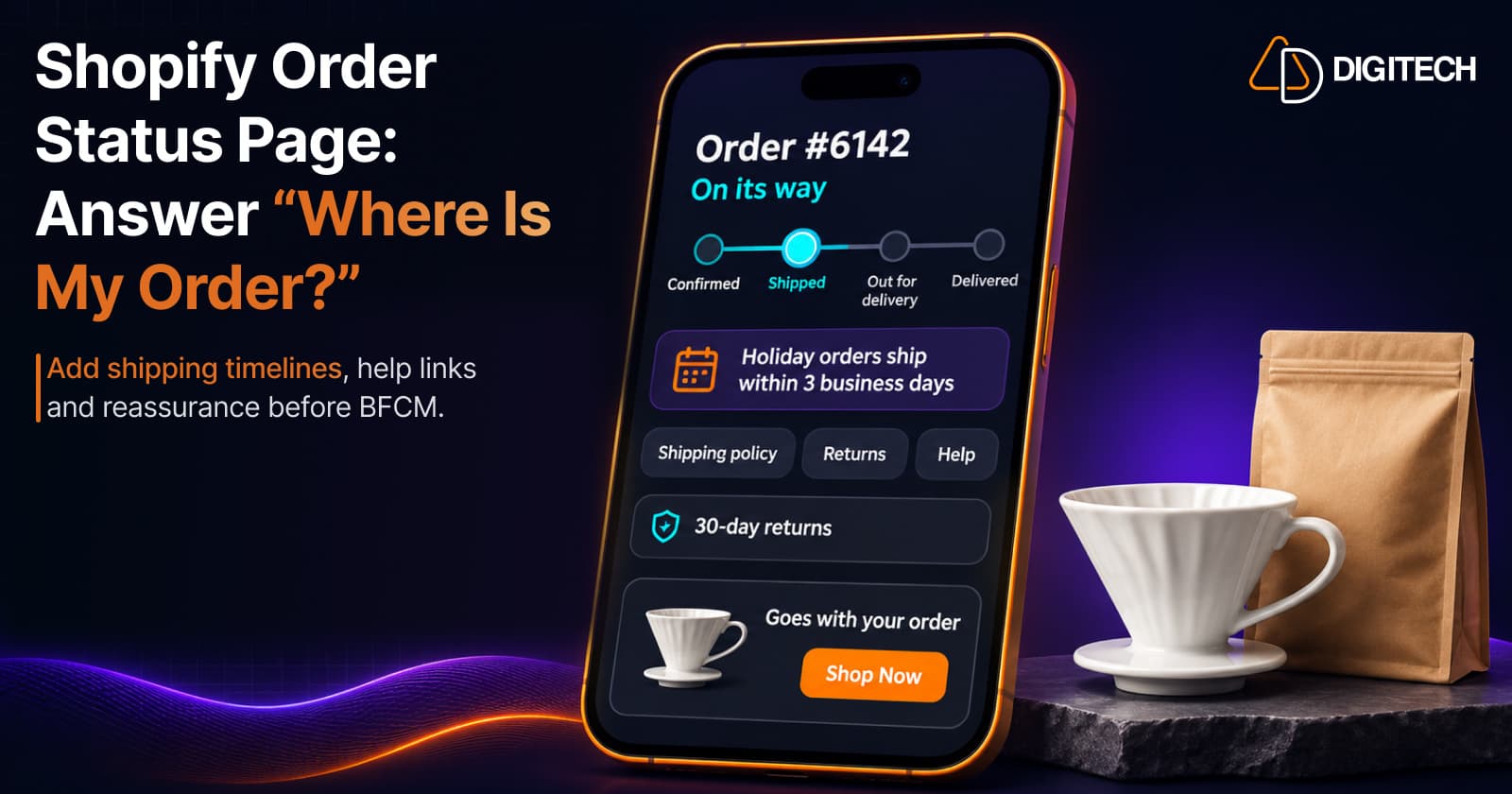
Every BFCM order starts a clock in the customer's head. A few days later, if they haven't seen what they expected, many of them contact you to ask the same thing: where is my order?
Shopify already gives customers a page built to answer that question: the Order Status Page. This guide covers what it shows by default, why "Where is my order?" questions still arrive, and how to add the missing context to the Thank You and Order Status pages before the sale.
What the Order Status Page Already Does
Shopify describes the Order Status Page as "the final page of your store's checkout where customers can track their orders and view shipping updates." According to the Help Center:
- Tracking: "The order status page updates in real time as the status of the shipment changes." With a supported carrier, the shipment location is shown on a map. With an unsupported carrier, the page shows a tracking number that links to the carrier's website, and the status isn't displayed.
- Access: order confirmations sent by email, SMS or the Shop app can link to it. From the confirmation email, customers can open it for 3 weeks without logging in in the same browser, or for 2 weeks across up to 5 different browsers. Customers can also log in to their customer account to track an order.
- Notifications: Shopify can send Shipping confirmation, Shipping update, Out for delivery and Delivered notifications. The last two depend on tracking events from the carrier or fulfillment app, and they aren't available for local delivery orders.
So for many orders, the answer to "Where is my order?" is already one click away. The questions usually come from the gaps around it.
Why Customers Still Ask
Looking at the page as a customer, the common gaps are:
- No shipping timeline. A customer who ordered on Black Friday doesn't know your processing time is longer during the sale, so a quiet first few days feels like a problem.
- Tracking that hasn't moved yet. The page shows what the carrier reports. Before the first scan, or with an unsupported carrier, there's little to see.
- Nowhere obvious to go next. If the customer has a question the page doesn't answer, such as a change of address or a return, they look for a contact form.
- The wrong version of the page. Shopify's developer documentation says the public Order Status Page, opened from a direct link without the order token, shows only "public order data like items in the cart, order status, and order total", with sensitive details such as the tracking number redacted.
None of these is solved by more tracking data. They're solved by setting expectations and pointing customers to the right place.
Start on the Thank You Page
The Thank You Page is shown once, right after checkout, as the initial purchase confirmation. It's the best moment to set expectations, because the customer is paying attention.
Add one clear line about timing, written for the sale period. For example:
Orders placed between November 27 and November 30 ship within 3 business days. You'll get an email with tracking as soon as your order leaves our warehouse.
Use your real processing time, not a hopeful one. A promise that slips creates more questions than no promise at all. Keep it short and above any offers, so the confirmation stays the main message. Our Thank You Page best practices cover the layout in more detail, and the Thank You vs Order Status Page guide explains how the two pages differ.
What to Add to the Order Status Page
The Order Status Page is where customers come back, often more than once. Shopify lets you customize it in the checkout and accounts editor "to match your brand and add additional information for customers." Apps add content through Customer Account UI Extensions.
Here's what tends to answer questions before they reach your inbox:
1. A shipping timeline banner
Repeat the processing and delivery timeline from the Thank You Page, plus general notes for peak season: holiday cut-off dates for gifts, a note that carriers are busier than usual, or a note that tracking can take a day to update after the label is created.
Write it for every customer who sees the page. A banner like this is general information, not a status for one order, so it shouldn't say "your order is delayed".
2. Links to the answers customers look for
A short row of links, or a call-to-action block, to your shipping policy, returns policy and help page. Shopify's BFCM checklist recommends updating your FAQ page "with current shipping windows, return policies, and sale terms" before the sale. The Order Status Page is where those answers are most useful.
3. Reassurance about returns and support
Trust badges or a short line about your returns window and how to reach you. A customer who knows they can return a gift in January is less likely to contact you in November.
4. One question about the experience
After delivery, a short survey can ask how the order arrived. Keep it to one question. See how to add a post-purchase survey.
5. Something useful to buy next, below the rest
Recommendations belong lower on this page, after the order information. A customer checking a coffee order may want filters; a customer tracking a camera may want a memory card. Our guide to Order Status Page upsells and recommendations covers this part.
A Note on Which Customers See Your Blocks
Shopify's developer documentation describes three versions of the Order Status Page. When customers arrive from an order notification, the link includes a token that lets them see the full order without logging in. When they're logged in, they're fully authenticated. Both support app blocks.
The third, public version "doesn't support extensions." Anyone with a plain direct link sees redacted order details and a prompt to log in, and no app content. So write your notification emails to link to the order, and don't rely on the Order Status Page as the only place your shipping timeline appears.
Don't Forget the Channels Around the Page
The Order Status Page works best alongside the rest of your support setup:
- Shipping notifications: check which ones are turned on under Settings > Notifications > Customer notifications, and that the wording matches your sale timeline. Notifications from the Shop app about tracking can't be turned off or edited by merchants.
- Shopify Inbox: the BFCM checklist suggests turning on the "Track my order" instant answer in Shopify Inbox "so customers can check their order status without waiting for a reply."
- Your FAQ page: the links on the Order Status Page should point to answers that are current.
How Grovia Helps
Grovia adds content blocks to both the Thank You Page and the Order Status Page through Shopify's editor, with no theme code. For this use case, the relevant blocks are:
- Image banners for your shipping timeline and peak-season notes. You can set a different banner for the Thank You Page and for the Order Status Page.
- CTAs linking to your shipping, returns and help pages.
- Trust badges for returns, guarantees and support.
- Surveys to ask how delivery went, on either page.
- Product recommendations from rules you choose, placed below the order information.
On each page, these blocks show the same content to every customer. Grovia doesn't offer banner conditions based on order status, shipping carrier or delivery delays, and banners can't be scheduled. When your shipping situation changes, or the sale ends, you update the banner yourself.
On the Pro plan, Grovia also adds an AI Sales Agent to the Thank You Page, Order Status Page and Checkout (checkout requires Shopify Plus). Unlike a banner, it works with the customer's own order: it can access that customer's order details and shipping information to answer questions about their order. It can also suggest complementary products and re-orders. It answers from the information available to it, so it works alongside carrier tracking and your support team, not instead of them. Our guide to the Shopify AI Sales Agent explains how it works.
| Image banner | Sales Agent (Pro plan) | |
|---|---|---|
| What it shows | Information you write, such as timelines and policies | Answers about the customer's own order |
| Who sees what | Same content for every customer on that page | Based on that customer's order details and shipping information |
| Changes over time | Only when you edit it; no scheduling or conditions | Answers each question as it's asked |
Grovia's analytics report clicks, conversions, conversion rate and revenue for its blocks. You can find Grovia on the Shopify App Store.
A Pre-BFCM Order Status Page Checklist
These are our recommendations, not Shopify requirements:
- Place a test order and open the Order Status Page from the confirmation email, as a customer would.
- Add a shipping timeline to the Thank You Page and repeat it on the Order Status Page.
- Link to your shipping policy, returns policy and help page.
- Update your FAQ page with sale-period shipping windows and return terms.
- Check which shipping notifications are on, and how they read during the sale.
- Keep recommendations below the order information.
- After the sale, update or remove peak-season banners yourself.
The Bottom Line
Shopify's Order Status Page already shows tracking. What it can't show is your timeline, your policies and where to go with a question. Add those to the Thank You and Order Status pages before November 27, and more customers will find the answer on the page instead of in your inbox.
Frequently asked questions
Does Shopify show tracking on the Order Status Page?
Yes. Shopify says the page updates in real time as a shipment's status changes when you ship through a supported carrier, and shows the location on a map. With an unsupported carrier, the page shows a tracking number that links to the carrier's website instead.
Can customers open the Order Status Page without logging in?
From the order confirmation email, for 3 weeks in the same browser, or for 2 weeks across up to 5 different browsers. After that, or from a plain link without the order token, they see a public version with fewer details, or they log in to their customer account.
Will app blocks show on every version of the Order Status Page?
No. Shopify's developer documentation says the public, unauthenticated Order Status Page doesn't support extensions. App blocks show when customers arrive from an order notification or are logged in to their customer account.
Can Grovia show a different banner for delayed orders?
No. You can set a different image banner for the Thank You Page and for the Order Status Page, but on each page the banner is the same for every customer. Grovia doesn't offer banner conditions based on order status, shipping carrier or delivery delays, and banners can't be scheduled, so you change them yourself. For a specific order, Shopify's tracking and notifications apply, and on the Pro plan Grovia's Sales Agent can answer using that customer's order details and shipping information.
Can an AI Sales Agent answer order questions on the Order Status Page?
With Grovia's Pro plan, yes. Its AI Sales Agent can access the customer's order details and shipping information to answer questions about that order. It answers from the information available to it, so it doesn't replace carrier tracking or your support team.
Make Your Order Status Page More Helpful After Checkout
With Grovia, add banners, trust badges, CTAs, surveys and product recommendations to your Shopify Thank You and Order Status pages — without coding.
Related reading

How to Use Your Shopify Thank You Page for BFCM Sales
Learn how to use the Shopify Thank You Page during BFCM with relevant upsells, product recommendations, bundles, offers and countdown timers.
Read article
How to Personalize the Shopify Thank You Page for Each Customer
Learn how to personalize the Shopify Thank You Page with relevant recommendations, cross-sells, bundles, offers and post-purchase content.
Read article
Shopify Thank You Page Optimization: How to Increase Engagement & Revenue
Learn how to optimize your Shopify Thank You Page with recommendations, upsells, bundles, offers and surveys to create a better post-purchase experience.
Read article
Shopify Order Status Page: How to Add Upsells, Recommendations & Offers
Learn how to customize the Shopify Order Status Page with product recommendations, upsells, bundles and offers to create better post-purchase experiences.
Read article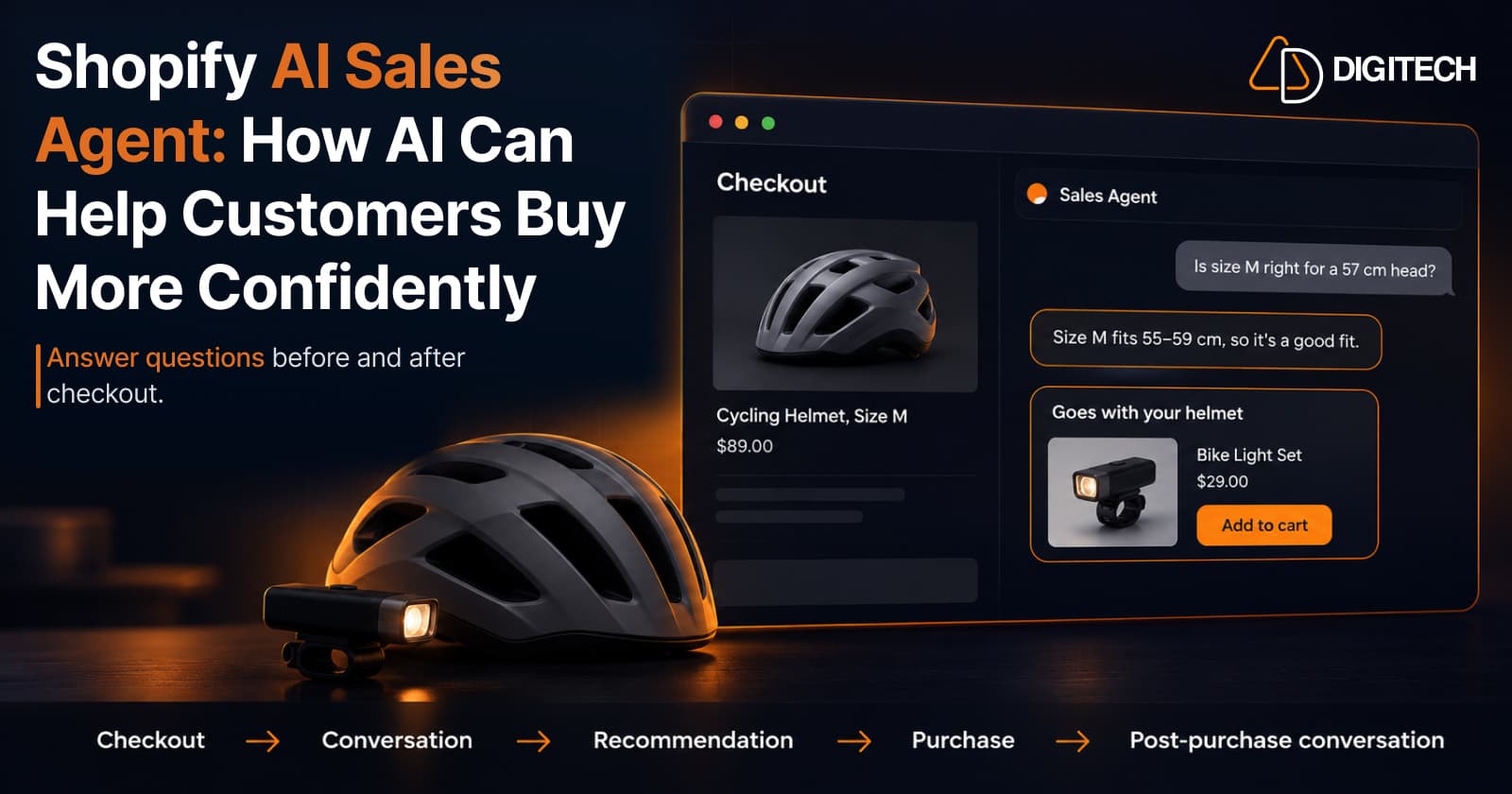
Shopify AI Sales Agent: How AI Can Help Customers Buy More Confidently
Learn how Shopify AI Sales Agents can help customers with product questions, recommendations, upsells and post-purchase conversations.
Read article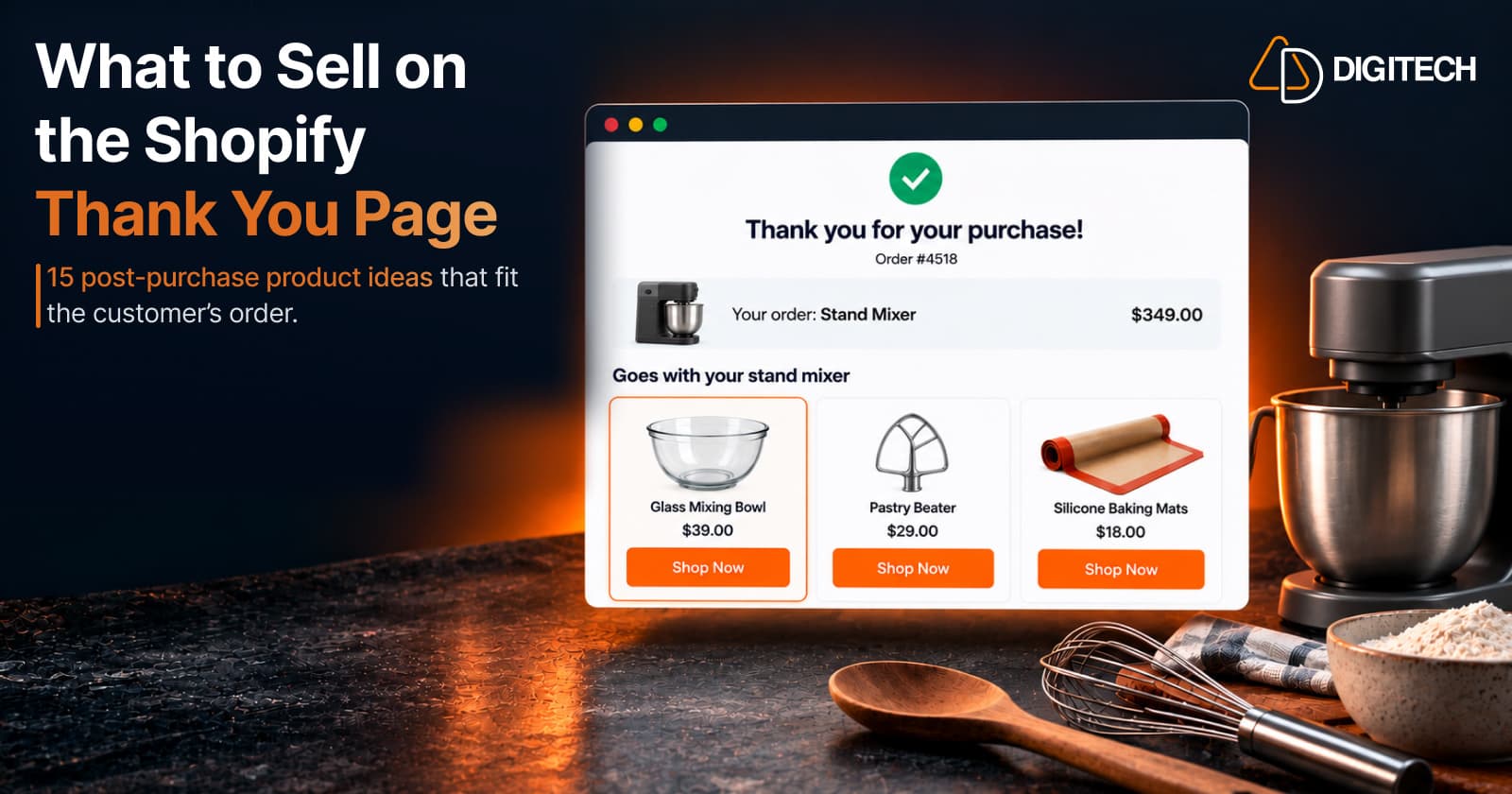
What to Sell on the Shopify Thank You Page: 15 Post-Purchase Product Ideas
Discover 15 Shopify Thank You Page product ideas, from complementary accessories and bundles to upgrades, refills and relevant post-purchase offers.
Read article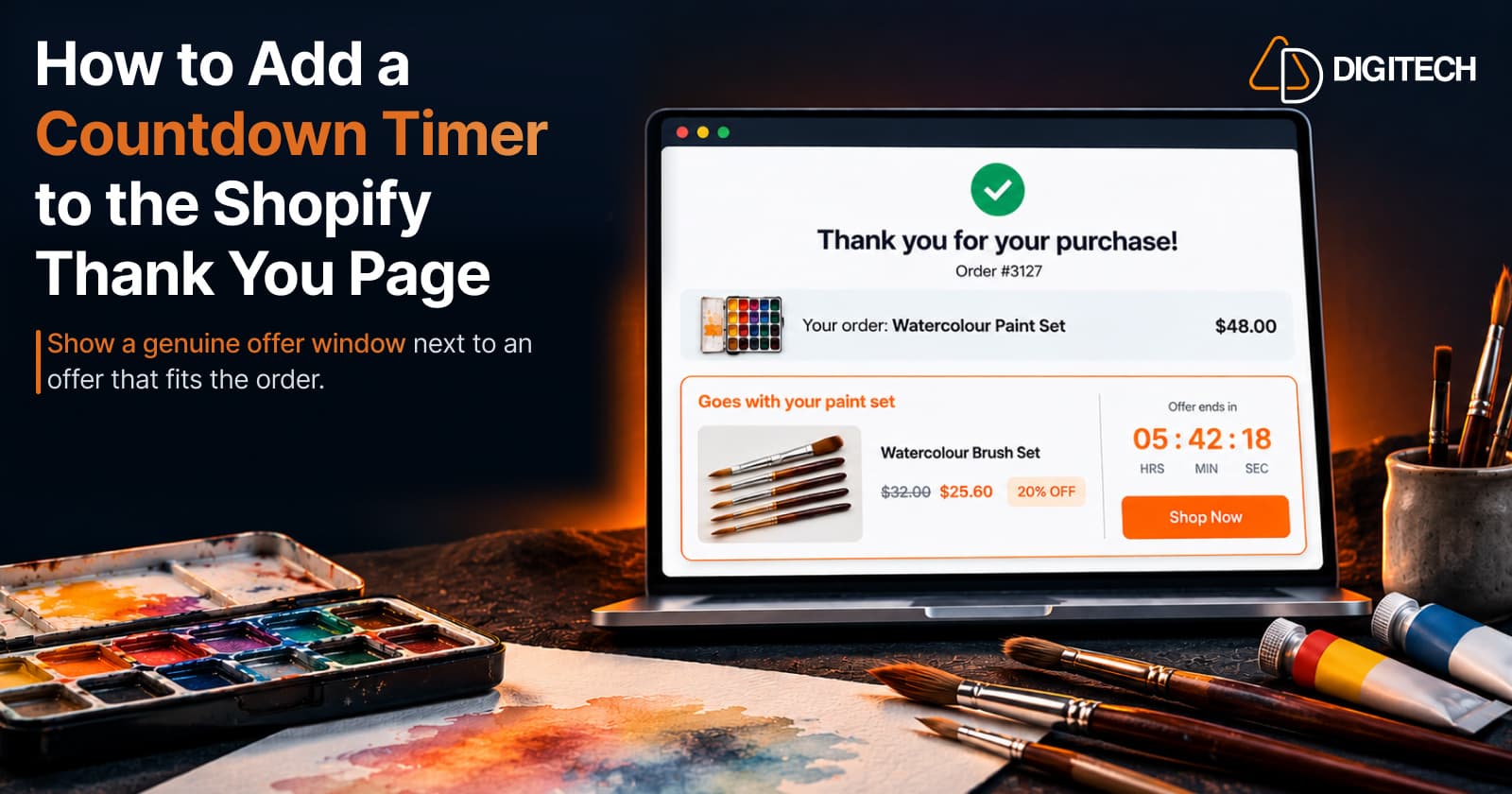
How to Add a Countdown Timer to the Shopify Thank You Page
Learn how to add a countdown timer to the Shopify Thank You Page and use time-sensitive offers, discounts and relevant products to drive post-purchase engagement.
Read article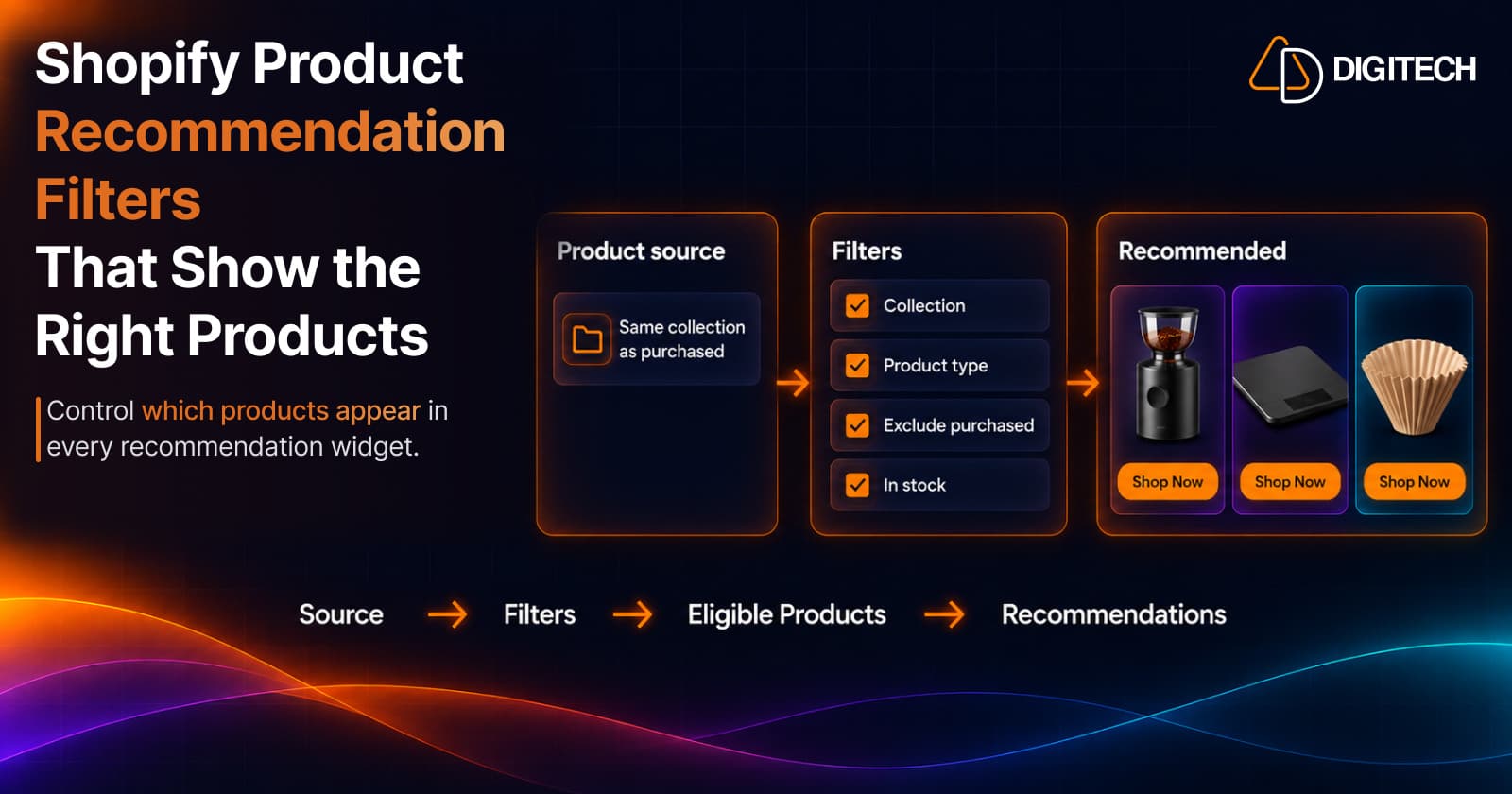
Shopify Product Recommendation Filters: How to Show the Right Products
Learn how Shopify product recommendation filters can help merchants control which products appear using collections, tags, vendors, inventory and more.
Read article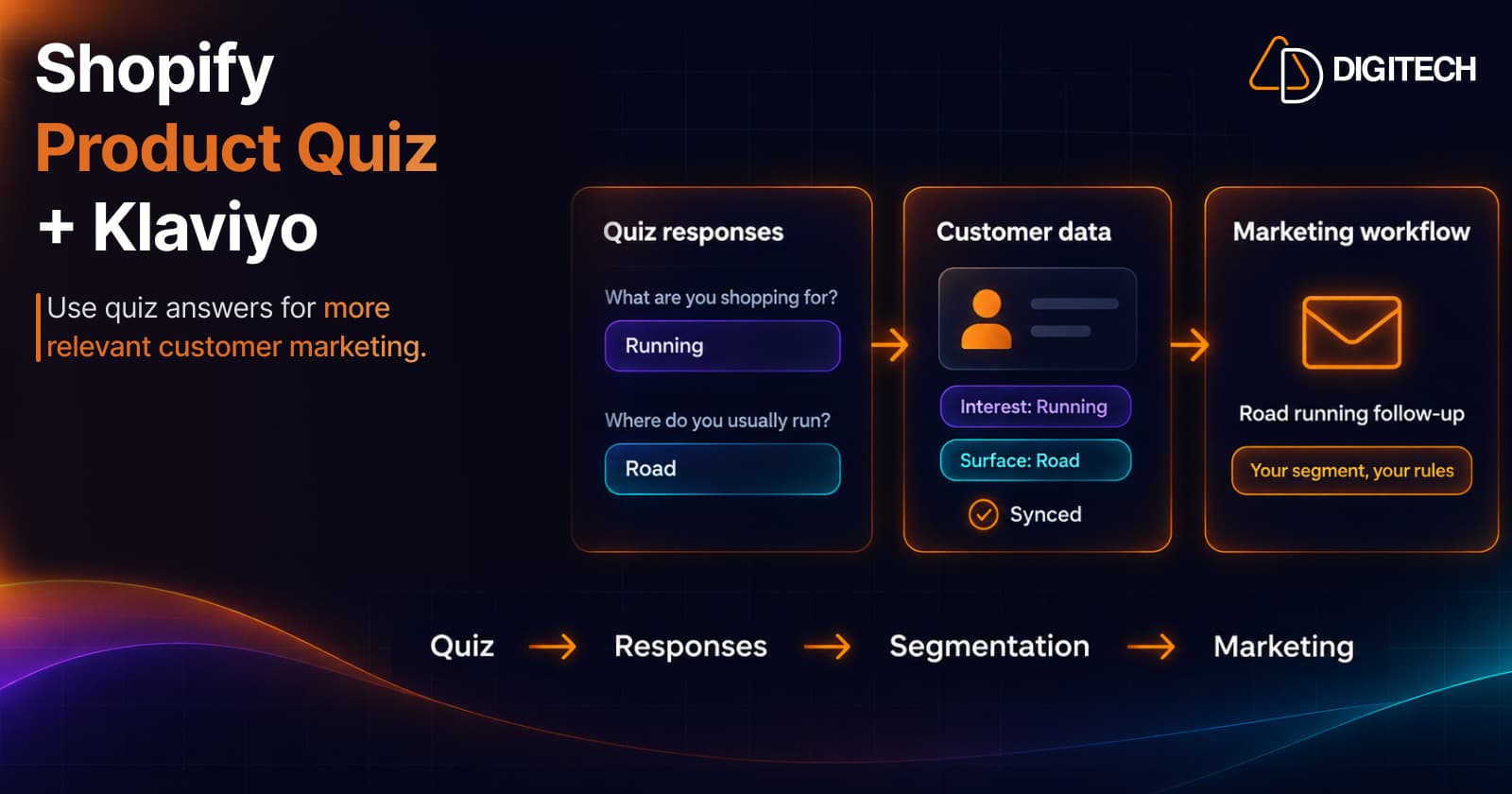
Shopify Product Quiz + Klaviyo: How to Use Quiz Answers for Better Customer Segmentation
Learn how Shopify product quizzes can collect customer preferences and sync quiz responses with Klaviyo and Omnisend for relevant marketing.
Read article