Shopify Product Recommendation Filters: How to Show the Right Products
Learn how Shopify product recommendation filters can help merchants control which products appear using collections, tags, vendors, inventory and more.
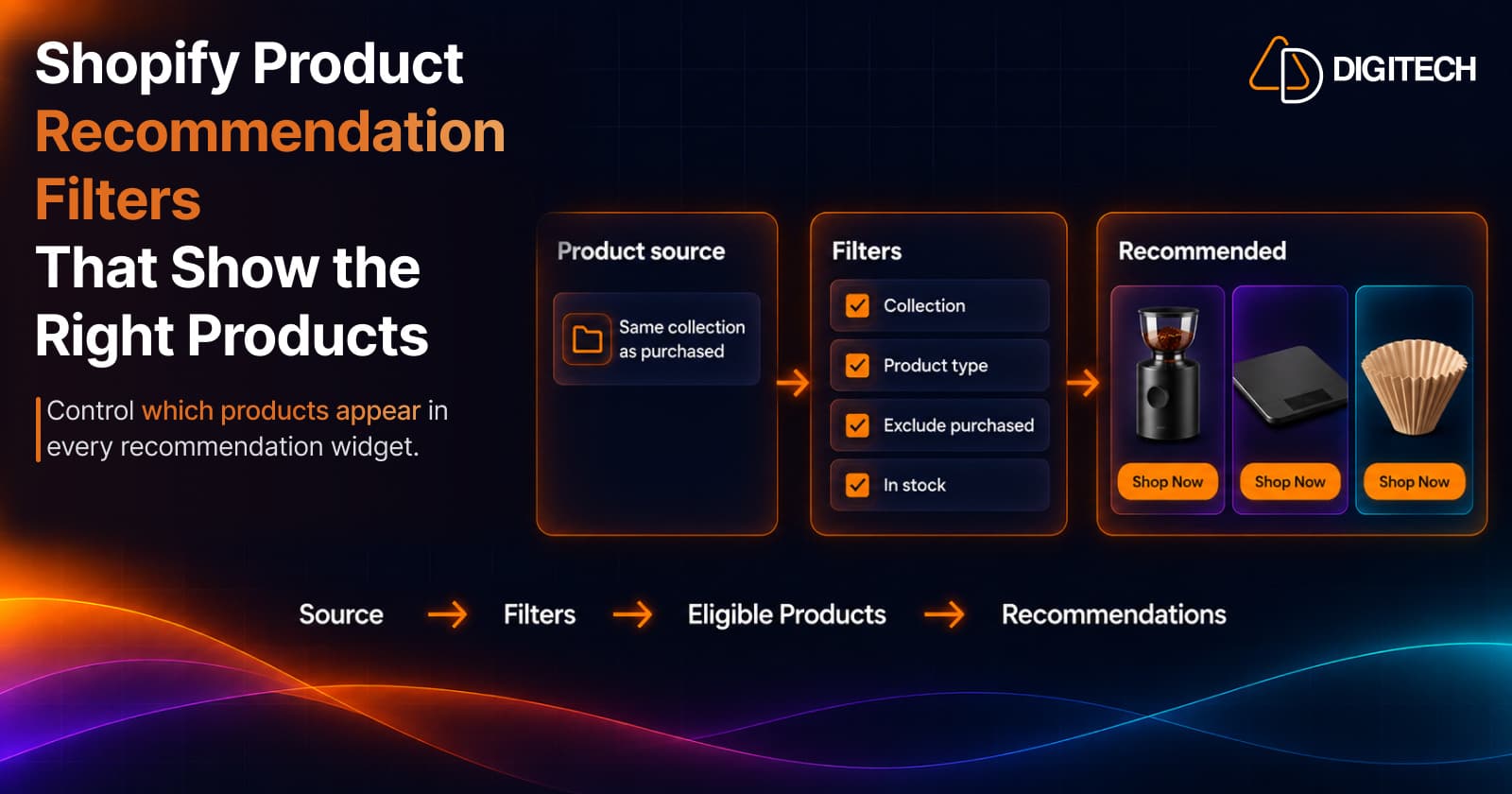
Showing product recommendations on Shopify is easy. Showing the right ones is harder. A widget that draws on a broad slice of your catalog can put a premium item next to a pair of socks, recommend the product the customer just bought, or show something that sold out yesterday.
Shopify product recommendation filters are how you stop that. They let you decide which products are allowed into a recommendation widget before a customer ever sees it: products from one collection, vendor or product type, products with a certain tag, nothing already in the order, nothing out of stock.
This guide is about that control. If you want the broader picture first, what Thank You Page recommendations are and how to add a recommendation block, start with our guide to adding product recommendations to the Shopify Thank You Page. This article picks up once the widget is in place and answers a narrower question: how do you control which products appear in it?
Customer context → Recommendation rules → Filters → Eligible products → Final recommendations
Why Product Recommendation Relevance Matters
A recommendation makes a small claim: this goes with what you bought. An unrelated product, a duplicate of the item in the order or a product that can't be bought takes up space and suggests the store isn't paying attention. Relevance usually breaks for structural reasons:
- The source is too broad. "Best sellers" across the whole store will happily recommend dog food to someone who bought a phone case.
- The catalog changed. A rule that worked with 30 products behaves differently with 300.
- Nothing removes the obvious misfits. Without exclusions and stock rules, the widget can show the item just purchased or a product that can't be bought.
Filters address all three. They don't make a recommendation persuasive, but they keep out products that shouldn't be there.
What Are Shopify Product Recommendation Filters?
A recommendation widget makes three decisions, and it helps to keep them apart:
| Layer | What it decides | Example |
|---|---|---|
| Source | Where candidate products come from | Same collection as purchased, best sellers, manual picks |
| Filters | Which candidates qualify | Vendor, product type, tags, in stock, not in this order |
| Sort and limit | Which qualifying products show, and how many | Price low to high, four products |
Product recommendations are the widget and the products it shows. Recommendation filtering is the set of rules that decides which products are eligible to appear in it. The source opens the pool, filters narrow it, and sorting and the limit pick the final few.
These aren't the same as storefront filters. The filters on a collection page let shoppers narrow what they browse, and we cover them in our guide to Shopify search and filters. Recommendation filters are set by the merchant, and the customer never sees them.
Why Shopify Merchants Need More Control Over Recommendations
A store with one product line can get away with one broad rule. Most stores outgrow that:
- Large catalogs, where a broad source surfaces more unrelated products.
- Multiple categories. A store selling bedding and kitchenware needs recommendations to stay in the category the customer bought from.
- Multiple vendors, where accessories from the same brand fit best, or some brands should stay apart.
- Different use cases. A first-time coffee machine buyer needs different products than someone reordering filters.
- Duplicates. A same-collection rule often includes the purchased product itself.
- Inventory. Stock changes daily, so a manual list goes stale on its own.
Shopify Product Recommendation Filters Explained
The filters below are the ones shown in Grovia's recommendation settings on its Shopify App Store listing: Collection, Vendor, Product type and Tag, added with "Add filter", plus Exclude items in this order, Hide out of stock, Sort by, Limit and Price. Other apps may name these differently; the logic is the same.
Collection Filters
A collection filter limits recommendations to products in specific collections, such as "Running Accessories" or "Coffee Accessories". It's the most intuitive control, because most stores already organize products this way.
Use collections that describe what goes with a purchase. Be careful with merchandising collections such as "Sale" or "Gift Ideas": products join and leave them for reasons unrelated to fit, so a rule built on them drifts.
Vendor Filters
A vendor filter limits recommendations to products from specific vendors. It suits multi-brand stores: a customer who bought one brand's camera body may be better served by that brand's compatible lenses and batteries than by a mix of everything.
Vendor filters depend on clean data: one brand entered under two spellings behaves like two vendors.
Product Type Filters
A product type filter limits recommendations by Shopify's product type field. Filtering to a type such as "Accessories" stops a widget from recommending a second main item, such as another pair of running shoes, when the customer needs what goes with the first.
Each product has one product type, so this filter works best when your store uses a short, consistent list of types.
Product Tag Filters
A tag filter limits recommendations to products with specific tags. Tags are the most flexible option because a product can carry several, which makes them useful for relationships that collections and types don't capture, such as which accessories fit which product.
That flexibility is also the risk, because tags added for one campaign are easy to forget. If tags drive your recommendations, keep a short written list of which tags do what.
Exclude Products Already in the Order
Recommending the product just bought wastes a slot and looks careless. It's most likely with a same-collection source, where the purchased product sits in the collection the widget draws from.
Grovia's Exclude items in this order setting handles this. Its description notes that it applies on the live page, because the editor preview has no order to compare against. The setting is about the current order. It isn't described as checking the customer's earlier purchases. If you want recommendations shaped by a customer's full order history, that's a customer-level decision, which we cover in our guide to choosing the right products for each Shopify customer.
Hide Out-of-Stock Products
A recommendation for a product that can't be bought is a dead end. Hide out of stock keeps sold-out products out of the widget, which matters most in busy periods, when stock moves faster than anyone can update a manual list.
Price Conditions
Grovia's filter panel includes a Price setting next to Sort by and Limit. A price condition helps keep recommendations proportionate to the purchase. For example, after a small order, you probably don't want to recommend something that costs several times as much.
Check which price options the setting offers before planning a rule around it, and treat price as a guardrail, not the main relevance signal.
Sorting and Product Limits
Once the filters have done their work, there may still be more eligible products than slots. Sort by decides which of them fill the widget, and Limit decides how many show.
The two interact. With "Price: low to high" and a limit of four, the four cheapest eligible products appear. That suits low-cost add-ons, but it can also surface odds and ends. Keep the limit to what shows cleanly on a phone, usually three or four products.
Examples: How a Merchant Could Configure the Rules
These illustrate how a merchant could set up rules, not guaranteed outputs: what appears depends on your catalog and stock.
Example 1: running shoes
- Customer buys: running shoes
- Rules: collection "Running", product type "Accessories", exclude items in this order, hide out of stock, limit 4
- Possible recommendations: running socks, water bottle, running cap, shoe bag
The product type filter does the key work: without it, the Running collection would also offer more shoes.
Example 2: coffee machine
- Customer buys: a coffee machine
- Rules: collection "Coffee Accessories", product type "Accessories", hide out of stock
- Possible recommendations: coffee grinder, coffee scale, filter papers
This works only if grinders and scales are typed as accessories; typed as machines, they'd be filtered out.
Example 3: pet store
- Customer buys: a dog collar
- Rules: collection "Dog Accessories", exclude items in this order, hide out of stock
- Possible recommendations: dog leash, waste bag holder, training treat pouch
The collar itself is in Dog Accessories, so without the exclusion it could be recommended to the customer who just bought it.
Combine Filters to Narrow the Eligible Product Pool
The real value often comes from combining rules. When supported, combining filters can narrow the eligible product pool. For example, when the available controls support these conditions, a merchant can narrow the eligible product pool using multiple configured rules such as collection, product type, exclusions and inventory status:
| Step | Condition | What it removes |
|---|---|---|
| 1 | Collection: Running Accessories | Everything outside running accessories |
| 2 | Product type: Accessories | Shoes or apparel that sit in the same collection |
| 3 | Exclude items in this order | The products the customer just bought |
| 4 | Hide out of stock | Anything that can't be bought right now |
| 5 | Sort and limit to 4 | Eligible products beyond the four slots |
What's left is a short list of products that fit, can be bought and aren't duplicates. How an app combines two filters of the same kind, two tags for example, varies, so confirm it on a real order rather than assuming.
If the rules you combine narrow the pool too far, though, a widget may have nothing left for some orders. Add rules one at a time and check what each one removes.
Common Mistakes
- Showing unrelated products from a store-wide source with no filter.
- Recommending products already purchased.
- Including unavailable products by leaving out the stock rule.
- Using overly broad collections, such as "All products" or a sale collection.
- Showing too many products, so the relevant ones get lost.
- Ignoring product taxonomy, so inconsistent types and tags make filters unpredictable.
- Creating rules that are too restrictive, leaving the widget empty for some orders.
- Not reviewing the output, so customers find the problems first.
- Not testing on mobile, where a four-product widget looks very different.
Best Practices for Product Recommendation Rules
- Start with the customer's purchase context. Decide what should follow each kind of purchase before choosing filters.
- Use meaningful product taxonomy. Rules are only as good as your collections, product types, vendors and tags.
- Keep recommendations complementary. Product type filters are the simplest way to avoid recommending a second main item.
- Exclude purchased products where appropriate.
- Avoid out-of-stock recommendations.
- Keep recommendation counts focused.
- Review the result visually. The editor preview can't apply order-based exclusions, so also check a real order, using Shopify's test mode or a test payment method where available.
- Test different product combinations, including an unusual order.
- Keep rules maintainable as the catalog grows. Fewer, well-understood rules beat many overlapping ones; review them after large catalog changes.
How Grovia Gives Merchants More Control Over Product Recommendations
Grovia adds product recommendation widgets to the Shopify Thank You and Order Status pages, and each widget's product selection follows the rules you set:
- Product source. Choose where candidates come from: manual selection, the same collection as purchased, best sellers over a chosen window, complementary products linked by tag or metafield, a higher-priced alternative of the same product type, or new arrivals.
- Filtering controls. Add filters by collection, vendor, product type and tag.
- Exclusion controls. Exclude items in this order, applied on the live page.
- Inventory controls. Hide out-of-stock products.
- Sorting, price and limits. Set the sort order, a price setting and how many products the widget shows.
For which products to offer after checkout in the first place, see what to sell on the Shopify Thank You Page and Thank You Page cross-sells with complementary products.
Conclusion
Product recommendations are only as good as the rules behind them. Shopify product recommendation filters decide which products are eligible, so the widget shows products that fit the purchase, can be bought and aren't duplicates. Start with what the customer bought, narrow the source with the filters that match your catalog, keep the limit short, check a real order, and revisit the rules when your catalog changes.
Frequently asked questions
What are Shopify product recommendation filters?
Rules that decide which products are allowed into a recommendation widget. The source supplies candidates, and filters such as collection, vendor, product type, tags, stock and price remove the ones that don't fit.
How can I show products from a specific collection?
Add a collection filter to the widget, or choose a source that pulls from a collection. In Grovia, Collection is one of the filters you can add, and "Same collection as purchased" is one of the source modes.
Can Shopify recommendations exclude products already purchased?
They can exclude what's in the current order. Grovia's "Exclude items in this order" setting removes the products just bought, on the live page. It's described as covering the current order, not the customer's full purchase history.
Can I hide out-of-stock products from recommendations?
Yes, if your app has the setting. Grovia's recommendation filters include "Hide out of stock".
How many products should I show in a recommendation widget?
Usually three or four. Set the limit to what shows cleanly on a phone, and choose a sort order that puts the right products in those slots.
Can product tags be used to control recommendations?
Yes. A tag filter limits recommendations to products with specific tags, which helps with relationships collections and product types don't capture. Keep a written list of the tags you rely on.
How can I make Shopify product recommendations more relevant?
Start from what the customer bought, choose a source that reflects it, narrow it with filters (collection or product type, nothing in the order, nothing out of stock, a sensible price), keep the limit short and check a real order.
What is the difference between product recommendations and product filtering?
Product recommendations are the widget and the products it shows. Recommendation filtering is the set of rules that decides which products qualify. Storefront filters are different: shoppers use them to narrow a collection page.
Take More Control of Your Shopify Product Recommendations
With Grovia, you can control product recommendation widgets with product sources, filters, exclusions, inventory rules, sorting and product limits.
Related reading
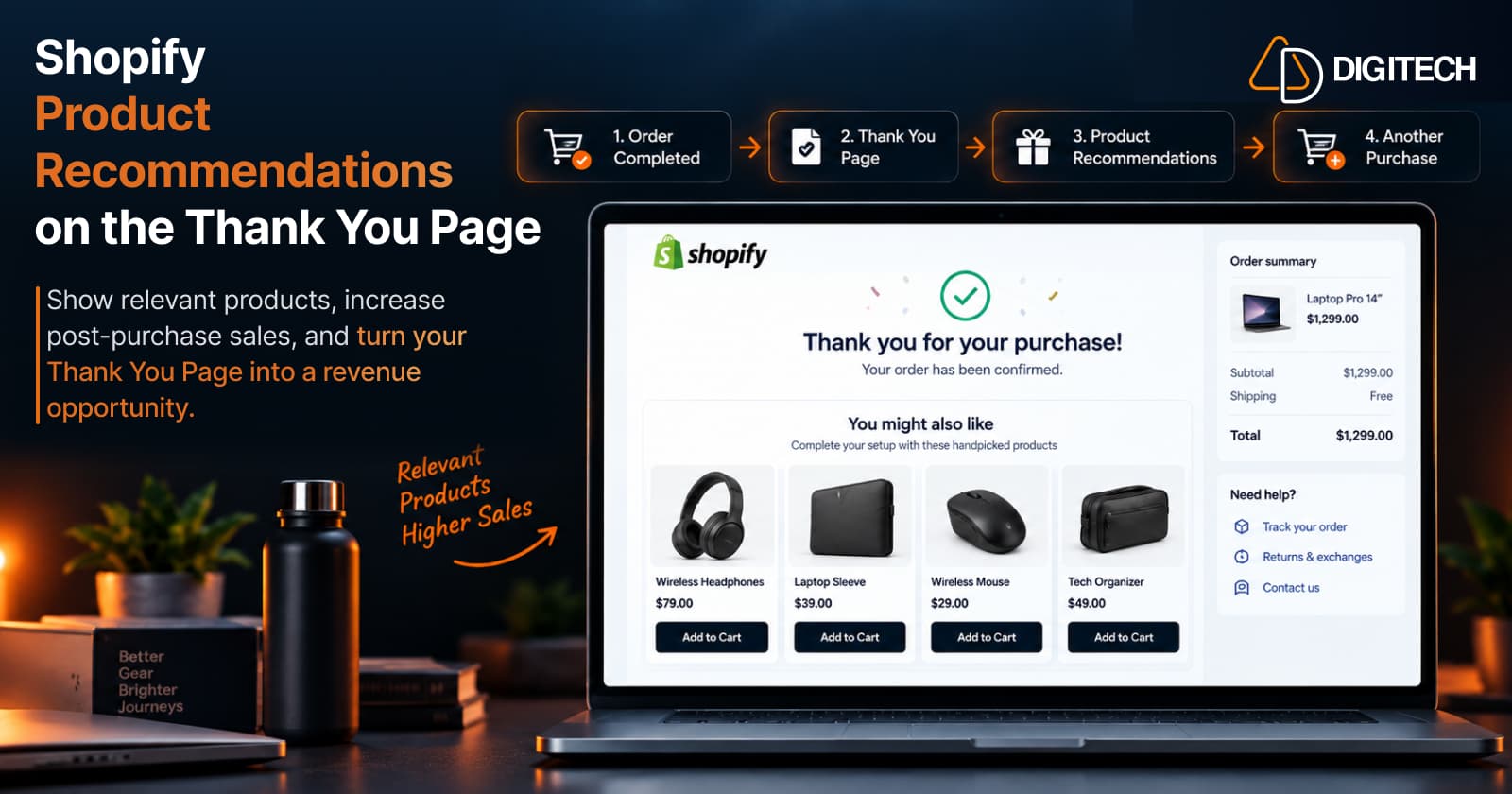
How to Add Product Recommendations to the Shopify Thank You Page
Learn how to add relevant product recommendations to your Shopify Thank You Page, choose complementary products, and improve post-purchase sales opportunities.
Read article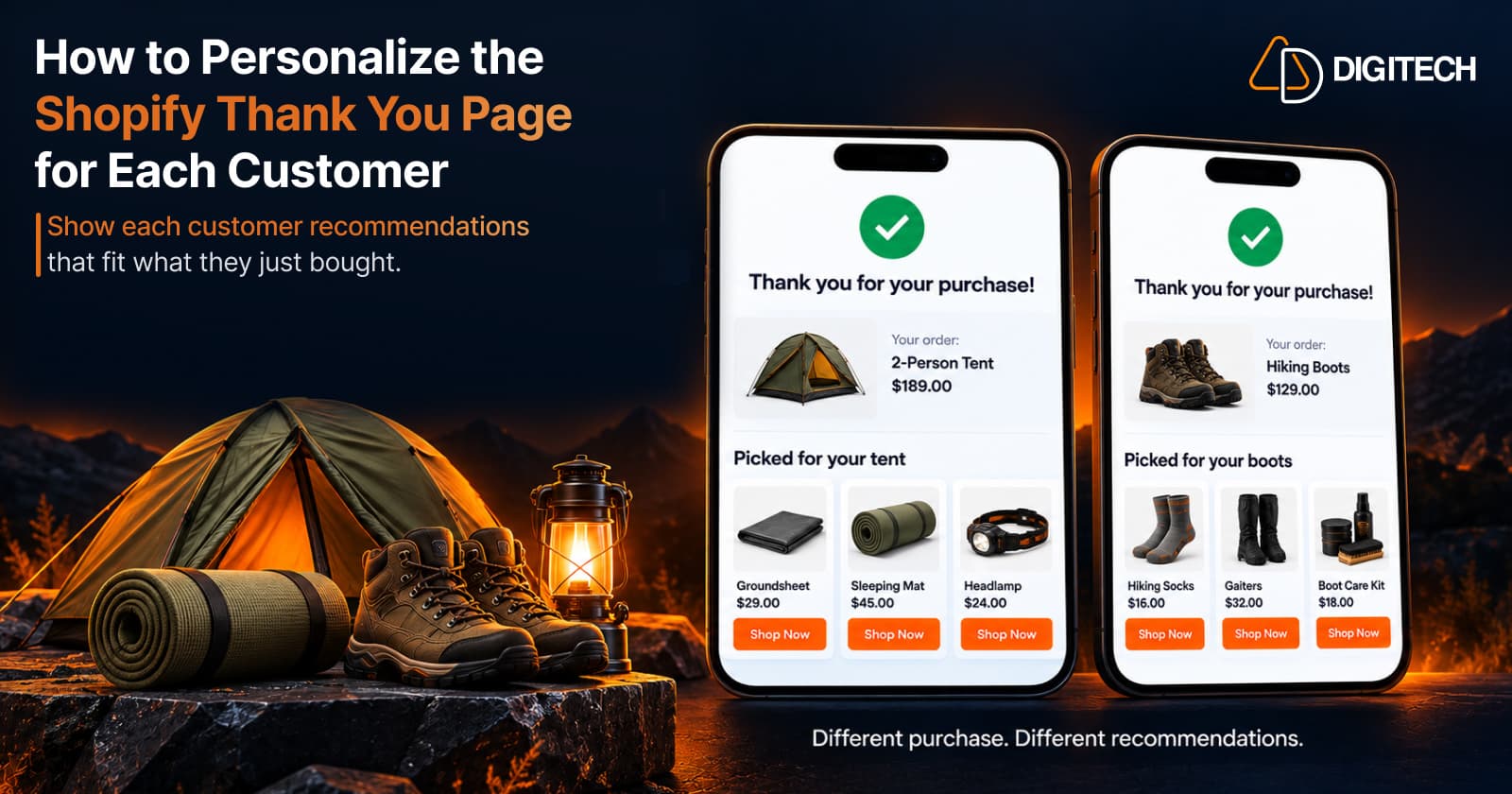
How to Personalize the Shopify Thank You Page for Each Customer
Learn how to personalize the Shopify Thank You Page with relevant recommendations, cross-sells, bundles, offers and post-purchase content.
Read article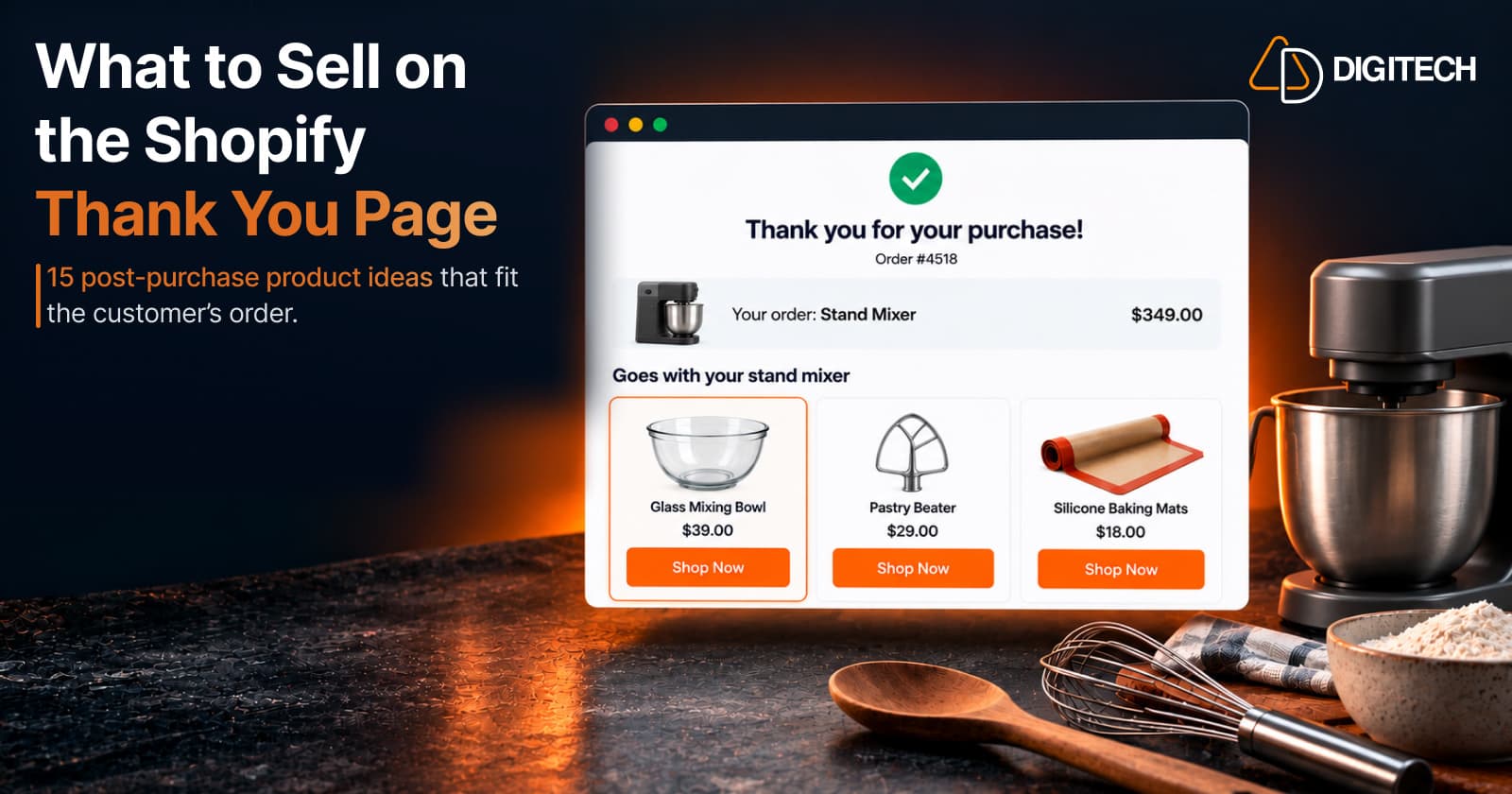
What to Sell on the Shopify Thank You Page: 15 Post-Purchase Product Ideas
Discover 15 Shopify Thank You Page product ideas, from complementary accessories and bundles to upgrades, refills and relevant post-purchase offers.
Read article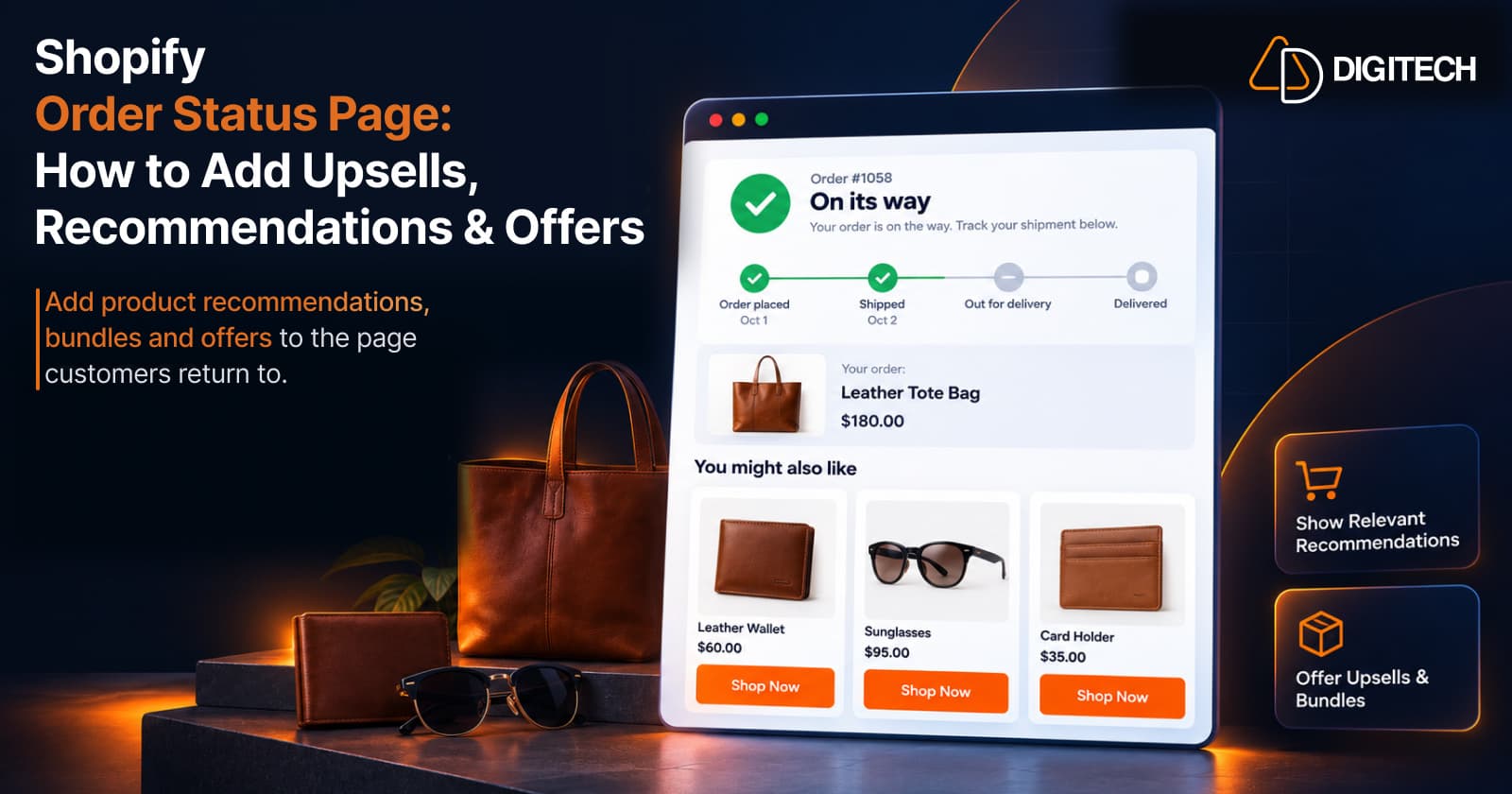
Shopify Order Status Page: How to Add Upsells, Recommendations & Offers
Learn how to customize the Shopify Order Status Page with product recommendations, upsells, bundles and offers to create better post-purchase experiences.
Read article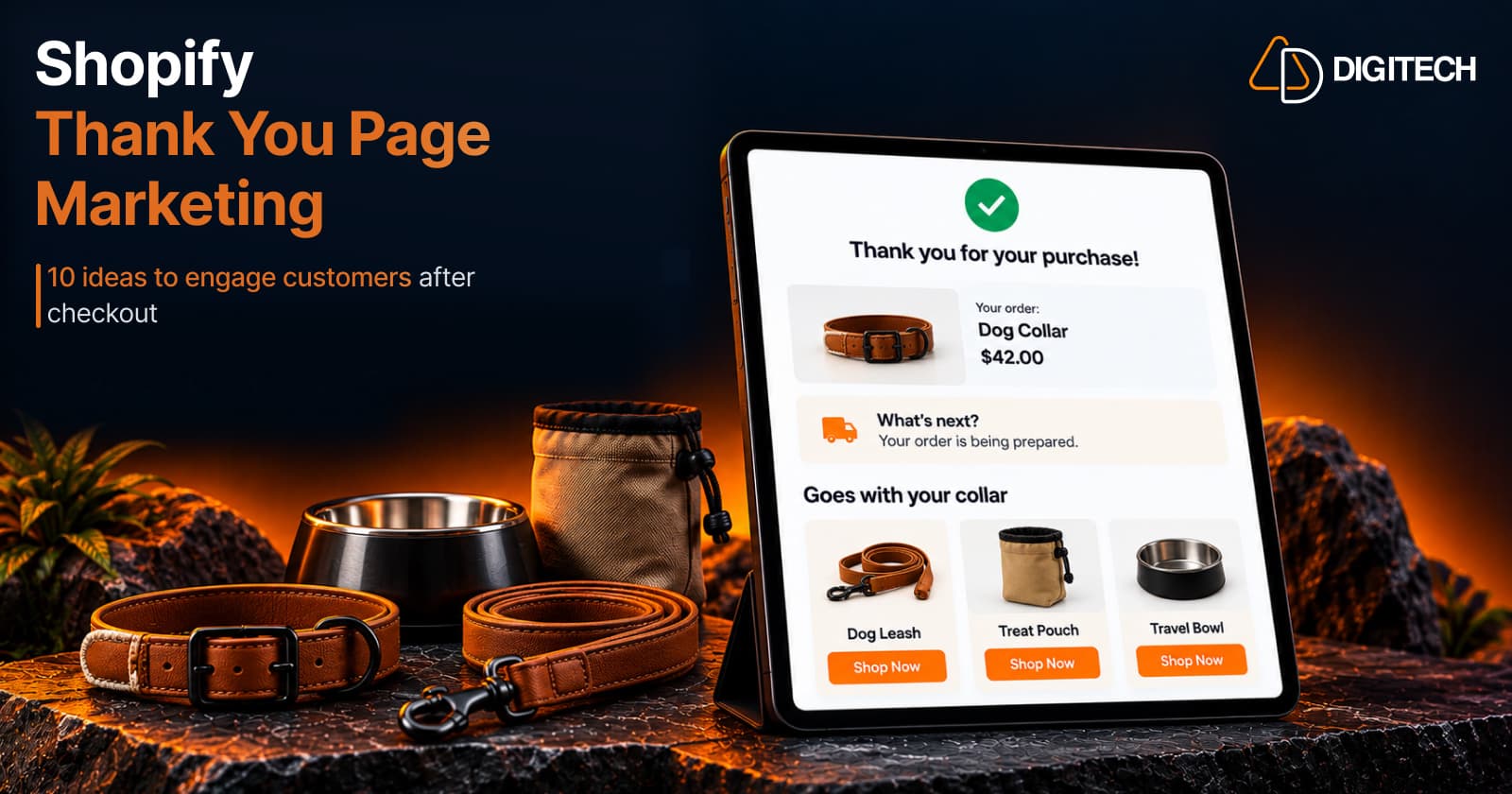
Shopify Thank You Page Marketing: 10 Ideas to Engage Customers After Checkout
Discover 10 Shopify Thank You Page marketing ideas to engage customers after checkout with recommendations, offers, bundles, feedback and useful content.
Read article