How to Add a Post-Purchase Survey to the Shopify Thank You Page
Learn how to add a Shopify Thank You Page survey, choose better post-purchase questions, collect customer feedback and use responses to improve your store.
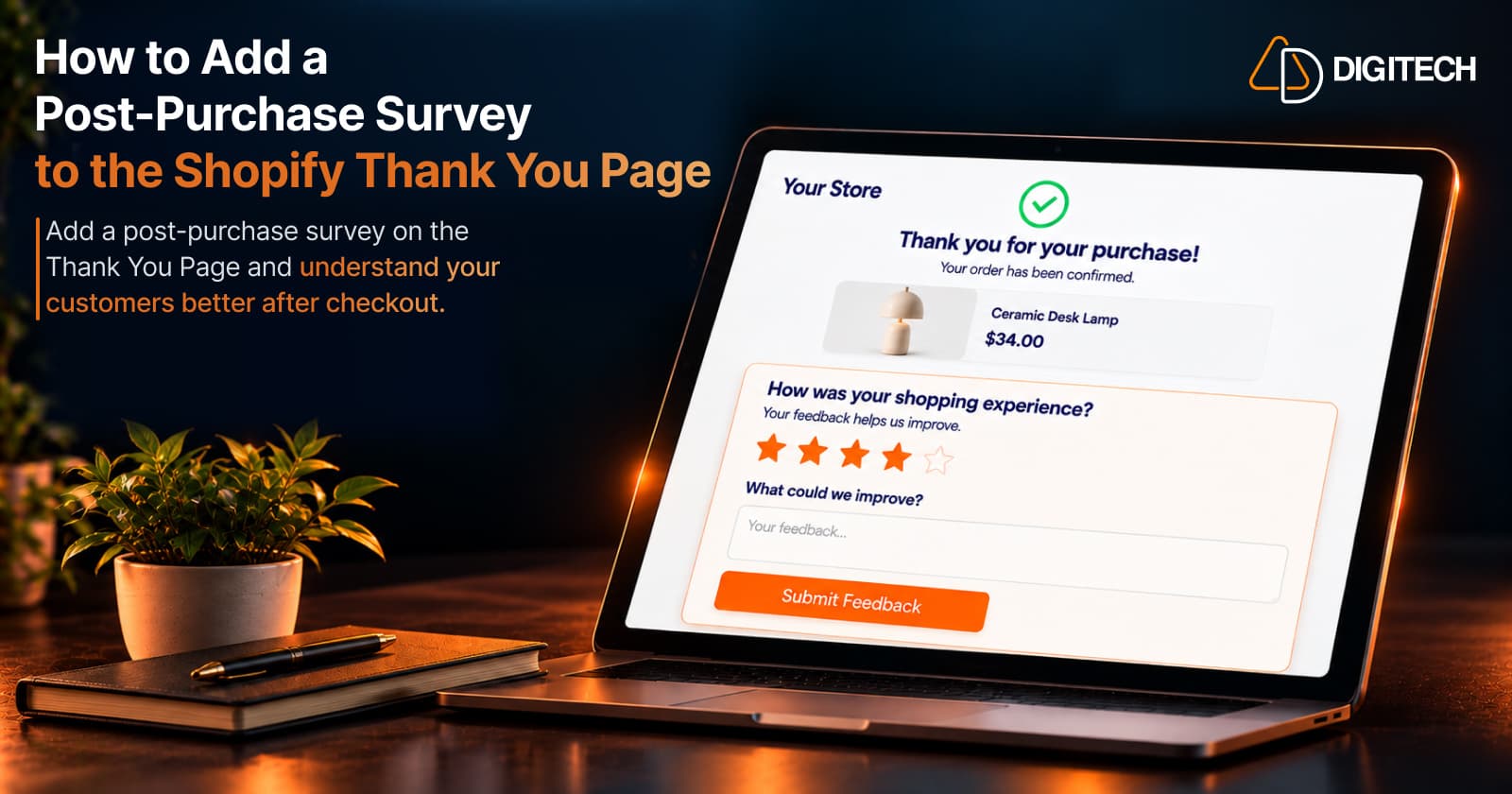
Most merchants think of the Shopify Thank You Page as a receipt: the order went through, here's the confirmation number. It is that, but it's also the first page every customer sees after completing checkout, which makes it a practical place to ask a short question while the purchase is still fresh.
A post-purchase survey can tell you how customers found your store, why they bought, and where the shopping experience could be smoother. This guide covers what to ask, which question formats to use, where the survey belongs, how to add one with Shopify's current checkout tools, and how to turn the responses into useful changes.
What Is a Shopify Thank You Page Survey?
A Thank You Page survey is a short set of questions shown on the page customers see immediately after checkout. It appears after the purchase, so it doesn't add a step before payment, and it can collect feedback about the experience that just happened: how customers found you, why they chose a product, and how easy the process was.
It helps to be precise about where it appears, because Shopify has three different post-checkout surfaces:
- The Thank You Page is the initial purchase confirmation shown after checkout.
- The Order Status Page is what customers see if they return later, for example from the order confirmation email, to check their order details and updates.
- Native post-purchase extensions are a separate page that can appear between payment and the Thank You Page, used for one-click offers that change the order.
A survey on the Thank You Page collects feedback. It doesn't change the order the customer just placed.
A survey is also different from two things it's often confused with:
- A product review asks about the product itself, usually after the customer has received and used it.
- A support form handles a specific problem that needs a reply. A survey collects general feedback that you review in aggregate.
Why Collect Customer Feedback After Purchase?
Your analytics show what customers did. A survey helps explain why. Common reasons to ask after purchase include:
- Understanding the shopping experience: whether finding products, choosing options, and checking out felt easy.
- Learning why customers purchased: price, reviews, a recommendation, a specific feature, or a gift occasion.
- Identifying friction: anything that nearly stopped them, such as unclear shipping costs or missing product details.
- Discovering product expectations: what customers are hoping the product will do for them.
- Understanding how customers found you: a question analytics can't always answer, especially for word of mouth.
- Finding improvements to the customer journey: small fixes that customers notice but rarely report.
Asking right after checkout means the experience is still recent, so customers can answer from memory rather than guesswork.
What Questions Should You Ask on a Post-Purchase Survey?
Start with what you want to learn, then choose a question or two for that goal:
Shopping experience
- How would you rate your shopping experience?
- How easy was it to find what you were looking for?
Purchase motivation
- What made you choose this product?
- What was the main reason you decided to purchase?
Discovery
- How did you hear about us?
Product expectations
- What are you most looking forward to about your purchase?
Improvement
- What could we improve about your shopping experience?
You don't need all of these at once. A focused survey on one objective usually gives clearer answers than a long list covering everything.
Post-Purchase Survey Question Types
The format shapes the answers you get. Choice questions are quick to answer and easy to compare. Open questions are slower but explain the "why".
| Question type | Best for | Example |
|---|---|---|
| Radio (single choice) | One clear answer from a short list | How did you hear about us? |
| Checkbox (multiple choice) | Several answers can apply | Which of these influenced your purchase? |
| Dropdown | Longer lists where space matters | Which country are you shopping from? |
| Short answer | A brief typed response | What nearly stopped you from buying? |
| Paragraph | Detailed feedback in the customer's words | What could we improve? |
| Rating | A quick overall score | How would you rate your shopping experience? |
| Linear scale | A position between two ends of a range | How easy was checkout, from 1 (very hard) to 5 (very easy)? |
A common pattern is a rating or choice question first, followed by an optional open question for customers who want to explain.
Where Should a Survey Appear on the Shopify Thank You Page?
Shopify's checkout UI extensions can add content to the Thank You Page, and Shopify lists asking customers to complete a survey after checkout as a use case. Its developer tutorial builds a Thank You Page survey using the purchase.thank-you.block.render target. Merchants then choose where the block appears in the checkout and accounts editor.
There isn't a single best position for every store. What matters more:
- Keep the confirmation clear. Customers first want to know the order went through. The survey shouldn't push the order details out of sight.
- Keep it compact. One to three questions fit comfortably without taking over the page.
- Use a clear heading and button, such as "Help us improve" and "Submit feedback."
- Avoid crowding the page. Shopify's survey guidelines recommend showing only one survey per session and limiting content so customers aren't overwhelmed. If you also show offers, see our Thank You Page best practices for balancing them.
Some questions suit the Order Status Page better. Shopify's own tutorial pairs a Thank You Page survey asking how the customer heard about the store with an Order Status Page survey asking how they're enjoying the purchase after delivery. Questions about discovery and checkout fit right after the purchase, while questions that need the product in hand fit better later. Grovia's survey block works on both pages, so you can split questions this way.
How to Create a Shopify Thank You Page Survey
- Decide what you want to learn. Pick one or two goals, such as acquisition source or checkout experience.
- Choose the right question types. Match each question to a format that makes the answer easy to give and to compare.
- Keep the survey focused. Cut any question that doesn't serve your goal.
- Add the survey with Shopify checkout extensibility. Surveys are added with checkout UI extensions, either from an app or a custom build, and placed through the checkout and accounts editor (Settings > Checkout). You don't need
checkout.liquidor Additional Scripts. - Test the customer experience. Place a test order and check the survey on mobile and desktop.
- Review collected responses. Read them regularly, not only when something goes wrong.
- Use the feedback to improve the store. Turn repeated comments into specific changes to test.
One technical detail if you build your own: on the Thank You Page, the order may not be created yet when the extension first displays, but the order ID is available. That's enough to link a response to the order.
Post-Purchase Survey Best Practices
- Keep surveys short. Every extra question lowers the chance someone finishes.
- Ask one clear question at a time. Avoid double questions like "How were the price and the delivery?"
- Avoid leading questions. "How great was your experience?" pushes customers toward a positive answer.
- Use relevant answer choices that reflect how your customers actually shop.
- Include an open-ended option such as "Other" where your list may not cover every answer.
- Don't ask for information you already have, such as what they bought or their email address.
- Make it easy to complete, with tap-friendly choices and a single submit button.
- Don't interrupt the order confirmation. The survey supports the page; it isn't its main job.
- Test on mobile, where many customers will see it.
- Review responses regularly, and turn feedback into actionable improvements rather than a report nobody reads.
What Can You Learn From Shopify Post-Purchase Surveys?
Over time, responses can show patterns in:
- Customer motivations: what actually convinces people to buy.
- Acquisition sources: how customers say they found you, including word of mouth.
- Shopping experience: where the journey feels easy and where it doesn't.
- Product expectations: what customers hope the product will do.
- Friction points: recurring issues worth fixing.
- Customer preferences: what they value, which can inform the product recommendations and complementary products you show.
- Improvement opportunities: small changes customers keep mentioning.
Survey responses are qualitative feedback, not proof. "How did you hear about us?" reflects what customers remember and choose to say, not tracked attribution. Treat patterns as signals to investigate and test, not as revenue attribution or evidence that one change caused another.
How to Measure Post-Purchase Survey Performance
Keep measurement simple:
- Survey views: how many customers saw the survey.
- Survey completions: how many submitted answers.
- Response or completion rate: completions divided by views, which shows whether the survey feels quick enough to answer.
- Question-level patterns: which answers come up most, and where customers skip or give short answers.
A low completion rate usually means the survey is too long, too prominent, or asking something customers don't want to answer. Shorten it and check again, and change one thing at a time, such as a question's wording or its position, so you can see what made the difference.
How Grovia Helps Collect Post-Purchase Feedback
Building a survey extension from scratch means writing a checkout UI extension, storing responses, and building a way to review them. Grovia, our Shopify app for the Thank You and Order Status pages, gives merchants a ready-made option.
Grovia adds customizable blocks to the Thank You and Order Status pages, and post-purchase surveys are one of them. With Grovia you can:
- Build surveys in a survey editor, without writing code.
- Show a survey on the Thank You Page, the Order Status Page, or both, so each question can appear at the moment it fits.
- Use multiple question types: radio, checkbox, dropdown, short answer, paragraph, linear scale, and rating.
- Review collected responses in the Grovia app, inside your Shopify admin.
- Arrange the page with drag-and-drop, alongside other blocks such as upsells, recommendations, and product bundles.
Grovia works through Shopify's checkout extensibility for the Thank You and Order Status pages. It isn't a native post-purchase extension, and a survey doesn't modify the completed order. For more on how these pages work, see how Shopify Thank You Page upsells work.
Shopify Thank You Page Survey vs Product Review
| Thank You Page survey | Product review | |
|---|---|---|
| Purpose | Learn about the shopping experience and customer | Assess the product itself |
| Timing | Right after checkout | After the product is received and used |
| Type of information | Motivations, discovery, experience, friction | Product quality, fit, performance |
| Typical question | "How did you hear about us?" | "How would you rate this product?" |
| Who uses the response | The merchant, to improve the store | Future shoppers and the merchant |
Surveys help you understand the customer experience. Reviews focus on the purchased product. Many stores use both, at different moments in the customer journey.
Frequently asked questions
What is a Shopify Thank You Page survey?
A short set of questions shown on the page customers see right after completing checkout. It asks about their shopping experience, why they bought, or how they found the store, while the purchase is still recent.
Can Shopify show a survey on the Thank You Page?
Yes. Shopify's checkout UI extensions support custom content on the Thank You Page, and Shopify lists asking customers to complete a survey after checkout as a use case. Its tutorial uses the purchase.thank-you.block.render target.
What questions should I ask after a customer purchases?
Ask about what you actually want to learn: how they heard about you, why they chose the product, how easy the shopping experience was, and what you could improve. Pick one or two goals per survey.
How many questions should a post-purchase survey have?
As few as your goal allows, often one to three. The Thank You Page's main job is confirming the order, so a short survey is easier to complete and less likely to crowd the confirmation.
What is the difference between a customer survey and a product review?
A survey asks about the shopping experience, motivations, and discovery, usually right after checkout. A product review asks about the product itself, usually after the customer has received and used it.
Can I collect open-ended feedback after checkout?
Yes. Short answer and paragraph questions let customers explain things in their own words. They work best alongside a quick choice or rating question, rather than as the only question.
Can I add a survey without editing checkout.liquid?
Yes. Current Shopify checkout customization uses checkout UI extensions, added through the checkout and accounts editor. You don't need checkout.liquid or Additional Scripts to show a survey after checkout.
Can Grovia collect post-purchase survey responses?
Yes. Grovia includes post-purchase surveys that you can show on the Thank You Page, the Order Status Page, or both, with a survey editor and radio, checkbox, dropdown, short answer, paragraph, linear scale, and rating questions, and it collects the responses customers submit.
Where can I view Grovia survey responses?
In your Shopify admin, inside the Grovia app, where the collected survey responses are available to review.
Can a Thank You Page survey improve the customer experience?
Indirectly. A survey doesn't improve anything by itself, but the responses can show where customers struggle or what they value, which gives you concrete changes to test in your store.
Turn Your Thank You Page Into a Better Post-Purchase Experience
Your Shopify Thank You Page can do more than confirm an order. With Grovia, you can collect post-purchase feedback through surveys and also add product recommendations, bundles, upsells and offers — without coding.
Related reading
How to Use Your Shopify Thank You Page for BFCM Sales
Learn how to use the Shopify Thank You Page during BFCM with relevant upsells, product recommendations, bundles, offers and countdown timers.
Read article
What to Sell on the Shopify Thank You Page: 15 Post-Purchase Product Ideas
Discover 15 Shopify Thank You Page product ideas, from complementary accessories and bundles to upgrades, refills and relevant post-purchase offers.
Read article
How to Add a Countdown Timer to the Shopify Thank You Page
Learn how to add a countdown timer to the Shopify Thank You Page and use time-sensitive offers, discounts and relevant products to drive post-purchase engagement.
Read article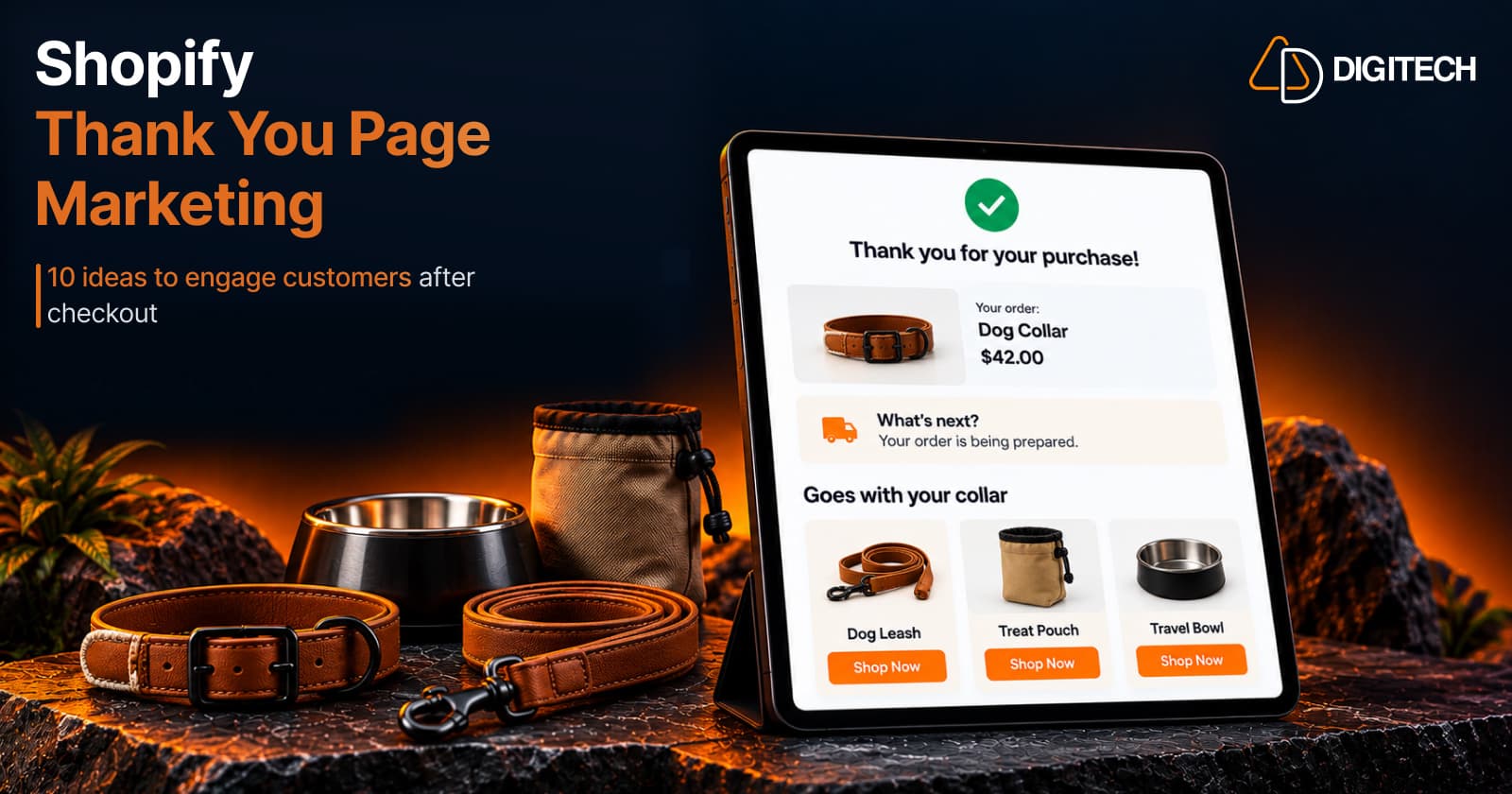
Shopify Thank You Page Marketing: 10 Ideas to Engage Customers After Checkout
Discover 10 Shopify Thank You Page marketing ideas to engage customers after checkout with recommendations, offers, bundles, feedback and useful content.
Read article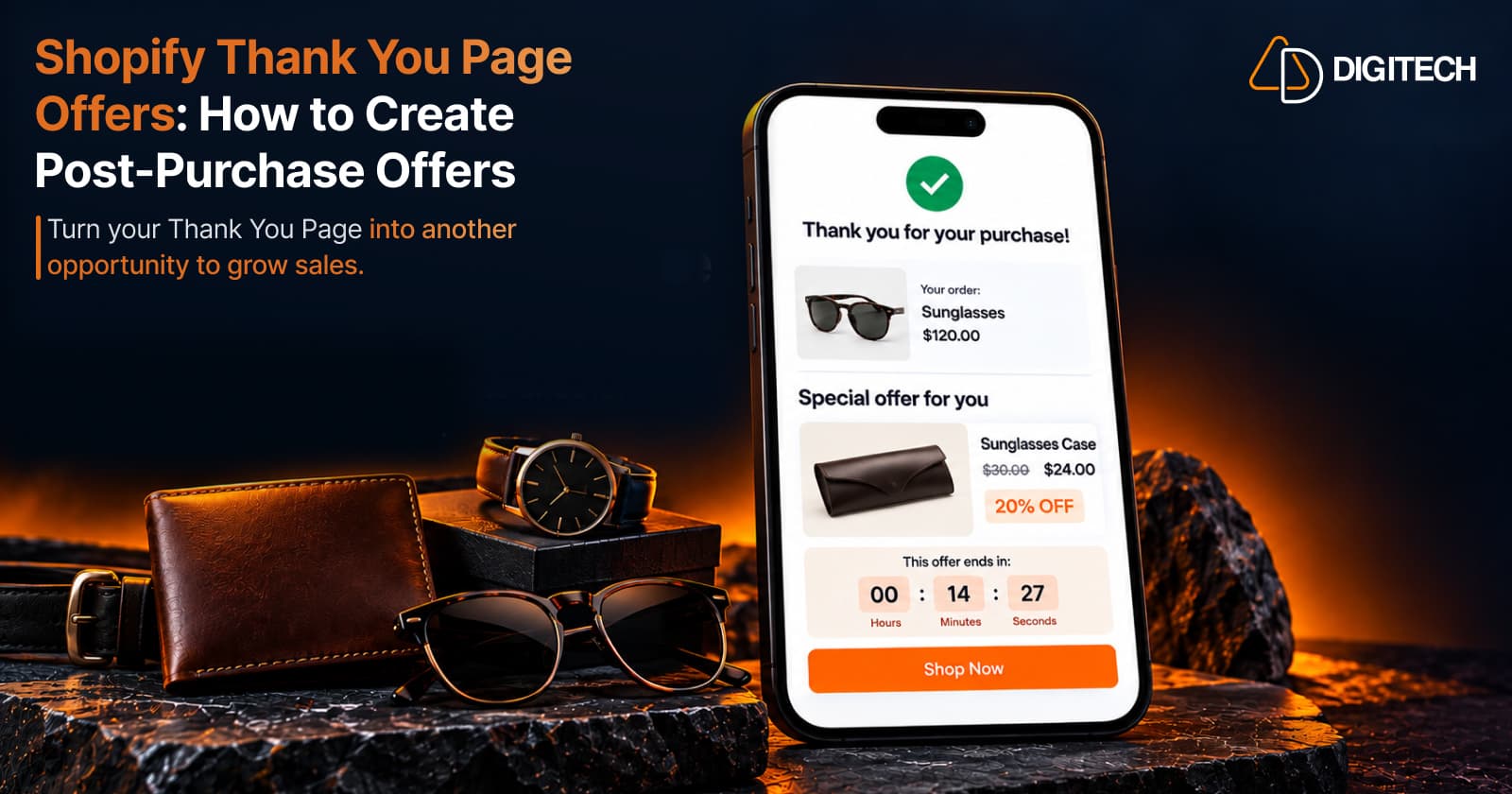
Shopify Thank You Page Offers: How to Create Post-Purchase Offers
Learn how to create Shopify Thank You Page offers with discounts, coupons, countdown timers and relevant promotions to drive additional purchases.
Read article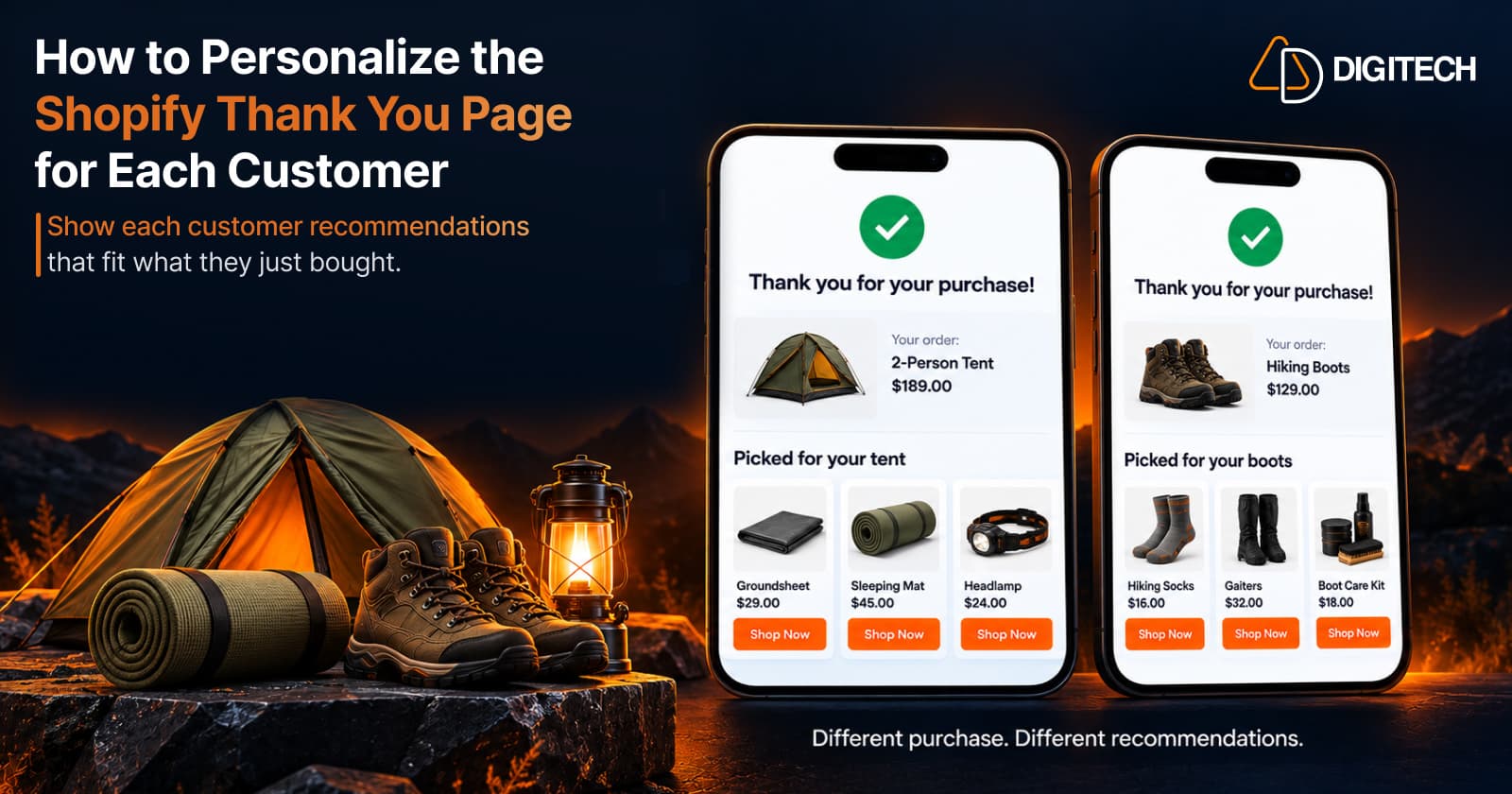
How to Personalize the Shopify Thank You Page for Each Customer
Learn how to personalize the Shopify Thank You Page with relevant recommendations, cross-sells, bundles, offers and post-purchase content.
Read article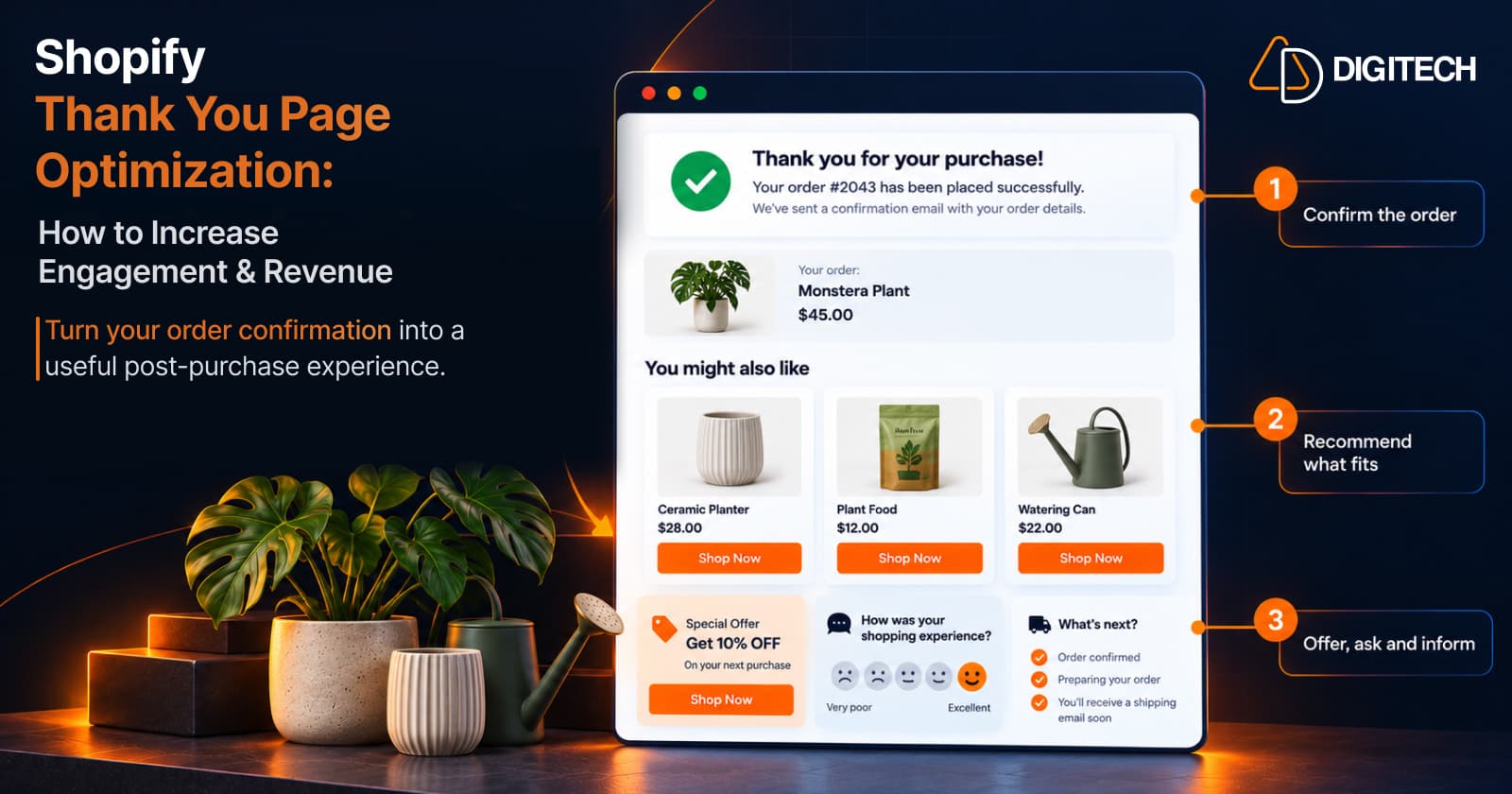
Shopify Thank You Page Optimization: How to Increase Engagement & Revenue
Learn how to optimize your Shopify Thank You Page with recommendations, upsells, bundles, offers and surveys to create a better post-purchase experience.
Read article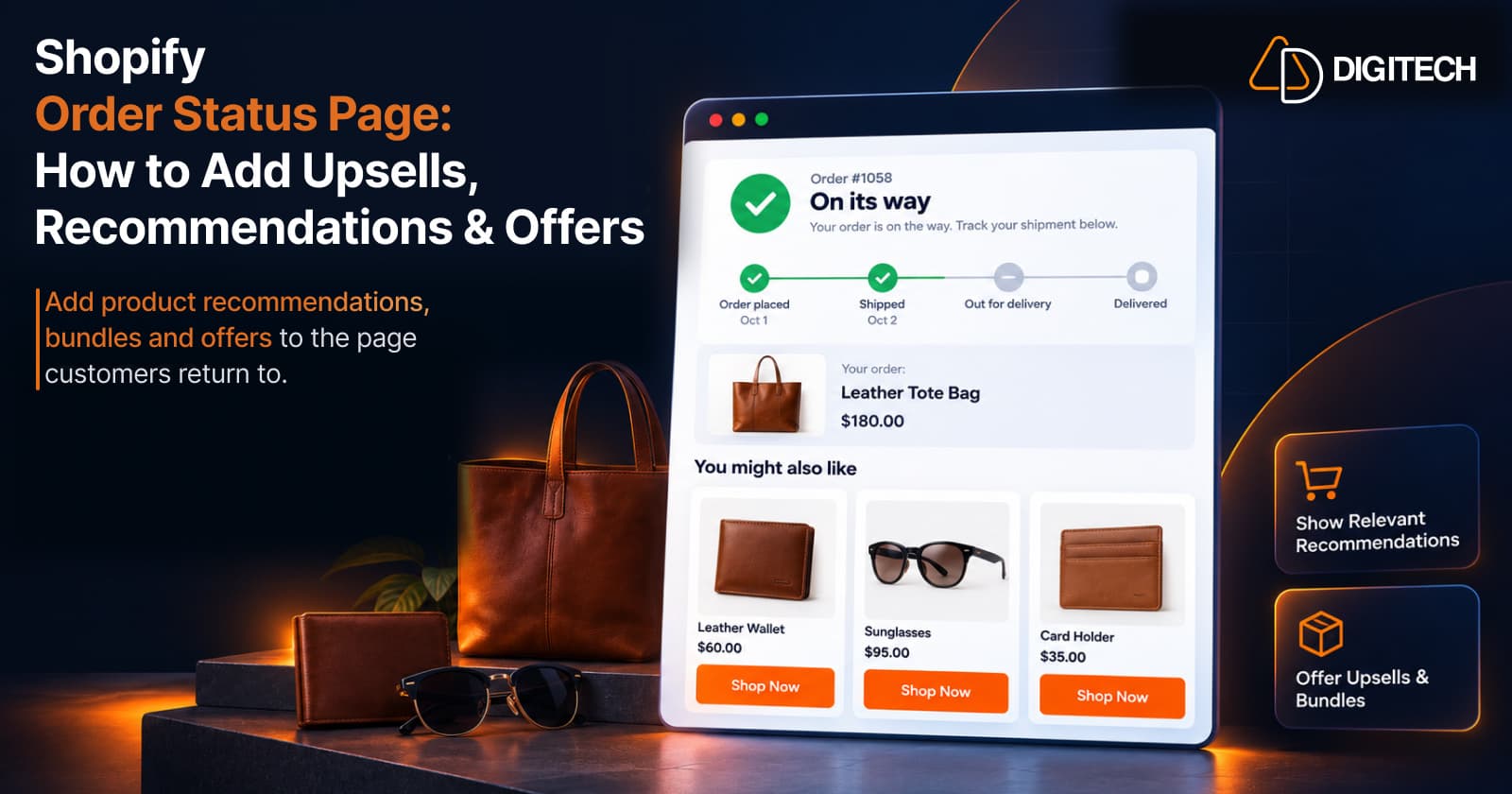
Shopify Order Status Page: How to Add Upsells, Recommendations & Offers
Learn how to customize the Shopify Order Status Page with product recommendations, upsells, bundles and offers to create better post-purchase experiences.
Read article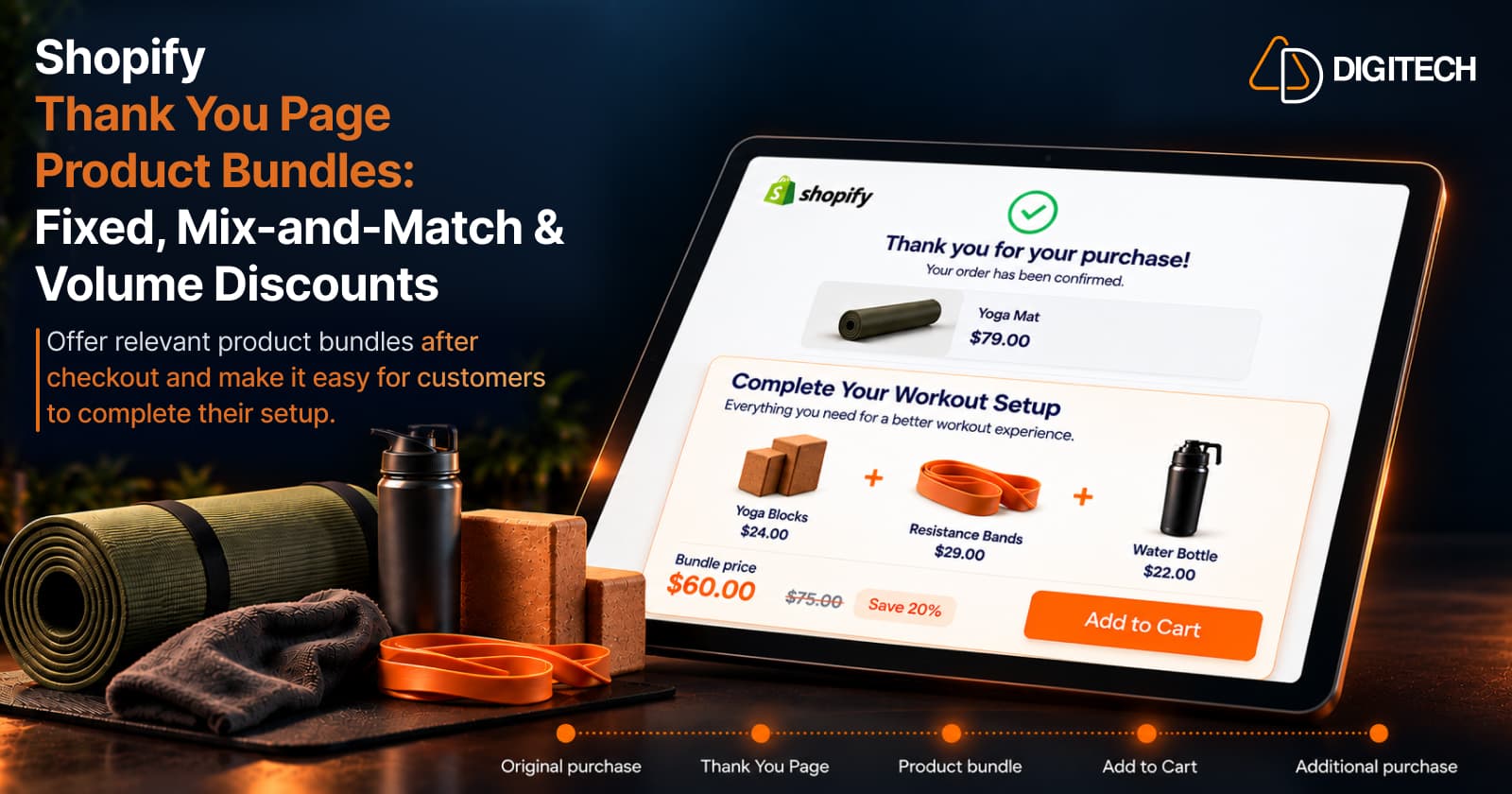
Shopify Thank You Page Product Bundles: Fixed, Mix-and-Match & Volume Discounts
Learn how to use fixed, mix-and-match and volume discount product bundles on the Shopify Thank You Page to create relevant additional purchase opportunities.
Read article