How to Add Upsells to the Shopify Thank You Page
Add post-purchase upsells to your Shopify Thank You Page the current, supported way — no theme code. Product selection, offer setup, placement, testing, and how to measure it.
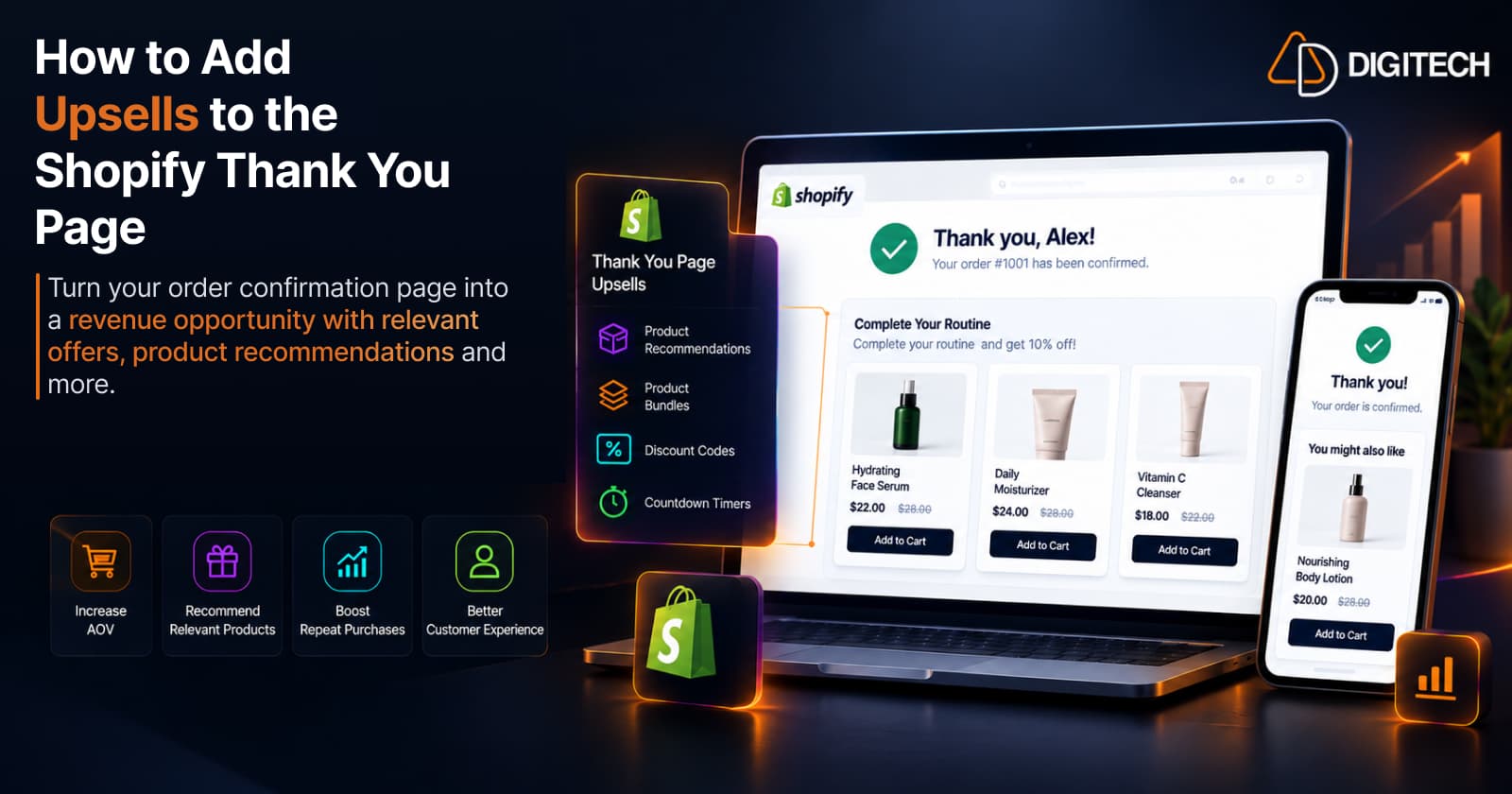
A Shopify Thank You Page upsell is an offer shown right after checkout — on the order-confirmation page — inviting the customer to buy one more relevant product that pairs with what they just bought. Payment is complete, and the customer is already engaged with the purchase they just completed. That combination makes the Thank You Page one of the few moments where another recommendation reads as helpful rather than pushy.
Most stores waste it. The page shows an order number, a "thanks," and nothing else. It can do more — and we've made the strategic case for that in Shopify Thank You Page: how to turn it into a revenue channel. This guide is the practical follow-up: not why the page matters, but how to actually add an upsell to it — which products to offer, how to set the offer up the current, supported way, where to place it, and how to tell whether it's working.
What Is a Shopify Thank You Page Upsell?
When a customer completes checkout, Shopify shows them the Thank You Page: the order confirmation, with the order number and summary. It's the first thing they see after paying.
An upsell is simply an offer to buy more — a related product, an upgrade, or an add-on. A post-purchase upsell is one shown after the payment is complete, which is what makes it different from a normal storefront "you might also like" block.
That timing changes everything. A storefront recommendation competes for the customer's first buying decision and can distract from the sale you're trying to close. A post-purchase offer doesn't interfere with the checkout decision — the customer has already completed payment. A well-matched offer is then an optional extra — the customer can add it or skip it, and the order they just placed is unaffected either way.
A simple example: a customer buys a coffee grinder. On the Thank You Page you show a bag of beans and a cleaning brush — items that obviously pair with the grinder. That's a post-purchase offer. Technically the beans are a cross-sell and a better grinder would be an upsell, but on this page merchants usually treat "upsell" as a catch-all for both. The point is the same: it's relevant to the order they just placed.
One clarification, because Shopify's terminology is precise here — and it's easy to blur three different surfaces into one:
| Surface | When the customer sees it | What it does |
|---|---|---|
| Thank You Page | Once, immediately after checkout | Shows offers, product recommendations, surveys, and banners via checkout UI extensions and eligible apps. It does not modify the completed order. |
| Order Status Page | Revisited later to check the order | Shows similar content — and Shopify documents letting customers add products to their existing order through order editing here. |
| Post-purchase page | Between payment and the Thank You Page | A separate extension surface for a one-click offer that can add to the order before the customer reaches the Thank You Page. |
This guide is about the Thank You Page — the order-confirmation page, where recommendation and offer blocks live and where most merchants (and apps like Grovia) add them. Its offers invite a fresh purchase; a Thank You Page extension doesn't edit the order the customer just completed. The Order Status Page and the post-purchase page are related but distinct surfaces with their own setup.
Why Add Upsells to the Shopify Thank You Page?
There are a few practical reasons this page is worth the effort:
- It can help increase average order value. One extra relevant item per order adds up. (The tactics that decide whether an offer lands — pricing, relevance, one-offer discipline — are covered in how to increase Shopify AOV using post-purchase upsells.)
- It can create revenue from orders you already won — without spending more on ads to get the traffic.
- It's a natural place to recommend complementary products the customer is likely to need anyway.
- It can introduce customers to products they haven't seen, including newer arrivals.
- It makes use of attention you already have. The customer is on the page, engaged, right now.
Note the language: these can help. Results depend on your catalogue, your offers, and your customers — so treat the Thank You Page as an opportunity to test, not a guaranteed uplift. And remember it's a different surface from the Order Status Page the customer returns to later; the two deserve different treatment, which we break down in Thank You Page vs Order Status Page.
What Products Should You Offer After Checkout?
The offer only works if the product makes sense. A few reliable categories:
Complementary products
Accessories, refills, add-ons, or the item that completes the purchase. A camera implies a memory card; a printer implies ink; a sofa implies the cushions. These are usually the safest, highest-relevance choice because the relationship is built into the products.
Higher-priced alternatives
A step up from what they bought. This can make sense when there's a genuinely better version and the customer might upgrade for next time — but be careful immediately after purchase: pushing a pricier version of the exact item they just chose can read as "you bought the wrong one." Use it where it's a natural upgrade, not to second-guess the order.
Best sellers
Proven, broadly appealing products. When there's no obvious complement to the order, a current best seller is a sensible fallback — it's popular for a reason, so it converts across a wide range of customers.
New arrivals
Your latest products. These are most relevant for returning customers, or when "what's new" is part of your brand's appeal and you want the Thank You Page to keep introducing fresh stock.
Product bundles
Instead of a single add-on, offer a small bundle built around what they bought — the item plus its natural companions, or a "buy more, save more" quantity offer. A bundle can raise the value of the post-purchase offer while still feeling relevant, because it's anchored to the original purchase.
How to Add an Upsell to the Shopify Thank You Page
This is the part most guides get wrong, so start here: use current Shopify methods. Shopify has moved Thank You Page and Order Status Page customization to checkout extensibility, so you add content in the checkout and accounts editor using app blocks built on checkout UI extensions — not the old Additional Scripts, which have been retired. You don't edit theme or checkout code to do this. For most merchants the most direct route is an eligible app that adds the upsell and recommendation blocks to the page for you.
With that settled, the process:
- Decide what to show. Pick the offer type first — a complementary product, a bundle, a best seller, and so on. Decide the kind of offer before the exact product.
- Look at the original order. The item the customer just bought is your best context. Everything you offer should connect back to it.
- Choose the relevant product or offer. Match it to the order and keep it to one clear offer, not a wall of choices.
- Set up the Thank You Page experience. In your Shopify admin, open the checkout and accounts editor (under your checkout settings), where the order-confirmation page is customized — or install an eligible app that provides Thank You Page blocks.
- Add the upsell or recommendation block. Drop the app block or extension onto the Thank You Page where you want the offer to appear.
- Configure the offer and messaging. Set the product (or recommendation rule), a short headline, a one-line reason to add it, and clear CTA text.
- Add supporting elements. Include a product image and an obvious CTA button, and — when it genuinely fits — a discount code or a countdown timer to add a little urgency. Keep it honest and uncluttered.
- Preview and test. Place a test order and check the offer on both desktop and mobile: does it show, does the image load, does the buy flow actually work?
- Monitor performance. Once it's live, watch clicks, conversions, and revenue, and refine the offer from what you see.
If a guide tells you to paste code into Additional Scripts or edit your checkout's theme code, it's out of date — skip it.
How to Choose the Right Post-Purchase Offer
Getting the offer right is mostly judgement, guided by a few rules:
- Relevance beats price. A cheap, perfectly relevant add-on will out-convert an expensive, loosely related one nearly every time.
- Complementary products usually win. They need the least explaining.
- Avoid unrelated products. An offer that doesn't connect to the order reads as noise.
- Keep it simple. One clear offer, not a menu. Choice slows the decision.
- Match the offer to the original purchase. Anchor everything to what they bought.
- Mind the price difference. An add-on priced far above the order value is a hard sell right after checkout; the AOV playbook covers the pricing ratio in detail.
- Use discounts deliberately. A small incentive can tip a decision, but discounting every offer trains customers to wait for one.
- Don't overwhelm. The customer just finished buying — respect that.
Shopify Thank You Page Upsell Best Practices
- Keep every recommendation relevant to the order — relevance is the whole game.
- Lead with one clear CTA so the next step is obvious.
- Show value fast — a good image and a single line of copy.
- Don't crowd the page with too many products; a focused offer is easier to act on.
- Favour complementary products as your default offer type.
- Test different offers and rotate them instead of setting one and forgetting it.
- Use urgency sparingly and honestly — a real, limited discount or timer, not a fake one.
- Keep the page clean and on-brand so the offer feels like part of the experience.
- Track conversions, not just clicks — engagement is only worthwhile if it turns into orders.
- Always anchor the offer to the customer's original purchase.
How to Measure Thank You Page Upsell Performance
You can't improve an offer you can't see, so measure the outcome, not the effort. The metrics worth watching:
- Upsell clicks — is the offer getting attention?
- Conversion rate (CVR) — of the customers who see or click it, how many buy?
- Number of conversions — the raw count of extra orders it produced.
- Revenue generated — the actual money the offer added.
- Average order value, where relevant — is the offer lifting the typical order?
Judge performance on real customer behaviour, and give an offer enough orders before you decide — a handful of sessions isn't a verdict. Then compare offers against each other so you can keep what converts and cut what doesn't. Over time that's how you learn which post-purchase offers actually work for your catalogue.
Using Grovia to Add Shopify Thank You Page Upsells
If you'd rather not assemble this piece by piece, Grovia — a Shopify app built and operated by AD Digitech — is one way to do all of the above without code.
With Grovia, Shopify merchants can:
- Customize the Thank You Page and the Order Status Page
- Add post-purchase upsells and cross-sell offers
- Add product recommendations — complementary products, best sellers, new arrivals, higher-priced alternatives, the same collection the customer bought from, or manually selected products
- Build product bundles — fixed, mix-and-match, pick-from-collection, and buy-more-save-more (volume) pricing
- Add coupon codes and countdown timers
- Add banners, images, and CTAs
- Build the whole experience with a drag-and-drop editor — no coding and no theme edits
- Track clicks, conversions, CVR, and revenue in built-in analytics
That covers the setup, the offer, the placement, and the measurement from one place. You can see the full feature set on the Grovia product page or the Shopify App Store listing.
The Thank You Page is a small piece of real estate with an outsized opportunity. Add one relevant offer, keep it clean, test it, and measure what it does — that's how a confirmation screen starts pulling its weight.
Frequently asked questions
Can you add an upsell to the Shopify Thank You Page?
Yes. Shopify's Thank You Page (the order-confirmation page) is customized through the checkout and accounts editor using app blocks built on checkout UI extensions, so you can add upsell and product-recommendation blocks to it. Most merchants do this with a purpose-built app rather than by editing code — and not through the old Additional Scripts, which Shopify has retired. Thank You Page blocks display offers; they don't edit the completed order.
What's the difference between a Thank You Page upsell and a cross-sell?
An upsell offers more of, or a higher version of, what the customer bought; a cross-sell offers a complementary product that pairs with it. On the Thank You Page the two blur together, and merchants often say 'upsell' to mean both. What matters is that the offer is relevant to the order the customer just placed.
Do I need to edit code to add Thank You Page upsells?
No. The current supported approach uses Shopify's checkout and accounts editor and app blocks, and eligible apps add the upsell blocks for you — no theme edits and no checkout code. You should not use the deprecated Additional Scripts to do this; Shopify has moved Thank You and Order Status Page customization to checkout extensibility.
Is the Thank You Page the same as the Order Status Page?
No. The Thank You Page is the confirmation screen a customer sees right after completing checkout, while the Order Status Page is the page they can return to later while tracking their order. They're separate surfaces with different jobs — see our Thank You Page vs Order Status Page guide for the full breakdown.
What products should I offer as a post-purchase upsell?
Start with products that are relevant to what the customer just bought — usually complementary items, accessories, refills, or a sensible bundle. Best sellers and new arrivals can work as a fallback when there's no obvious complement. Relevance to the original order matters more than the price of the offer.
How do I measure whether a Thank You Page upsell is working?
Track the offer's clicks, its conversion rate, the number of conversions, and the revenue it generates — and watch average order value where relevant. Judge it on real customer behaviour over enough orders to be meaningful, and compare offers so you can keep the ones that convert.
Turn Your Thank You Page Into a Revenue Opportunity
Your Shopify thank you and order status pages can do more than confirm an order. With Grovia, add post-purchase upsells, product recommendations, bundles, offers and more — without coding.
Related reading
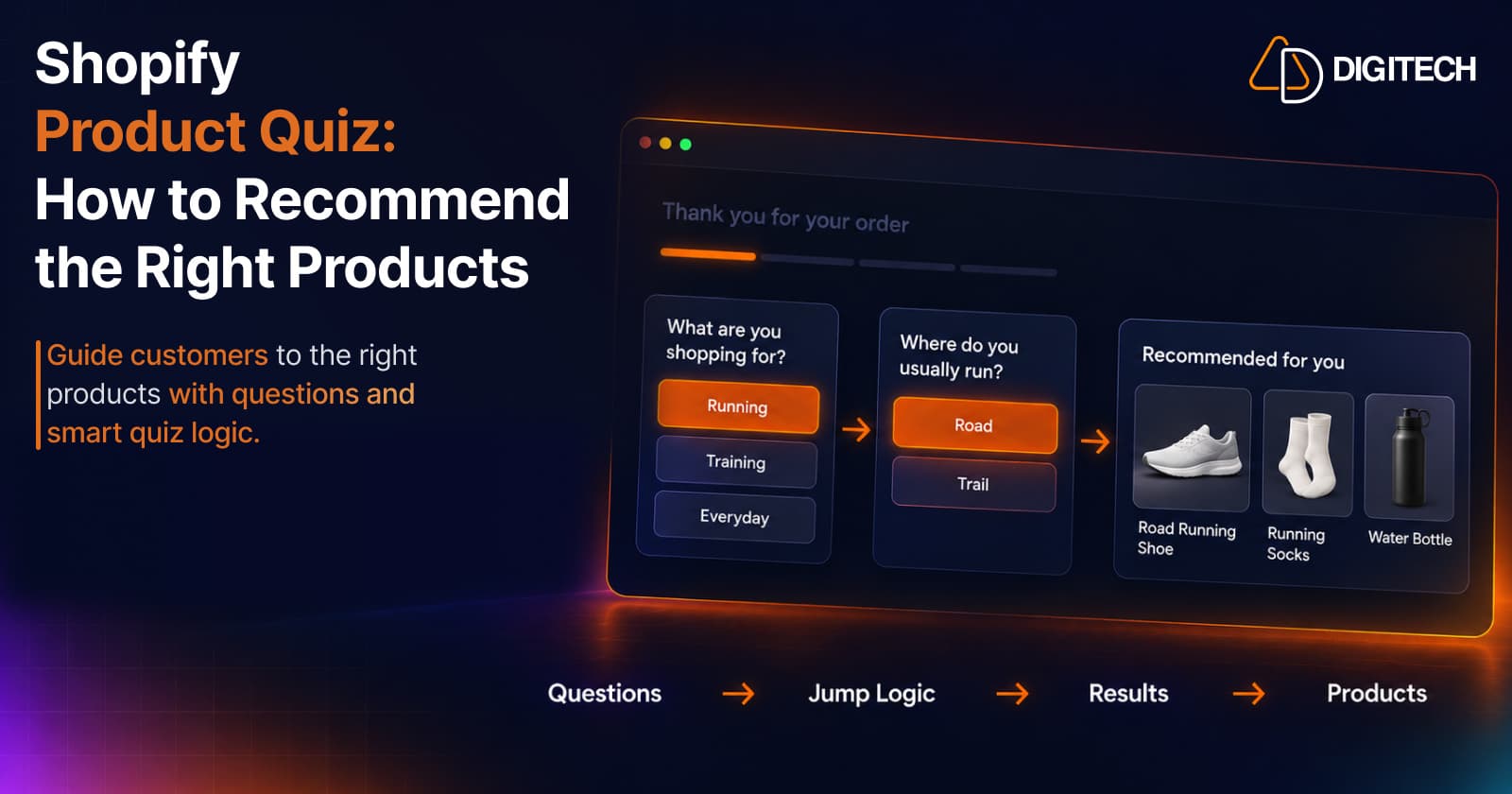
Shopify Product Quiz: How to Recommend the Right Products Based on Customer Answers
Learn how Shopify product quizzes use questions, logic and results to guide customers toward relevant products.
Read article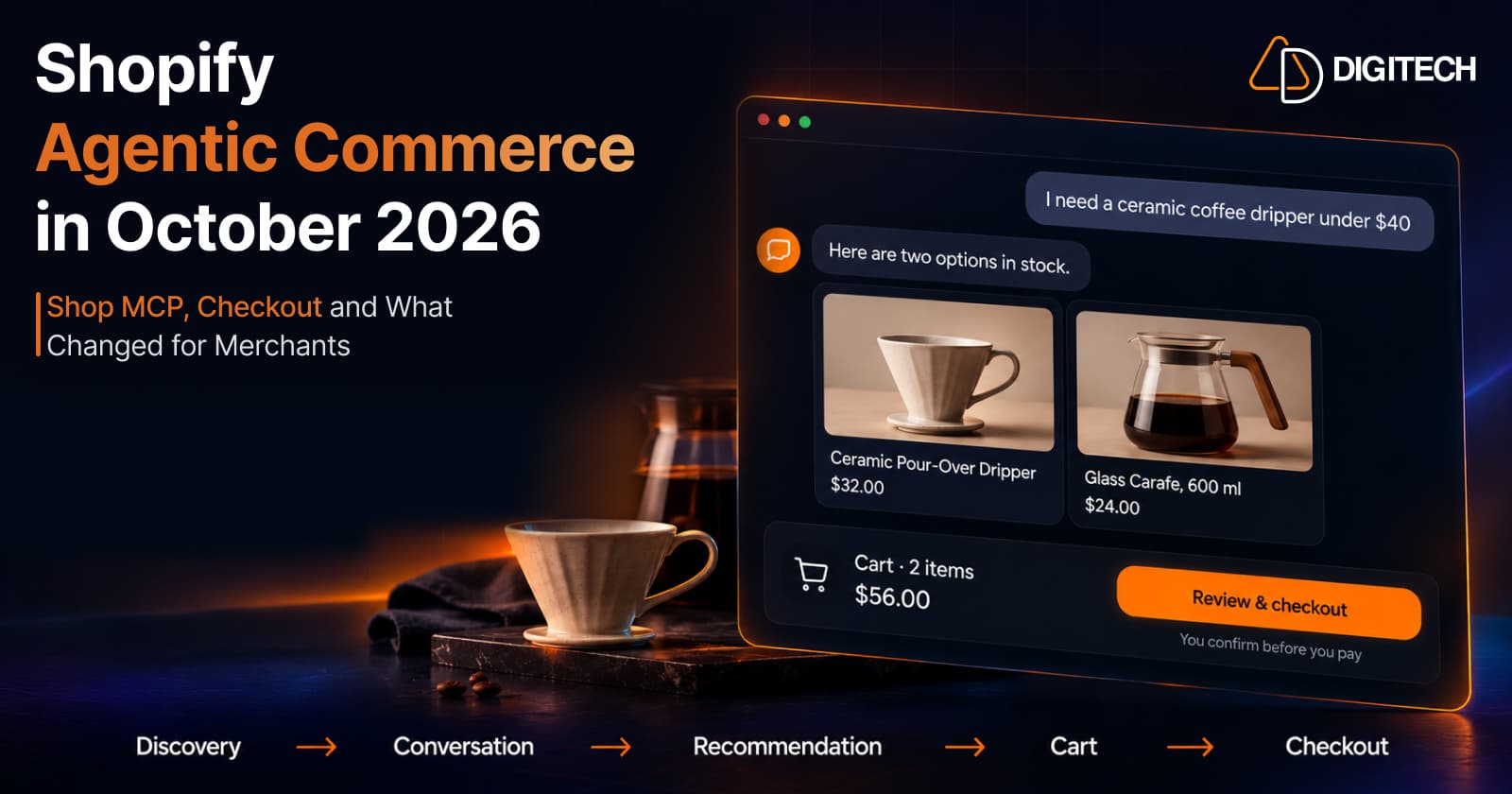
Shopify Agentic Commerce in October 2026: Shop MCP, Checkout and What Changed for Merchants
Shopify agentic commerce moved forward in September and October 2026: Shop MCP, Cart and Checkout MCP, WebMCP, buyer consent and store locations. Here's what it means for merchants.
Read article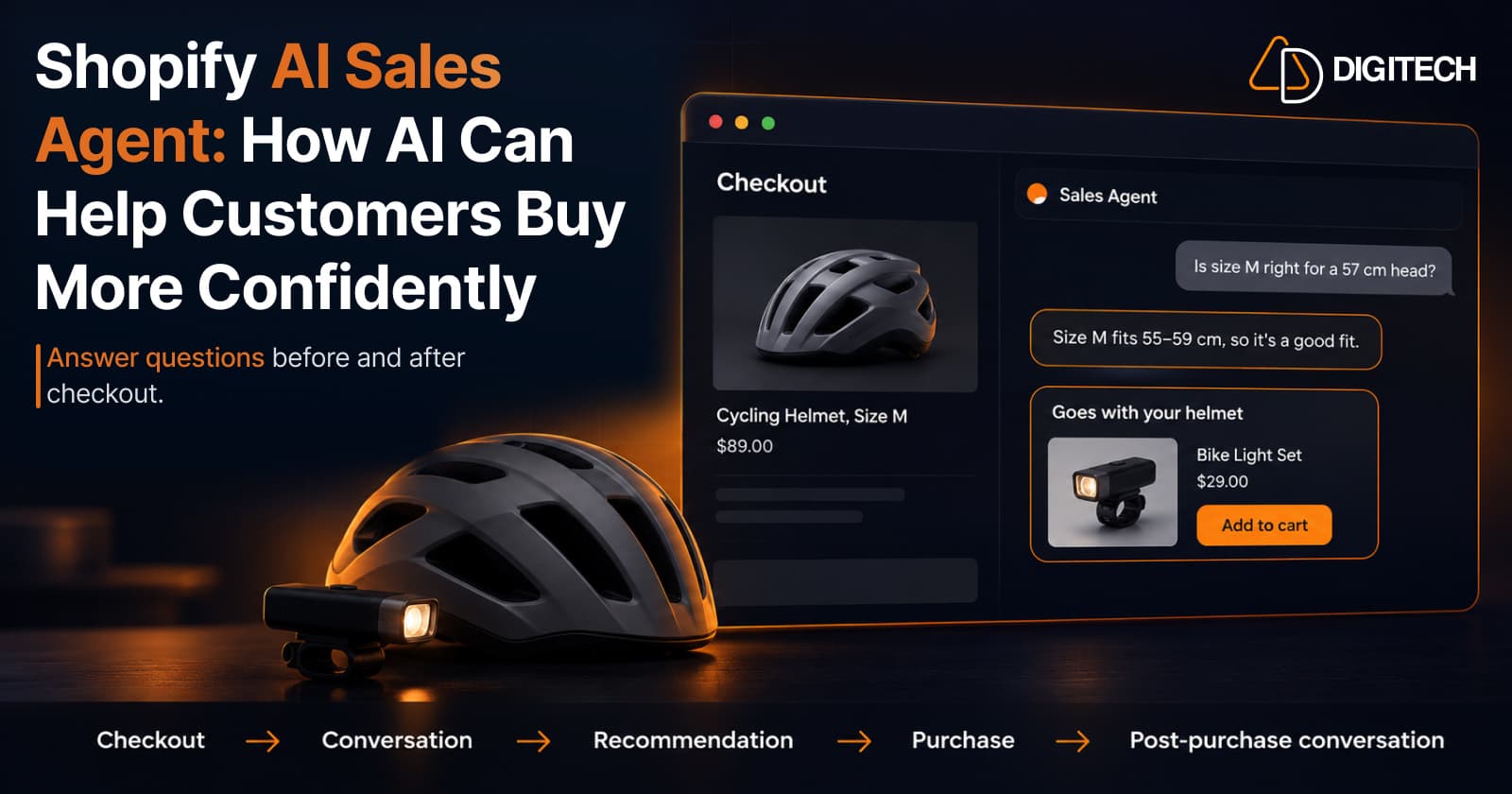
Shopify AI Sales Agent: How AI Can Help Customers Buy More Confidently
Learn how Shopify AI Sales Agents can help customers with product questions, recommendations, upsells and post-purchase conversations.
Read article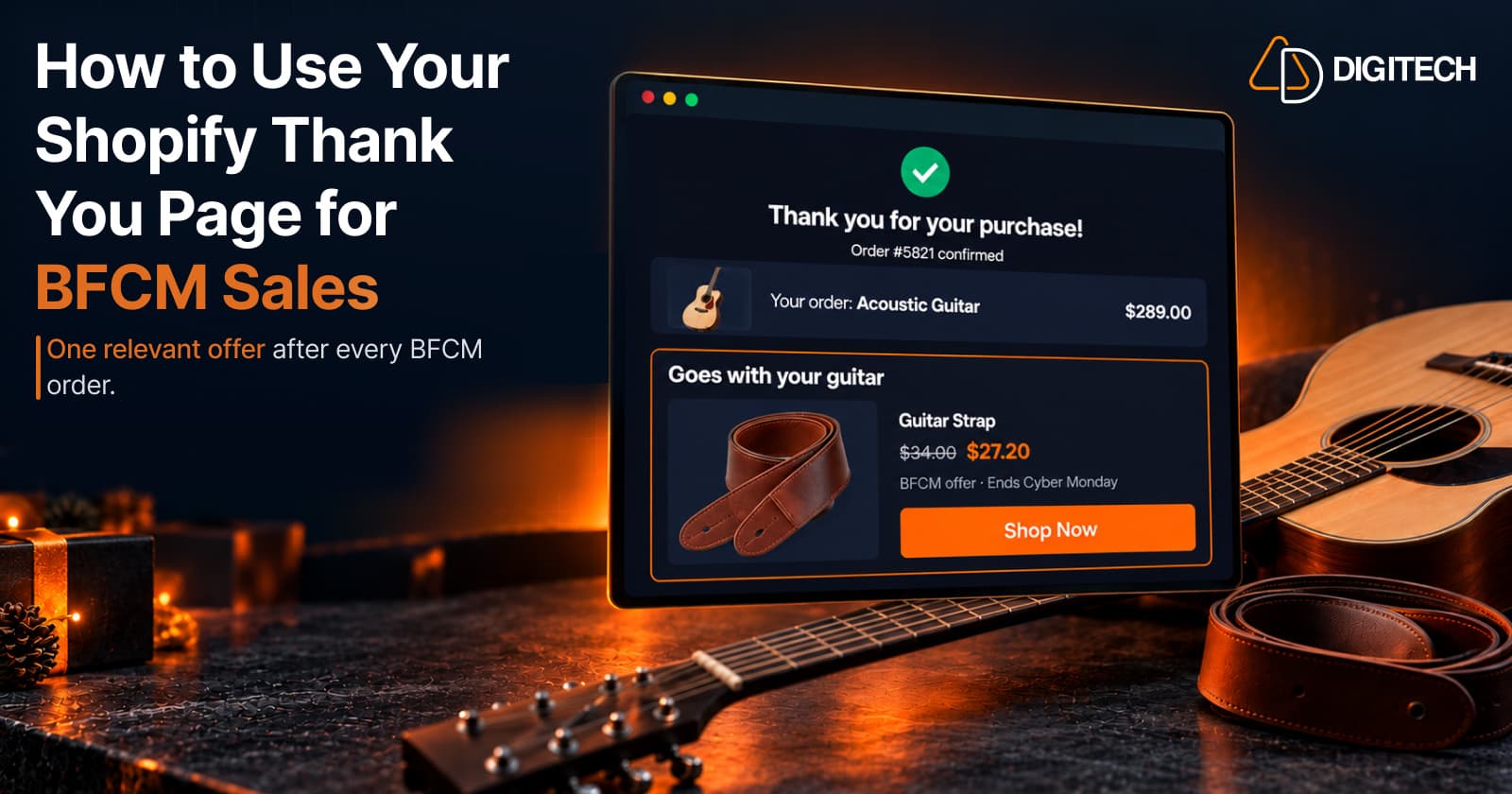
How to Use Your Shopify Thank You Page for BFCM Sales
Learn how to use the Shopify Thank You Page during BFCM with relevant upsells, product recommendations, bundles, offers and countdown timers.
Read article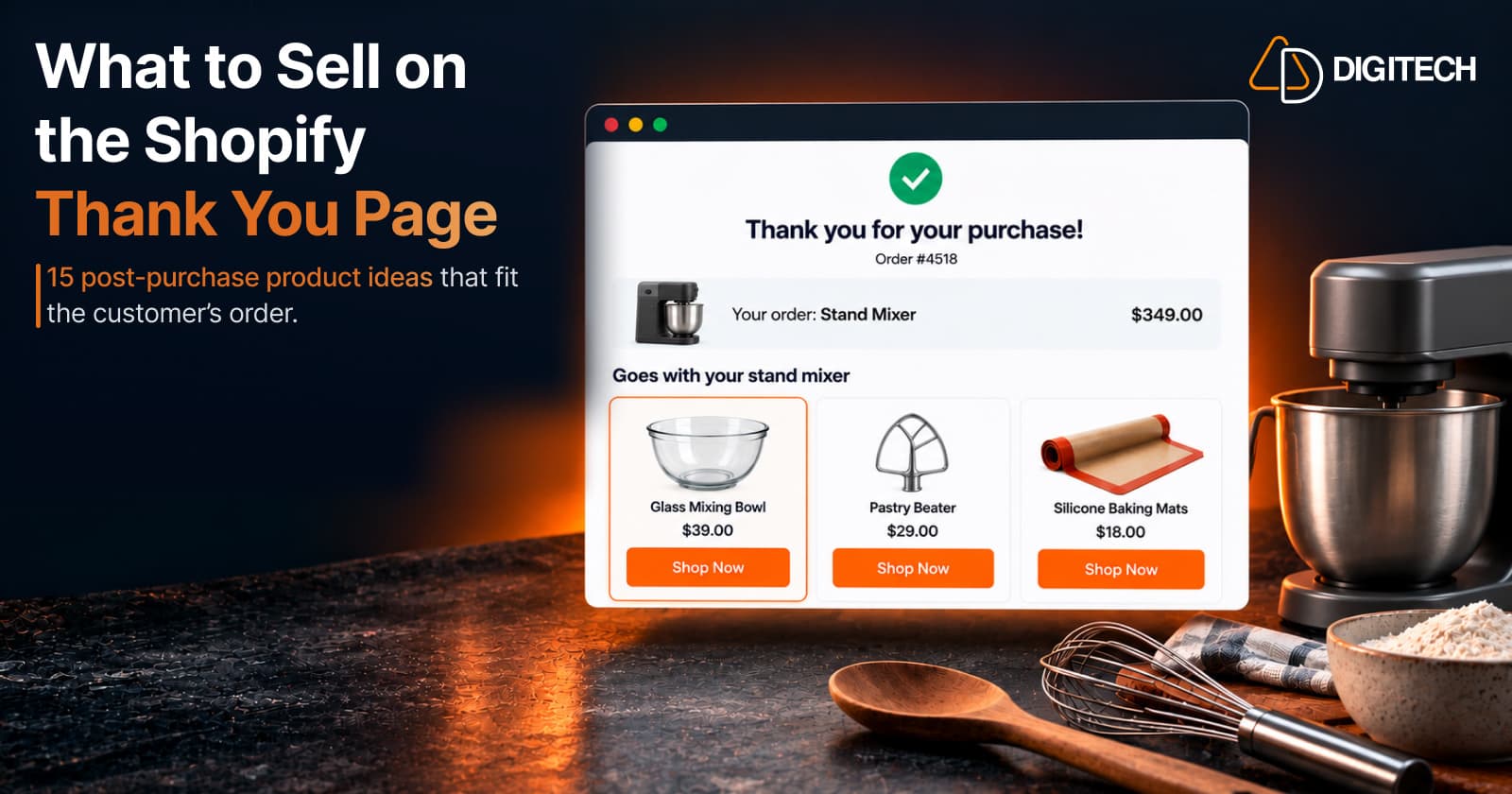
What to Sell on the Shopify Thank You Page: 15 Post-Purchase Product Ideas
Discover 15 Shopify Thank You Page product ideas, from complementary accessories and bundles to upgrades, refills and relevant post-purchase offers.
Read article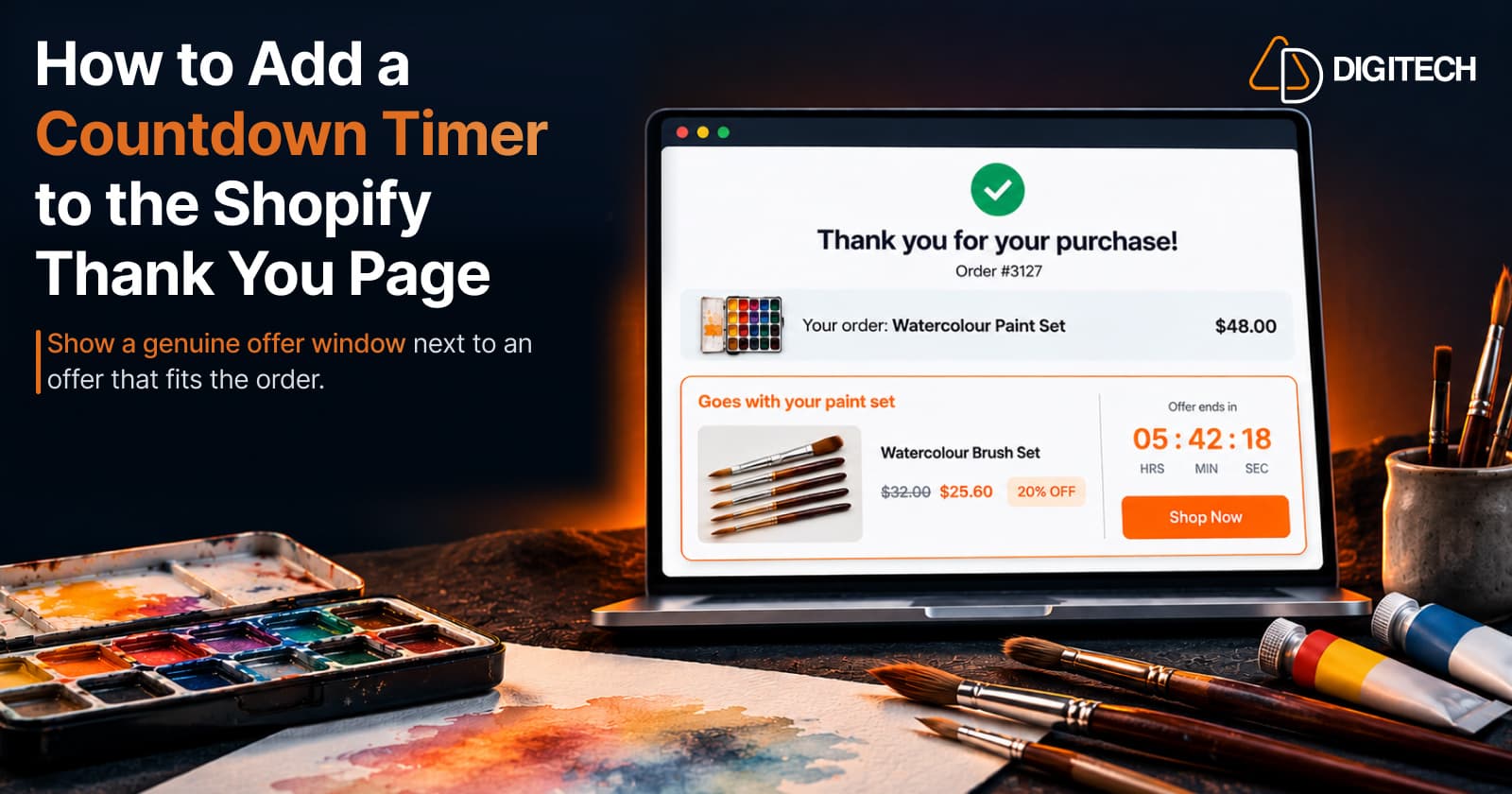
How to Add a Countdown Timer to the Shopify Thank You Page
Learn how to add a countdown timer to the Shopify Thank You Page and use time-sensitive offers, discounts and relevant products to drive post-purchase engagement.
Read article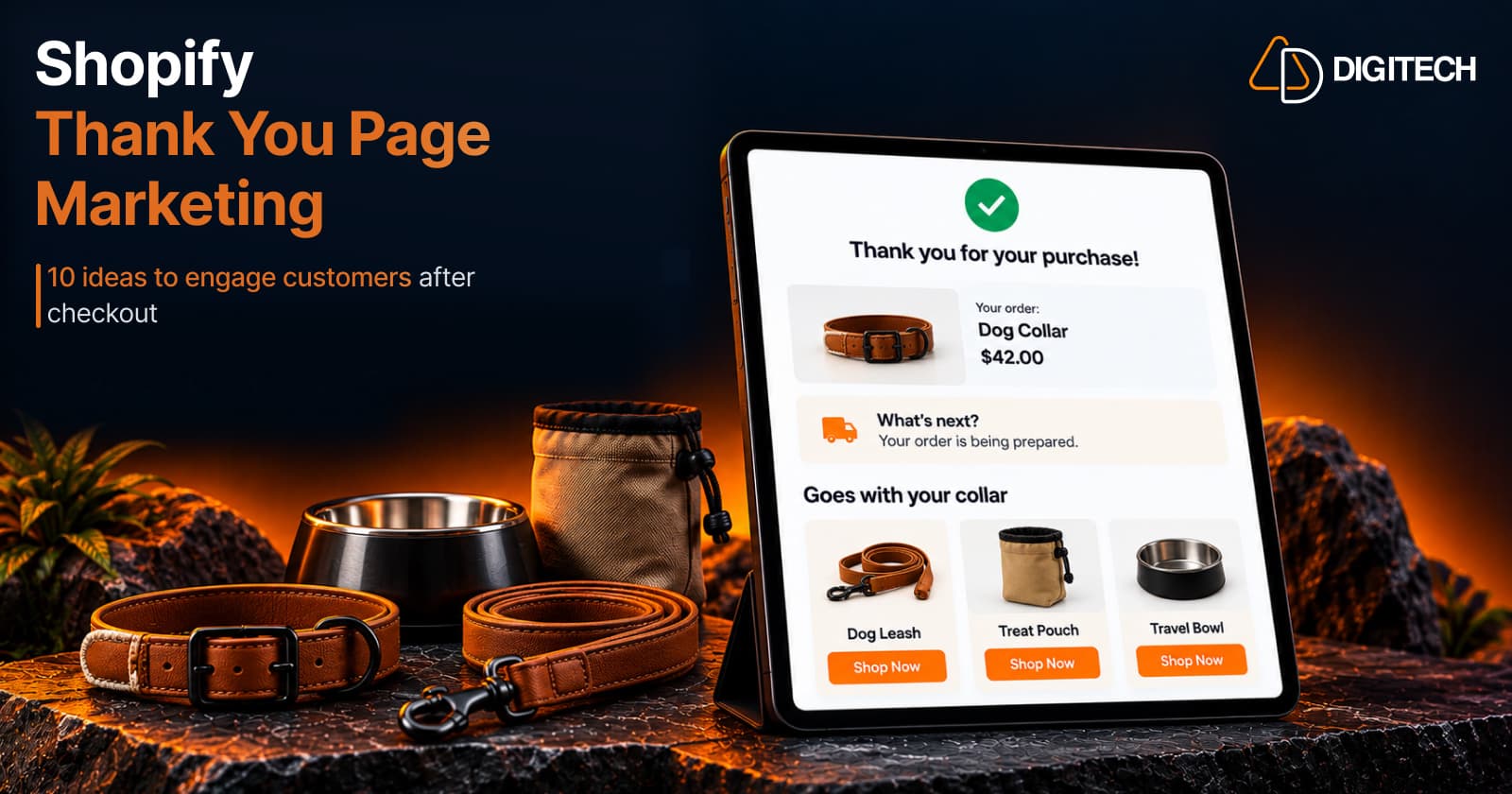
Shopify Thank You Page Marketing: 10 Ideas to Engage Customers After Checkout
Discover 10 Shopify Thank You Page marketing ideas to engage customers after checkout with recommendations, offers, bundles, feedback and useful content.
Read article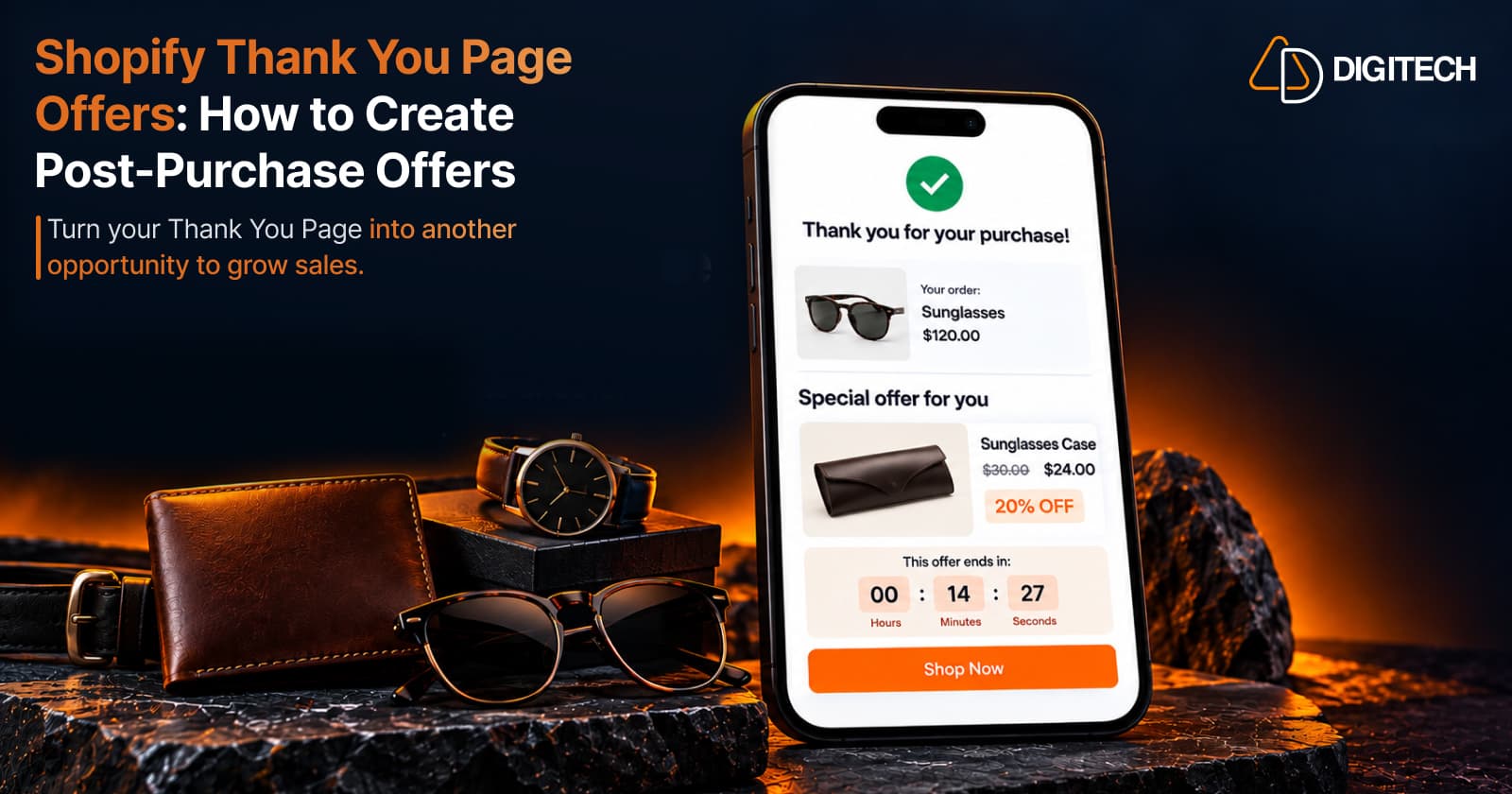
Shopify Thank You Page Offers: How to Create Post-Purchase Offers
Learn how to create Shopify Thank You Page offers with discounts, coupons, countdown timers and relevant promotions to drive additional purchases.
Read article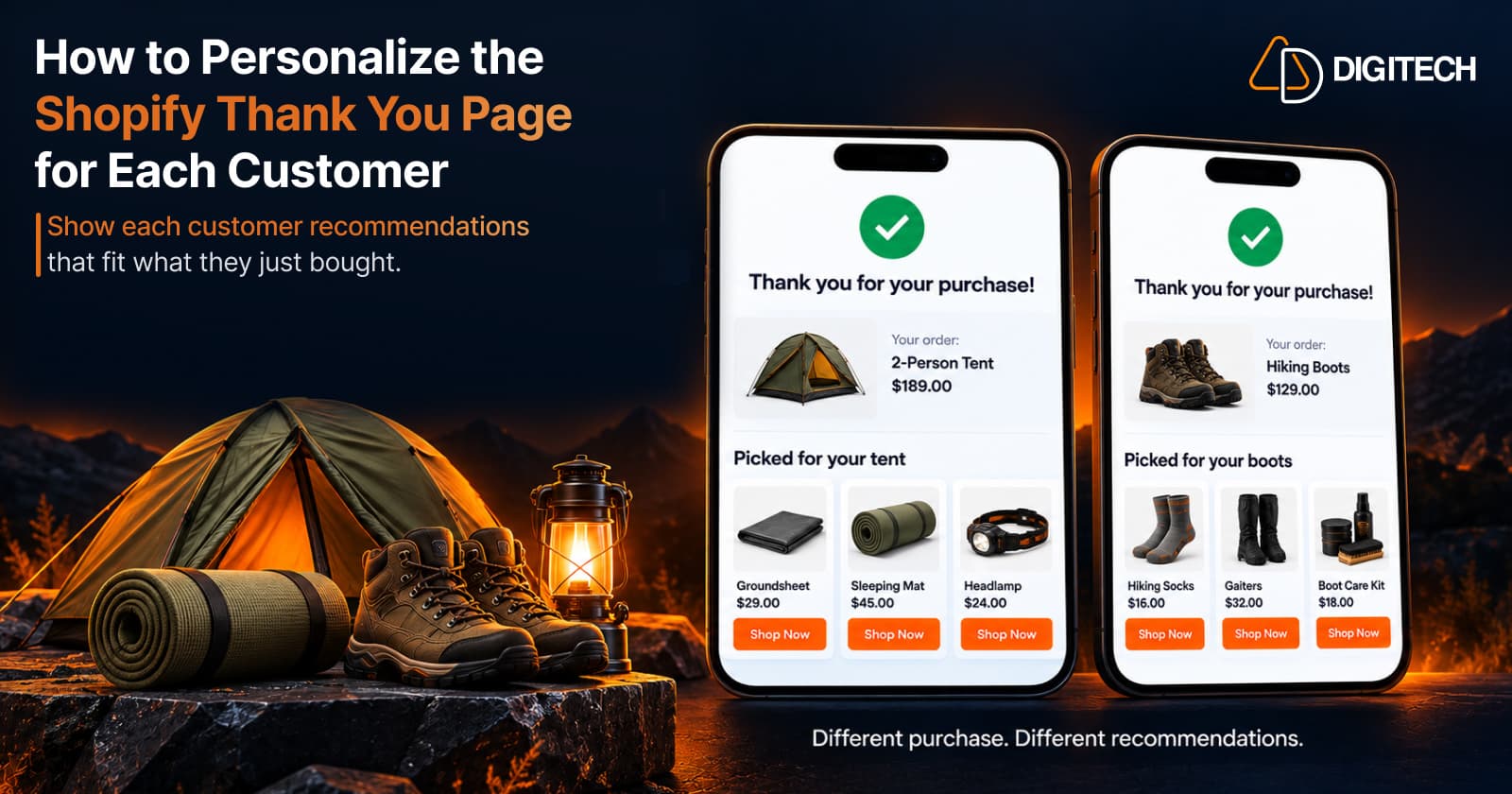
How to Personalize the Shopify Thank You Page for Each Customer
Learn how to personalize the Shopify Thank You Page with relevant recommendations, cross-sells, bundles, offers and post-purchase content.
Read article