Shopify Payments: What Merchants Should Know About the New Balance Activity Report
Shopify's new Payments activity report explains how money moved through your balance — starting balance, gross activity, fees, payouts, ending balance. A merchant's guide to reading and reconciling it.
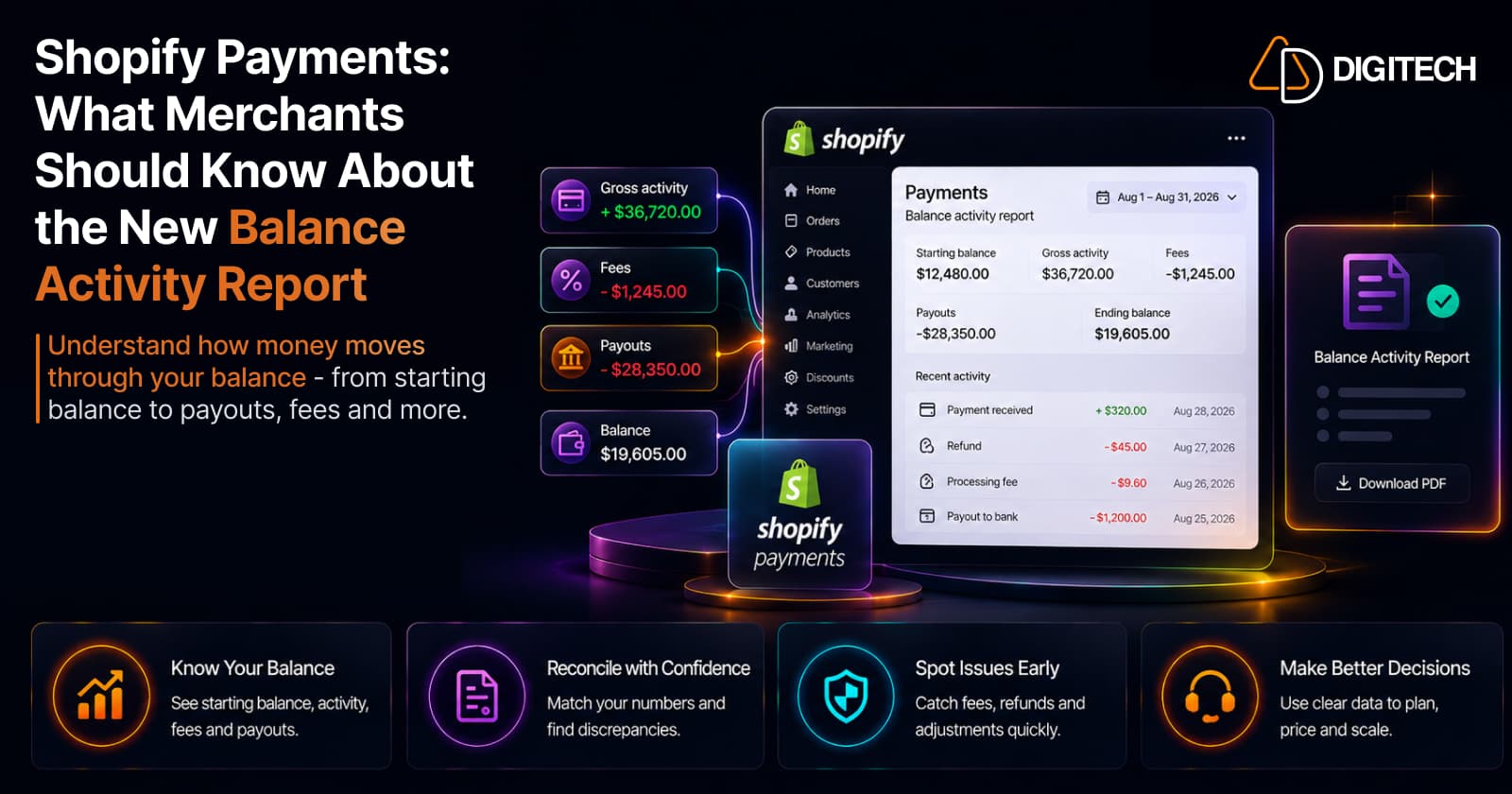
You check Shopify and see orders, sales, payment transactions, refunds, fees, and payouts — and at first glance the numbers don't line up. Sales say one thing, the payout hitting your bank says another, and it's not obvious where the difference went. That gap is normal, but it's hard to explain without the right view.
Shopify's new Payments activity report (released August 22, 2026) is built for exactly that: a clear picture of how money moved through your Shopify Payments balance over a date range you choose. This guide explains what it shows, how to read the balance, and how to use it to reconcile — without turning finance into guesswork.
What is the Shopify Payments activity report?
The Shopify Payments activity report is a summary of how your Shopify Payments balance changed over a selected period. In one place it brings together your starting balance, the activity that added or removed money, the fees Shopify charged, the payouts sent to your bank, and your ending balance.
Shopify introduced it to solve a specific problem: merchants could see individual payouts and transactions, but not a single, connected view of why the balance moved between two dates. You'll find it under Finance → Documents → Shopify Payments activity report (it's also reachable from the Payouts page), and you can export it as a PDF. It's available to stores using Shopify Payments — not limited to Shopify Plus — for anyone with permission to view payouts.
What does the report actually show?
The report has two parts. The Summary shows how your balance changed at a high level; the Activity section breaks that change into groups by type (Charges, Refunds, Disputes, Fees, Payouts, and more), each with a gross amount, fees, and net amount you can expand to line items.
Here's what the summary figures mean:
| Report item | What it means | Why it matters |
|---|---|---|
| Starting balance | Your Shopify Payments balance at the start of the range | The baseline everything else moves from |
| Gross activity | Total money movement from selling activity (charges, refunds, disputes, etc.) before fees and payouts | Shows what your store activity added or removed |
| Fees | Shopify Payments processing and related fees for the period | The most common reason payouts trail sales |
| Payouts | Money transferred out of your balance to your bank | Explains why the balance dropped even when sales were strong |
| Net amount | The net change after fees and payouts | Ties the activity back to the balance |
| Ending balance | Your balance at the end of the range | Where you finished — and next period's starting point |
Two things to know up front: the report covers only Shopify Payments activity — it excludes your Shopify subscription/billing fees, third-party processors, and external payment methods — and it has a three-day data delay, so the most recent days settle before they appear.
How to read your Shopify Payments balance
The mental model is simple. Every reporting period follows one flow:
Starting balance + money added − money removed = ending balance
Payments (charges) add money; refunds, disputes, and fees remove it; payouts move settled money to your bank. Here's a hypothetical example — the numbers are illustrative, not from Shopify:
| Line item | Amount |
|---|---|
| Starting balance | $2,000 |
| + Payments received (charges) | $10,000 |
| − Refunds & disputes | −$400 |
| − Processing fees | −$300 |
| − Payouts to your bank | −$8,500 |
| = Ending balance | $2,800 |
The point isn't the figures — it's the flow. Once you can see money entering as charges, leaving as refunds and fees, and moving out as payouts, the balance stops being a mystery number and becomes something you can explain line by line.
Balance vs. sales vs. payouts
These three are related but not equal, and confusing them is the root of most reconciliation headaches:
- Sales ≠ Payments balance. Sales measure what customers ordered. Your balance tracks money actually moving through Shopify Payments — after refunds and fees.
- Balance ≠ payout amount. A payout is a transfer of available balance to your bank on your payout schedule. Pending or recent activity may not be in it yet.
- Payouts ≠ total sales for the same period. A payout reflects settled activity minus fees, not your gross sales for those exact dates.
The differences come down to timing and deductions: payments settling on different dates, refunds and disputes, processing fees, activity still pending, and your payout schedule. The activity report lines these up so the gaps are explained rather than assumed.
Why fees make reconciliation confusing
The classic mistake is comparing gross sales to the net payout that landed in the bank, seeing a shortfall, and assuming money is missing. It almost never is. The difference is usually processing fees, refunds, disputes, and timing — all of which the report itemizes under Fees and the relevant activity groups.
Cross-border stores have a few more moving parts: activity can include Duties & Taxes and Managed Markets groups, which shift the numbers further from a simple sales figure (worth understanding if you sell internationally with Shopify Markets). Seeing them itemized is what makes the payout make sense.
A note: this is reconciliation, not accounting or tax advice. How you record fees, refunds, and duties depends on your business and jurisdiction — confirm the treatment with your accountant.
How to use the report for reconciliation
A repeatable month-end (or period-end) workflow:
- Choose the reporting period and payout currency.
- Check the starting balance — it should match the previous period's ending balance.
- Review gross activity — the charges and other movement your store generated.
- Review refunds, disputes, and adjustments where they apply.
- Review fees — the processing and related costs for the period.
- Review payouts — what actually transferred to your bank.
- Compare the ending balance to what you expected.
- Investigate any unexplained difference by expanding the relevant activity group to its line items.
Because it exports to PDF with the summary and detail intact, the report also gives your accountant, bookkeeper, finance team, or operations lead a shared, itemized reference — instead of a spreadsheet nobody can fully explain.
When should you review Shopify Payments activity?
These are practical recommendations, not Shopify requirements — pick the cadence that fits your business:
- Daily — if cash flow is tight and you need to know exactly what's available.
- Weekly — for growing stores with steady transaction volume.
- Monthly — for accounting reconciliation and closing the books.
Most merchants settle on a light weekly glance plus a thorough monthly close.
Can it replace your accounting software?
No — and it isn't meant to. The activity report explains your Shopify Payments balance movement. It's not a general ledger.
Accounting software handles the broader picture: business-wide expenses, liabilities, assets, tax and accounting workflows, and financial statements. The right way to think about it is that the activity report is a clean, itemized input to those systems — the source that explains your Shopify Payments side of the books — not a replacement for them.
Common reconciliation mistakes
Most reconciliation problems come from a handful of avoidable errors:
- Comparing gross sales to net payouts and expecting them to match.
- Ignoring refunds and disputes.
- Forgetting processing fees.
- Comparing mismatched date ranges.
- Overlooking adjustments and other activity groups.
- Treating a payout as if it equals sales.
- Assuming every transaction settles instantly — remember the three-day data delay.
Each one is easy to make and easy to catch once you're reading the report as a flow of funds rather than a single total.
Who benefits most from the new report?
It's useful to any store on Shopify Payments, but the value grows with complexity:
- Growing stores juggling more refunds, fees, and payout cycles.
- High-transaction-volume stores where small per-order differences add up.
- Businesses with finance teams or an external accountant who need itemized, shareable records.
- Merchants managing multiple payout periods or reconciling across months.
- Larger and Shopify Plus operations where finance workflows and reporting expectations are more demanding.
Quick merchant checklist
Save this for each reconciliation:
- Check the starting balance (matches last period's ending balance)
- Review gross activity
- Review refunds and disputes
- Review fees
- Review adjustments and other activity groups
- Review payouts
- Check the ending balance
- Compare against expected cash movement
- Investigate any unexplained difference (expand to line items)
- Export/save the PDF when needed
- Share with your finance or accounting team when appropriate
When Shopify Payments reporting needs more customization
The activity report covers standard reconciliation well. Some businesses eventually need more — custom reporting workflows, integration with external finance or ERP systems, automated operational reporting, custom dashboards, data synchronization across platforms, or complex multi-system workflows that native reports aren't built to handle.
If your store relies on multiple systems and standard Shopify reporting no longer gives your team the workflow it needs, AD Digitech can help design and build custom Shopify integrations and reporting workflows around your existing setup. (We build Shopify functionality and integrations — not accounting services.) See our Shopify store development work, or talk to us about your reporting workflow.
Frequently asked questions
What is the Shopify Payments activity report?
It's a report Shopify released on August 22, 2026 that shows how money moved through your Shopify Payments balance over a date range you choose. It brings your starting balance, gross activity, fees, payouts, and ending balance into one place, and you can export it as a PDF. Find it under Finance → Documents in your Shopify admin.
What does the Shopify Payments balance include?
Only activity that runs through Shopify Payments: card charges, refunds, disputes, processing fees, payouts to your bank, and related items like duties, taxes, and Shop Cash. It does not include your Shopify subscription and billing fees, third-party payment processors, or external payment methods — those live elsewhere.
Is my Shopify Payments balance the same as my sales?
No. Sales measure what customers ordered. Your Payments balance tracks money actually moving through Shopify Payments — after refunds and fees, and before or after payouts leave for your bank. They rarely match for the same window because of timing, refunds, fees, and payout schedules.
Why is my Shopify payout lower than my sales?
Usually processing fees and refunds, plus timing. A payout is a transfer of your available balance to your bank on your payout schedule — it reflects settled activity minus fees, not your gross sales for the same dates. The activity report shows exactly which fees, refunds, and adjustments account for the gap.
Can I export the Shopify Payments activity report?
Yes. You can export it to PDF, keeping both the summary and the grouped activity detail — useful for month-end records or sharing with an accountant or bookkeeper.
Can the Shopify Payments activity report replace my accounting software?
No. It explains your Shopify Payments balance movement — it isn't a general ledger. Accounting software handles broader business accounting: expenses, liabilities, assets, and financial statements. The report is a strong reconciliation input for those systems, not a substitute for them.
Is the activity report only for Shopify Plus?
No. It's available to merchants using Shopify Payments; you need to be the store owner or staff with permission to view payouts. It isn't limited to Shopify Plus.
Building something on Shopify?
We design, build, and maintain Shopify apps, stores, and AI products — to the standard this article describes.
Related reading
Shopify Protect: What It Covers, How Fraud Rules Work, and What Merchants Should Check Before BFCM
Shopify now uses the name Shopify Protect for its fraud and dispute tools on Shopify Payments, not only for Shop Pay chargeback coverage. Here's what works automatically, which chargebacks are covered, how the new Rule Builder app works, and what to check before BFCM.
Read article
Shopify BFCM Integration Testing: How to Find App and System Risks Before Black Friday 2026
Prepare your Shopify store for BFCM 2026. Test checkout, shipping apps, payments, inventory sync, and custom integrations before Black Friday.
Read article
Shopify Adds Stock Counts in Admin: How Merchants Can Verify Inventory Before Peak Season
Shopify stock counts let staff record what's on the shelf and let a manager approve the differences before inventory changes. Here's how the workflow works in admin and POS.
Read article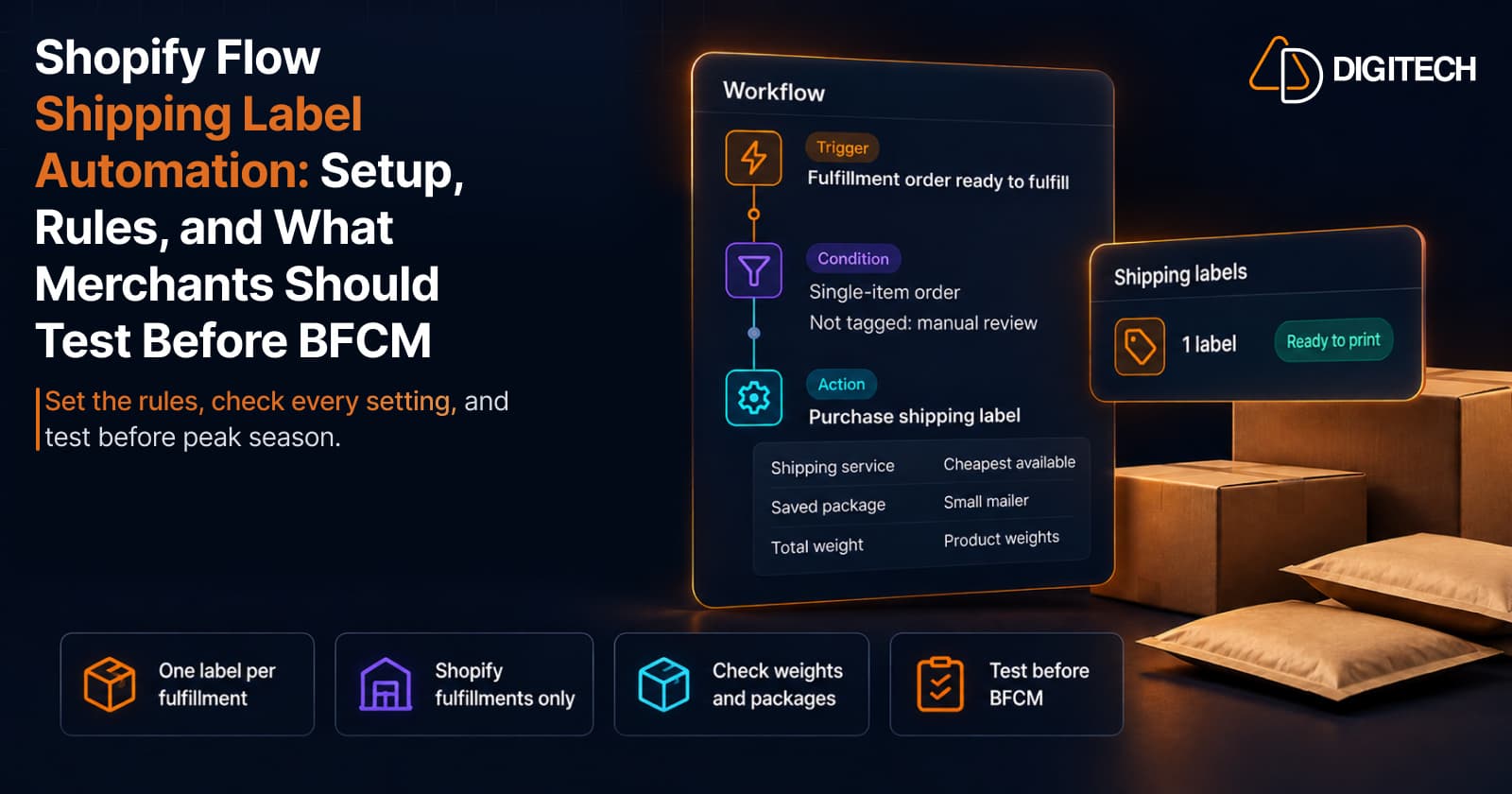
Shopify Flow Shipping Label Automation: Setup, Rules, and What Merchants Should Test Before BFCM
Shopify Flow can now buy shipping labels automatically for orders that match your rules. Here's how the action works, example workflows, and what to test before BFCM.
Read article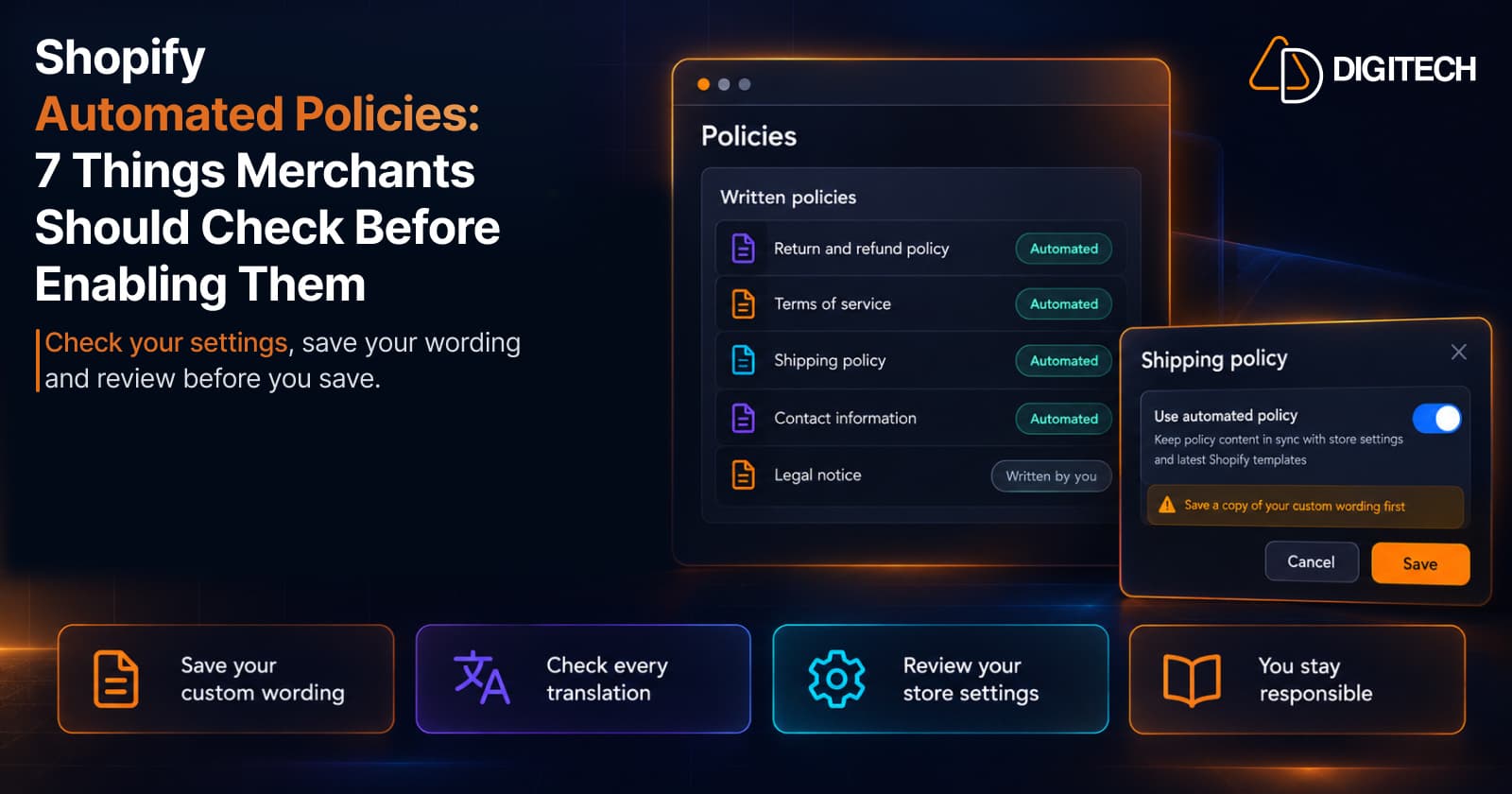
Shopify Automated Policies: 7 Things Merchants Should Check Before Enabling Them
Shopify can now generate and update your return, shipping, terms of service and contact policies from your store settings. Here's what to check before you turn automation on.
Read article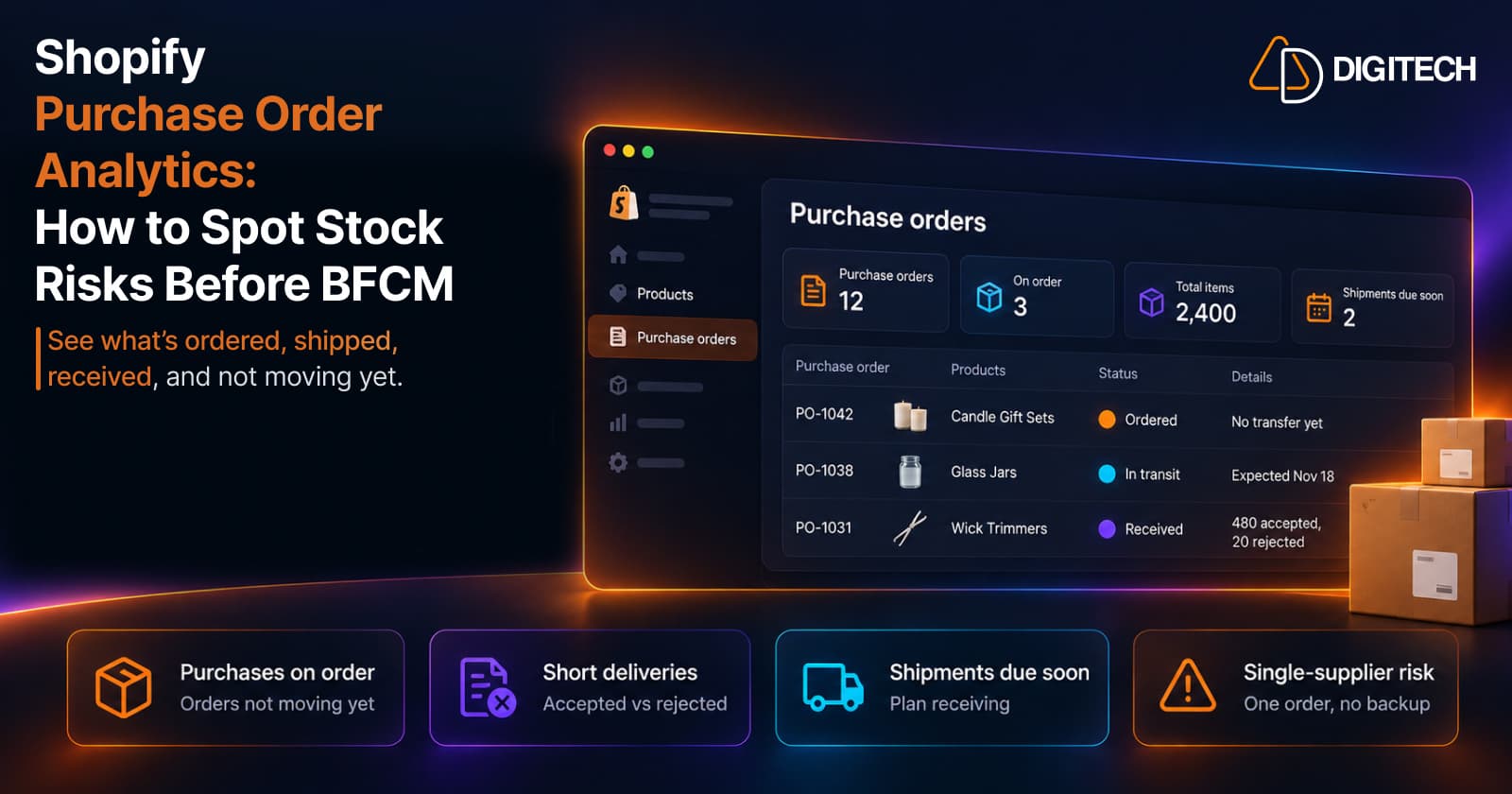
Shopify Purchase Order Analytics: How to Spot Stock Risks Before BFCM
Shopify Analytics now includes purchase order reports. Here's what each report shows, how to use them to spot stock risks before BFCM, and what they can't tell you.
Read article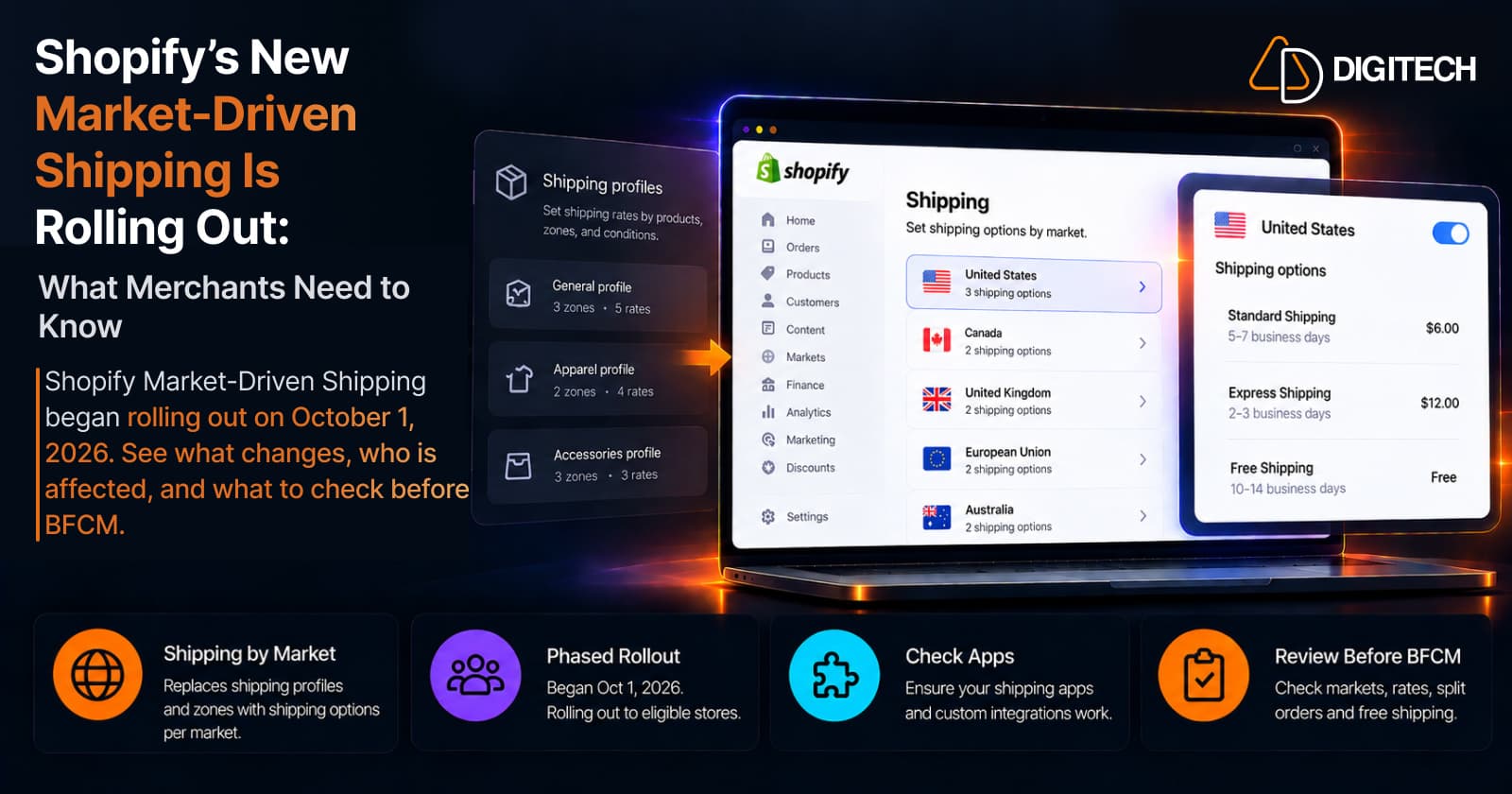
Shopify's New Market-Driven Shipping Is Rolling Out: What Merchants Need to Know
Shopify Market-Driven Shipping began rolling out on October 1, 2026. See what changes, who is affected, and what to check before BFCM.
Read article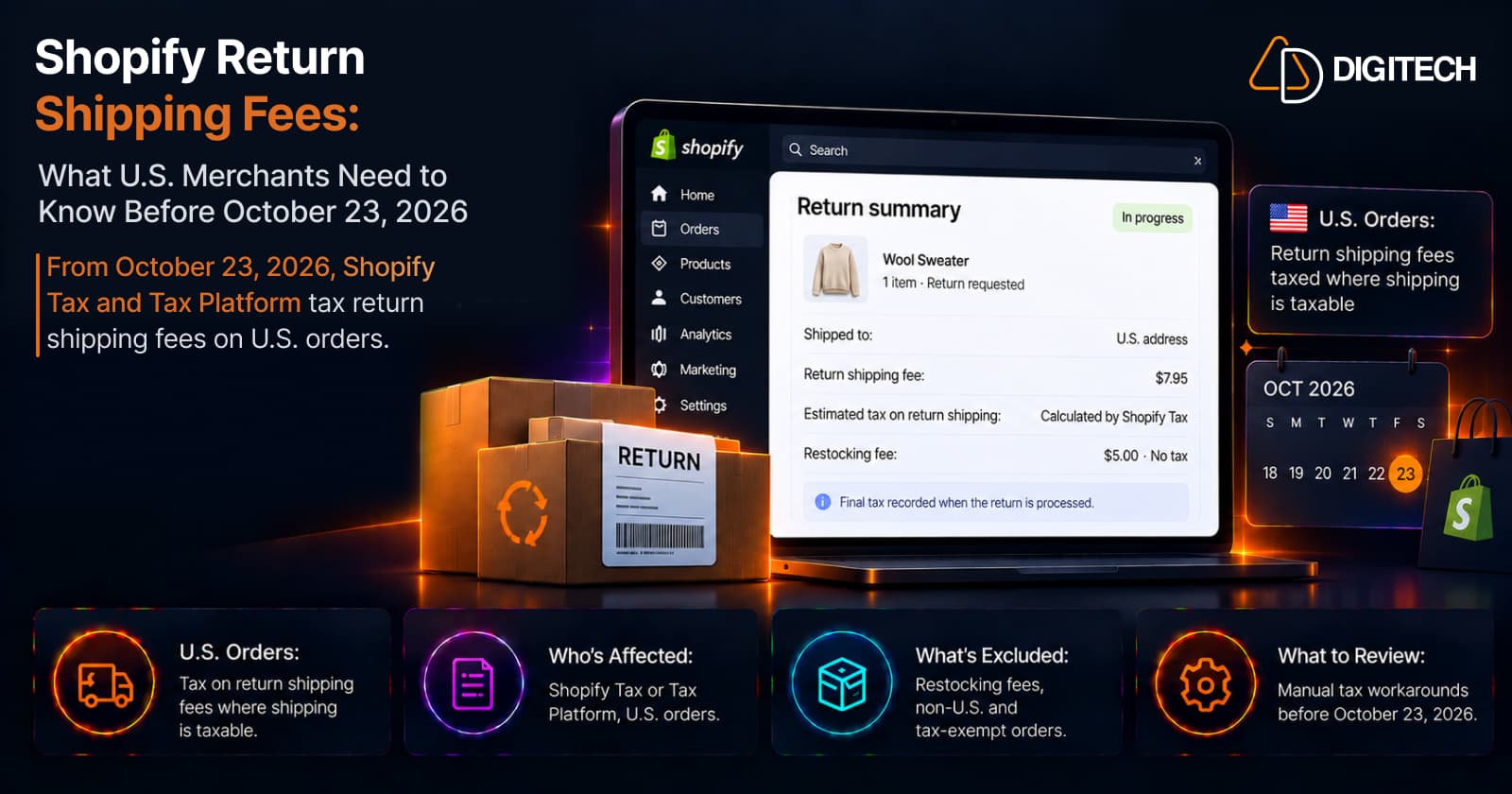
Shopify Return Shipping Fee Tax: What U.S. Merchants Need to Know
Since October 23, 2026, Shopify Tax and Tax Platform calculate tax on return shipping fees for U.S. orders. Who's affected, what's excluded, and what to review.
Read article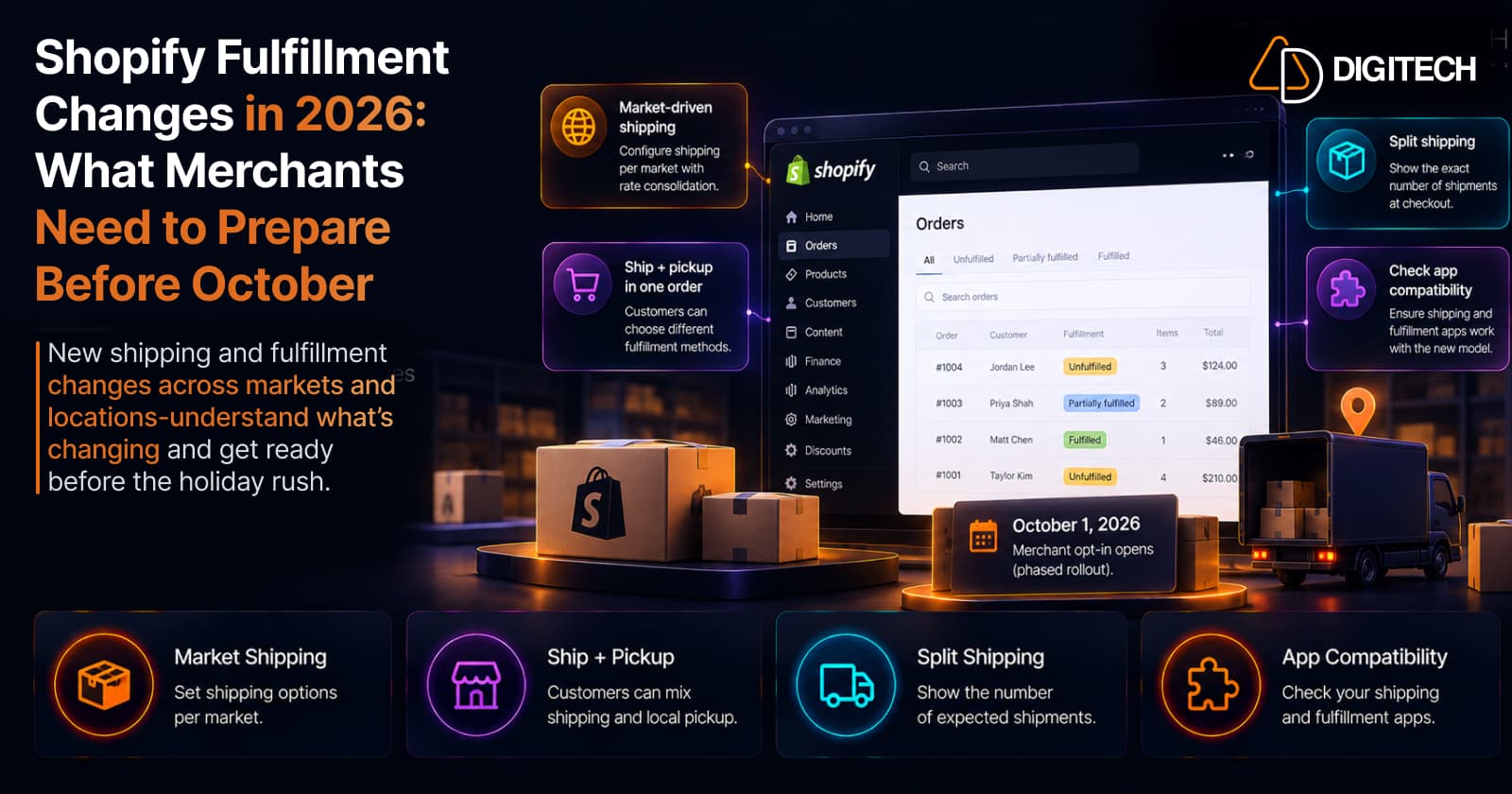
Shopify Fulfillment Changes in 2026: What Merchants Need to Know
Shopify is changing shipping and fulfillment across markets and locations. What October 1, 2026 actually means, who's affected, and what to check before holiday volume — no forced migration.
Read article