Shopify Storefront Performance: How to Find and Fix App-Related Slowdowns
A practical troubleshooting guide to diagnosing app-related Shopify slowdowns: measure a baseline, isolate the culprit one change at a time, and decide whether to configure, replace, remove, or rebuild.
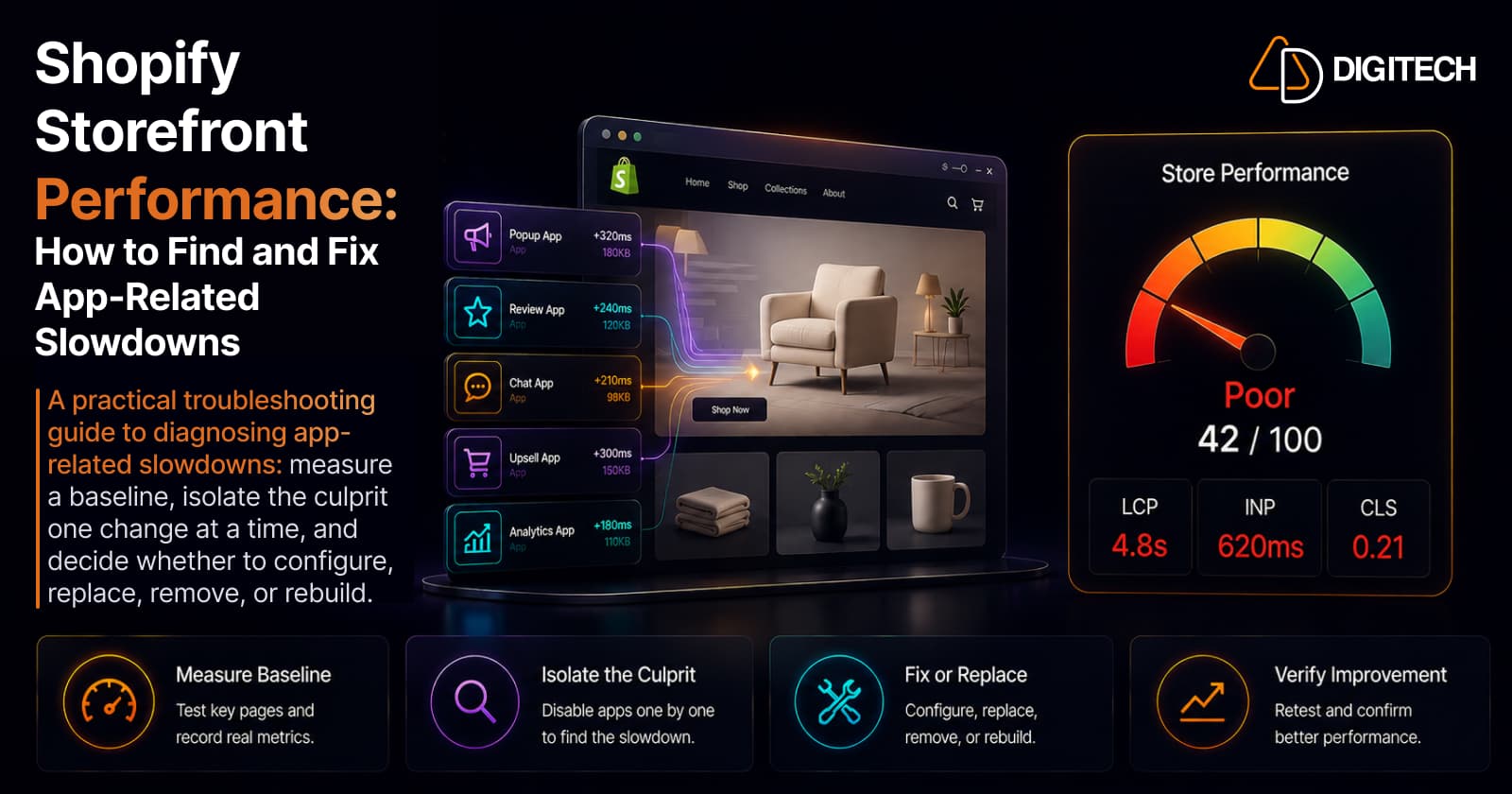
The short version: when a Shopify store slows down after months of adding apps — reviews, loyalty, chat, tracking, upsells, search — the hard question isn't "do apps slow stores down." It's "which one is actually responsible?" The answer is to measure, then isolate the cause one change at a time, before removing anything. This is the troubleshooting process.
We diagnose and fix Shopify performance, so this is the practical follow-up to how third-party apps affect store performance — that post explains the why; this one is how to actually find and fix the problem.
First, confirm it's actually slow
"It feels slow" is a valid signal, but validate it before acting. Common symptoms worth checking: a slow initial load, a sluggish mobile experience, layout that jumps as things load, a delay before the page responds to taps, and scripts that keep loading after the page looks done.
Three metrics summarize this — LCP (load), INP (responsiveness), CLS (layout stability). You don't need a deep dive here; the Core Web Vitals guide covers them. For troubleshooting, just know they're what your measurements will report.
Set a baseline before you touch anything
The single most common mistake is removing apps on a hunch. Measure first, so you have something to compare against.
- Run PageSpeed Insights on the affected pages for real-user field data plus a lab score.
- Use Lighthouse in Chrome DevTools for the detailed render trace and unused-JavaScript report.
- Check Shopify's admin performance report for a per-app hint (treat it as a starting point).
Test the pages that matter — homepage, a product page, a collection page — on both mobile and desktop, since problems often show up on one and not another. And don't treat a single score as the whole truth: lab scores vary run to run, and one number doesn't capture real-world performance across devices.
Where app slowdowns usually come from
Briefly, so you know what you're looking for (the companion post goes deeper): app embeds that render on the storefront, third-party JavaScript, tracking and analytics scripts, an app that hooks into theme code, extra network requests to outside servers, and overlapping tools where two apps do the same job. Any of these can be the cause — which is why you isolate rather than guess.
How to find the culprit
This is the core of it. Work methodically:
- Baseline the affected page (from the step above).
- List every storefront integration — apps, app embeds, tracking scripts, custom scripts, and theme modifications.
- Look for overlap — two review apps, two analytics tools, multiple chat or personalization scripts. Duplicated functionality is a frequent, easy win.
- Test one change at a time. Do not disable ten apps at once — you'll learn nothing. Work on a duplicate/unpublished theme so you never experiment on the live store.
- Re-measure the same page, on the same device type, and compare against the baseline.
- Test multiple page types. A script that hurts product pages may not touch collections, and vice versa.
In DevTools, the Performance profiler is your friend: record a real interaction (open the cart, switch a variant) and look for long tasks over 50ms, then trace them to the third-party domain responsible. Controlled, one-variable-at-a-time testing is what turns "I think it's the reviews app" into proof.
A quick example. Say product pages feel slow to respond (poor INP) and you suspect a live-chat widget. On a duplicate theme, deactivate just that app's embed, then re-run PageSpeed and the DevTools interaction trace on the same product page and compare. If INP improves and the long tasks vanish, you've found it — now decide whether to keep the widget but load it later, replace it, or drop it. If nothing changes, re-activate it and move to the next suspect. One variable, one measurement, every time.
App embed vs uninstalled app
An important distinction that saves wasted effort. You don't always have to uninstall an app to test or reduce its impact.
- App embeds can be toggled in the theme editor (Theme Settings → App embeds) without uninstalling the app. They're deactivated by default on install, and you can deactivate one to test its effect or switch off storefront functionality you don't need.
- Uninstalling an app removes its theme app extension blocks automatically — modern apps clean up after themselves and don't edit theme code.
- The exception is legacy apps. Older integrations that injected scripts or edited theme files directly can leave orphaned "ghost" code behind after uninstall, which keeps loading and can even block theme updates. After removing an older app, search the theme for leftover snippets and confirm its scripts are no longer requested.
It isn't always the app
Protect your credibility (and your time) by not blaming apps reflexively. Slowdowns just as often come from oversized images, autoplay video, too many web fonts, heavy theme customization, large custom JavaScript, or several tracking tools stacked together. The 10 common theme-performance mistakes covers these.
A useful diagnostic question: did this app cause the slowdown, or did it simply expose an existing weakness? Adding one more script to an already-heavy page can be the last straw without being the root cause. A store might blame a newly added upsell app when the real weight is a 4 MB homepage hero image that was there all along — the app just tipped an already-slow page over the edge.
What to do once you find it
Match the fix to the finding — removal is only one of five options:
| Situation | Best move |
|---|---|
| App loads features you don't use | Configure it — turn off unneeded storefront elements |
| Embed runs where it isn't needed | Disable the embed on those pages/where supported |
| A lighter tool does the same job | Replace it |
| The app no longer earns its place | Remove it (and clean up ghost code) |
| The feature is critical but the app is heavy | Custom build it, designed around your store |
And a nuance that prevents bad decisions: don't remove an app just because it adds JavaScript. JavaScript isn't the enemy. Ask what it does, how much it loads, when it loads, whether it blocks important content, and whether it runs on pages that don't need it. A well-scoped script is fine; an unscoped, heavy one isn't.
Re-test and monitor
After each change, re-measure the same page on the same device type and compare to your baseline. Then test the other page types, and watch real-world performance after deploying, because lab results fluctuate between runs. Don't over-read a two-point score change; look for a real, repeatable improvement.
App performance audit checklist
- List every storefront app
- Review active app embeds (Theme Settings → App embeds)
- Review third-party and tracking scripts
- Identify duplicated functionality
- Measure the homepage, a product page, and a collection page
- Test mobile and desktop separately
- Note LCP, INP, and CLS on each
- Test suspicious integrations one at a time on a duplicate theme
- Remove scripts and apps that aren't earning their cost
- Clean up any orphaned code from uninstalled apps
- Re-test after every change against the baseline
- Monitor real-world performance after deploying
Native, app, or custom?
Before adding another app, ask: can Shopify already do this natively? If it can, native functionality often means fewer third-party scripts and less to maintain — though it isn't automatically faster in every case, so still measure.
Custom development becomes worthwhile when a critical feature creates unnecessary dependencies, several apps overlap, or you need a tailored, performance-sensitive experience. But custom isn't automatically faster either; its value is that the implementation can be designed specifically around your store's requirements, loading only what's needed, where it's needed.
The bottom line
Don't guess which app is slowing your store. Measure, then work the sequence: baseline → identify → isolate → fix → re-test → monitor. A good performance strategy isn't about stripping out every app — it's about keeping the functionality that drives real business value while cutting the storefront overhead that doesn't.
Not sure whether an app, theme code, or a custom integration is behind your store's slowdown? AD Digitech can audit the storefront, identify the bottlenecks, and recommend whether to optimize, replace, remove, or custom-build. See our Shopify store development work, or talk to us about your store's performance.
Frequently asked questions
Why did my Shopify store get slower after adding apps?
Usually because each front-end app or embed adds JavaScript, scripts, and network requests that run on your storefront. But don't assume the newest app is the culprit — a slowdown can also come from images, fonts, theme code, or several tools overlapping. The fix is to measure and isolate, not guess.
How do I find which app is slowing my Shopify store?
Establish a baseline with a tool like PageSpeed Insights, list your storefront apps, embeds, and scripts, then test one change at a time on a duplicate theme — disable a suspect, re-measure the same page and device, and compare. Test multiple page types too, since a script may affect product pages but not collections. Controlled, one-at-a-time testing is the only reliable way to pin it down.
Does uninstalling a Shopify app remove all its code?
Not always. Modern theme app extensions (app blocks and app embeds) are removed automatically when you uninstall the app. But older apps that injected scripts or edited theme code directly can leave orphaned 'ghost' code behind. After uninstalling an older app, check your theme's app embeds, search the theme for leftover snippets, and confirm the app's scripts are no longer being requested.
Should I remove an app just because it adds JavaScript?
No. JavaScript isn't automatically bad — what matters is what it does, how much it loads, when it loads, and whether it blocks or delays important content. A small script that loads only where it's needed is fine; a heavy one that runs on every page, even where its feature isn't used, is the problem. Judge the impact, not the presence of JavaScript.
Is native Shopify or a custom build faster than an app?
It depends on the feature and implementation. Native Shopify features can reduce third-party dependencies and scripts, and custom development can be tailored to your store — but neither is automatically faster. Measure the real impact rather than assuming, and choose whatever delivers the business value with the least unnecessary storefront overhead.
Building something on Shopify?
We design, build, and maintain Shopify apps, stores, and AI products — to the standard this article describes.
Related reading
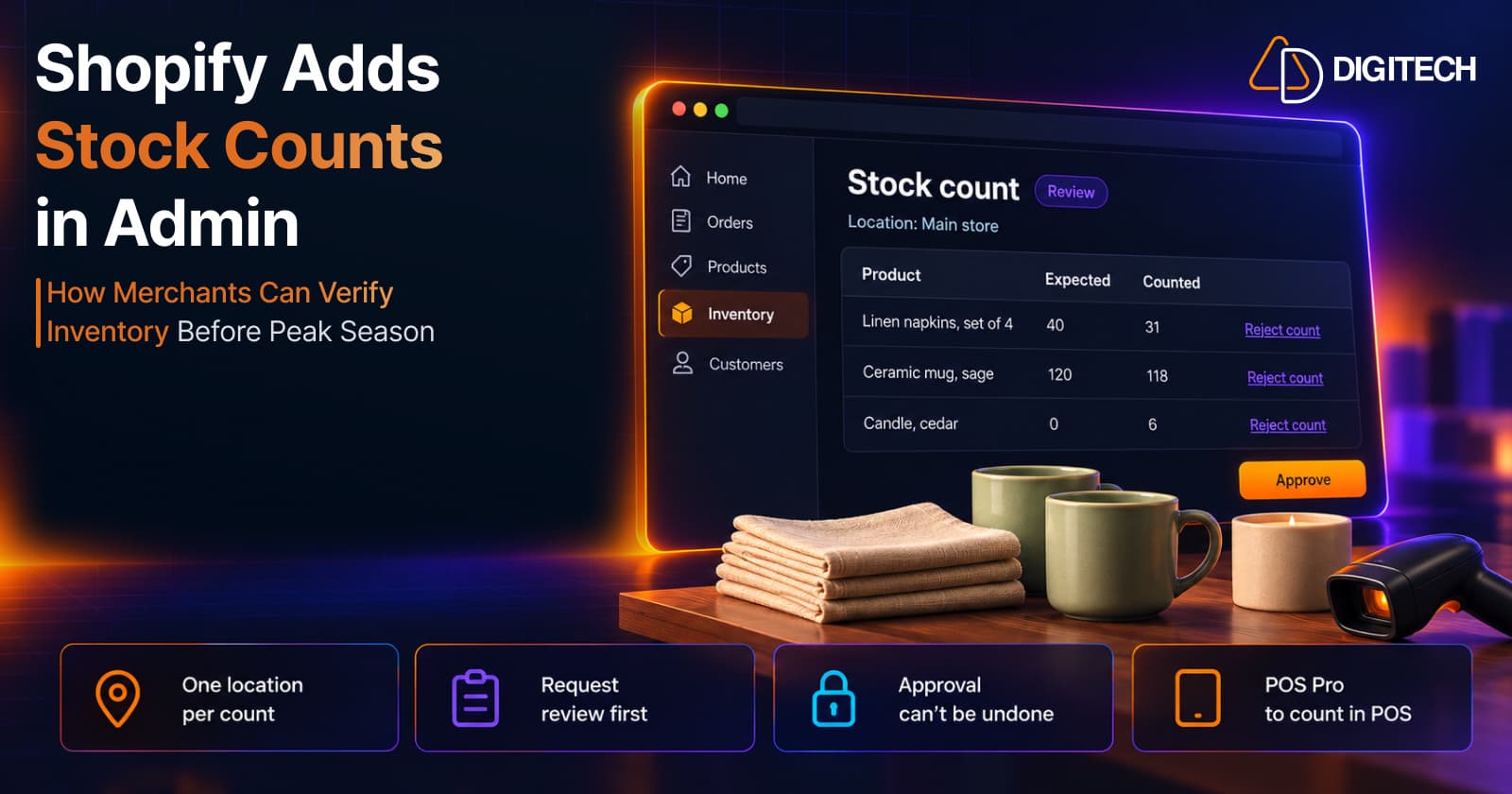
Shopify Adds Stock Counts in Admin: How Merchants Can Verify Inventory Before Peak Season
Shopify stock counts let staff record what's on the shelf and let a manager approve the differences before inventory changes. Here's how the workflow works in admin and POS.
Read article
Shopify Adds Arabic, Urdu, and Hebrew Support: What Merchants Must Check Before Launch
Shopify improved RTL support for Arabic, Urdu and Hebrew in the admin, storefronts and checkout. Here's what's covered, what isn't, and what to test before launch.
Read article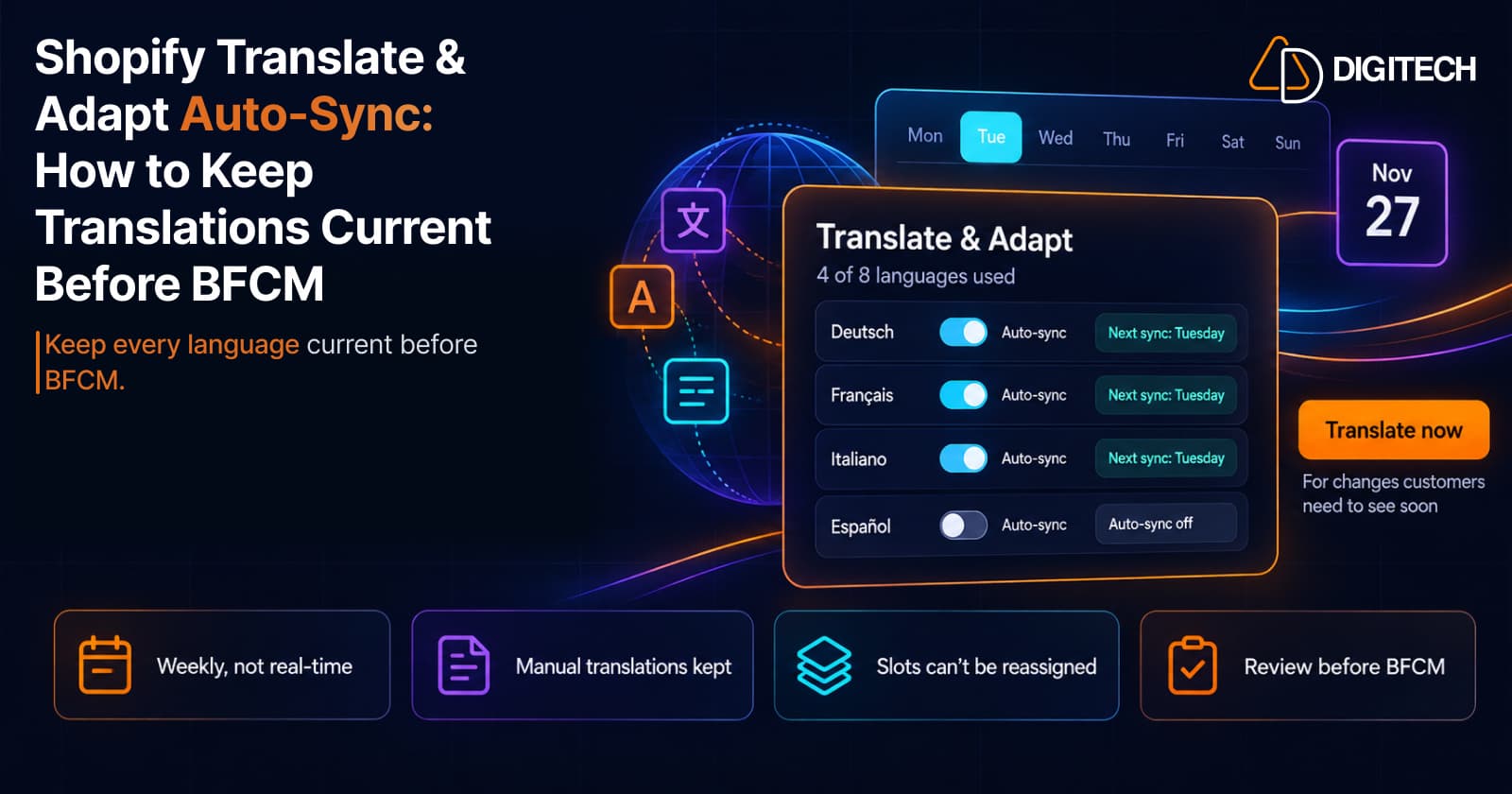
Shopify Translate & Adapt Auto-Sync: How to Keep Translations Current Before BFCM
Translate & Adapt can now update translations weekly with Auto-sync. Here's who can use it, how it differs from Translate now, and how to plan translations before BFCM.
Read article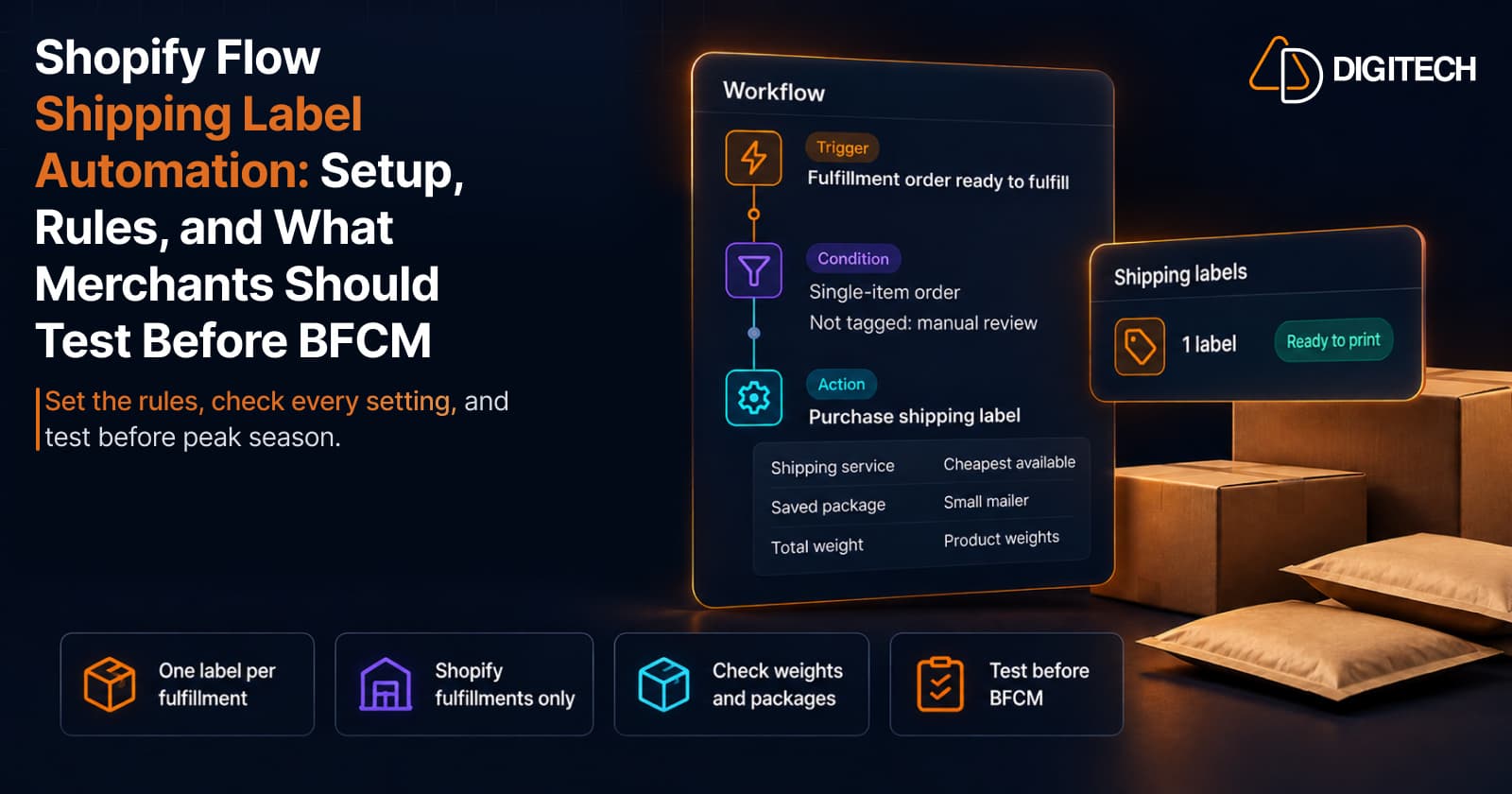
Shopify Flow Shipping Label Automation: Setup, Rules, and What Merchants Should Test Before BFCM
Shopify Flow can now buy shipping labels automatically for orders that match your rules. Here's how the action works, example workflows, and what to test before BFCM.
Read article
Shopify Automated Policies: 7 Things Merchants Should Check Before Enabling Them
Shopify can now generate and update your return, shipping, terms of service and contact policies from your store settings. Here's what to check before you turn automation on.
Read article
Shopify Purchase Order Analytics: How to Spot Stock Risks Before BFCM
Shopify Analytics now includes purchase order reports. Here's what each report shows, how to use them to spot stock risks before BFCM, and what they can't tell you.
Read article
Shopify Rollouts: How Merchants Can Safely Test Store Changes Before BFCM
Learn how Shopify Rollouts let merchants schedule, test, and launch store changes safely before BFCM, including themes, discounts, catalogs, and checkout.
Read article
Shopify Shop Checkout Gets Faster: What Merchants Need to Know
Shopify's October 5, 2026 Shop update brings faster checkout and carts that sync across devices. See how it works, who qualifies and what to check before BFCM.
Read article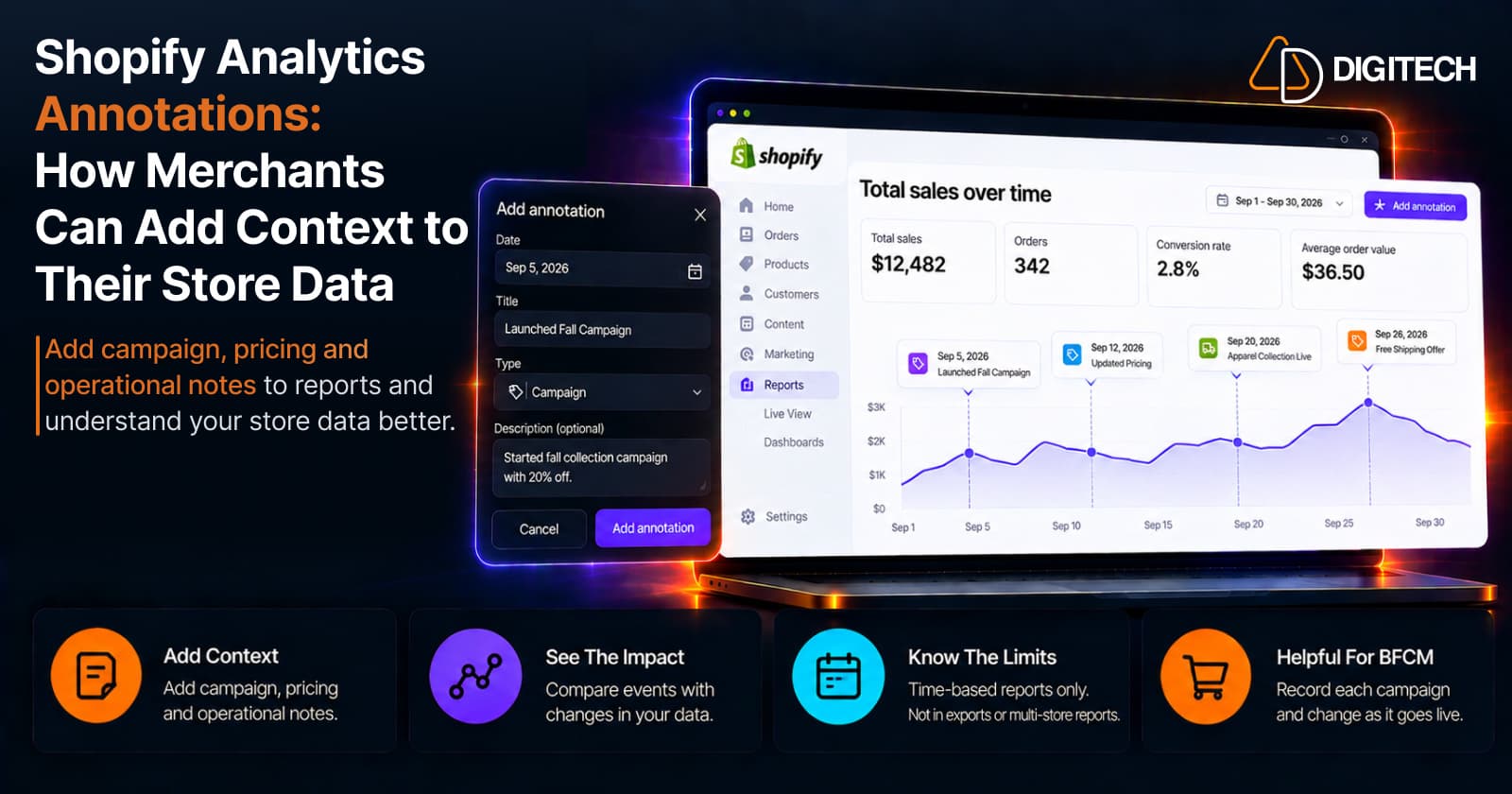
Shopify Analytics Annotations: How Merchants Can Add Context to Their Store Data
Shopify Analytics annotations let merchants add campaign, pricing and operational notes to reports. See how they work, the limits, and how to use them for BFCM.
Read article